Fix a dark or blurry photo on iPhone
Open the photo in LuminaClean’s Photo Rescue, pick Light, Medium or Strong, and an on-device AI model brightens it, sharpens it and restores detail. It saves a new copy with the same date and place; your original stays untouched and nothing is uploaded.
How to do it
- Open LuminaClean, tap Create, then Photo Rescue.
- Pick the dark, blurry or old photo.
- Drag the divider to compare before and after, and choose Light, Medium or Strong. The on-device AI model restores detail, then the photo is brightened.
- Save. A new copy appears next to the original, with the same date and place.
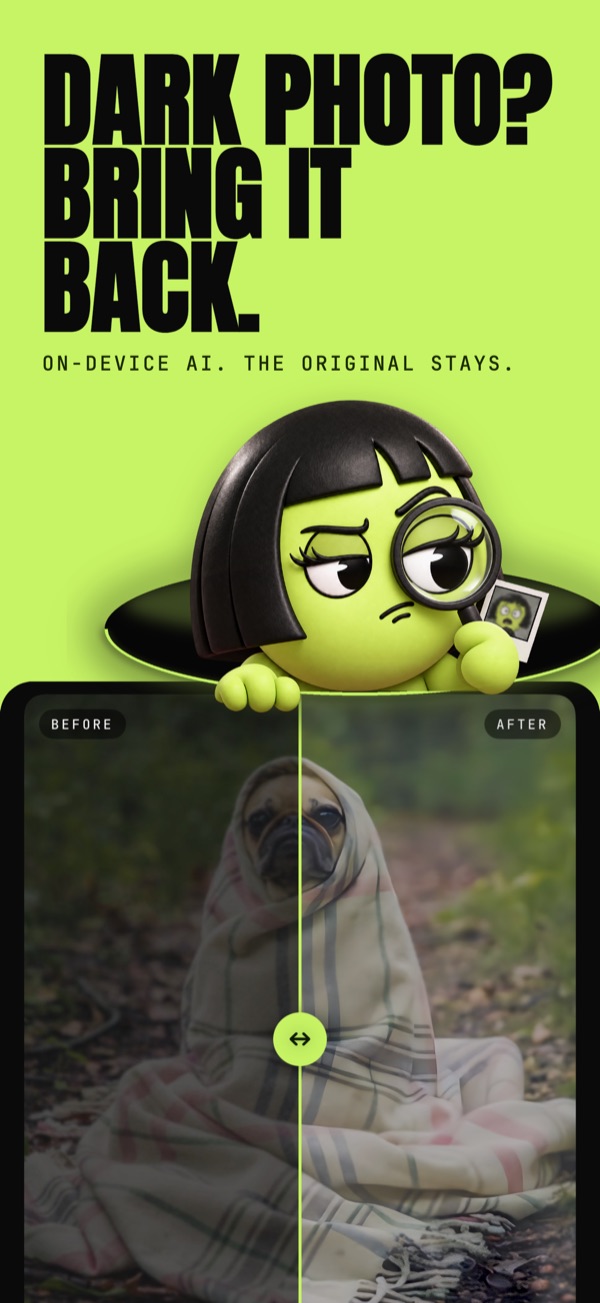
Without an app
Apple’s Photos app can brighten and sharpen too: open the photo, tap Edit, and raise Exposure, Brilliance and Sharpness. That adjusts what is there. Photo Rescue adds an AI model that restores detail, and keeps the result as a separate copy.
Photo Rescue is free.
All three strengths. No Premium needed, no account.
Your photos are analyzed on your iPhone and never uploaded. We only collect anonymous usage stats.
LuminaClean is free on the App Store.
iPhone, iOS 17.6 or later. No account.
Questions
Is Photo Rescue free?
Yes. Photo Rescue is free in LuminaClean, at all three strengths. No account is needed.
Is my photo uploaded to fix it?
No. The AI model runs on your iPhone. The photo is not sent to a server.
Does it replace my original photo?
No. Photo Rescue saves a new copy next to the original, with the same date and place. The original stays untouched.
What do Light, Medium and Strong do?
They set how hard the photo is brightened and sharpened. Start with Light for a photo that is only a bit dark, and use Strong for one that is very dark or soft. Drag the before and after divider to compare before you save.