Turn a video into a Live Wallpaper on iPhone
iPhone can’t use a video as a wallpaper directly, but it can use a Live Photo. In LuminaClean’s Create tab, pick any video, choose the 2-second moment and the cover frame on a Lock Screen preview, and save it as a Live Photo; then add that Live Photo to your Lock Screen.
How to do it
- Open LuminaClean and tap the Create tab, then Live Wallpaper.
- Pick a video from your library.
- Choose the 2-second moment that will move, then the cover frame. Both show on a Lock Screen preview, clock included.
- Tap Save as Live Photo. It lands in your Photos library, and the app shows the three taps that put it on your Lock Screen.
- Lock your iPhone, then press and hold the Lock Screen. Tap +, choose Photos and pick the new Live Photo (it’s the newest one in All). Make sure the Live Photo button, bottom left, is on, then tap Add.
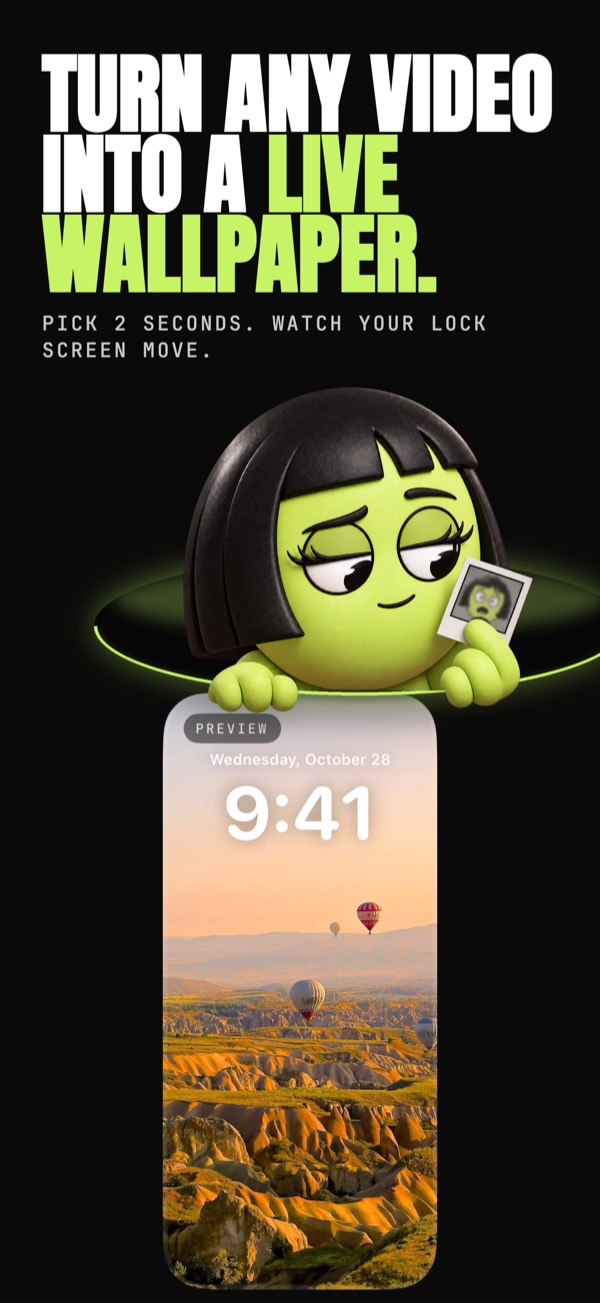
Why 2 seconds: a Live Photo is a still photo with a short clip attached, and that clip is what moves on the Lock Screen. Picking the moment yourself beats letting the phone guess.
Live Wallpapers are free.
No Premium needed, no account.
Your photos are analyzed on your iPhone and never uploaded. We only collect anonymous usage stats.
LuminaClean is free on the App Store.
iPhone, iOS 17.6 or later. No account.
Questions
Is it free to turn a video into a Live Wallpaper?
Yes. Live Wallpapers are free in LuminaClean for everyone. There is no account to create and no Premium needed for this feature.
How long is the moving part of the wallpaper?
Two seconds. You choose which 2 seconds of the video move and which frame is the cover, on a preview that looks like your Lock Screen.
Can I use any video?
Any video in your Photos library. LuminaClean turns the moment you pick into a Live Photo, which is the format iPhone accepts for a moving Lock Screen wallpaper.
How do I set it as my Lock Screen?
Apps can’t set wallpapers themselves, so it takes three taps after you save: press and hold the Lock Screen, tap +, choose Photos and pick the new Live Photo (the newest one in All), then make sure the Live Photo button is on and tap Add. LuminaClean shows these steps after saving.