October 1, 2026
What Is Video Compression: Explain It Simply
Video compression shrinks files by removing redundant data, trading a little visual quality for much smaller storage size. With H.265, a 10-minute 4K video that might be about 2 GB in H.264 can shrink to roughly 1 GB at similar quality.
The problem usually appears at the worst moment. An iPhone warns that storage is full just as someone is about to take a photo, install an update, or save a video from a trip. Photos matter, but long, high-resolution clips often consume the most space because they contain many frames, each carrying a large amount of visual information.
Table of Contents
- Video Compression in Plain Language
- How Compression Actually Removes Data
- Lossy Versus Lossless Compression Explained
- H.264 and HEVC Codecs Compared
- When to Compress, Trim, or Leave Video Alone
- Real iPhone Cleanup Scenarios
- Key Takeaways for iPhone Storage
Video Compression in Plain Language
Video compression reduces a video's file size by removing information the viewer is unlikely to notice. The compressed file keeps the story, motion, colors, and important details, but stores them more efficiently than the original camera data.
An iPhone camera captures far more information than a finished clip needs for ordinary playback. A video contains repeated backgrounds, similar neighboring frames, and visual details that can be simplified without making the scene look dramatically different. Compression identifies that repetition and avoids storing every piece in full, over and over.
That's why compression can free storage without requiring a user to delete a memory. A long vacation video remains available, but its file takes up less room in the camera roll.
Practical rule: The larger and longer the video, the more useful compression usually becomes.
Compression isn't one single switch. It can involve changing the codec, which is the method used to encode video, lowering the bitrate, reducing resolution, or changing the frame rate. Each choice affects file size, image quality, playback compatibility, or encoding time.
A person who needs to shrink clips before uploading may choose a smaller file for a messaging app or website. An iPhone owner clearing storage may instead preserve the resolution while selecting a more efficient codec. The right option depends on whether the priority is saving space, sharing quickly, or preserving the original for later editing.
The key distinction is simple: the camera's original data is not the same as the compressed output. Compression turns the first version into a more practical file for storage, sharing, or playback. For everyday camera-roll maintenance, that difference can make large videos the fastest place to recover meaningful space.
How Compression Actually Removes Data
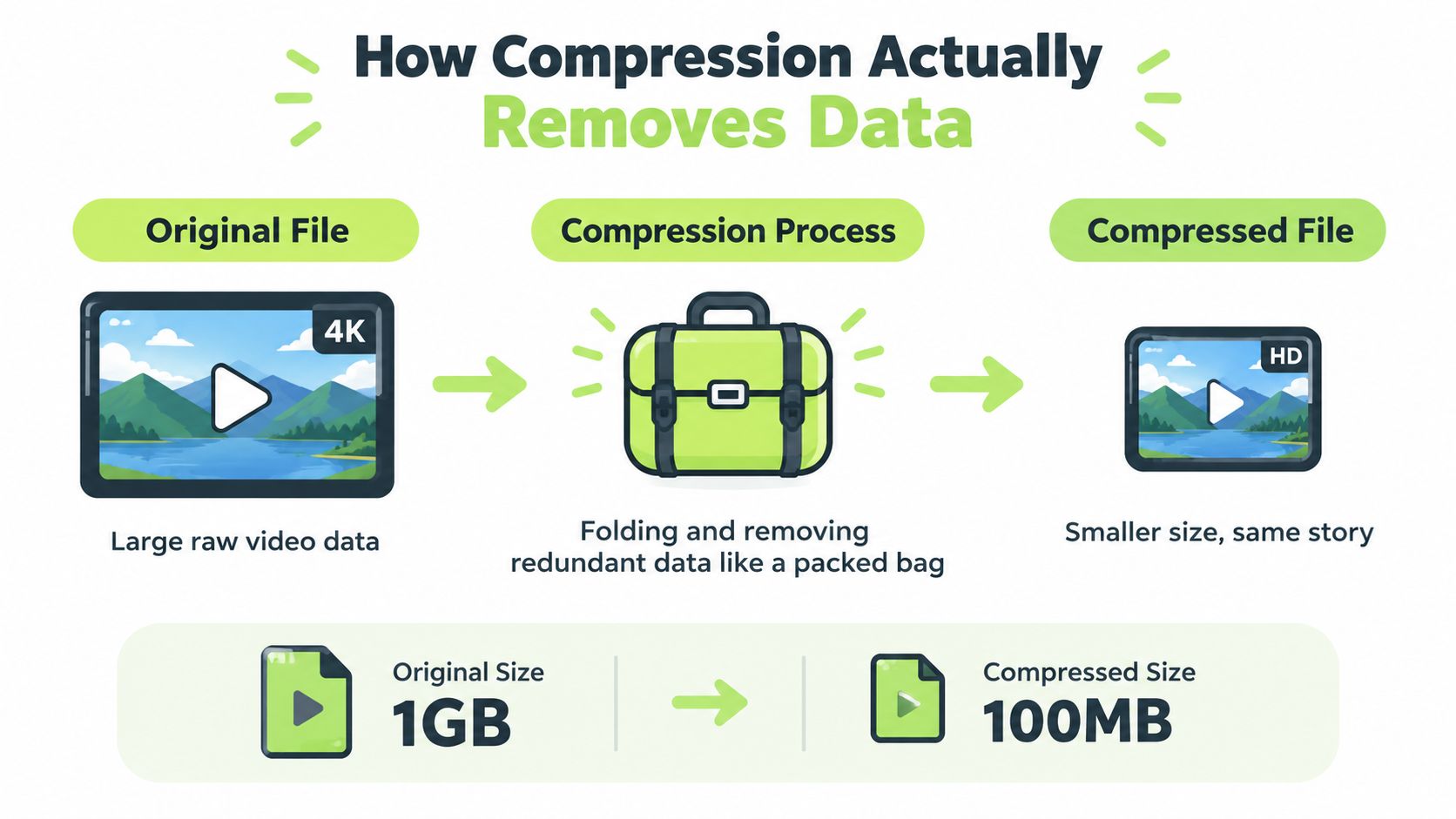
A useful analogy is a suitcase. An unpacked suitcase wastes room because clothes sit loosely and repeated items take up separate space. Folding the clothes, grouping similar items, and removing things that aren't needed creates a smaller bag without changing the purpose of the trip.
Video codecs use a similar idea. Spatial redundancy refers to repetition within one frame. A blue sky, a plain wall, or a large area of pavement doesn't need every tiny region to be described independently when neighboring areas look alike. The encoder can represent that area more efficiently.
Temporal redundancy refers to repetition between frames. In a mostly stationary scene, the background stays nearly the same while only a person, pet, or passing car moves. The video doesn't need to rebuild the entire scene from scratch for every frame. It can retain the stable information and describe the changes.
The two controls that matter most
Resolution describes how much visual detail appears in each frame. A higher-resolution clip contains more image information, so it generally creates a larger file. Bitrate describes how much data the video uses over time. A higher bitrate usually preserves more quality, but it also increases storage use. MAGIX explains the connection between resolution, bitrate, and video size.
Duration matters too. A longer clip gives the bitrate more time to accumulate data. One practical guide describes file size as bitrate multiplied by duration, which is why an extended recording can consume far more space than a short clip at similar settings. This bitrate and duration explanation helps clarify why a 10-minute 4K video can reach gigabytes while a brief lower-resolution clip may remain manageable.
Compression always involves a rate-distortion trade-off. Lower data use can produce a smaller file, but aggressive settings may soften details, create blocky textures, or blur fast motion. The goal isn't the smallest possible file. It's a file that saves useful storage while still looking good on the device and screen where it will be watched.
Lossy Versus Lossless Compression Explained
The most important difference between lossy and lossless compression is whether the process permanently removes any original visual information.
Lossy compression simplifies or discards details that viewers may not notice. Once those details are removed, the compressed file can't restore them perfectly. This approach is common for sharing, streaming, and practical storage because it can create much smaller files. A long family recording can remain easy to watch while occupying far less room on an iPhone.
Lossless compression preserves the original information so the video can be reconstructed exactly. That makes it useful for specialized archival, editing, or professional workflows where every pixel matters. The trade-off is a much larger file, which reduces the storage benefit for an ordinary camera roll.
Choosing between the two
A raw original may be worth keeping when the clip has lasting editing value, contains irreplaceable detail, or serves as a master copy for future work. A compressed copy makes more sense when the video is a casual recording, a finished memory, or a file that needs to be uploaded and shared.
For example, a person might keep an untouched original of an important family event while compressing several long travel clips before sending them to relatives. The decision depends on the role of the video, not just its current size.
Rule of thumb: Keep lossless or original-quality files for material that may be edited or preserved professionally. Choose carefully controlled lossy compression for routine iPhone cleanup and everyday sharing.
Lossy doesn't automatically mean visibly poor quality. The result depends on the codec, bitrate, resolution, motion, lighting, and viewing conditions. A moderate reduction may be difficult to notice, while an aggressive reduction can make faces, text, and fast movement look soft.
H.264 and HEVC Codecs Compared
H.264, also called AVC, became a major standard when it was published in 2003. Its efficient video encoding helped make HDTV, mobile video, and web streaming more practical, and it remains widely supported across devices and services.
HEVC, also called H.265, is a later generation designed to deliver similar visual quality with less data. Adobe describes HEVC as commonly providing about 40 to 50% better compression than H.264 at equivalent visual quality. In a practical example, a 10-minute 4K clip that might be about 2 GB in H.264 can shrink to roughly 1 GB with H.265 under similar quality settings. Adobe's H.264 and H.265 comparison explains why codec choice has a direct effect on iPhone storage.
A long standards journey
The idea behind modern codecs is older than smartphones. R.D. Kell proposed sending only the parts of a scene that change from frame to frame in 1929, and H.120 became the first digital video coding standard in 1984. H.261 followed in 1988, while H.262/MPEG-2 arrived in 1995 and helped support DVD and digital television adoption. This video compression standards timeline shows how early redundancy-reduction ideas developed into a global standards ecosystem.
The timeline continued with H.264 in 2003, HEVC in 2013, and VVC in 2020. The ITU overview of audiovisual standards places those generations in the broader evolution of digital video.
| Codec | Typical efficiency | Best for |
|---|---|---|
| H.264 | Larger files at comparable quality | Broad compatibility and easy playback |
| HEVC/H.265 | About 40 to 50% better compression than H.264 at equivalent visual quality | Large, high-resolution clips where storage matters |
HEVC isn't automatically the right choice for every recipient. Compatibility still matters when a clip will be opened on an older device, edited in a specific program, or uploaded to a service with format restrictions. A guide on how to choose a video format for tours can help when delivery requirements matter as much as file size.
For iPhone storage cleanup, the practical lesson is straightforward. Large, high-resolution clips benefit most from an efficient codec because the savings compound across every long recording.
When to Compress, Trim, or Leave Video Alone
Compression is only one cleanup option. A video can also become smaller through bitrate control, resolution changes, frame-rate changes, codec selection, or trimming, and each method solves a different problem. Dacast's explanation of video encoding outlines these choices and the trade-offs behind them.
A simple decision process keeps the wrong files from being changed.
Start with the largest clips
Large, high-bitrate videos should usually come first. Benchmarking work using metrics such as PSNR and SSIM reports that HEVC can reduce bitrate by nearly half compared with H.264 in many settings while maintaining comparable quality scores. The video compression benchmark discussion supports prioritizing files that can return the most storage per compression operation.
A long 4K recording with relatively little meaningful content may be a better target than many short, already-small clips. Compression time and compatibility considerations make file selection important.
Match the action to the video
- Trim first: Remove an accidental recording, a long pause, or unused footage before compressing the remaining story. Trimming can eliminate content rather than merely encoding it more efficiently.
- Compress for storage: Use lossy compression for a finished memory that needs to stay on the iPhone but doesn't need to remain an editing master.
- Lower resolution for sharing: A smaller resolution can help when a social platform or messaging recipient doesn't need the original detail. This is a delivery decision, not necessarily a permanent replacement for the original.
- Leave important originals alone: Preserve footage that may be edited, printed, studied, or used as the source for another project. Storage recovery isn't worth weakening an irreplaceable master.
Keep the original when the video has future value. Save space on recordings whose purpose is already finished.
A privacy-conscious iPhone owner may also want a cleanup path that doesn't upload personal media. This guide to iPhone transfers when storage is insufficient provides related storage context, especially when a full device complicates moving or backing up content.
Real iPhone Cleanup Scenarios
A vacation camera roll often contains a few long clips that matter more than dozens of ordinary photos. A person may want to keep the sunset, the family gathering, and the train ride, while trimming shaky starts and compressing large finished videos for space.
Another common pile consists of recordings made for convenience and never shared. A parent may have several long clips of children playing, while a content creator may have unused takes that are no longer needed. The right order is review, trim what has no value, compress worthwhile footage, and preserve anything that may need future editing.

For an on-device workflow, LuminaClean scans on the iPhone for large videos and offers free video compression. Photos stay on the iPhone, with no cloud processing and no account required. The app also finds exact duplicates, visually similar photos, blurry photos, and screenshots, while deletion requires the user's swipe or confirmation.
Deleted items aren't immediately erased from the device. Apple says deleted photos and videos remain in Recently Deleted for 30 days before permanent removal, so a cleanup session still includes a recovery window. More storage guidance is available in this explanation of why iPhone storage stays full.
Key Takeaways for iPhone Storage
Video compression removes redundant data to create a smaller file, usually with a controlled loss of visual detail. For everyday iPhone cleanup, lossy compression is generally practical, and HEVC can save substantially more space than H.264 on large clips. Big files should be reviewed first, important originals should stay protected, and privacy-sensitive workflows should remain on-device. Understanding Recently Deleted storage can prevent confusion after cleanup.
When an iPhone is running low on space, the next useful step is to sort videos by size, decide which recordings deserve their original quality, and compress or trim the rest. iPhone users who want a local review can try LuminaClean's free video compression and cleanup tools, with 65 free deletes to start and 10 more each day. An optional Premium subscription is available for clearing a larger backlog at once, with weekly and yearly plans listed in the app. Further details are available through the LuminaClean App Store listing.
Clean up your camera roll in minutes.
LuminaClean scans on-device, groups duplicates, similar shots, screenshots and blurry photos, and deletes only what you confirm. Free to start, no account.