October 27, 2026
Find Large Files on iPhone: Storage Methods That Work
The iPhone displays a storage warning just as someone tries to record a video. Deleting a few screenshots barely changes the storage bar, and the biggest video might be the only recording of a family milestone. Meanwhile, iCloud shows plenty of space, which makes the warning even more confusing.
The practical fix starts with separating what occupies the iPhone from what belongs to the synced photo library. Finding something large is only useful when its local size, importance, and deletion consequences are clear.
Table of Contents
- Which Method Finds Your Biggest Files Fastest
- How to Check Storage Hogs in iPhone Settings
- How to Find Large Videos and Copies in Photos
- How to Find Large Downloads in the Files App
- How to Estimate Space You Can Recover
- Decide What to Delete and Start Cleaning
Which Method Finds Your Biggest Files Fastest
Start in Settings to locate the biggest storage category, then open the tool that handles those files. There isn't a single built-in screen that ranks every file on an iPhone by size.
Settings provides app and category totals. Photos handles the camera library. Files handles downloads and documents stored in accessible folders. Choosing the wrong tool leads to plenty of scrolling without finding the actual storage problem.
Where to look for large files on iPhone
| Method | What it shows | Finds | Best for |
|---|---|---|---|
| Settings > General > iPhone Storage | App and category totals, plus recommendations | Big apps, Photos total, Messages attachments | Seeing where space goes first |
| Photos > Collections > Utilities > Duplicates | Duplicate groups for exact copies | Exact copies only | Clearing repeated photos and videos |
| Files > Browse > On My iPhone | File names, dates and sizes | Downloads, exports, documents | Large non-photo files |
| LuminaClean (third-party, on-device) | Grouped review of photos and videos | Exact and similar duplicates, blurry shots, screenshots, large videos | Cleaning the whole photo library in one pass |
Use the table from top to bottom, stopping at the tool that matches the largest category. A large Photos total calls for media review; an editing app with substantial documents calls for checking projects and exports. Messages attachments need their own review rather than a search through Downloads.
A storage total identifies where to investigate. It doesn't establish that anything inside that category is safe to delete.
To find large files efficiently, keep the search narrow. An unused downloaded movie is a different cleanup task from a camera roll filled with repeated shots, even when both consume similar amounts of space.
How to Check Storage Hogs in iPhone Settings
Open the storage overview before deleting anything. This screen helps distinguish an oversized photo library from app downloads, message attachments, and documents that a photo cleaner won't address.
The menu sequence is straightforward:
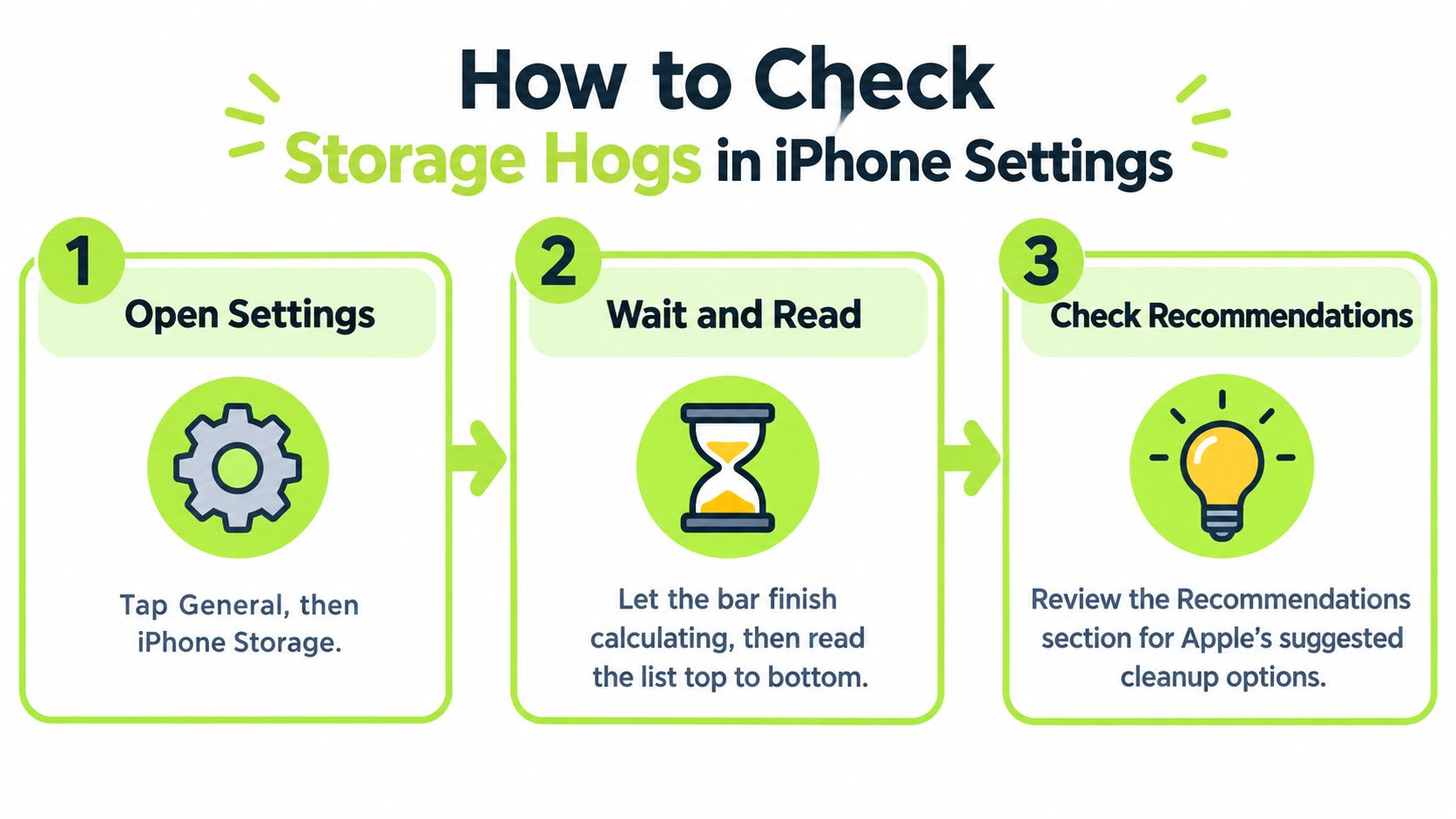
- Open Settings > General > iPhone Storage. Allow the storage bar and app list to finish calculating before deciding which category needs attention.
- Read the app list from top to bottom. Record the leading categories and their displayed sizes so there's a clear starting point.
- Check Recommendations. Available suggestions may include reviewing large attachments or offloading unused apps; open each suggestion before accepting it.
- Tap Photos to inspect its local storage total. To verify optimization, open Settings > Apps > Photos, or Settings > Photos where that menu appears, and check the iCloud Photos options.
- Open Messages in the storage list and inspect available attachment categories. Video clips and photos retained in conversations can occupy space separately from the camera library.
- Scan for large apps that are no longer useful. Open an app's entry to compare the app itself with its Documents & Data before choosing an action.
Understand the local number
With Optimize iPhone Storage enabled, the Photos total isn't necessarily the size of the full library. Apple's photo-storage guide explains that space-saving versions can remain on the device while full-resolution originals stay in iCloud.
iCloud Photos is synchronization, not an independent deletion-proof archive. Deleting a synced photo can remove it from the library across connected devices. Before bulk cleanup, verify that anything irreplaceable has a separate, usable copy.
Offloading and deleting apps also serve different purposes. Offload App removes the app software but preserves its documents and data for reinstallation; Delete App removes the app and its associated local data. Neither action should substitute for checking whether an important project exists elsewhere.
A large Documents & Data figure often needs attention inside the app itself. Downloaded episodes, offline maps, and editing projects may have their own removal controls.
How to Find Large Videos and Copies in Photos
Open Photos > Collections > Utilities > Duplicates to begin with repeated photos and videos. On layouts without a Collections tab, scroll through the Photos collections to locate Utilities.
Duplicate review is a safer starting point than deleting unique footage purely because it's large.
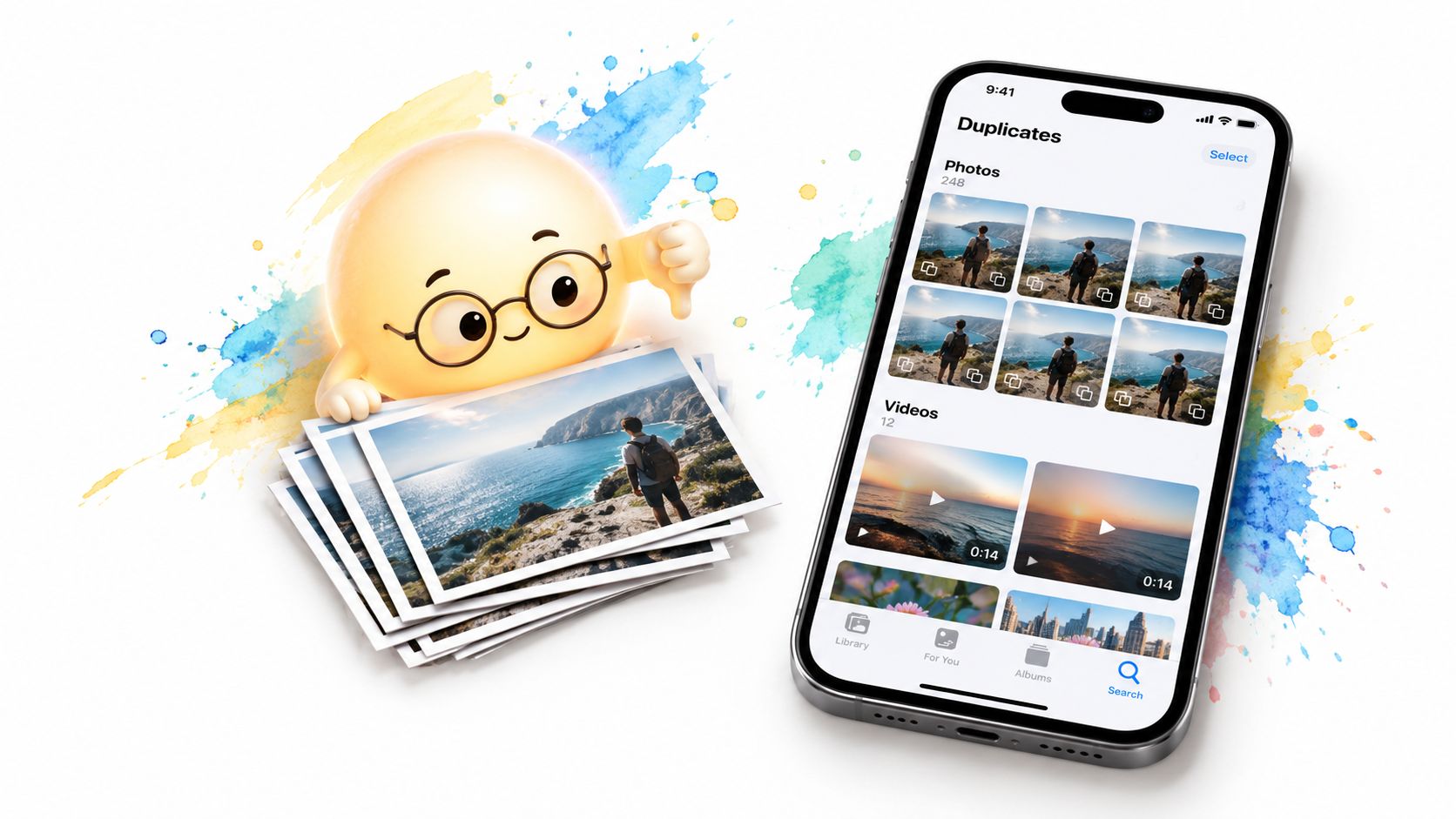
- Inspect each duplicate group. Compare the items before choosing Merge, particularly when edited versions contain intentional changes.
- Choose Merge for confirmed copies. According to Apple's duplicate-merging guide, Photos combines the highest-quality image and relevant data, retains a result, and moves the remaining duplicates to Recently Deleted.
- Open Videos under Media Types or Albums, depending on the Photos layout. Review longer clips, screen recordings, and high-resolution footage, then open an individual video's information panel for its details.
- Visit Recently Deleted after the review is final. Permanently remove only items that no longer need the recovery option.
The Duplicates album catches exact copies, not the slightly different expressions or framing in repeated family shots. It also doesn't provide a general size-sorted list of every video.
When Duplicates appears empty
An empty or missing album doesn't necessarily mean the library contains no duplicates. Apple's duplicate-detection guidance says processing requires the iPhone to be locked and connected to power, and completion can take from a short time to several days.
After a large import, leave the phone charging overnight and check again. Visually similar photos still need a separate review method; waiting longer won't turn Duplicates into a similar-photo finder.
The guide to deleting duplicate photos on iPhone provides a focused workflow for comparing and clearing repeated images.
For a visual walkthrough, the embedded video provides another way to follow the cleanup process.
Duration is useful for triage, but it isn't a reliable size measurement. A short clip recorded in a demanding format can occupy more storage than a longer, more compressed recording.
How to Find Large Downloads in the Files App
A downloaded movie, exported video edit, archive, or PDF may never appear in Photos. Files is the right place to investigate those items, especially after an editing or file-transfer app appears near the top of iPhone Storage.
Inspect local folders first
- Open Files, then tap Browse. If a document is already open, return to the location list.
- Select On My iPhone. This separates accessible local folders from iCloud Drive and other connected storage providers.
- Open Downloads, if present. Tap the More button and look for Sort By > Size, or a Size option; switch to list view when available to inspect file details.
- Check folders belonging to editing, recording, and file-transfer apps. Look for abandoned projects, exported versions, and source files that have already been preserved elsewhere.
- Long-press a candidate and choose Get Info, Share, or Delete. Open the file before removing it if its name doesn't clearly identify the contents.
Menu wording changes between iOS layouts and storage providers. Look for Sort By, Size, or the list-view icon rather than expecting identical controls everywhere. If Downloads isn't under On My iPhone, inspect its location under iCloud Drive.
Check before removing an export
Size sorting can bring a large export to the top, but it can't determine whether that export is the only finished copy. A hypothetical 2 GB video might be disposable working material or the sole deliverable from a completed project.
Sharing or copying a file elsewhere only helps after the destination copy has been opened and checked. In iCloud Drive, Remove Download, when offered, removes the local downloaded copy without deleting the cloud file; Delete has a different effect.
Files doesn't list the Photos library, and On My iPhone doesn't expose every app's private storage. Missing files may require review inside the app that created or downloaded them.
How to Estimate Space You Can Recover
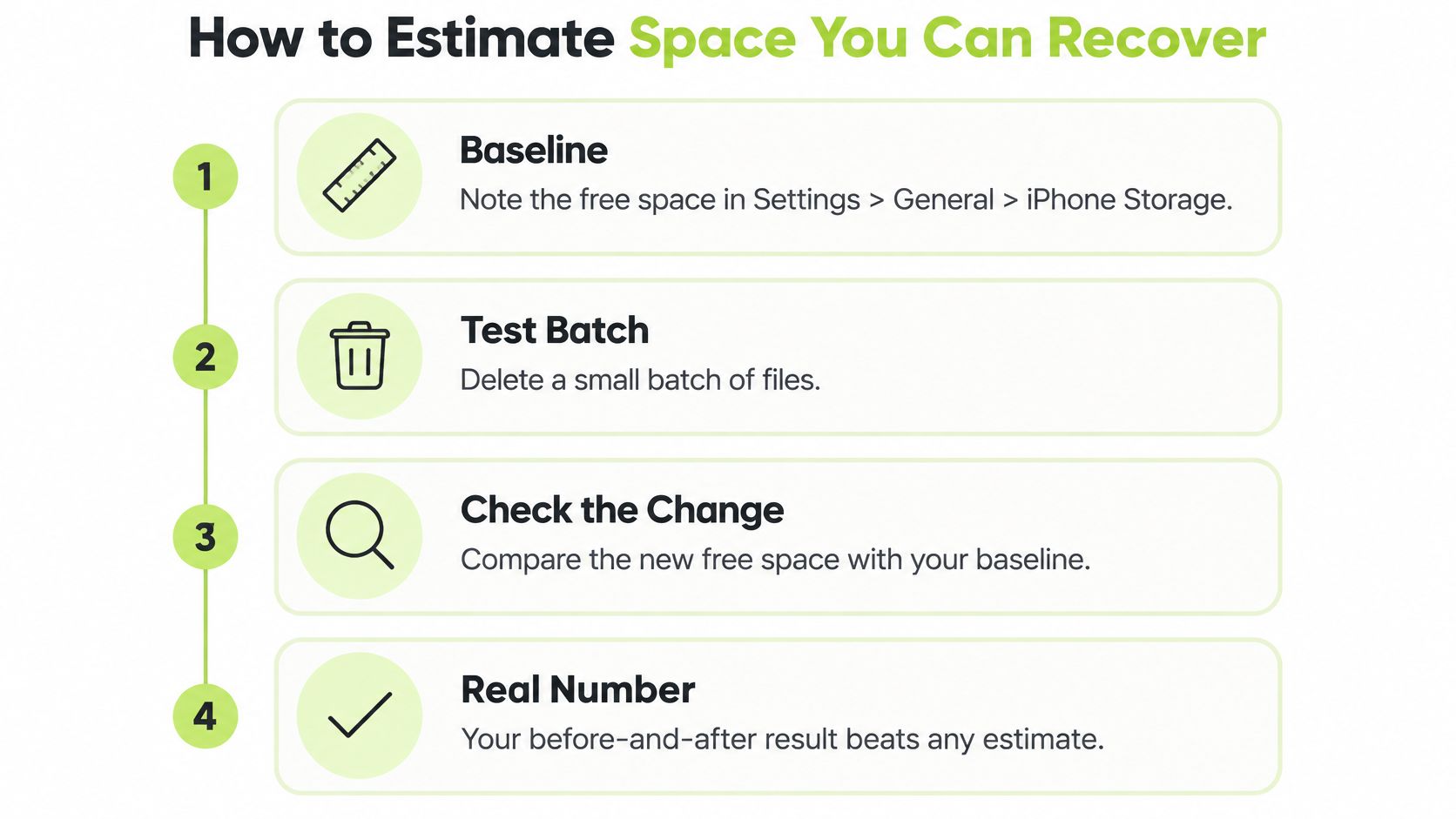
A measured before-and-after change is more useful than an optimistic cleanup total. Record available space in Settings > General > iPhone Storage, remove a small batch of clearly disposable files, and check the storage figure again after it updates.
For a meaningful test, account for items still waiting in Recently Deleted. Don't permanently erase uncertain files merely to produce a cleaner measurement.
This process separates an estimate from space actually recovered:
How to estimate recoverable space by clutter type
| Clutter type | How to estimate | What to know |
|---|---|---|
| Exact duplicates | Count only the extra copies and their sizes | Merging keeps one copy; the extras go to Recently Deleted |
| Large videos | Length in minutes times the recording's per-minute size | Keepers may be irreplaceable, so check before deleting |
| Screenshots | As a test, delete a batch of about 20 and check the free-space change | Each one is usually small, so the total builds slowly |
| Blurry or similar shots | Measure a representative burst set and multiply by the number of comparable sets | Sets often hold several near-copies |
| Recently Deleted | Total the local size of items still in the folder | Counts as used until emptied or the recovery period expires |
| iCloud-optimized originals | Use local size on the iPhone, not the iCloud original | Deleting may affect the whole synced library, so confirm first |
Treat averages as a starting point
Digital Journal's analysis of file-size growth put the average photo file size in 2024 at 7 MB and video files at 500 MB per minute. Those figures aren't dependable predictions for an individual iPhone library.
Recording resolution, frame rate, compression, and format change the result. Use an actual file from the same recording setup whenever possible; high-resolution footage can differ substantially from ordinary compressed clips.
Consider a hypothetical family with three identical, locally stored three-minute copies of a school play. Removing the two extra copies recovers two-thirds of the group's combined size, not the size of the entire group. That arithmetic assumes the copies have equal sizes and are fully stored locally.
Measurement rule: Count only the bytes that can actually leave the device, not the full size of every original represented in the library.
If the storage bar barely changes, inspect the recovery folder before repeating the cleanup. The explanation of why Recently Deleted photos take up storage helps distinguish a pending deletion from completed space recovery.
Decide What to Delete and Start Cleaning
The largest file shouldn't automatically be the first deletion. A unique family recording deserves more protection than a collection of redundant exports, even when the exports are individually smaller.
Sort candidates by purpose before acting. Exact duplicates belong in the first review pile; disposable screen recordings, test footage, and outdated screenshots belong in another. Family footage and other irreplaceable originals need preservation decisions rather than quick deletion gestures.
The useful distinction is between redundant content, temporary clutter, and meaningful keepers:
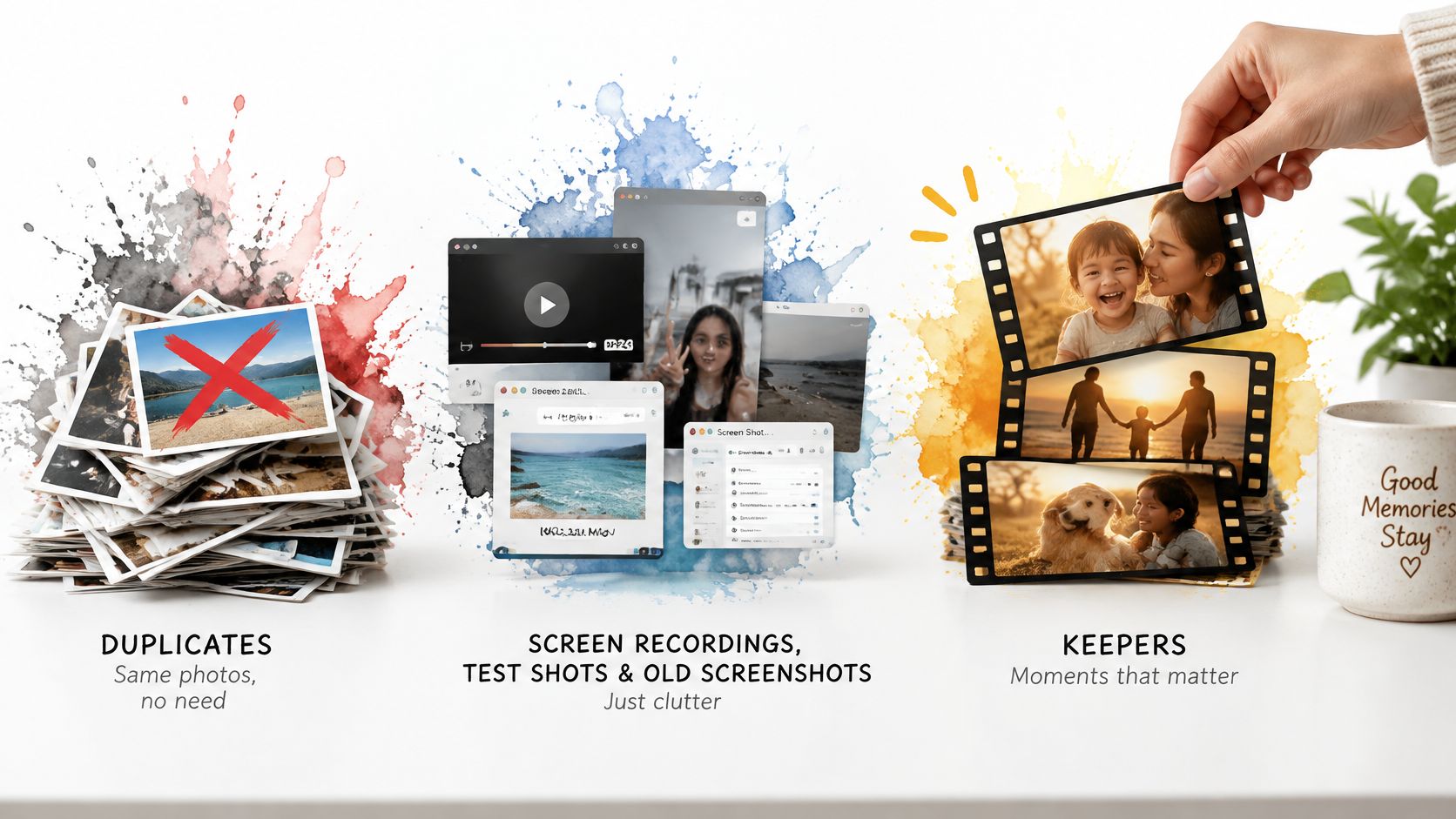
Before deleting anything, estimate what each candidate group would actually recover. A file's displayed size only converts to free space if the bytes are stored on the iPhone itself, so check whether each item is a local original or a placeholder for something that lives mainly in iCloud. Deleting from a synced library removes the item everywhere, which makes the preserve-first step below more than a formality.
Preserve the content before reducing the size
Apple's ProRes guide states that ProRes files can be up to 30 times larger than HEVC files. That makes recording format an important clue when an unexpectedly short clip occupies substantial storage.
Compression or export can be sensible for footage that matters but doesn't need to remain in its original professional format. The trade-off is quality and editing flexibility: a smaller copy may be suitable for viewing while being less useful for future color work or detailed editing.
Before removing an original, play the replacement through and check sound, orientation, and visible quality. An export that exists but hasn't been checked isn't a dependable preservation copy.
Use this final checklist:
- Verify keeper copies. Confirm that an independent copy opens correctly; an item appearing in iCloud Photos alone doesn't protect it from synced deletion.
- Remove confirmed redundant copies before unique originals.
- Review videos by date and importance. Consider recording format and duration alongside size.
- Permanently clear Recently Deleted only when the decisions are final.
If photo cleanup isn't enough, the iPhone storage-full troubleshooting guide covers other places worth checking.
An optional route for a large backlog
LuminaClean is an iOS-only option that scans on the iPhone. It finds exact duplicates and visually similar photos, blurry photos, screenshots, and large videos, and it can compress video for clips worth keeping. For libraries of 10,000 or more photos, the initial scan may take a few minutes.
Processing is 100% on-device: photos never leave the iPhone and there is no cloud processing. Nothing is deleted without the user's swipe or confirmation; deleted photos go to iOS Recently Deleted, where they stay recoverable for Apple's standard recovery period.
For a lighter approach, the companion character Lumina judges the worst photo pile through Get Judged, counting the biggest stack of screenshots, duplicates, or receipts in the library.
LuminaClean users free an average of 14.2 GB of storage, but an individual result still depends on local files and the decisions made during review.
Delete copies before touching large originals. Rank candidates by recoverable space, redundancy, format, duration, date, and personal importance, then let the largest file wait its turn. For grouped photo-library review, get started with LuminaClean on the App Store.
Clean up your camera roll in minutes.
LuminaClean scans on-device, groups duplicates, similar shots, screenshots and blurry photos, and deletes only what you confirm. Free to start, no account.