October 20, 2026
How to Clean Video on iPhone and Reclaim Storage Fast

The storage warning arrives just as a parent starts recording a recital. Or an iPhone refuses an update, and the owner starts deleting random photos to make room. The better approach to how to clean video starts with a different question: which recordings deserve the space they occupy?
A useful cleanup separates disposable takes, irreplaceable originals, and finished edits before anything gets deleted or compressed. The aim isn't the smallest possible camera roll. It's enough breathing room without sacrificing footage that matters.
Table of Contents
- Why Your iPhone Storage Disappears Overnight
- What Actually Makes a Video File So Big
- The Video Cleanup Workflow That Actually Works
- When to Compress a Video and When to Leave It Alone
- iPhone Built-Ins vs a Dedicated Cleaner
- Keeping Your Camera Roll Clean Without Burning Out
- Your Video Cleanup Checklist and Common Questions
Why Your iPhone Storage Disappears Overnight
An iPhone storage alert can feel sudden even when the buildup has been happening for months. A trip adds long recordings. Screen captures remain after their purpose has passed. Another family event adds more clips, and nobody wants to sort them while unpacking or putting children to bed.
The camera roll mixes those recordings with ordinary photos, screenshots, and Live Photos. That makes everything feel like a collection of similarly sized items, even though video storage depends on much more than the number of thumbnails.
A short list of recordings can deserve more attention than an enormous photo pile. Deleting old pictures may feel productive, but file size, not the satisfaction of selecting many items, should determine the next decision.
The camera roll isn't an equal-weight collection
Apple treats photos and videos as a storage-management category and recommends reviewing unwanted content and large files in its guidance on freeing device and iCloud storage. That doesn't mean video is responsible for every storage warning. It means checking large recordings is a sensible starting point before blaming the entire photo library.
Common review candidates include:
- Long event recordings: Concerts, ceremonies, and performances that include substantial footage nobody intends to watch again.
- Temporary screen recordings: Demonstrations, troubleshooting captures, and instructions that have already served their purpose.
- Repeated takes: Several attempts at the same moment, kept because choosing a favorite was postponed.
- Editing footage: Originals retained alongside finished exports, with no clear distinction between the keeper and the working material.
Practical rule: Cleanup should prioritize unwanted bytes, not the largest number of deleted thumbnails.
A storage alert still deserves a broader check. Someone whose problem extends beyond the camera roll can use this guide to free space when iPhone storage is full rather than deleting memories indiscriminately.
The sensible order is audit, delete, compress, maintain. Auditing protects important footage. Deletion removes content with no remaining purpose. Compression applies only to selected keepers. Maintenance prevents another rushed decision while something worth recording is happening.
What Actually Makes a Video File So Big
Bitrate describes how much data a video uses over time. Duration determines how long that data keeps accumulating. Together, they provide a useful explanation for why a seemingly ordinary recording occupies so much space.
Resolution, frame rate, codec, and audio also affect the result. Higher resolution doesn't provide a reliable file-size prediction by itself, because different encoding choices can produce different sizes for footage with similar dimensions.
Bitrate vs Storage Per Hour of Video
These approximate figures come from Cinema8's video-storage calculations and exclude additional overhead; the final column describes relative storage demand, not a guaranteed recording format.
| Encode bitrate | Approx. storage per hour | Roughly realistic |
|---|---|---|
| 2 Mbps | 0.9 GB | Lower storage demand |
| 5 Mbps | 2.25 GB | A larger retained copy |
| 8 Mbps | 3.6 GB | More storage for the same duration |
| 15 Mbps | 6.75 GB | A substantial review candidate |
| 25 Mbps | 11.25 GB | A high-storage recording |
The table explains why counting videos isn't enough. A library with relatively few long, high-bitrate recordings can still require substantial space. Conversely, a short clip may be worth keeping untouched even when its encoding isn't especially compact.
The attributes worth checking
- Duration: Long stretches of dead air deserve attention before any compression setting does.
- Resolution and frame rate: These should suit the footage's intended use, rather than remain high because the camera offered the option.
- Codec: The compression format affects the relationship between file size and retained quality.
- Audio: Sound is part of the file too, so a video-only estimate isn't the complete measurement.
Sort by actual file size first. Bitrate helps explain an unusually large file, but size identifies the immediate storage opportunity. Date order is useful for remembering an event; alphabetical order rarely helps decide which recording deserves attention.
There's no universal threshold that makes a video bloated. A large editing original may be entirely appropriate, while a smaller obsolete screen recording may have no reason to remain. The useful question is whether the file's size makes sense for its purpose.
A good review therefore pairs size with context: what the recording contains, whether another copy exists, and whether the original will be needed later.
The Video Cleanup Workflow That Actually Works
The fastest useful cleanup starts with decisions, not filters. A large file shouldn't disappear merely because it's large, and a tiny file doesn't deserve permanent storage merely because deleting it seems inconsequential.
This workflow keeps review ahead of irreversible action.
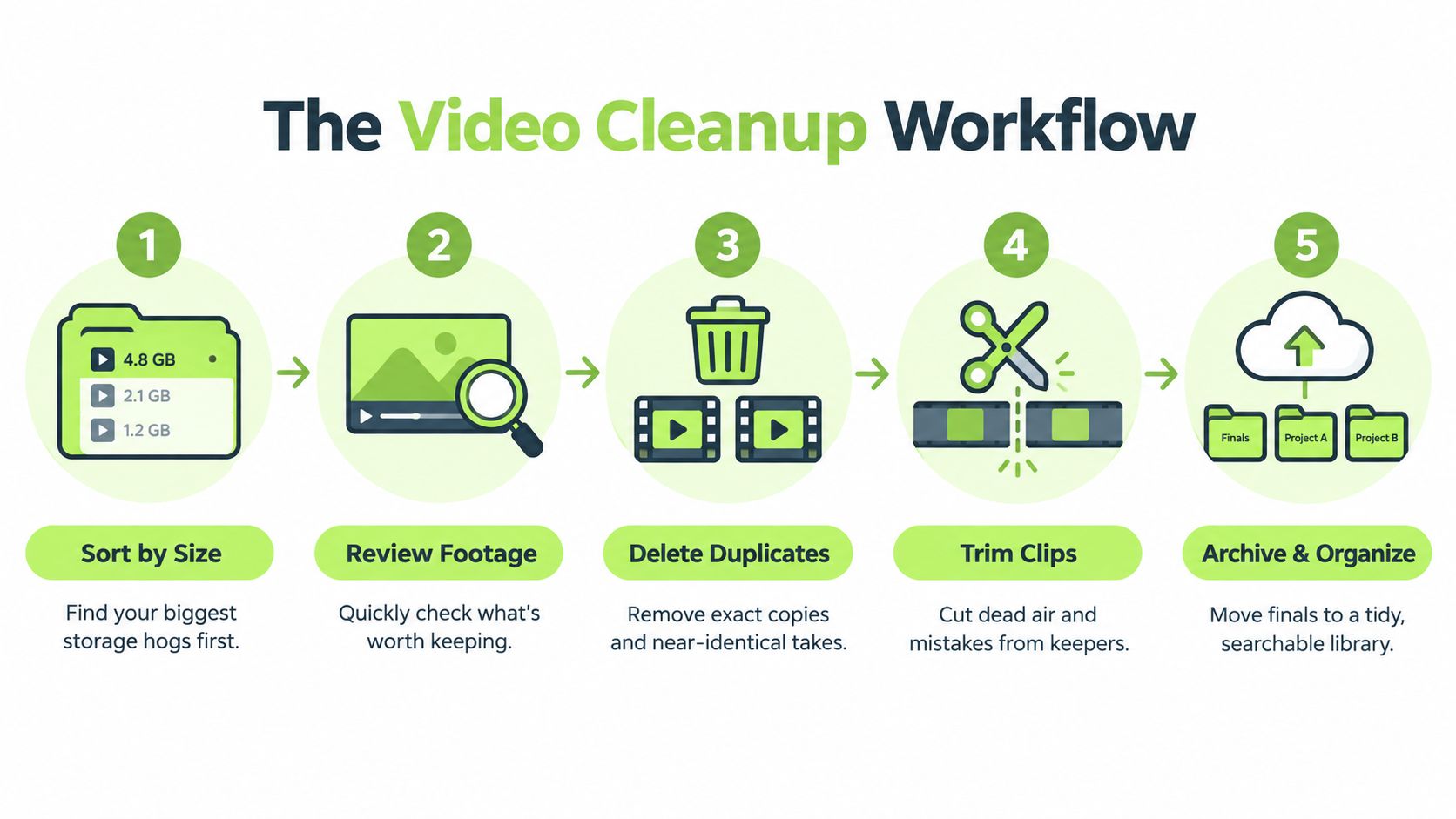
Review the largest recordings by purpose
Start with a size-focused inventory. This guide to finding large videos on iPhone provides a focused starting point rather than another aimless scroll through Photos.
Preview the beginning, then scrub through the middle and ending. An opening frame can't establish whether a recording contains a meaningful moment later.
Assign each candidate a role:
- Disposable take: A failed attempt, accidental recording, or obsolete demonstration.
- Irreplaceable original: A memory whose value comes from the moment itself, not technical perfection.
- Edited master: A finished version worth preserving independently of the raw footage.
- Working source: Material still needed to revise an edit or create another export.
Consider a concert recording that contains mostly an obstructed view. If the only meaningful passage is brief, keeping a carefully reviewed excerpt may make more sense than preserving the whole recording. That's a deliberate editorial choice, not an automatic cleanup rule.
Compare related clips before removing them
Repeated takes need comparison, not blind deletion. For example, several dog-trick recordings may contain different reactions, while repeated screen captures may all demonstrate the same already-resolved problem.
Review related recordings together where practical. Choose the keeper first, then mark the redundant attempts. Exact duplicates and similar-looking recordings aren't the same thing: the latter can contain different moments.
The rest of the pass should stay equally deliberate:
- Check temporary captures: Review screen recordings alongside the screenshot clutter associated with the same task. Screenshots themselves aren't hidden videos.
- Separate Live Photos decisions: Treat these as their own review category rather than assuming every animated memory needs removal.
- Trim selectively: Remove unneeded material only after checking whether the retained passage tells the whole story.
- Verify an archive: An assumed copy elsewhere isn't enough. Open the preserved file before relying on it.
- Review Recently Deleted last: Confirm that the rejected items really are expendable before clearing the recovery buffer.
Choosing a keeper before rejecting the alternatives makes the decision clearer and less anxious.
The workflow should stop when uncertainty rises. A questionable family memory can wait; an obsolete troubleshooting recording usually doesn't need a lengthy debate.
When to Compress a Video and When to Leave It Alone
Compression is a decision about a keeper, not a substitute for deciding what to keep. Shrinking an unwanted recording preserves clutter in a smaller package.
The evolution of compression formats explains why the original format matters.

H.264/AVC was published in 2003, while HEVC/H.265 was finalized in 2013 with a design goal of roughly twice the compression efficiency at comparable perceived quality, according to this history of video-compression standards. That describes the standards' intended efficiency, not a guaranteed saving for every conversion.
Compress ordinary keepers, protect valuable sources
Apple supports HEVC and H.264 recording, while ProRes is available on supported iPhones and is intended for high-quality editing, as described in Apple's explanation of iPhone recording formats. A large ProRes source isn't automatically wasteful. Its size may serve an editing purpose.
A practical decision framework is:
- Consider compression: A long screen recording or older H.264 clip that remains useful but won't be edited again.
- Leave it alone: An already compact HEVC recording whose only immediate purpose is sharing.
- Protect the original: Footage intended for future editing, a valuable ProRes source, or an HDR original whose appearance matters.
- Delete instead: A redundant take with no reason to survive in either format.
A related video provides additional context for the compression decision.
Judge the result, not the promise
A defensible test compares a representative compressed sample with the source, including motion, faces, text, gradients, and shadows. The VMAF quality-evaluation workflow also emphasizes matching reference conditions, combining measurement with human inspection, avoiding repeated lossy encoding, and measuring the actual output file rather than trusting nominal bitrate savings.
The practical version doesn't require turning a phone cleanup into an engineering project. A reader can compare difficult passages, check sound and synchronization, and reject an export that smears faces or makes text harder to read.
Keep the source until the replacement passes review. Any saving should justify both the quality trade-off and the effort. This guide to reducing video file size on iPhone can support that focused task without turning compression into a blanket instruction.
iPhone Built-Ins vs a Dedicated Cleaner
Apple's tools and dedicated cleaners address overlapping but different decisions. The right choice depends less on library size alone than on whether the owner needs duplicate merging, local space management, or help reviewing clutter.
Start with the tool that matches the problem. A tidy library with an occasional duplicate doesn't need the same workflow as a backlog of unidentified recordings.
What Apple's tools handle
Apple's Duplicates feature identifies duplicate photos and videos, then merges them while preserving a version with the highest quality and relevant data. Apple documents availability from iOS 16, explains that detection can take time, and notes that discarded copies move to Recently Deleted in its duplicate-merging instructions.
That's useful for exact copies. It isn't a substitute for deciding which different take of a scene deserves to stay.
Optimize iPhone Storage serves another purpose. As described in the earlier Apple storage guidance, it keeps full-resolution originals in iCloud while maintaining space-saving versions on the device. That reduces local storage pressure without making a judgment about whether the content remains useful.
| Situation | Sensible starting point |
|---|---|
| Exact duplicate photos or videos | Apple's Duplicates feature |
| A wanted library taking too much local space | Optimize iPhone Storage |
| Different takes of the same event | Manual comparative review |
| Obsolete or oversized recordings | A large-video review and selective compression |
What an on-device cleaner adds
LuminaClean is an iPhone-only option that scans on the iPhone for exact duplicates and visually similar photos, blurry photos, screenshots, and large videos, and includes free video compression. Its analysis is 100% on-device, with no cloud processing or account required; nothing is deleted without a swipe or confirmation, and deleted photos remain in iOS Recently Deleted for 30 days, according to its publisher information.
Those capabilities shouldn't be confused with automatic identification of similar videos. Related video takes still deserve direct review.
Local analysis also isn't an unusual technical concept. Apple describes on-device face, scene, and object recognition and permission-based photo access in its privacy documentation.
A dedicated cleaner is useful when focused categories make review easier. Apple's built-ins may be sufficient when the library is already manageable. Neither path removes the need to protect important originals or verify deletion choices.
Keeping Your Camera Roll Clean Without Burning Out
A major cleanup becomes exhausting when every recording requires reconstructing why it was made. Fresh footage is easier to judge because the event, purpose, and preferred take are still familiar.
The strongest maintenance habit is event-based, not guilt-based. After a trip, school performance, or completed work task, a small review can settle obvious decisions while the context remains available.
Give each session a narrow job
A useful session doesn't need to cover the entire library. It can focus on the screen recordings from a resolved support problem or the repeated clips from a single outing.
Small-session approaches, including Daily Bites-style reviews, work best as a limit on scope rather than another obligation. The target is a completed decision, not an impressive deletion count.
- After an event: Choose favorite takes and flag anything whose value remains uncertain.
- After a task: Remove temporary demonstrations once their purpose is finished.
- After an edit: Distinguish the finished master from sources still needed for revisions.
- During a storage check: Investigate unusually large additions instead of restarting a full-library cleanup.
A completed, modest review is more useful than an ambitious cleanup postponed indefinitely.
Revisit old footage without creating another backlog
Flashback-style reviews can provide a manageable slice of older material. An On This Day prompt can serve the same purpose: a recognizable event is often easier to assess than a random stretch of the camera roll.
Streaks can help some people return, but they shouldn't encourage rushed decisions. Skipping a session is preferable to deleting uncertain footage just to maintain a counter.
Privacy should also remain part of the routine. Choosing local analysis avoids adding a cloud-processing step to a recurring review, and permission requests deserve attention before a cleaner receives access.
The final habit is restraint. Not every review needs compression, and not every imperfect recording needs deletion. A shaky clip can still hold the only recording of a meaningful voice or moment.
A clean camera roll isn't a project with a permanent finish line. It's a collection maintained often enough that storage decisions don't have to happen under pressure.
Your Video Cleanup Checklist and Common Questions
A copy-and-keep checklist
- Start with size: Identify the largest recordings before browsing by date.
- Preview properly: Check the opening, middle, and ending.
- Choose keepers: Separate disposable takes, originals, working sources, and edited masters.
- Compare alternatives: Merge exact duplicates and review different takes deliberately.
- Compress selectively: Test only recordings already chosen for retention.
- Verify preservation: Open any archived copy before removing its source.
- Finish carefully: Review Recently Deleted before permanently clearing it.
Common questions
Does deleting a video immediately free all its space?
Moving an item out of the main library isn't the same as permanently removing it. Recently Deleted remains the important final review point.
Why is storage still full after deleting footage?
The cleanup may have removed small files while leaving the largest recordings untouched. The recovery album and other storage categories also deserve checking.
Should ProRes footage stay or be converted?
An editing source should stay when future revisions matter. A viewing copy can be smaller, but it shouldn't replace a valuable master without a deliberate decision.
Can footage be recovered after Recently Deleted is emptied?
That recovery route is gone. Any recovery would depend on a separate preserved copy, which is why verification belongs before permanent deletion.
The next step is a focused review, not a whole-library purge. An iPhone owner using the cleaner can open the app, run a scan, and start with the largest videos, choosing an obvious disposable recording before making harder decisions.
Clean up your camera roll in minutes.
LuminaClean scans on-device, groups duplicates, similar shots, screenshots and blurry photos, and deletes only what you confirm. Free to start, no account.