October 11, 2026
Video Compressor iOS: 10 Apps Compared by Use Case

Your iPhone warns that storage is almost full right when you try to record something new. Video files are often among the largest items in a camera roll, so shrinking them can quickly create room without removing the memories that matter. The difficult part is choosing a compressor that fits the job. Some tools prioritize quick local processing, while others offer exact target sizes, codec controls, editing features, or camera-roll cleanup.
This guide sorts video compressor iOS options by what they do best. Each entry explains what the app states it can do, where it fits, and where it falls short, so the original stays safe until the smaller copy has been checked.
Table of Contents
- 1. LuminaClean
- 2. Compress Videos & Resize Video
- 3. Video Compress, Shrink Vids
- 4. Clideo Video Compressor
- 5. Kompresso
- 6. VideoDuck
- 7. minimo
- 8. Kompress
- 9. Squish, Local Video Toolkit
- 10. InShot
- Top 10 iOS Video Compressors, Comparison
- Match Your Compressor to How You Share and Store Videos
1. LuminaClean
You try to film a new clip, hit the storage warning, and realize the problem is not one oversized video. It is the whole camera roll. LuminaClean fits that job because it combines video compression with review groups for exact duplicates, visually similar photos, blurry photos, screenshots, and large videos. Apple's Duplicates album can help with exact copies, but it does not cover the wider cleanup decisions that usually matter when storage is tight.
The compression feature is free, and the app shows estimated storage savings before anything is removed. Deletion stays manual. Users swipe or confirm each action themselves. Deleted items then move into Apple's Recently Deleted album, which Apple says keeps them for 30 days before permanent removal, as described in Apple's Recently Deleted guidance.
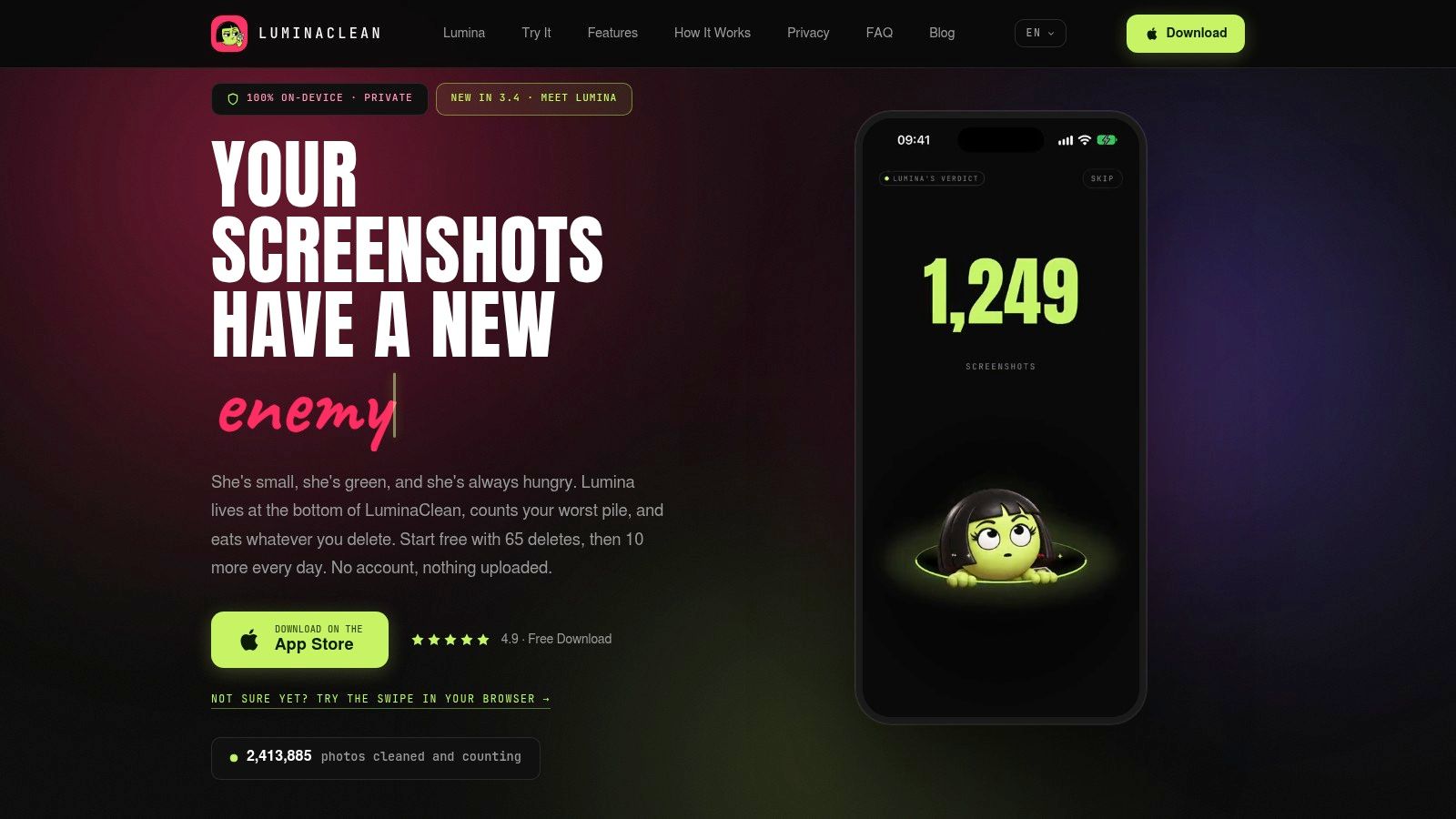
Best for private camera-roll cleanup
A lot of iPhone users do not need a standalone compressor. They need a way to shrink videos and clear out the rest of the clutter without uploading personal media. LuminaClean handles photos and videos 100% on-device. No account is required, and cloud processing is not part of the workflow. That matters for family videos, trip footage, receipts, and other files people would rather keep on the phone while sorting.
It also has a lighter side through Lumina and Get Judged, where Lumina comments on a pile of bad photos. That will not matter if the goal is one quick export. It can help if camera-roll cleanup is something you put off because it feels repetitive.
Practical rule: Compress a large, low-value recording first, then review the result before touching an important family or travel video.
The trade-off is scope. LuminaClean is built for iPhone cleanup, not cross-platform library management, and large backlogs may run into its free deletion limit. It is free to start with 65 free deletes, followed by 10 more every day. There is also an optional Premium subscription for users who want to clear a bigger backlog in one pass. If the main goal is spotting oversized clips before deciding what to compress, this guide on how to find large videos on iPhone is a useful starting point, and users who want the app itself can download LuminaClean from the App Store.
Pros
- Private processing: Photos and videos stay on the iPhone, with no account or cloud processing required.
- Broad cleanup: Exact duplicates, similar photos, blurry images, screenshots, and large videos appear in one workflow.
- Free compression: Video compression is available without requiring Premium.
- User-controlled deletion: Every deletion requires a swipe or confirmation and follows iOS recovery behavior.
Cons
- Limited free deletion allowance: Large libraries may need the optional Premium subscription.
- iOS-only scope: Android users and people seeking a cloud-based media manager need another tool.
2. Compress Videos & Resize Video
A common iPhone problem is simple. You need to send a clip, keep it in Photos, and avoid deleting the original until you know the smaller copy still looks acceptable. Compress Videos & Resize Video is built for that job. The App Store listing for Compress Videos & Resize Video presents it as a focused compressor with 1080p, 720p, 540p, 480p, and 360p output choices, batch handling, bitrate adjustment, and a preview of the expected result.
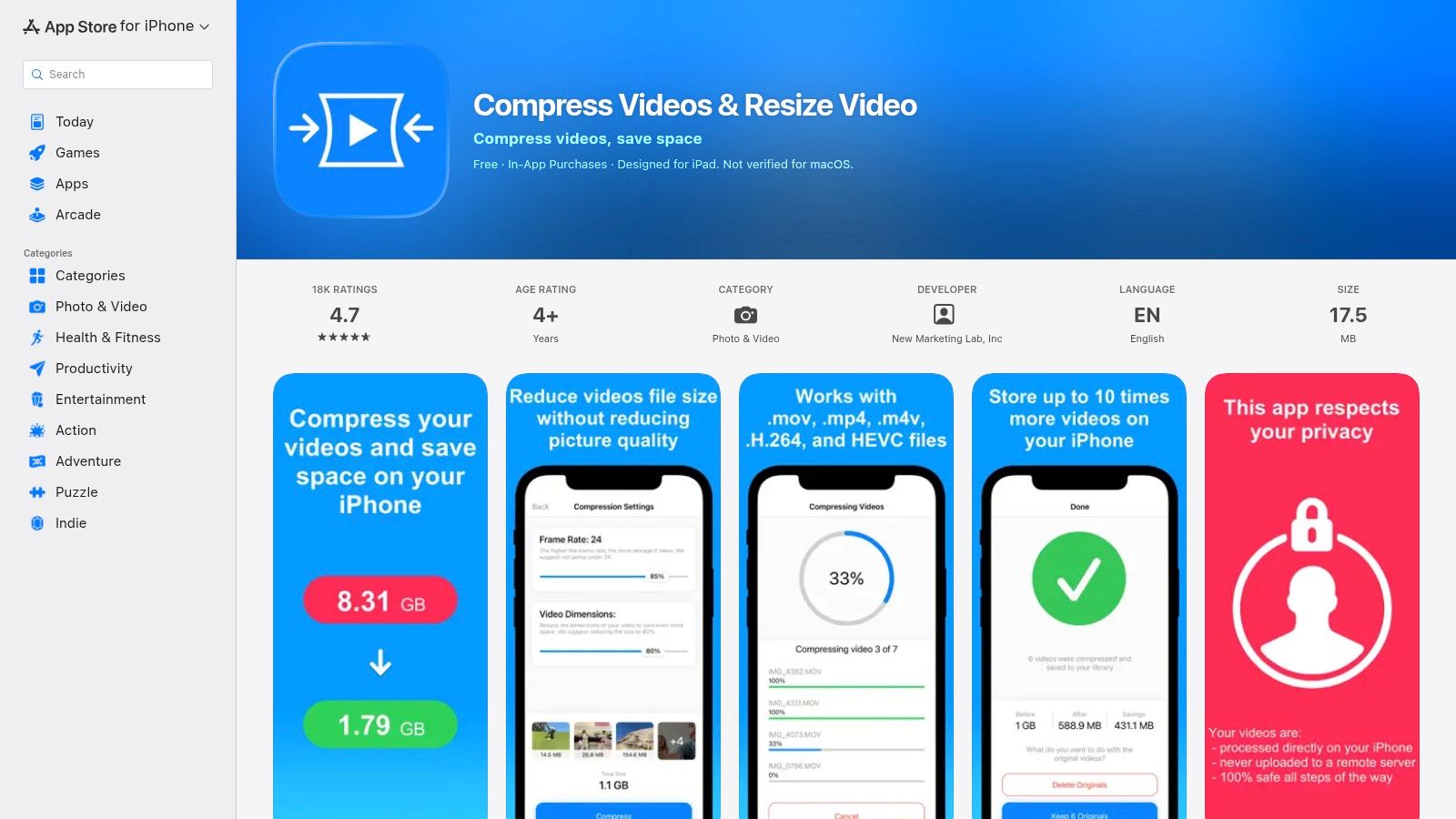
What stands out here is the fit for everyday camera-roll management, not just file shrinking. The listing says the app preserves metadata such as date and location and exports without a watermark. In practice, that matters when a compressed holiday video still needs to sort in Photos under its original capture date, or when a location-tagged clip should stay organized with the rest of the trip instead of looking like a new recording made today.
The workflow stays short. Pick one clip or several, choose the smaller resolution and bitrate you want, check the preview, then save the compressed copy. That keeps the app distinct from an editor, and it also makes the actual trade-off easier to see.
The limitation is format control. Users who need to choose between H.264 and HEVC, specify a container, or fine-tune export settings for a client delivery spec will likely outgrow it. This app is for fast, predictable size reduction on the iPhone, not detailed encoding decisions.
That is also where the iMovie comparison helps. Apple's own iMovie method reduces file size by exporting a lower-resolution version through Save or Share Video and Options, with smaller choices such as 720p, 540p, and 360p described in Apple's iMovie storage guidance. The difference is convenience. iMovie can handle the job if you already use it, but Compress Videos & Resize Video centers the whole experience on shrinking copies and checking the result before you remove anything.
Pros
- Good fit for camera-roll copies: The listing says date and location metadata are preserved.
- Straightforward controls: Resolution choices and bitrate adjustment cover the settings most iPhone users use.
- Batch-friendly workflow: Several clips can be processed without turning compression into an editing task.
- Clean output: The listing states there is no watermark.
Cons
- Narrow export control: Advanced codec and container choices are not the point here.
- Utility-first interface: Users who want trimming, styling, or broader editing tools should use another app.
3. Video Compress, Shrink Vids
Your iPhone is full, you need to send a few clips, and you do not want to open a full editor just to make them smaller. Video Compress, Shrink Vids fits that job. It overlaps with the previous app on the basics, but this one is easier to shortlist if you care less about tweaking settings and more about shrinking ordinary camera-roll videos with clear feedback before you save. The Video Compress, Shrink Vids App Store page describes batch compression, simple controls, previews, and size estimates.
That makes it a practical pick for quick on-device shrinking. The app keeps the workflow focused on reducing copies instead of turning compression into an editing project, which is useful when the goal is freeing space or making a clip easier to share.
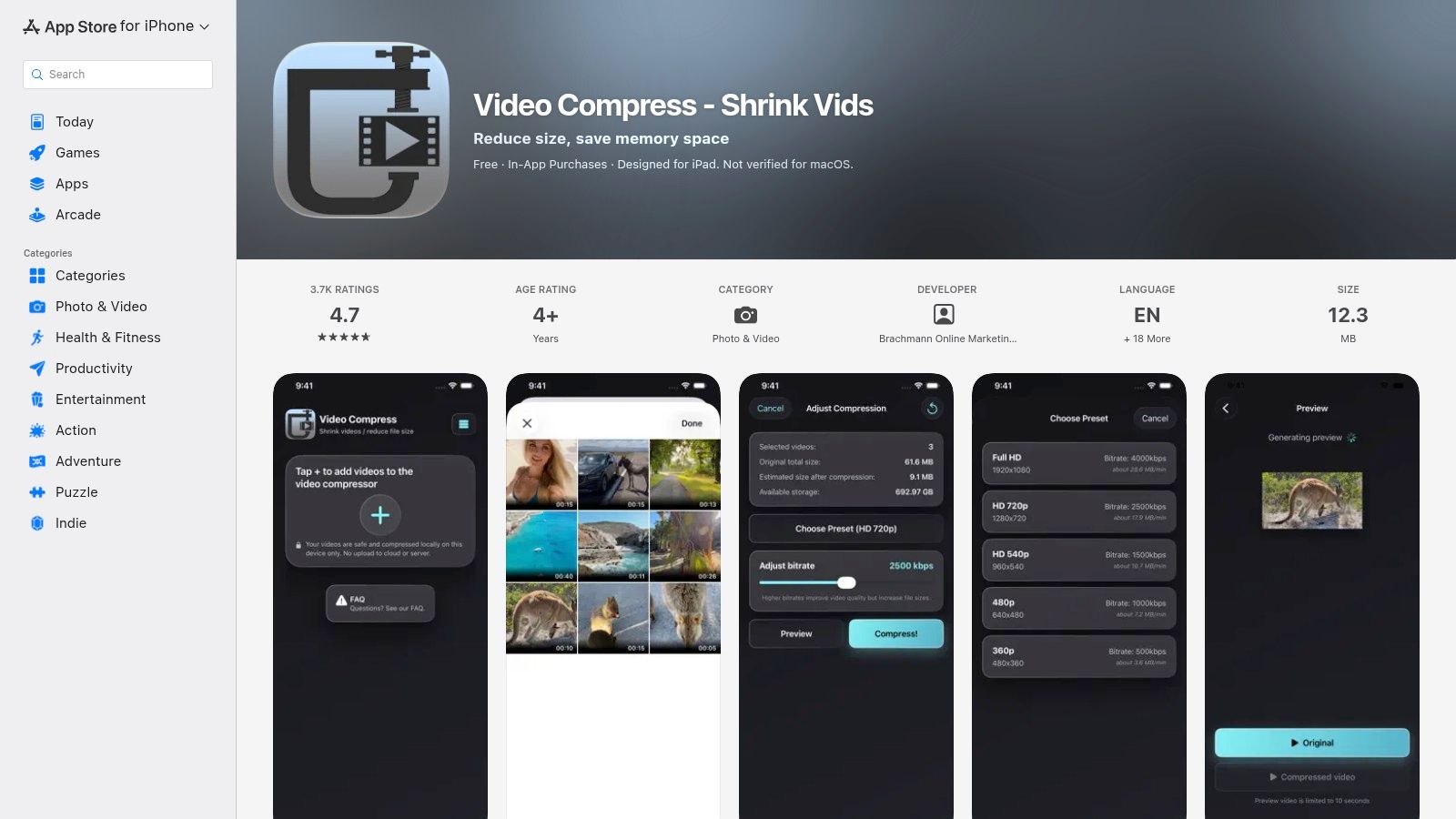
Its real distinction in this list is not a long feature sheet. It is the trade-off. The App Store listing is clear enough for everyday use, but it also mentions occasional reports of save or album issues on some versions. Treat that as a real limit, not a footnote. Run one test export first, then confirm the compressed copy appears in the album you expect before you process a large batch or delete any originals.
That advice matters more here than another recap of sliders and presets.
The other limit is format control. If you need exact codec choices, container options, HDR handling, or delivery settings for a client spec, this is not the right tool. It is better matched to personal storage cleanup, family sharing, and quick sends where the main question is whether the file will be smaller and still look good enough. For a practical explainer on those trade-offs, see what video compression means.
Best fit: Users who want straightforward batch shrinking and who will verify one saved test clip before compressing a larger set.
Not the best fit: Users who need precise export formats or who cannot risk occasional save-to-album friction.
4. Clideo Video Compressor
You feel this app's value fastest when an upload form rejects your video for being too large, or a message app needs the file under a specific cap. Clideo is built for that job. Its App Store listing says it can compress videos on the device or through cloud processing, and its custom settings include target file size plus codec and resolution adjustments.
That changes how you choose a compressor. Some iPhone apps are mainly for quick shrinking with a few presets. Clideo is the one to check first if the core question is, “Can I get this clip under the limit without guessing through multiple exports?” It also lists H.264 and HEVC output options, social-ready exports, and simple audio actions such as muting or removing sound.
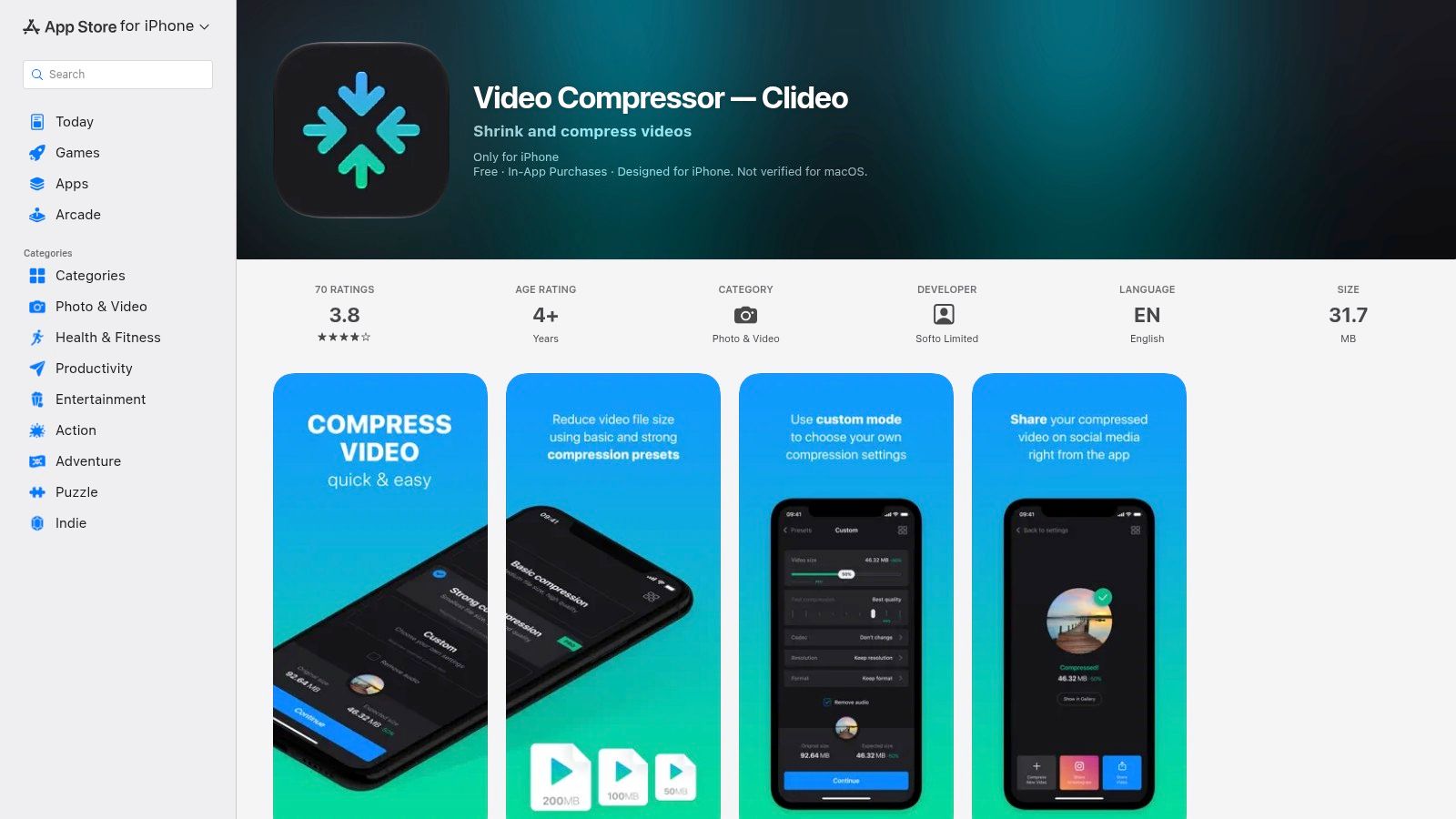
Use the local mode when privacy matters or you just want the shortest path from Camera Roll to a smaller file. Use the cloud mode when you want the extra online processing route and you are comfortable sending that video through Clideo's web workflow. That trade-off matters for personal footage, school events, home videos, or anything that shows faces, voices, or locations.
The other limit is easier to miss until export. A watermark stays on the output unless you subscribe, and some of the more advanced paths depend on both internet access and a paid plan. For a one-time share, that can be the difference between a useful app and a frustrating one. Check the current terms before you spend time dialing in settings for an important clip.
Codec choice is helpful here because it affects compatibility and storage in different ways. H.264 is still the safer pick for older devices and software. HEVC usually makes more sense for newer Apple-heavy workflows and smaller files. Apple says HEVC offers better compression than H.264 while keeping similar visual quality in its iPhone video format documentation.
See the current listing on the Clideo Video Compressor App Store page.
Best fit: Users who need exact size targeting, and who can accept watermark and cloud-processing limits depending on the export path.
Watch for: Privacy concerns with online processing, paid restrictions on cleaner exports, and a few more setup choices than a basic preset app.
5. Kompresso
Kompresso is designed for users who care about modern iPhone hardware, batch jobs, and output format flexibility. Its App Store listing describes on-device processing with iOS hardware acceleration, support for H.264 or HEVC, and export containers including MP4, MOV, and M4V.
That format range is useful because the codec and container solve different problems. A user may prefer HEVC for storage efficiency but choose a container that fits the destination workflow. Another user may need H.264 for older playback software while keeping the output in an MP4 file.
Best for local format control
Kompresso's strongest selling point is the combination of local processing and export choice. It's more suitable than a simple preset app for someone who understands the destination, such as an editing application, a Files folder, or a device with uncertain HEVC support.
The caution is maturity. The app is relatively new, so its long-term support history is still forming. Documentation and help rely heavily on the App Store listing and community discussion, which may be enough for straightforward exports but less reassuring for a specialized production workflow.
Apple's format documentation confirms that iPhones can work with HEVC, H.264, and ProRes, and that ProRes files may be up to 30 times larger than HEVC files in supported configurations, as described in Apple's iPhone video format reference. That difference makes a local compressor useful for large professional clips, but it also means the source profile should be checked before selecting a preset.
See Kompresso on the App Store.
Best fit: Users who want on-device processing and MP4, MOV, or M4V export choices.
Main limitation: The app's newer status means long-term support is less established than with older utilities.
6. VideoDuck
You open Photos to clear space before a trip, select a batch of everyday clips, and want the job done without picking codecs or bitrate settings one by one. VideoDuck is built for that kind of cleanup. Its App Store page describes three simple presets, batch compression, a “never bigger” safeguard, options to keep or replace originals, and preservation of date and location metadata when saving a compressed copy.
That combination makes its role pretty clear. This is the app for fast camera-roll shrinking, not fine-grained export tuning.
The “never bigger” guard matters more than it may sound. Some videos are already compressed efficiently, so another pass can fail to save space or even create a larger file. A safeguard like this reduces the risk of swapping a good original for a worse result, which is especially useful if you plan to replace files instead of keeping both versions.
The trade-off is control. If you want to hit a specific file size for email, choose between H.264 and HEVC, or adjust frame rate for an older playback setup, VideoDuck is not the tool for that job. It keeps decisions narrow so routine compression is faster.
Its other practical limit is access. Because processing happens on the iPhone, clips stored only in iCloud may need to download first. That can slow down a cleanup session and create friction on phones with limited free storage. Before running a large batch, make sure the originals are available locally and that the device has enough working room to finish the export.
Language and platform limits also matter. Right now, the app is iOS-only and English-only, so it fits a narrower audience than utilities with broader platform or language support.
For users who mainly want to reduce a pile of camera-roll videos, keep timeline details intact, and avoid accidental larger replacements, VideoDuck is easy to match to the job. For users who want exact output control, it will feel intentionally constrained.
See the VideoDuck App Store listing for its current workflow and preset details.
7. minimo
You shot a long 4K clip on your iPhone, need a smaller copy fast, and do not want that file leaving the device. minimo fits that job. Its App Store listing says processing stays on-device, with no uploads or account setup, and it offers both quick presets and manual controls for resolution, bitrate, frame rate, H.264, HEVC, and audio, plus a before-and-after comparison on the minimo App Store page.
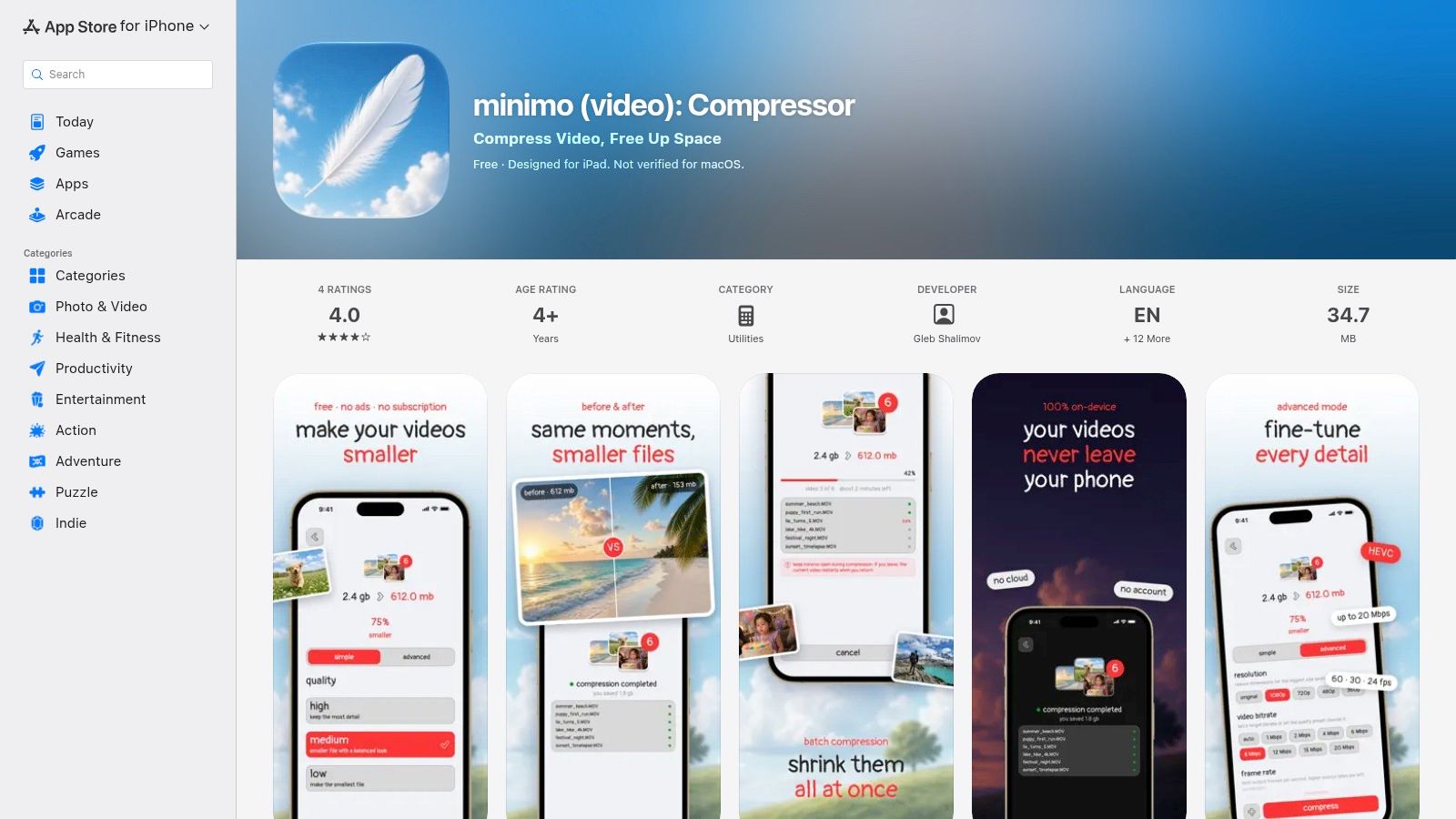
The reason minimo stands out in this lineup is the mix of privacy and control at no stated cost. If you just want a smaller version for Messages or mail, presets keep the job simple. If you care about the trade-off between file size, playback compatibility, and visible quality, the manual panel gives you room to tune the export instead of accepting a generic Low, Medium, or High choice.
That matters because these settings solve different problems. Lowering resolution can cut size quickly, bitrate gives finer control over quality loss, and frame rate changes can help when you are exporting for older devices or less demanding playback. Codec choice matters too. H.264 is usually the safer compatibility pick, while HEVC can make more sense when smaller files matter more than broad support.
minimo also includes a useful safeguard. If another compression pass would save very little, the app can skip it. Some videos are already compressed efficiently, so a second export may do little or create a worse copy for only marginal savings. A skip rule helps users who are cleaning up storage without wanting to gamble on every original.
The limits are real. HDR and Dolby Vision usually are not preserved after recompression, so footage you care about for highlight detail or color should be tested on a duplicate first. minimo is also a newer app with a smaller review base, which makes it smart to verify playback, metadata, and where the saved file lands in Photos before running a large batch.
For a practical workflow, start with how to reduce video file size on iPhone. For users who want free, local compression with room to set the details themselves, minimo is a strong match.
8. Kompress
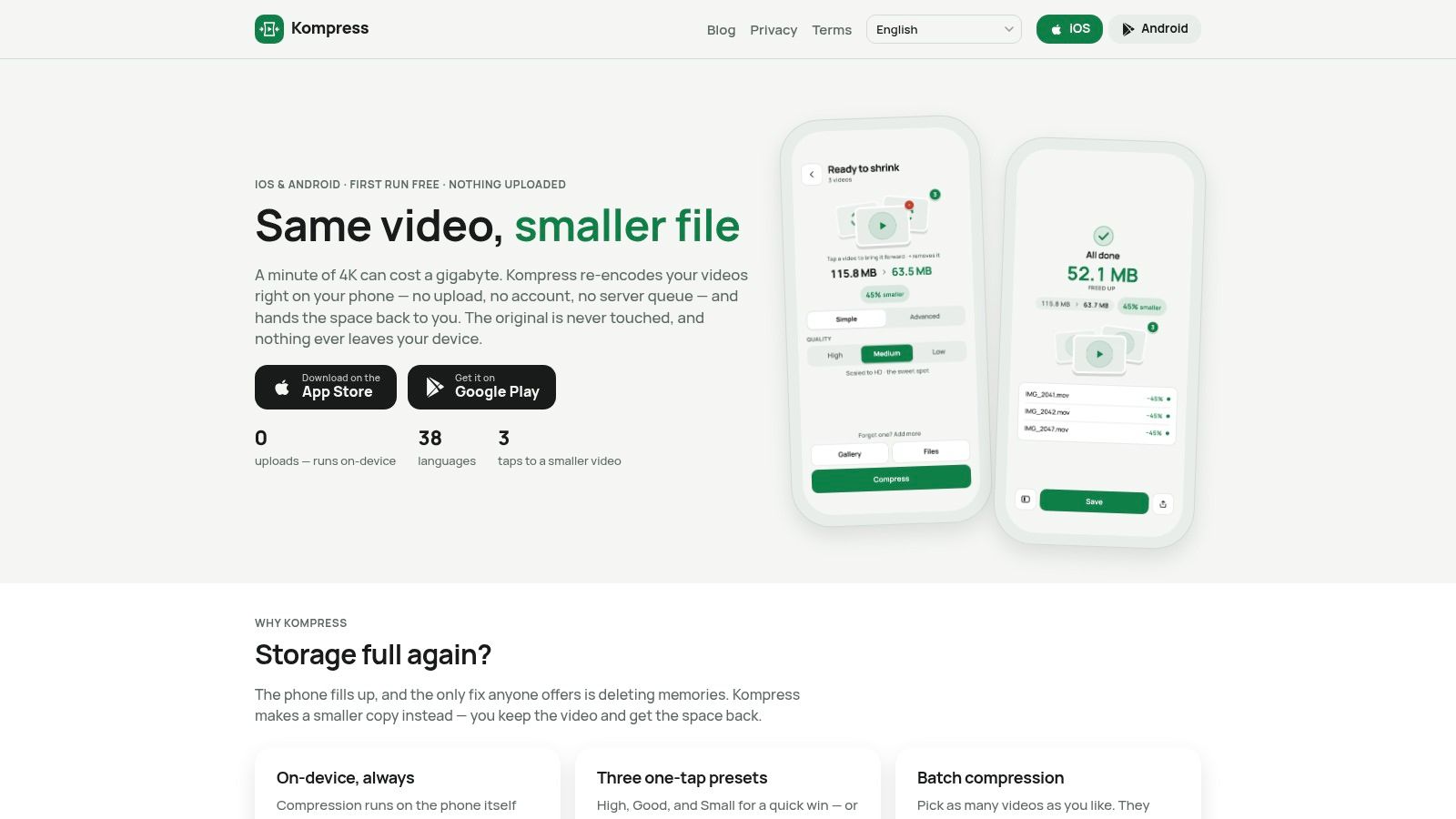
Kompress is a cross-platform option for households or teams that use both iPhone and Android. It runs on-device with native hardware encoding and provides one-tap presets alongside an Advanced panel covering bitrate, resolution, frame rate, H.264, HEVC, and audio.
The app also supports batch compression, running totals of space saved, a side-by-side preview, and input from Photos or Files. Originals remain in place unless the user chooses to replace them, which keeps the first export reversible.
Best for mixed-device households
Kompress offers a useful balance between accessible presets and deeper controls. A casual user can select a quick option, while a more technical user can adjust the encoding profile. That makes it easier for a household to share a single tool across platforms without forcing every person into the same level of complexity.
The pricing model is the main constraint. The plan describes a full-featured free trial limited to the first run, after which ongoing use requires a Pro purchase. The listing presents weekly, yearly, and lifetime choices. Users should review the current terms before relying on the app for recurring batch work.
Kompress is focused primarily on MP4 workflows. That's practical for common sharing and playback, but niche source formats may require experimentation. The correct test is simple: process a copy, open it in the intended destination, and confirm that sound, resolution, and playback behave as expected.
Visit the Kompress website for its current platform and feature information.
Best fit: Users who want local processing, advanced controls, and access across iOS and Android.
Watch for: The free access model ends after the first full-featured trial run, and MP4 is the central workflow.
9. Squish, Local Video Toolkit
You open Photos, pick a clip that is too large to send, then realize it also needs a trim, a crop, and maybe the audio removed. Squish is built for that kind of job. It combines local compression with trimming, cropping, rotation, GIF export, audio extraction or removal, conversion, batch processing, and a share extension. Its Smart Compression feature also includes social presets plus manual control over CRF, bitrate, resolution, and frame rate.
The key trade-off is simple. Squish suits people who want one on-device toolkit for preparing and shrinking video before sharing. If all you need is the fastest possible size reduction for a single family clip, a narrower app may feel easier to set up.
The app processes locally with FFmpeg, which means your videos are not uploaded to a cloud service during compression. For private recordings, client material, or anything you would rather keep on the phone, that changes the decision. You get editing-adjacent tools and compression in the same place, without handing footage to a remote server.
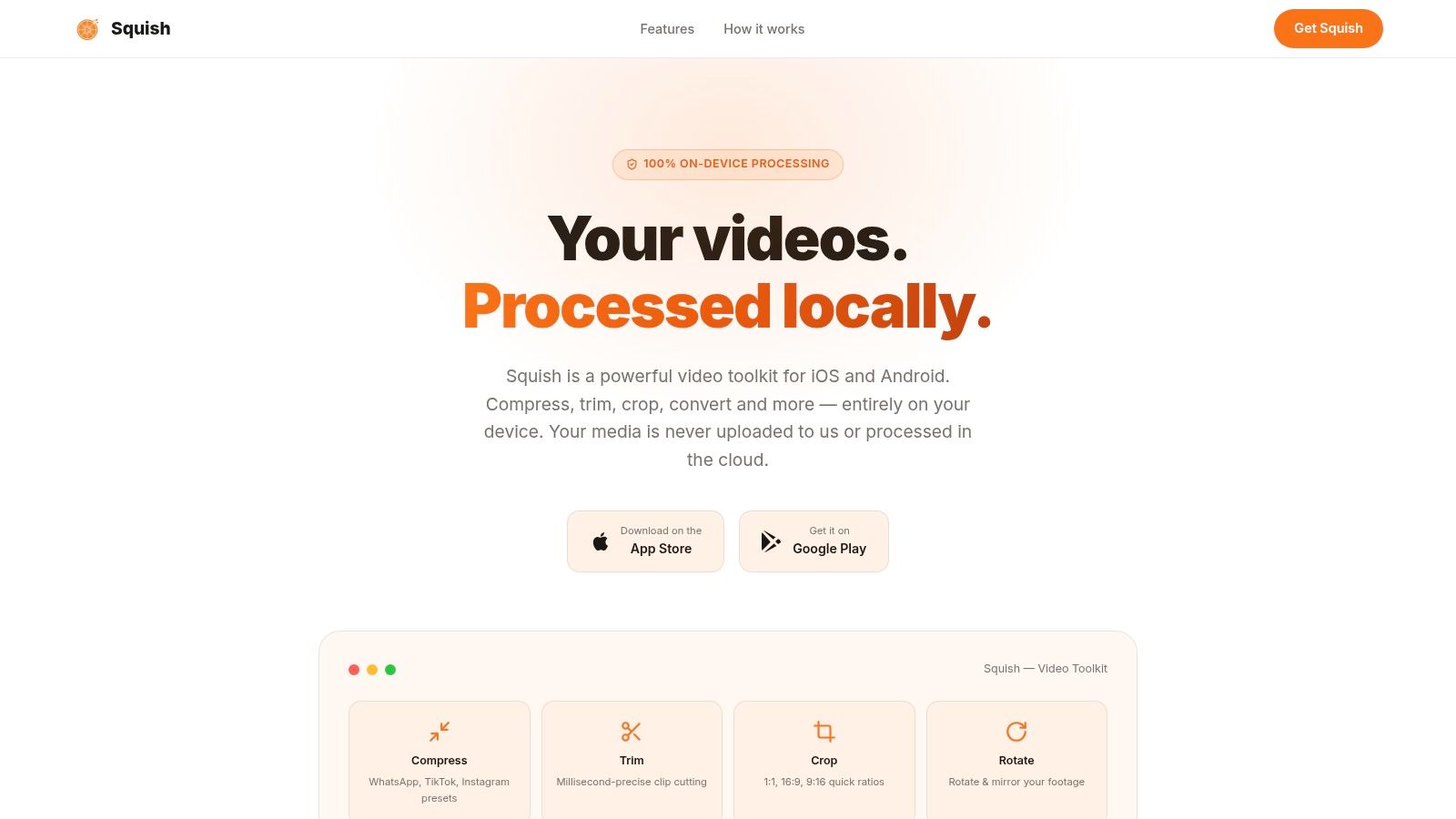
Squish makes the most sense when the file needs prep work before export. A social clip may need a quick crop, a cleaned-up duration, and a smaller file for messaging or upload. In that case, handling everything in one pass is more practical than bouncing between a compressor and a separate editor.
Its limits are real. FFmpeg-style controls are useful, but they also ask more from the user. CRF, bitrate, frame rate, and resolution solve different problems, so changing all of them at once can create avoidable quality loss. The safer approach is to export a copy first, test it in the destination app, and keep the original until the result is right.
Presets help, but they are starting points, not rules. A sharing copy and an archive copy serve different jobs. If future editing, reframing, or maximum detail matters, keep the source.
See the Squish website for current feature details.
10. InShot
A common iPhone problem is simple: the clip is too large to send, but it also needs a trim, a caption, or a different aspect ratio before anyone sees it. InShot fits that job better than a plain compressor because file reduction happens during export, after you make the edit.
That workflow matters for social posts and message-ready clips. You can cut dead space, add text or music, switch the frame shape, then export at a lower resolution or bitrate in one pass. For users already planning to edit, that is often faster than cleaning up the video in one app and shrinking it in another.
InShot works best as an editing-first compressor. It is less practical for bulk storage cleanup across many untouched recordings, where a dedicated utility can be quicker to run through a camera roll. Here, the trade-off is clear. You get more control over what the viewer sees, but you spend more time on each export.
The limits are just as important as the strengths. The free version is ad-supported and adds a watermark, which can rule it out for public-facing posts or client work unless you pay to remove those limits. And because compression is tied to an edited export, it makes sense to keep the original file until you confirm the final copy looks right in the app or platform where you will share it.
For everyday use, InShot makes sense when the video needs polish before it needs a smaller file. If the goal is exact target sizes, fast batch shrinking, or a quick storage rescue, another tool is usually a better fit.
See the InShot website for current editing and export options.
Top 10 iOS Video Compressors, Comparison
| App | Key features | UX & quality | Unique selling point | Target audience | Price & privacy |
|---|---|---|---|---|---|
| LuminaClean | On‑device duplicate/near‑identical detection, blurry & screenshot finder, Smart Categories, Swipe to Clean, video compression, Flashback/On This Day | Grouped review, estimated storage savings, playful companion, quick bulk actions | Lumina companion + "Get Judged" game; privacy‑first local AI; shareable, privacy‑safe verdict clips | iPhone users who want private, fast declutter + fun, recurring maintenance | Free download (65 free deletions + 10/day); Premium unlocks; 100% on‑device, no account |
| Compress Videos & Resize Video (iOS) | Batch compression, resolution presets, bitrate slider, before/after preview | Mature, utility‑first UI; reliable previews | Straightforward, long‑standing compressor with stable output | Users seeking dependable on‑device video shrinker | On‑device processing; App Store pricing / IAP (varies) |
| Video Compress – Shrink Vids (iOS) | Batch select, presets, bitrate control, size estimates, metadata preservation | Simple, predictable results; stable for daily use | No watermark and easy presets for quick sharing | Casual users wanting quick, predictable filesize reduction | On‑device; Free/paid with IAP (per App Store) |
| Clideo – Video Compressor | Local and cloud compression modes, custom codec & target size, one‑tap local compress | Hybrid UX (fast local + deeper cloud options) | Mix of on‑device speed and stronger cloud compression; target‑size controls | Users who need both fast local and advanced cloud compression | Free local mode; cloud/advanced features & watermark removal require subscription |
| Kompresso – Video Compressor | Batch jobs, choose H.264/HEVC, export MP4/MOV/M4V, hardware acceleration | Very fast on Apple silicon; streamlined controls | Native hardware acceleration and flexible container options | Power users on modern iPhones needing fast, compatible outputs | On‑device; App Store pricing/IAP (new app) |
| VideoDuck – Video Compressor | High/Med/Low presets, batch, "never bigger" guard, preserves metadata | Thoughtful, camera‑roll focused UX; developer responsive | Sensible defaults + safety guard to avoid larger files | Users wanting one‑tap sensible compression for camera roll | On‑device; Free/paid (per App Store); iCloud originals may need download |
| minimo (video) | On‑device presets + manual controls (resolution, bitrate, codec), before/after compare, auto‑skip | Privacy‑centric, simple interface with advanced options | Entirely free and local; auto‑skip negligible recompression | Privacy‑focused users who want free, manual control | Free with no subscription; 100% on‑device |
| Kompress (iOS + Android) | On‑device hardware encoder, batch, before/after split view, advanced bitrate/resolution controls | Cross‑platform, polished previews and totals | Clear pricing options after trial; strong advanced controls | Cross‑device users needing pro controls and previews | Full trial then Pro purchase (weekly/yearly/lifetime); on‑device processing |
| Squish, Local Video Toolkit | FFmpeg‑based local processing, social presets, CRF/bitrate/resolution, trim/crop/GIF export | Feature‑rich toolkit; steeper learning curve | Broad toolkit beyond compression for social outputs; fully local | Creators who need conversion + compression + editing in one app | Local processing; Free/Paid tiers (per developer) |
| InShot (iOS/Android) | Export at chosen resolutions/bitrates, full editor (trim, filters, text), social presets | Large user base; frequent updates; heavier workflow for batch | All‑in‑one editor + export controls (edit then compress) | Users who edit videos and also need export size control | Free with ads & watermark; subscription to remove limits & ads |
Match Your Compressor to How You Share and Store Videos
Start with the job, not the app list. If a message, email, or upload form requires a file under a specific size, use a tool with target-size control, such as Clideo. Its local mode keeps the workflow on the iPhone, while its online mode can provide a different compression path when privacy and internet access are acceptable trade-offs.
Privacy should determine the next choice. Apps such as minimo, Kompresso, and VideoDuck process videos on the iPhone, which avoids uploading personal recordings to a cloud service. Local processing doesn't eliminate every practical constraint. If the original is stored in iCloud rather than downloaded locally, the file may need to be retrieved before compression, and that requires available device space.
A smaller file is only useful if it still plays correctly where it needs to go.
Users who edit before sharing should choose an editor rather than forcing a dedicated compressor to do an editor's job. InShot handles trimming, music, filters, text, aspect ratios, and export settings in one place, although it's a heavier workflow for batch shrinking. Squish offers a broader local toolkit with trimming, cropping, conversion, audio handling, and compression for users who want more technical control.
For simple storage recovery, Compress Videos & Resize Video, Video Compress, Shrink Vids, and VideoDuck keep the process focused. Their presets, batch features, previews, and metadata handling make them easier to use than a full editor when the goal is to create smaller copies. Kompresso is more attractive when the output container matters, while minimo is a strong fit for users who want free local processing and manual settings, provided HDR retention isn't essential.
LuminaClean is different because the storage problem may not end with video. It scans on the iPhone for large videos alongside exact duplicates, visually similar photos, blurry photos, and screenshots. Its free video compression, on-device privacy, deletion controls, and iOS Recently Deleted workflow make it suitable for users who want to reduce video storage while cleaning the rest of the camera roll.
Before deleting any original, save the smaller copy, play it from the destination where it will be used, and confirm that the quality is acceptable. For iPhone capture settings, Apple distinguishes High Efficiency, which records HEVC, from Most Compatible, which records H.264. That choice affects storage and compatibility from the moment a clip is created, as explained in Apple's iPhone camera format guidance.
Download LuminaClean from the App Store or learn more about LuminaClean's on-device photo cleanup. The app is iOS-only, and product details can change, so users should check the current App Store listing before starting a large cleanup.
If the iPhone is running out of space because large videos sit beside duplicates, screenshots, blurry photos, and similar shots, download LuminaClean and review the groups before deleting anything. Its free video compression works on-device, and every deletion requires a swipe or confirmation. Start with a safe, low-value clip, verify the compressed copy, then use the same workflow to reclaim space across the rest of the camera roll.
Clean up your camera roll in minutes.
LuminaClean scans on-device, groups duplicates, similar shots, screenshots and blurry photos, and deletes only what you confirm. Free to start, no account.