October 4, 2026
How to Find Large Videos on iPhone

The fastest way to find large videos on iPhone is to check Settings > General > iPhone Storage first, then open Photos > Albums > Media Types > Videos and tap the info button on clips to see file size. A 10-minute 4K/60fps video can take roughly 4 GB, and one hour can reach about 17 GB (storage guide).
That's why a phone can feel full even when the camera roll doesn't look outrageous. A few long clips, a burst of 4K recording, or one ProRes file can crowd out updates, messages, and new photos before the owner realizes what happened. Apple's own storage tools help, but the Photos app still doesn't give a true size-sorted video list, so the trick is knowing where the native shortcuts end and where manual review begins.
Table of Contents
- Why Your iPhone Storage Suddenly Feels Full
- Checking iPhone Storage for Video Pressure
- Using the Photos App and Files to Locate Big Clips
- LuminaClean for On-Device Large Video Discovery
- Choosing the Right Cleanup Approach for Your Situation
Why Your iPhone Storage Suddenly Feels Full
The warning often appears when a new clip will not save or an iOS update cannot start. Video can fill storage quickly, especially when recording settings stay high. 4K at 30 fps uses about 170 MB per minute, while 4K at 60 fps uses about 400 MB per minute (storage guide).
Why the camera roll lies
A camera roll full of familiar thumbnails can still contain a serious storage problem. A 2026 study reported a median library with 2,547 photos and 127 videos. Videos represented only 5% of items but used 42% of photo-library storage, while photos and videos together accounted for 38% of total iPhone storage (study).
Practical rule: if storage feels tight, check video before blaming apps or messages.
File size also depends on how much space the phone has available. A 128 GB iPhone typically offers about 85 GB of usable space after the operating system and other reserved data. A few long recordings can therefore create a storage emergency well before the capacity label appears to be reached.
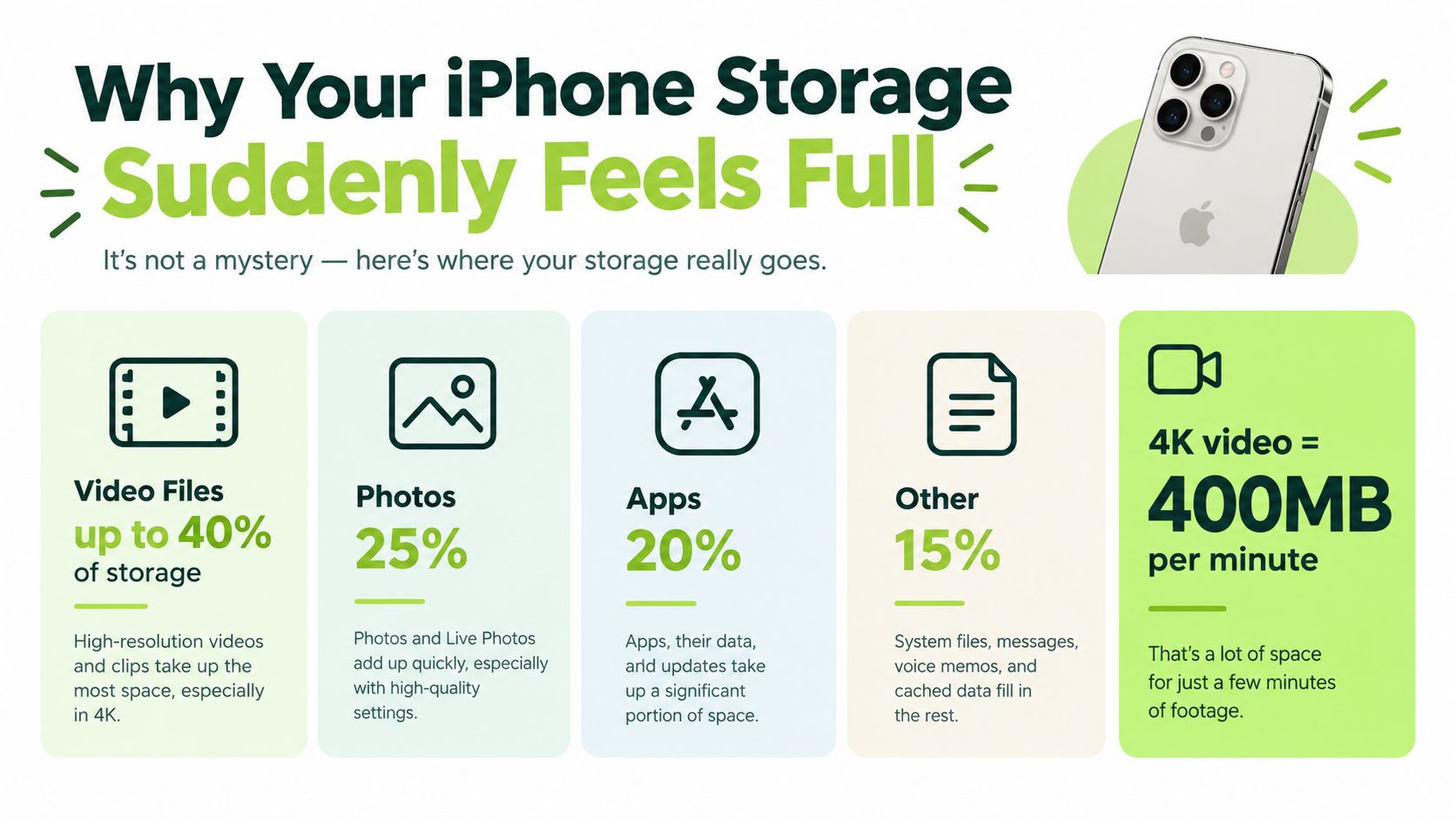
A useful comparison is a single 10-minute recording. At about 4 GB, a 4K/60fps clip consumes nearly 5% of the roughly 85 GB usable on a 128 GB iPhone. The recording itself may be easy to miss among everyday photos, screenshots, and short clips.
Apple's native tools help locate storage pressure, but Photos does not provide a genuine size-sorted video list. That leaves a gap between discovering that videos are large and identifying the exact files worth reviewing. For a faster, private check, LuminaClean can analyze video sizes on the device, so the library can be reviewed without sending media elsewhere. The broader cleanup steps are covered in this guide to freeing space when iPhone storage is full.
Checking iPhone Storage for Video Pressure
Open Settings > General > iPhone Storage before browsing your camera roll. This screen ranks apps and categories by local storage use, giving you a quick way to decide whether videos deserve attention or whether another category is responsible.
What to read on the storage screen
Look at the size of Photos, not just the total capacity bar. A large Photos category points toward media review. If Photos is lower on the list, check messages, app data, downloads, and other categories before deleting videos.
The screen can also show Apple's cleanup recommendations. Treat them as prompts, not a complete file-finding system. iPhone Storage identifies where space is concentrated, but it does not give you a reliable size-sorted list of videos. That gap is why a library can require manual checking even after you identify Photos as the main source of pressure.
Use a focused check before reviewing everything. If Photos is consuming 15 to 20 GB on a 128 GB device, open Photos, go to Albums > Videos, and inspect the 3 to 5 longest clips first. A 20-minute 4K/60fps recording can exceed 8 GB, so duration provides a useful starting filter, even though recording format still affects the final size.
How to separate local clutter from cloud-managed media
Check whether Optimize iPhone Storage is enabled. Apple explains that this setting keeps full-resolution photos and videos in iCloud while smaller device copies remain on the iPhone when needed (Apple support). With optimization off, the phone may store the original files locally, so deleting or moving large clips can produce a more noticeable change.
iCloud Photos does not make deletion immediate in every case. Removed items can remain in Recently Deleted during Apple's recovery period, so available space may not increase until that folder is cleared. Follow this guide to check whether Recently Deleted photos still use storage.
Storage screens are diagnostic tools, not cleanup tools. They show where the pressure sits, then you choose which files to review.
Use the result to choose your next action. A small Photos category points away from video. A large one justifies a targeted video review, while the absence of native size sorting means you should avoid wasting time opening clips at random.
Using the Photos App and Files to Locate Big Clips
Apple's Photos app makes video browsing easy and size sorting awkward. It can filter by media type and show your Videos collection, but it doesn't offer a built-in sort by file size control in Albums (Apple support). That's the gap many users run into when they search for how to find large videos on iPhone.
The native path in Photos
The direct path is simple. Open a video, tap the Information button at the bottom, and Apple shows the file size in the details view under the device name (Apple support). That makes it possible to verify one clip at a time, which is fine when the library is small or the suspect list is short.
The catch is obvious. Manual inspection is slow, and duration can be misleading. Apple notes that ProRes files can be up to 30 times larger than HEVC files (Apple support). So a short ProRes clip can easily outweigh a longer standard recording.
When Files helps more than Photos
Files is useful when videos have already been exported there, because size-based sorting becomes more practical outside the Photos app. That's a better fit when someone needs to compare many clips quickly, especially after moving a batch out of the camera roll. Photos is still the cleaner place to start, because it preserves the native library and keeps you close to the source.
| Format | Approximate Size per Minute | Best For |
|---|---|---|
| 4K at 30 fps | about 170 MB | Higher-quality recording with less pressure than 60 fps |
| 4K at 60 fps | about 400 MB | Fast motion and smoother playback |
| ProRes | much larger than HEVC, up to 30 times larger | High-value recording, editing workflows |
The safest triage rule is to stop trusting clip length. Check the info panel on suspicious videos, especially screen recordings, high-frame-rate clips, and anything shot in ProRes. The longest file is not always the biggest one.
LuminaClean for On-Device Large Video Discovery
A camera roll filled with travel clips, family footage, screen recordings, and repeat takes can make manual review unmanageable. LuminaClean is an iOS-only option that scans on the iPhone and surfaces large videos, exact duplicates, visually similar photos, blurry photos, and screenshots without cloud upload or an account (LuminaClean).
What changes when the scan stays on-device
On-device analysis keeps the library on the iPhone. There is no cloud-processing step and no account needed, which suits personal footage, family videos, and any collection you do not want uploaded elsewhere.
The bigger practical gain is speed. After checking Settings > iPhone Storage and sampling clips in Photos, LuminaClean surfaces the largest videos in a size-sorted queue on-device. You can review the top offenders instead of opening hundreds of clips, tapping the info panel, and returning to the gallery after each check.
That approach addresses a gap in Apple's native tools. Photos lets you browse and inspect files, but it does not give you the same direct size-prioritized video queue. The scan reduces manual searching while leaving the final deletion decision with you.
Free cleanup without committing upfront
LuminaClean includes free deletes to start, with more available each day. It also offers free video compression, useful when a clip should remain on the phone but does not need its original file size. An optional Premium subscription is available for larger cleanup sessions, so users with a substantial backlog can decide whether the faster workflow justifies paying for expanded access.
The app also includes Get Judged, where its mascot highlights the phone's worst clutter pile. That feature does not change how much storage a file uses, but it can make the first cleanup pass easier to start.
The useful advantage is fewer clips to inspect before the obvious storage offenders appear.
For a small library, manual review remains adequate. For years of recordings, an on-device, size-sorted scan offers a faster route to the largest files while keeping the user in control and the media on the iPhone.
Choosing the Right Cleanup Approach for Your Situation
The right method depends on library size, urgency, and how much trust the user wants to place in automation. A few oversized clips call for a different fix than a camera roll that's been growing for years. The fastest approach is often a blend of native diagnostics and a focused cleanup tool.
Pick the method that matches the problem
If the phone just started complaining and the library is manageable, Apple's own tools are enough. Settings > General > iPhone Storage shows whether Photos is the pressure point, and Photos > Videos lets the user confirm individual file sizes one by one. That works when there are only a few obvious candidates.
If the library is large, manual review turns into a slog. Exporting clips into Files can help with size sorting, but it adds steps and still requires moving content out of Photos. For people with years of 4K clips or lots of high-bitrate recordings, that workflow gets old fast.
A simple decision table
| Method | Best For | Speed | Privacy |
|---|---|---|---|
| iPhone Storage review | Confirming whether Photos is the problem | Fast | Native Apple workflow |
| Photos app inspection | Checking a few suspected clips | Moderate | Native Apple workflow |
| Files export and sort | Comparing many exported clips by size | Slower setup, faster comparison | Local on-device files |
| LuminaClean scan | Large libraries with lots of videos | Fast for prioritizing big files | On-device only |
The cleanest workflow is usually layered. Start with Apple's storage screen, confirm that video is the issue, then use the Photos app for quick checks or an on-device scanner when the library is too large to browse comfortably. If the goal is recovery with the least risk, keep the library local and the deletions deliberate.
For a deeper walkthrough on shrinking the files after discovery, see the guide on reducing video file size on iPhone. If the phone is already under pressure, don't wait for the next storage alert. Open iPhone Storage now, check Photos, and start with the biggest video offenders before the next recording fails.
Clean up your camera roll in minutes.
LuminaClean scans on-device, groups duplicates, similar shots, screenshots and blurry photos, and deletes only what you confirm. Free to start, no account.