October 3, 2026
Similar Photo Finder: How It Works and When to Use One
Around 16% of stored photos can be duplicates, and a similar photo finder uses AI and perceptual hashing to group near-identical images that Apple's exact-match tool misses. It lets users review those groups and delete unwanted shots on the iPhone without uploading the photo library to the cloud.
A camera roll can become unmanageable without a single dramatic mistake. A child's birthday creates several nearly identical portraits, a trip produces repeated scenes, and a messaging app saves another copy of an image that already exists. Months later, the Photos app contains a long stream of shots that look alike enough to confuse manual sorting, but not alike enough for Apple's built-in duplicate tool to catch them all.
That distinction matters. The safest cleanup process doesn't treat every similar image as disposable. It groups likely candidates, explains what belongs together, and leaves the final decision with the person who knows which expression, crop, or edited version matters.
Table of Contents
- The Hidden Problem with Photo Duplicates
- How Similar Photo Detection Works
- Apple Duplicates vs Dedicated Photo Cleaners
- Reviewing and Deleting Photos Safely
- On-Device Privacy and Storage Recovery
- Choosing the Right Photo Cleanup Tool
- Moving Beyond Exact Duplicates
The Hidden Problem with Photo Duplicates
The camera roll problem usually starts with photos that are almost the same, not perfectly identical. A burst sequence, a slightly cropped shot, an edited copy, or a compressed re-save can all survive as separate files while looking close enough to confuse manual cleanup.
iPhone users often assume the Duplicates album has already handled the mess. Apple's native tool is useful for exact copies and merges, but it does not solve the larger issue of near-duplicate clutter. A similar photo finder has to group shots that belong together without assuming every close match should be deleted.
That distinction matters because storage waste rarely comes from one obvious mistake. It comes from the everyday habits that fill a library: repeated taps during a child's birthday, multiple takes of the same scene, and images saved again by messaging apps. Those copies are easy to ignore until the Photos app becomes hard to review by hand.
A recent industry estimate found that around 16% of stored photos are duplicates, with an average of 154 duplicate photos per user across roughly 3 billion photos analyzed from 6 million photo-cleaner users (the duplicate photo space calculator). The same estimate puts duplication at about 10% for light users and roughly 30% for heavy burst shooters and people with auto-saved messaging apps.
Why near-duplicates are harder
Exact duplicate detection can compare file identity or matching pixels. Near-duplicate cleanup has to judge visual resemblance and usefulness. A user may want to remove five failed takes while keeping two expressions, or delete an unedited original while preserving a carefully adjusted version.
A practical example shows why the storage adds up. A set of 4,200 duplicate photos, each at 3.5 MB, can waste about 14.4 GB of storage. The waste is not limited to identical files. Repeated captures, edited copies, and images saved again by messaging apps create groups that are difficult to sort efficiently by hand.
Practical rule: Group photos as candidates for review, not as automatic deletion targets.
The question is which photos belong to the same visual moment, and which version should stay on the iPhone. A dedicated similar photo finder is built for that review step.
How Similar Photo Detection Works
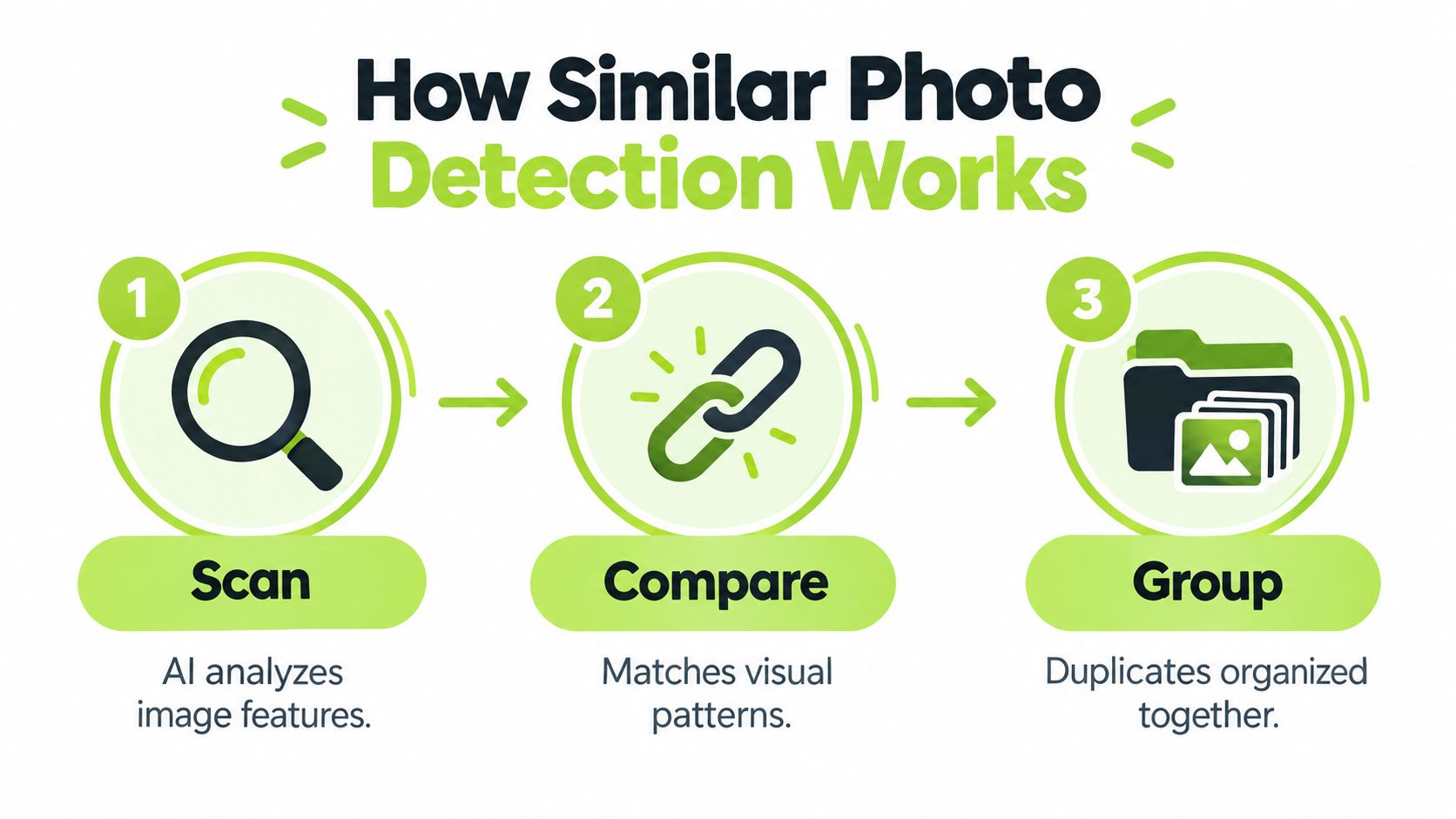
A similar photo finder starts by scanning the library and pulling out visual signals from each image. It then compares those signals, groups photos that look related, and shows them as a review set. The system does the heavy sorting, but the keeper decision still depends on the person reviewing the group.
Perceptual hashing in plain English
Perceptual hashing turns an image into a compact binary code based on visual content, not on every pixel. Two images that have been resized, lightly edited, or reformatted can still end up with close hashes. The comparison usually uses Hamming distance, which counts bit differences instead of running a slow pixel-by-pixel match.
One published implementation used a 128-bit dHash across 200,000 images and treated hashes differing by 0 to 2 bits as duplicates (the published image copy detection implementation). That method is fast and works well for obvious matches. It also has limits, because perceptual hashing can produce false positives and false negatives, so the output still needs a review step.
More advanced systems use learned visual descriptors. They convert each photo into a dense embedding and search for nearby vectors, which helps rank related images as libraries grow. The MFND benchmark reported 96% sensitivity at a false-positive rate of 1.43×10^-6 for its best method (the MFND near-duplicate image detection benchmark). That result shows what stronger feature extraction can do, not what every consumer app will achieve in practice.
Why the review step still matters
A practical pipeline usually has three parts:
- Fast filtering: Perceptual hashes collect obvious exact and near-exact candidates.
- Visual ranking: Embeddings or other learned descriptors help order bursts, travel sets, retakes, and edited copies.
- User confirmation: The person reviewing the group chooses the keeper and confirms deletion.
That final step is what protects an iPhone library from accidental loss. A darker original may be the only version that edits well later. A cropped photo may remove clutter but also cut out context. A blurrier image may still be the only one that preserves everyone in the frame.
For a practical look at the limits of consumer tools, see how photo cleaner apps work. The core rule stays the same: software can group similar photos, but it cannot judge personal value from visual similarity alone.
Apple Duplicates vs Dedicated Photo Cleaners
Apple's Photos app gives iPhone users a sensible first pass. The Duplicates album sits under Utilities, and merging matching items keeps the highest-quality version plus relevant data while moving the other copies to Recently Deleted (Apple's guide to merging duplicate photos and videos). That makes the native workflow convenient for files that are genuinely identical.
The limitation is coverage. Apple's exact-match approach doesn't identify every burst frame, retake, edited copy, screenshot, blurry image, or large video that contributes to a crowded library. A dedicated cleaner can apply broader categories and present similar shots together, but the extra coverage also creates more decisions for the user.
Built-in iOS Tools vs Dedicated Cleaners
| Feature | iOS Native Tool | Dedicated Photo Cleaner |
|---|---|---|
| Exact duplicate merging | Available in the Duplicates album | Commonly included |
| Near-duplicate grouping | Limited, because exact matches are the focus | Designed to group visually similar shots |
| Burst and repeated takes | Not the primary workflow | May be surfaced for side-by-side review |
| Screenshots and blurry photos | Require separate manual sorting | Can be placed into focused review categories |
| Large videos | Require manual discovery | May be included in storage-focused cleanup |
| Deletion control | Merge confirmation and Recently Deleted recovery | Review, swipe, and confirmation workflows vary by app |
| Processing model | Part of iOS Photos | Must be checked in each app's privacy information |
The comparison isn't a reason to ignore Apple's tool. It's a reason to use it for exact matches and add a dedicated workflow when the actual clutter involves visual similarity. Users should verify whether a cleaner supports iPhone only, how it handles photo permissions, and whether processing happens on the device.
For practical background on exact copies, merging duplicate iPhone photos provides a useful native workflow reference. App availability and subscription terms should always be checked on the relevant App Store listing because those details can change.
Reviewing and Deleting Photos Safely
The safest cleanup session starts with grouped candidates, not a single destructive command. A tool may present six photos from the same moment, with one frame sharper, another showing a better expression, and a third containing a useful crop. The user can keep the meaningful version and mark the rest for deletion.
A sensible review follows a repeatable rhythm:
- Open the group. Check whether the images show the same moment or only a similar subject.
- Compare the keepers. Look at facial expressions, focus, framing, lighting, edits, and image context.
- Protect the exception. Keep an image if it contains information or emotion that the visually stronger frame lacks.
- Confirm the selection. Deletion should happen only after the user has reviewed the marked items.
- Check Recently Deleted. Treat the recovery folder as a safety net, not as permission to skip careful review.
What a careful review looks like
Consider a burst of a family member blowing out birthday candles. The sharpest frame might show the face clearly, but a slightly softer frame may capture the exact moment the candles were extinguished. A similar photo finder can put those frames together, yet it can't know which memory the family values.
The same caution applies to edited copies. A user might keep both an original and a black-and-white edit for different purposes. Deleting one because the pixels look similar can remove creative flexibility that a storage calculation won't reveal.
Apple states that deleted photos and videos remain in Recently Deleted for 30 days before normal permanent removal (Apple's instructions for deleting and recovering photos). That window provides a recovery path if a user changes their mind, but it shouldn't replace a clear confirmation screen.
A good cleanup interface reduces scrolling. It doesn't remove responsibility from the person who owns the memories.
Swipe-based review can make the task less tiring because each decision is small and visible. Bulk selection can help with obvious screenshots or exact copies, while near-duplicate groups deserve slower inspection. The right balance is speed for low-risk categories and attention for personal moments.
On-Device Privacy and Storage Recovery
A photo library can include children, medical documents, travel details, private messages, and images never meant for a remote server. For that library, on-device analysis limits one important risk: the cleanup process does not need to upload personal images to a cloud service. It still leaves the harder review problem intact. A tool may group burst shots, edited copies, or screenshots that look alike even when the owner wants to keep more than one.
LuminaClean is an iPhone-only option that scans on the device for exact duplicates, visually similar photos, blurry photos, screenshots, and large videos. It also offers free video compression. The app requires no account, keeps photos on the iPhone, and asks for a swipe or confirmation before deletion. Its optional Premium subscription is offered weekly at $5.99 or yearly at $17.99. The free allowance starts with 65 deletes and adds 10 more each day. The Lumina mascot can also assess a user's worst photo pile through Get Judged (the LuminaClean App Store listing).
Privacy and recovery solve different risks
Local processing reduces unnecessary upload exposure. It cannot guarantee that every similarity match is correct. A privacy-focused app can still place two meaningful photos in one group, so the review screen needs clear thumbnails, group boundaries, and a deliberate deletion step.
Storage recovery depends on what the library contains. Duplicate photos, near-duplicates, screenshots, and videos each contribute differently, so the recovered space will vary. One 2026 iPhone study estimated that 18% of an average library consisted of duplicates or near-duplicates. It also estimated that screenshots made up 11% of library items and 4% of storage (the iPhone photo habits study).
The study estimated around 450 duplicate or near-duplicate photos in a 2,500-photo library, representing roughly 1.3 to 2.1 GB of waste. Those figures describe an estimate, not a promise for every library. They show why similar-photo review belongs alongside screenshot and video cleanup, rather than being treated as exact-duplicate removal alone.
For a closer examination of iPhone photo privacy and safety, the practical standard is clear: analyze locally, explain each group, make deletion reversible, and leave the final decision with the person who owns the memories.
Choosing the Right Photo Cleanup Tool
The right tool depends less on the size of the marketing page than on the user's tolerance for risk and manual review. A small library may need only Apple's native Duplicates album. A crowded library with years of bursts and screenshots benefits from broader grouping, provided the app explains what it found.
A practical decision framework looks like this:
- Privacy first: Confirm that photo analysis happens on-device if images shouldn't leave the iPhone. Check whether an account or cloud upload is required.
- Detection depth: Look for near-duplicate, burst, edited-copy, screenshot, blurry-photo, and large-video workflows rather than exact matching alone.
- Review controls: The tool should show groups clearly and require a swipe, selection, or confirmation before deletion.
- Recovery behavior: Confirm that deleted items use the native Recently Deleted workflow or another clearly documented recovery path.
- Pricing fit: A free allowance can suit gradual cleanup, while an optional subscription may suit a large backlog. Users should verify current prices in the App Store.
- Platform coverage: iPhone-only availability is appropriate for an iPhone library, but households managing Android devices may need a separate solution.
A tool that promises effortless removal of everything similar deserves caution. Similarity is a ranking signal, not proof that two images have equal personal value. The best choice gives users enough automation to avoid endless scrolling and enough control to prevent an irreversible mistake.
Moving Beyond Exact Duplicates
A clean photo library isn't created by deleting every file that resembles another one. It comes from choosing the strongest keeper from each meaningful cluster. That might mean preserving one portrait from a burst, an edited version alongside the original, or a screenshot until its information has been transferred elsewhere.
Near-duplicate detection also has technical limits. A 2025 paper reported that a deduplication strategy improved near-duplicate detection F1 from 0.4576 to 0.7928 (the image matching research). The result shows meaningful progress, but it also shows why false positives and false negatives remain real concerns in practical tools.
Automation should stop before the final decision
A fully hands-off cleaner sounds convenient, but it creates the wrong incentive. The software can identify a repeated visual pattern. It can't reliably understand that one frame contains a person who was absent from the others, that an edited copy has sentimental value, or that a blurry image is the only record of a moment.
A user-in-the-loop workflow handles that boundary well:
- Automation finds the pile. Hashes and visual descriptors reduce the search area.
- Grouping adds context. Related images appear together instead of scattered through a timeline.
- Human judgment selects the keeper. The user weighs quality, expression, edits, and meaning.
- Confirmation controls deletion. The action remains deliberate and recoverable through iOS safeguards.
The useful goal isn't zero similar photos. It's a library where every remaining photo has a reason to remain.
That mindset makes a similar photo finder more than a duplicate remover. It becomes a review system for the messy middle, where repeated takes, screenshots, edits, and useful exceptions live. With on-device processing and deliberate confirmation, users can reduce clutter without handing over their private library or surrendering control of their memories.
Open the iPhone photo cleaner App Store listing, review the privacy and deletion controls, and start with one small group of similar photos. Keep the best frame, confirm only the unwanted copies, and use the same careful process for the next burst, screenshot set, or repeated capture.
Clean up your camera roll in minutes.
LuminaClean scans on-device, groups duplicates, similar shots, screenshots and blurry photos, and deletes only what you confirm. Free to start, no account.