October 18, 2026
Deleting Multiple Photos on iPhone: A Practical Guide
The iPhone is nearly full, the camera roll contains a long run of almost-identical vacation photos, and old screenshots sit between pictures worth keeping forever. Deleting multiple photos on iPhone sounds like a simple cleanup job until the owner has to decide which copies matter and whether removing them also changes the library on other devices.
Fast selection is only part of the job. A useful cleanup starts with the storage problem, separates obvious trash from irreplaceable shots, and leaves room to undo a mistake.
Table of Contents
- Why You Probably Have More Than One Goal
- Using the Photos App to Select and Delete in Bulk
- What the Photos App Misses
- How LuminaClean Handles the Leftovers
- The Safety Net Most People Forget About
- Choosing the Right Workflow for Your Goal
Why You Probably Have More Than One Goal
A crowded camera roll can create different problems that look similar on the screen. An owner might need room to record a video, want a smaller synced photo library, or want to stop scrolling past expired shopping screenshots. Those needs don't necessarily call for the same action.
Local iPhone storage and iCloud storage are separate. Apple distinguishes them in its guidance on managing photo and video storage, including Optimize iPhone Storage, which keeps full-resolution originals in iCloud and smaller versions on the phone. That makes optimization a sensible alternative when the photos still matter but the device needs breathing room.
Name the problem before selecting anything
- Free local space. The priority is reducing what occupies the phone, not necessarily discarding photos from the library. Optimization deserves consideration before a sentimental cleanup becomes permanent.
- Slim the iCloud library. The owner wants fewer unwanted originals in the synced collection. That calls for deliberate choices about what should remain, rather than treating deletion as a phone-only adjustment.
- Keep meaningful photos without the clutter. The priority is choosing the useful screenshot, the sharp portrait, or the preferred vacation shot. Storage relief may follow, but preserving the right image matters more than clearing the largest batch.
These goals can overlap. A parent might want more device space while keeping every meaningful picture of a child, but have no attachment to repeated shopping screenshots. Treating those categories differently is more useful than applying a blanket rule to the entire library.
Practical rule: If the photo is still wanted, solve the storage problem before deciding to solve it by deletion.
Choose a finish line
A workable finish line might be a reviewed screenshot collection, a tidier trip album, or a set of redundant clips removed after checking the keepers. An arbitrary target for the number of deleted items isn't particularly helpful. It encourages easy deletions rather than useful decisions.
The fastest gesture also isn't always the safest choice. Drag-selecting an uninterrupted block makes sense for obvious disposable material; it makes less sense for a mixed stretch containing receipts, portraits, and an important document.
The best starting question is therefore not which app deletes fastest. It's what must change, and what must remain available afterward? That distinction prevents a storage emergency from turning into an unnecessary loss of memories.
Using the Photos App to Select and Delete in Bulk
Apple's native Photos app already handles straightforward batch deletion. No separate cleaner is needed for a clearly unwanted stretch of screenshots or repeated disposable images.
The selection grid is where the time-saving gesture happens.

Select a batch without tapping every thumbnail
Apple's instructions for deleting photos on iPhone describe tapping Select, choosing individual photos or videos or sliding a finger across a continuous group, then tapping Trash and confirming; they also explain bulk recovery and the 30-day Recently Deleted window across the iPhone, iCloud, and associated devices.
A practical selection routine follows that native workflow:
- Open the relevant group in Photos. Start with the library or the collection containing the unwanted items, rather than selecting across unrelated material.
- Tap Select. Tap separate thumbnails when the unwanted photos aren't next to one another.
- Slide across adjacent items. Sweep across a row and continue diagonally through neighboring thumbnails to select a continuous group. This saves repetitive tapping when the whole stretch is disposable.
- Review the selected thumbnails. Check the edges of the selection and any meaningful images mixed into it.
- Tap Trash and confirm. The confirmation is the last opportunity to reconsider that batch before moving it out of the active library.
Dragging works best for continuity; tapping works best for exceptions. A screenshot run is a good candidate for a sweeping gesture. A trip album with favorites scattered throughout is better handled by smaller selections.
Work within a day, month, or event
For an entire day or month, first narrow the visible material to that period, then select the unwanted items within it. Breaking a month into reviewable stretches is preferable to sweeping through a mixed grid without checking what belongs there.
The same principle applies to albums and event groupings. Older Photos terminology such as Moments and Collections may appear in older tutorials, but the useful idea is grouping related images before selecting them, not hunting for a particular historical label.
An album is a convenient review boundary, not a reason to assume every picture inside it is expendable. For whole-album cleanup, inspect the contents before selecting the photos for library deletion.
The accompanying video provides a visual walkthrough of the selection process.
Native bulk selection becomes tedious when each deletion requires comparison with another image. That's a sorting problem, not a gesture problem, and selecting faster won't resolve it.
What the Photos App Misses
A row of sunset pictures can contain no exact duplicates and still feel redundant. The framing shifts slightly, someone moves through the background, or the exposure changes. Each image is distinct, but the owner may only want the strongest shot.
Exact duplication and visual similarity aren't the same thing. That distinction explains why a duplicate cleanup can finish while plenty of repeated-looking material remains.
Duplicate merging has a specific purpose
Apple introduced its Duplicates collection under Utilities with iOS 16 in 2022; it groups exact copies and merges them while preserving the highest-quality image and relevant metadata, with discarded copies entering Recently Deleted, according to Apple's duplicate-photo guidance. Duplicate identification needs the iPhone to be locked and charging and can take time to surface results.
Waiting for that process can help when actual copies haven't appeared yet. It won't make separate photographs of the same scene become exact duplicates.
The comparison below highlights the difference between copy consolidation and broader photo review.
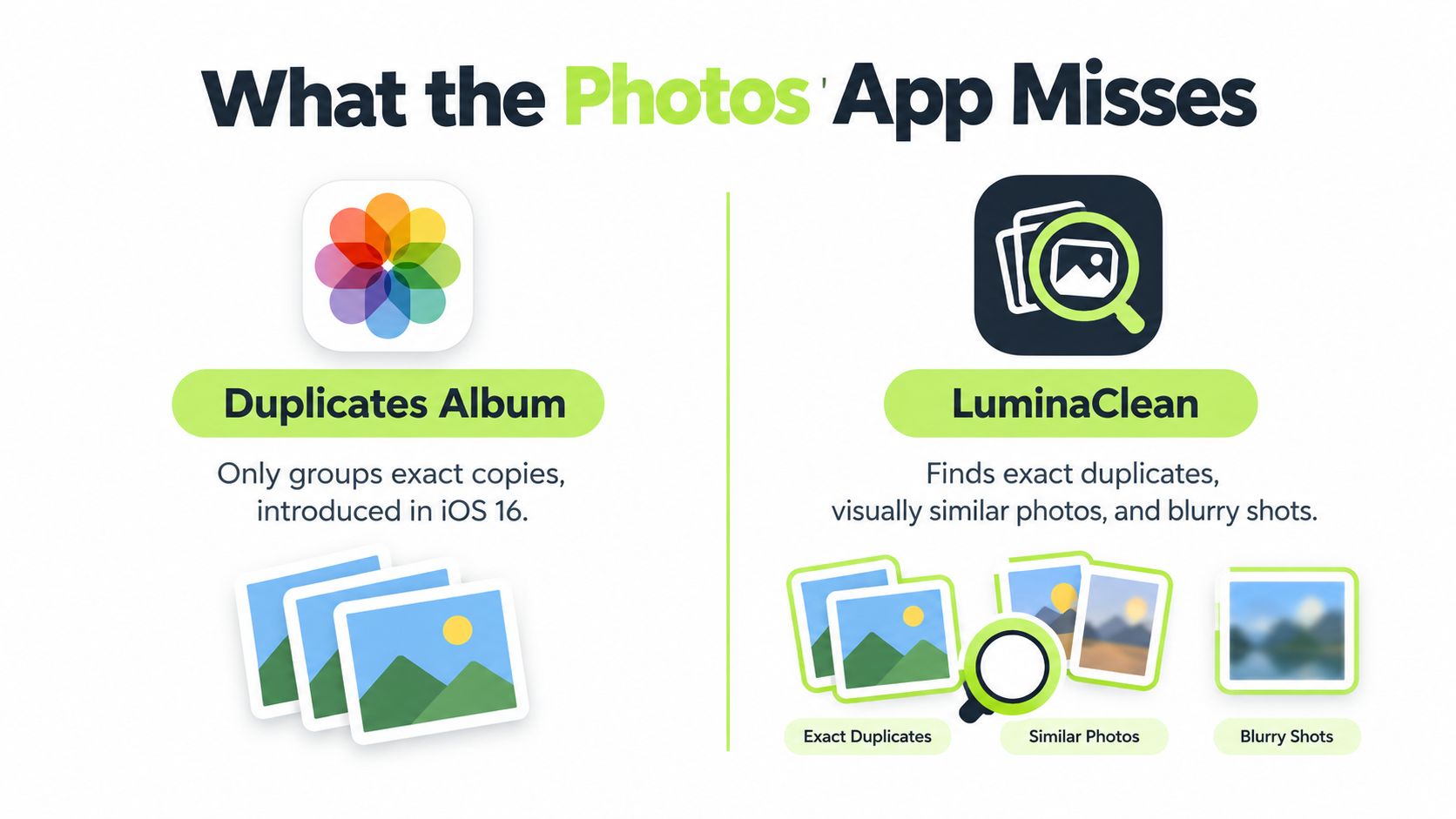
For detected duplicate sets, merging is more appropriate than guessing which copy to delete manually. It preserves a representative item rather than treating the entire group as trash. Owners can select multiple detected sets for consolidation instead of handling every set separately.
The leftovers require judgment
Consider a group of child portraits taken close together. The sharpest picture might have an awkward expression, while a softer image captures the moment better. A true-duplicate tool doesn't answer that editorial question, and sharpness alone shouldn't decide it either.
Manual scrolling also provides a poor basis for prioritizing storage cleanup. A video thumbnail doesn't explain how much space the clip occupies, and a blurry photograph can be hard to assess at thumbnail size.
| Material | Why a quick scroll under-delivers |
|---|---|
| Near-identical photographs | The owner needs to compare separate shots, not consolidate exact copies. |
| Blurry frames | Small thumbnails can hide the defect or its significance. |
| Large videos | The preview doesn't make storage priority obvious. |
For a focused review, the guide to finding and removing blurry photos on iPhone offers a narrower starting point than an unrestricted library sweep.
A technically imperfect picture can still be the only picture worth keeping.
The practical limitation isn't that Photos can't delete these items. It can. The limitation is the effort required to find, compare, and choose them before deletion.
How LuminaClean Handles the Leftovers
LuminaClean is an iPhone-only option for the comparison work left after native batch deletion. Its photo-cleaning feature overview describes exact-duplicate and visually similar photo detection, blurry photos, screenshots, and large videos, alongside free video compression and on-device analysis.
The useful distinction is grouped review instead of uninterrupted scrolling. Photos remains suitable for obvious trash and built-in duplicate merging; a dedicated cleaner earns its place when finding the candidates takes more effort than deleting them.
The app screenshot shows its cleanup interface.

Review a category with a clear keep rule
Start with the least ambiguous material. A forgotten screenshot of an expired offer usually requires less judgment than a family photograph. Similar-photo groups deserve more attention because the intended task is choosing a keeper, not merely removing anything that resembles another image.
A useful review sequence is:
- Clear obvious temporary material. Review screenshots for anything still needed, such as a useful reference or document.
- Compare similar photographs. Choose based on expression, framing, sharpness, and meaning. A similar-image match is a review suggestion, not proof that a photo has no value.
- Inspect blurry candidates. Keep a unique memory when its content matters more than technical quality.
- Review large videos separately. Decide whether the clip is unwanted or too bulky to keep in its current form.
The app scans on the iPhone and supports swipe-to-clean decisions, but nothing is deleted without the user's swipe or confirmation. The owner still makes the keep-or-delete choice. Grouping reduces searching; it doesn't replace judgment.
Use compression and understand the allowance
Free video compression provides an alternative to throwing away a wanted clip. A sensible approach is to inspect the compressed result before removing anything irreplaceable, especially when fine detail matters.
The iPhone App Store listing provides the free-to-start terms: 65 free deletes initially, then 10 more every day, with an optional Premium subscription for clearing a larger backlog; deleted photos go to iOS Recently Deleted for 30 days. The recurring allowance suits smaller maintenance sessions, while a backlog may justify considering the optional subscription.
Photo analysis is 100% on-device: photos never leave the iPhone for analysis, there's no cloud processing, and no account is needed. That makes the tool relevant to owners who want help sorting personal images without uploading them for processing.
The mascot, Lumina, adds a playful Get Judged interaction that judges a clutter pile after the app scans on the iPhone. It's an optional bit of personality, not a substitute for checking selected photos carefully.
The Safety Net Most People Forget About
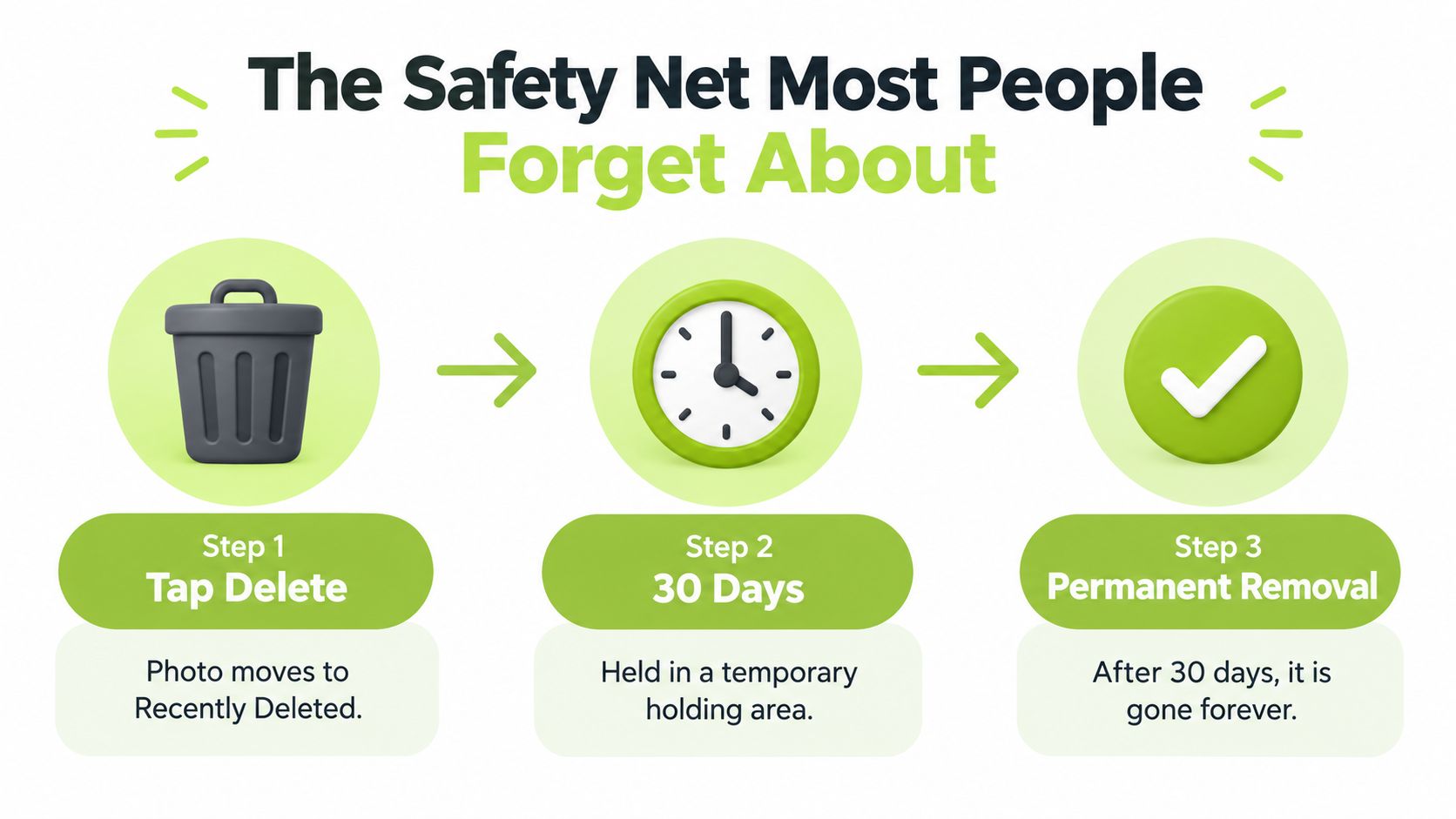
A photo disappearing from the main library doesn't mean it has reached permanent removal. Recently Deleted is a holding area, and treating it as part of the cleanup process avoids both accidental loss and confusion about storage.
With iCloud Photos enabled, deletion propagates to other devices using the same Apple Account, including when initiated through iCloud.com; Apple specifies a 30-day recovery window, after which removal becomes permanent, in its iCloud photo deletion guidance. Storage isn't fully reclaimed until Recently Deleted is purged.
Check the library being changed
Before a large deletion, the owner should check the Apple Account shown in Settings and whether iCloud Photos is enabled for that library. Shared-library context deserves attention too, particularly on a shared device or when photographs belong to more than one person's collection.
The key question is whether the photos are being removed from a synced library or merely being managed for local storage. Assuming that a copy visible on another synced device is an independent backup is unsafe.
Before permanent removal: Important originals should be verified in an independent backup, not merely spotted on another synchronized screen.
A backup check should confirm that the intended files are present and usable. A vague recollection that something was copied earlier isn't enough reason to purge meaningful photos.
The holding period is illustrated below.
Recover mistakes or finish the cleanup
Recently Deleted supports batch recovery, so an accidental selection doesn't have to be repaired photo by photo. The owner can review the album, select the mistaken deletions together, choose recovery, and confirm.
For intentional permanent removal, the decision should happen only after inspecting that holding area:
- Recover anything questionable. Uncertainty is a reason to restore an item, not rush its permanent deletion.
- Review the intended purge. Check that no family photo, document, or unique clip slipped into the batch.
- Confirm permanent deletion deliberately. Emptying the holding area gives up its recovery protection.
The distinction matters when storage relief seems smaller than expected. The explanation of why Recently Deleted photos take up storage helps separate removing an item from the visible library from finishing the storage cleanup.
Optimization remains the less destructive option when the bottleneck is local space and the originals are still wanted. Purging Recently Deleted should finish a considered deletion, not serve as the automatic next tap after every cleanup session.
Choosing the Right Workflow for Your Goal
The right workflow minimizes unnecessary loss, not just tapping. Native Photos is enough for a known batch of unwanted items. Grouped review becomes useful when the owner still needs to identify which photographs are redundant.
Match the workflow to your goal
| Goal | Best workflow | Safety check |
|---|---|---|
| Free local space while keeping wanted photos | Consider Optimize iPhone Storage before deletion. | Verify that retaining the originals is the priority. |
| Remove obvious unwanted material | Use native Photos selection, review the batch, and finish in Recently Deleted when appropriate. | Inspect the holding area before permanent removal. |
| Slim an iCloud-synced library | Delete in reviewable batches after checking synchronization. | Verify important originals in an independent backup. |
| Keep the strongest shots from repeated takes | Compare similar-image groups and review blurry candidates individually. | Preserve meaningful exceptions, even when imperfect. |
| Retain a wanted large clip | Consider compression rather than immediate deletion. | Inspect the result before discarding the original. |
For owners whose intention is specifically to remove local copies without losing cloud originals, the guide to deleting photos from iPhone while keeping them in iCloud addresses that distinction. A normal deletion in a synced library isn't a local-storage shortcut.
Run a final pre-delete check
- Verify the account and sync status. Confirm which library the action will change.
- Skim for irreplaceable content. Pay attention to portraits, documents, and unique clips.
- Locate Recently Deleted. Confirm that the batch can be reviewed afterward.
- Choose deletion or retention deliberately. Consider optimization or compression when the content is still wanted.
A manageable cleanup doesn't require finishing the entire camera roll at once. Starting with a clearly disposable category produces a cleaner selection and leaves complicated decisions for a less rushed moment.
Open Photos, choose a small group of unwanted screenshots, and practice the Select-and-slide gesture before attempting a larger batch. Review the result in Recently Deleted, then choose grouped comparison or storage optimization only where the remaining problem calls for it.
Clean up your camera roll in minutes.
LuminaClean scans on-device, groups duplicates, similar shots, screenshots and blurry photos, and deletes only what you confirm. Free to start, no account.