October 30, 2026
How to Use a Duplicate Photo Remover on iPhone
The camera roll is full again. A weekend with the kids, or a short trip, left five sunsets, a burst of the same face, a stack of screenshots, and one sharp shot buried in the middle. Storage warnings show up before there's time to sort any of it.
A duplicate photo remover on iPhone starts with a simple split. Exact copies are a storage job you can finish in Photos. Near-identical frames are a judgment job, and they need a slower look. Apple's Duplicates album groups only identical files. Bursts, blur, screenshots, and long videos stay put until you pick a keeper.
Anything you remove lands in Recently Deleted for 30 days. You can put a photo back during that window. The space on the phone doesn't fully return until those items leave the album.
Do the exact copies first. If Duplicates is empty, the roll still isn't clean. It only means iOS didn't find the same photo saved twice.
Table of Contents
- Which Photos Are Safe to Remove First
- How to Merge Exact Duplicates in Photos
- Recover a Mistake and Free the Space
- How to Pick the Keeper in a Similar Set
- What an On-Device Scan Does With Your Photos
- Clean a Small Batch Before You Subscribe
Which Photos Are Safe to Remove First
That post-trip roll is a normal result of how phones get used, not a personal failure. In a 2023 survey of nearly 2,000 Americans, the average respondent had more than 3,100 pictures and videos stored on a mobile device, 63% reported taking multiple pictures of the same subject without analyzing the shots or deleting weaker versions, and 80% had photos or videos they had not viewed since the day they captured them.
Taking another frame costs nothing. Choosing among them still costs attention. Sort the pile before you delete anything, and use the table below as the first pass.
Sort by type, not by mood
Exact duplicates are the same image saved twice, often from AirDrop, Messages, or an export. Near-identical shots and bursts are several frames seconds apart. Screenshots, receipts, blur, and long videos are separate jobs. Apple's Duplicates album, at Photos, then Collections, then Utilities, then Duplicates, groups only exact copies, and it needs iOS 16 or later.
Don't treat a technically similar frame as disposable if it's the only record of the moment. A darker shot of a birthday cake can be the only one where everyone's face is in the frame.
| Photo type | Typical example | Apple Duplicates album | Keeper rule |
|---|---|---|---|
| Exact duplicate | Same photo saved again from AirDrop, Messages, or an export | Yes, grouped for Merge | Keep the merged highest-quality copy with its metadata |
| Near-identical or burst | Several frames seconds apart of one sunset, face, or pet | No | Keep the sharpest frame or the best expression |
| Screenshot or receipt | Chats, boarding passes, order confirmations | No | Delete only if the information is saved elsewhere |
| Blurry or dark frame | Motion blur, missed focus, or a black shot | No | Delete unless it is the only photo of that moment |
| Large or repeated video | A long clip or several takes of the same scene | Only if the video file is an exact copy | Keep one full take and remove or compress the rest |
What that first pass is for
The album is a filter for copies, not a verdict on your memories. Clear the exact row with confidence. Leave bursts, retries, blur, screenshots, and long videos for a review where you can see the difference between frames.
Practical rule: If a frame is the only record of the moment, keep it, even when it looks weaker than the shots around it.
A duplicate photo remover is useful after this sort, because the risky deletes are the ones that look redundant and aren't. Exact copies are safe to merge. Everything else waits for a keeper.
How to Merge Exact Duplicates in Photos
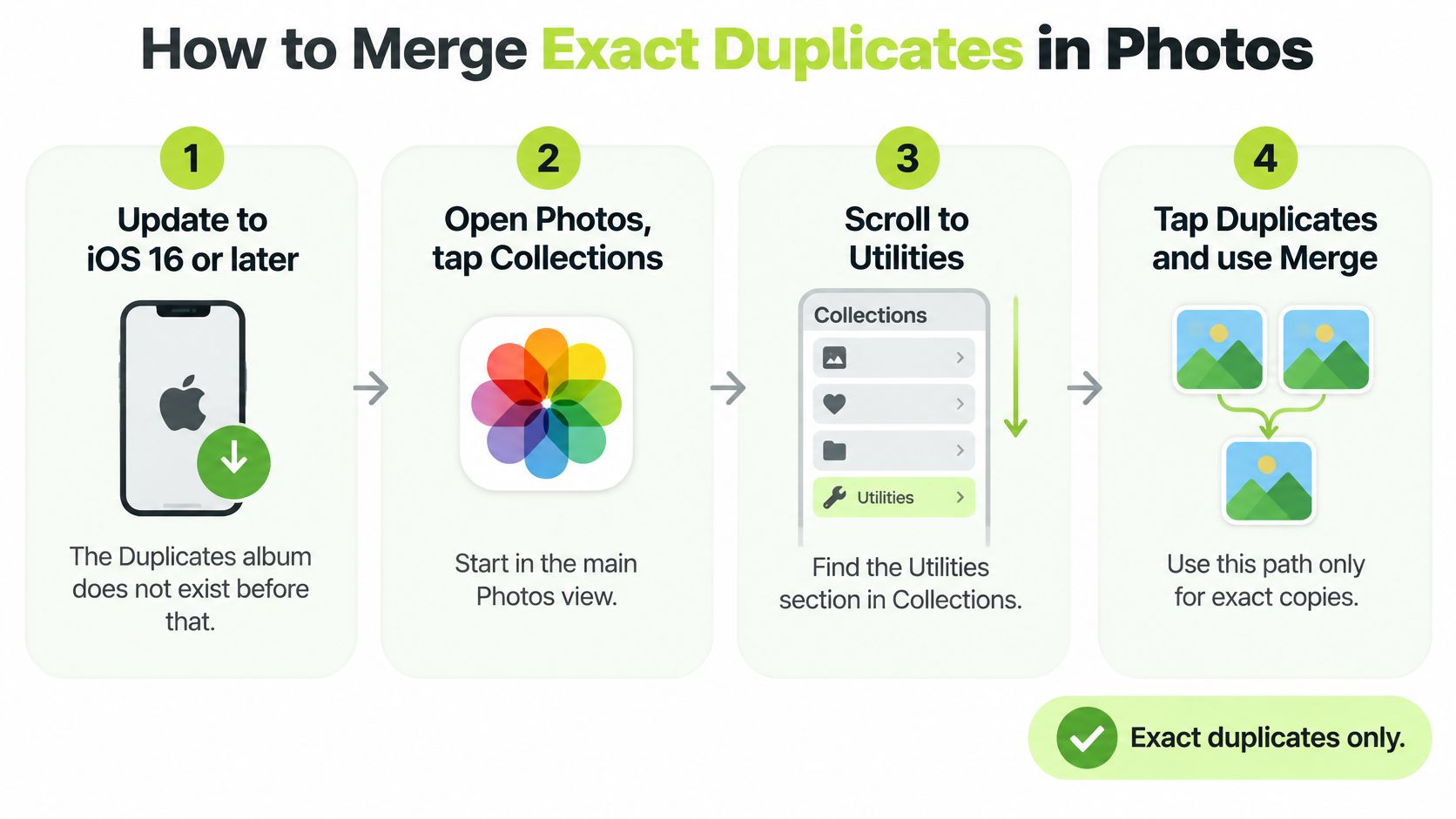
Use this path only for exact copies. Near-identical shots, screenshots, and blur belong in a separate review.
Get to the album
- Update to iOS 16 or later. The Duplicates album doesn't exist before that.
- Open Photos, tap Collections, scroll to Utilities, and tap Duplicates. It isn't in the albums you created yourself.
- If the album is missing or empty after a big import or an iOS update, plug in, lock the iPhone, and leave it charging. Apple's scan runs in that state and can take up to a few days. If iCloud Photos is still syncing, the scan waits until sync finishes.
An empty album after that wait means iOS found no copies of the same photo. It doesn't mean your bursts and near-matches are clean. Stop the merge steps there and move on to similar frames.
Compare, then confirm
- Open a duplicate set and compare the thumbnails. Apple keeps the highest-quality version and the relevant metadata when you merge, so you aren't picking a file by hand.
- Select the sets you trust, or tap Select All. Skip any set that doesn't look like the same picture saved twice.
- Tap Merge, then confirm with "Merge [Number] Items." Apple's duplicate guide separates identification, selection, and that confirmation. Nothing is removed at the confirmation screen until you confirm.
- The extra copies move to Recently Deleted. They aren't erased on the spot, and they stay recoverable for 30 days.
Why the confirm step matters
Merge is a cleanup, not a silent purge. You choose the sets. iOS combines the best copy and parks the rest where you can still get them back. That same idea should carry into any duplicate photo remover you add later. The app may scan the iPhone and present candidates, but nothing should leave the library until you swipe or confirm.
If a set shows two photos that differ by a crop, a filter, or a second of motion, don't merge them here. Those aren't exact copies, and this album isn't built to judge them.
Recover a Mistake and Free the Space
A delete from Photos, or from a cleaner, isn't the end of the photo. Apple's delete and hide guide states that deleted photos and videos move to the Recently Deleted album and remain there for 30 days. During that window you can recover them or erase them for good.
LuminaClean follows that same window. A deletion is something you confirm, and the photos go to Recently Deleted rather than vanishing. The app doesn't promise it can bring a file back after that album is gone. For a fuller walk-through of a bad delete, see how to recover photos removed by a cleaner.
Put a photo back
- Open Photos, go to Collections or Utilities, tap Recently Deleted, tap View Album, and use Face ID or Touch ID.
- Select the shots you still want and tap Recover. They return to the library.
- Check the ones that felt wrong the same day, while the set is still fresh. A small batch is easier to undo than a afternoon of tapping.
Make the storage real
The space stays used until the items leave Recently Deleted. Tap Delete All there if you're sure and want the space immediately, or wait out the 30 days. Storage isn't fully reclaimed until the photos are permanently deleted, and Delete All is the step that frees it on the spot.
Back up with a Mac, a PC, or iCloud before a large cleanup. LuminaClean strongly recommends a backup before you use cleanup features. After 30 days the album is gone, and a cleaner can't promise recovery.
If iCloud Photos is on, a delete on the iPhone also removes that photo from iCloud and from other devices on the same library.
That surprises people who thought they were only tidying one phone. Deleting through LuminaClean does the same thing when iCloud Photos is enabled. Turn the decision over in one small set, recover anything that feels wrong the same day, and only then empty Recently Deleted.
How to Pick the Keeper in a Similar Set
Exact copies are a storage job. A burst of your kid, a pet, or a trip is a judgment job, and that's the gap Apple's Merge flow doesn't cover. Apple's duplicate photos guide already detects duplicates, combines the highest-quality version and relevant metadata, and sends the rest to Recently Deleted for 30 days. It doesn't settle the fear that a redundant-looking image is the only record of a meaningful moment.
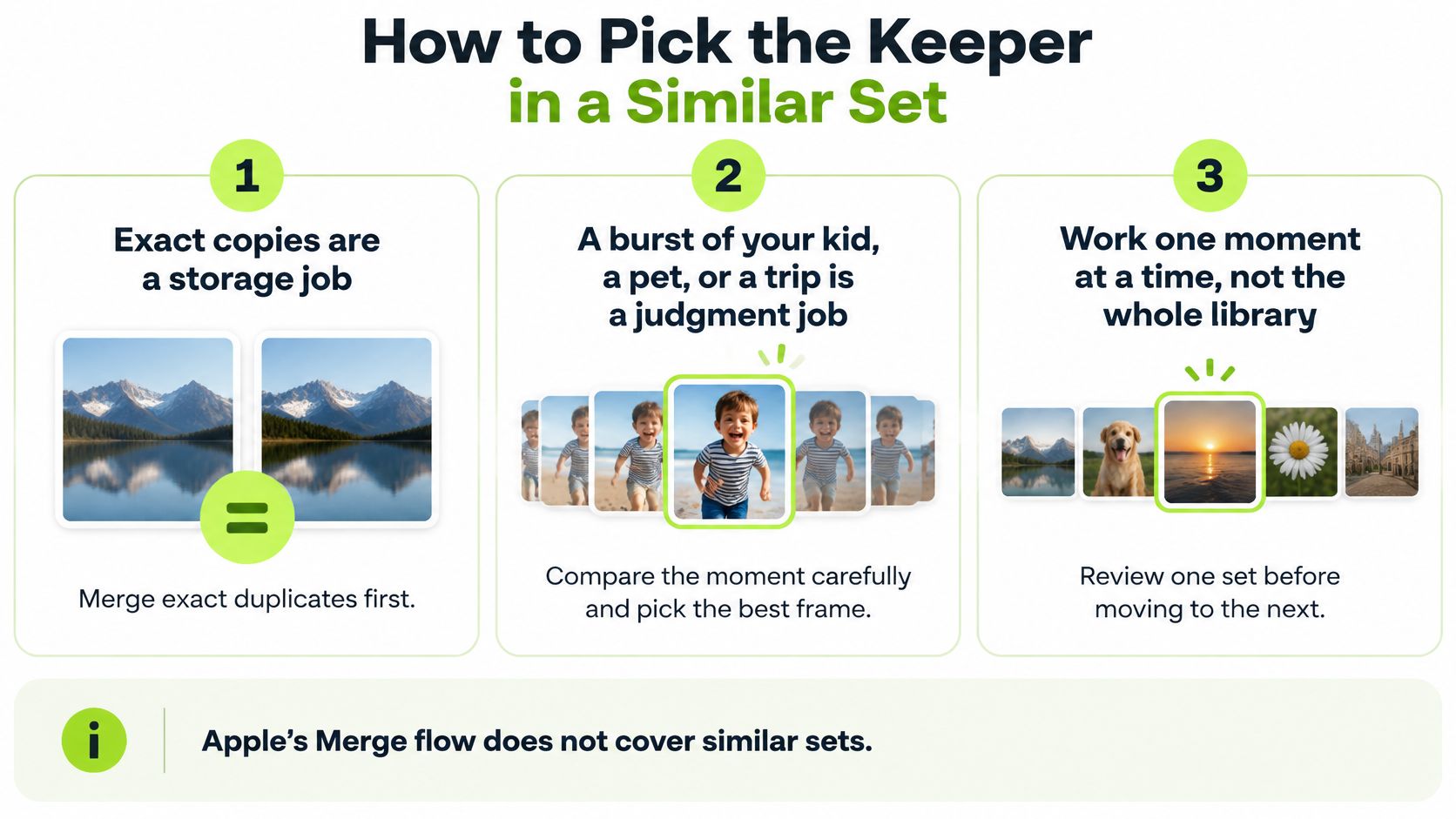
Work one moment at a time, not the whole library. A suggested similar photo can still be the one you want. For a closer look at that choice, read which similar photo to keep on iPhone.
Review one moment
- Group by time. Stay with shots taken within a few seconds, or one scene, such as the three frames at the cake.
- Compare two or three frames side by side. Check eyes, focus, framing, and whether a Live Photo has the better motion.
- Keep one primary frame. Keep a second only when the expression, who is in the frame, or the crop is different.
- For children and pets, don't delete the only frame where the face is visible, even if another shot is sharper. A crisp photo of the back of a head isn't a replacement.
- For travel, keep the frame with the landmark or the person, not five nearly identical horizons.
- For receipts and screenshots, delete once the confirmation, ticket, or note lives somewhere else. A boarding pass still on the roll after the flight is clutter. The same pass before you land is not.
- Review in small batches so decision fatigue doesn't turn into a blanket delete.
Why the app should wait
Detection of similar and blurry shots is a judgment, so a cleaner should show the group and wait. Users must review and confirm any photos selected for deletion before they're permanently removed. Nothing should leave the library because an app guessed.
Skip a set that feels sentimental and come back later. That pause is the point of a confidence-aware cleanup.
A duplicate photo remover earns trust when it shows why a photo was suggested, keeps the most useful frame, and leaves the delete reversible. One-tap automation is the wrong tool for a burst of people you care about.
What an On-Device Scan Does With Your Photos
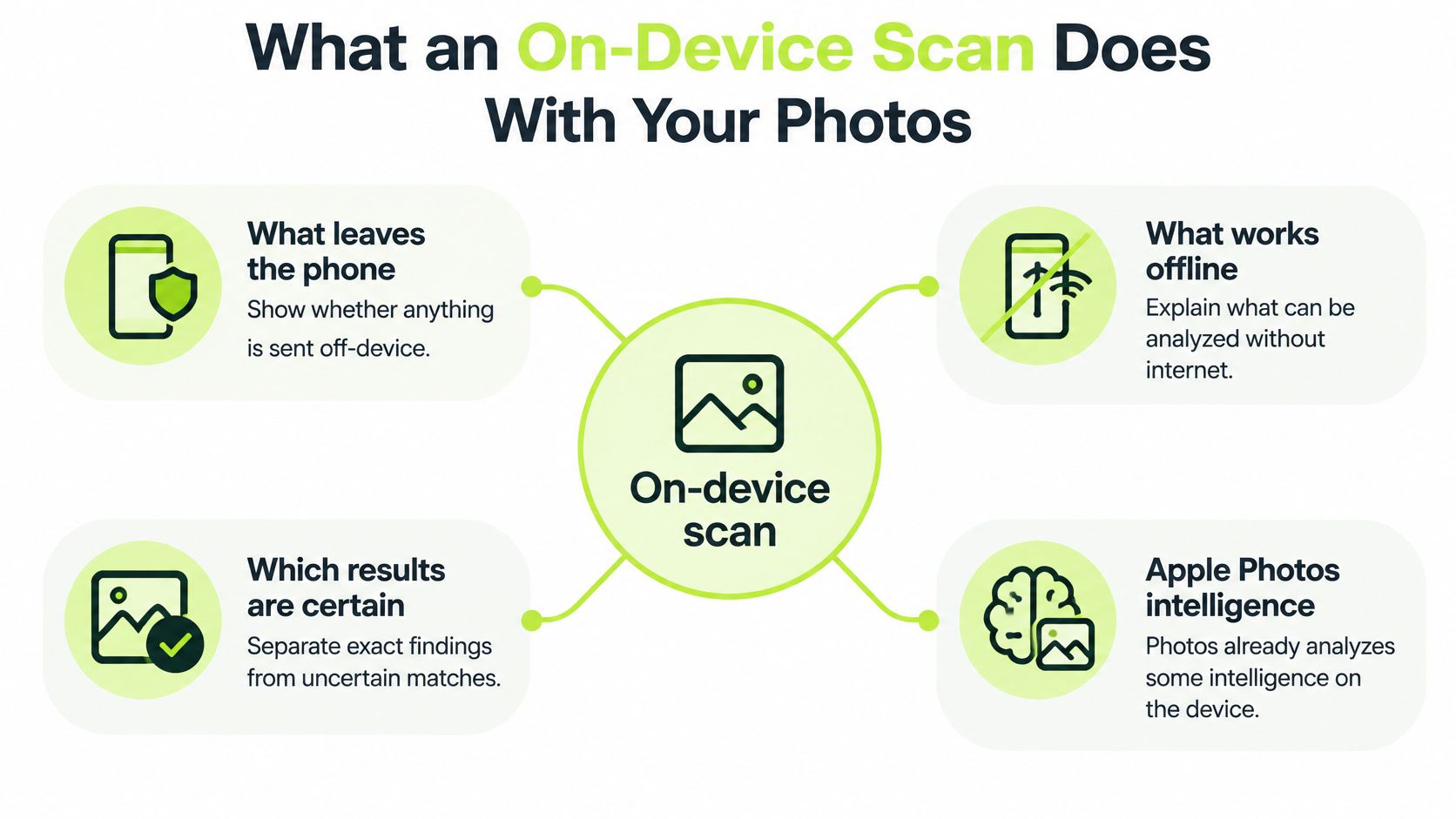
The useful privacy question isn't a vague safe-or-not badge. It's what leaves the phone, what works offline, and which results are certain.
What Apple already does on the phone
Apple's privacy features page documents that face recognition and scene and object detection are performed completely on the device rather than in the cloud. Turning off iCloud Photos doesn't turn that analysis off. That's the model worth copying. Classification can happen locally without sending the library to a remote service.
An on-device duplicate photo remover should scan the library on the iPhone, skip cloud processing, and work without an account. LuminaClean does that. Photos are processed on the phone with on-device machine learning and are never uploaded for analysis. No account is required, and the core cleanup works without an internet connection. More on that tradeoff is in this iPhone photo privacy and safety guide.
Certain matches and guesses
- Exact copies: These are the deterministic result. The same file saved twice is a match you can treat as a storage decision.
- Similar shots, blur, and categories such as screenshots: These are judgments. They can miss a photo or flag one you still want. Machine learning categorization isn't guaranteed to be fully accurate, and detection won't correctly identify every duplicate, similar, or blurry photo.
- Your confirmation: A scan isn't a background or automatic cleanup, and it never deletes by itself. You still choose.
To read the library, iOS asks for photo access. LuminaClean needs Full Access under Settings, then Privacy & Security, then Photos. Give that access only to an app you intend to use, and deny it if you stop using the app.
Libraries of about 10,000 photos or more can take a few minutes for a first pass. Expect the phone to feel busy, then review the groups yourself.
Before you install any other duplicate photo remover, read its App Store page. Check what it says about data handling, whether it scans on the device or uploads photos, whether it deletes only after your confirmation, and whether it describes a recovery window. Apple's Recently Deleted album keeps removed items for 30 days either way.
Clean a Small Batch Before You Subscribe
Finish Apple's Merge first so exact copies are handled. Then scan for what that album never lists.
The scan screen is the place to see groups before you commit to a delete.
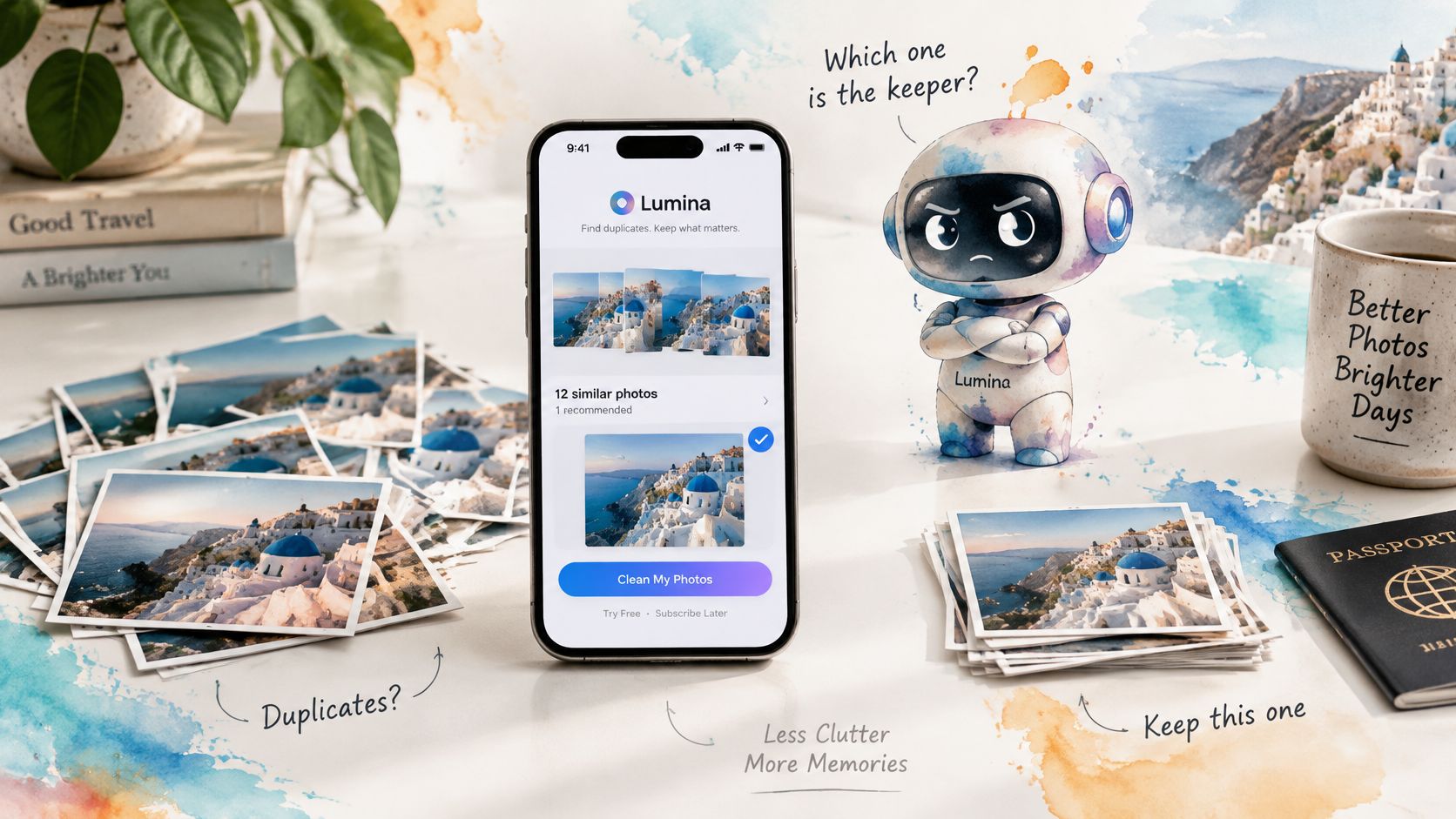
LuminaClean is an iOS-only app. It finds exact duplicates and visually similar photos, plus blurry photos, screenshots, and large videos, and it includes free video compression. It scans on your iPhone. Nothing is deleted until you swipe or confirm, and deleted photos go to Recently Deleted for 30 days.
Use the free deletes on one pile
New users get 65 free deletes to start, then 10 more every day. That's enough to clear one burst or one screenshot pile without paying. Swipe to Clean is left to delete and right to keep. Review & Delete shows photos kept, photos deleted, and space saved before you confirm.
An optional Premium subscription, weekly at $5.99 or yearly at $17.99, is for clearing a large backlog in one sitting. There is no monthly plan. You don't need it to learn whether the groups make sense.
The mascot Lumina judges your worst pile in Get Judged. She comments on clutter habits, never on the people in your photos. She doesn't look through the camera roll on her own. The app scans on your iPhone, and you decide what leaves.
This short walk-through shows a small batch from scan to confirm.
Work one small batch today, then stop when it feels done. A duplicate photo remover should make the next delete easier to trust, not push you through the whole library in one sitting.
Open Photos, merge the exact copies you trust, and recover anything that feels wrong before you empty Recently Deleted. When you're ready for the shots Apple doesn't group, get LuminaClean on the App Store or start at luminaclean.app and clear one pile with the free deletes.
Clean up your camera roll in minutes.
LuminaClean scans on-device, groups duplicates, similar shots, screenshots and blurry photos, and deletes only what you confirm. Free to start, no account.