October 7, 2026
Organize Photos Iphone

The Photos app opens, and the important picture is buried under screenshots, burst variations, downloaded images, and videos nobody remembers saving. Scrolling feels endless, birthdays disappear into a crowded Memories feed, and the storage warning arrives just when a child, pet, or once-in-a-lifetime view appears. The problem isn't laziness. The iPhone rarely tells users which of several almost identical photos is the keeper.
Smartphones accounted for approximately 93% of photographs captured worldwide in 2024, with another estimate placing the figure at 94% and around 1.93 trillion photographs taken during the year. (Industry photography estimates) A personal iPhone library can easily contain thousands of items, and typical iOS storage estimates place the library at about 2,400 photos, compared with roughly 1,900 on Android devices. (Smartphone photography data)
A useful system treats organization and cleanup as one habit. The Photos app handles discovery, search, albums, and broad categories well. A targeted cleaner handles the residue that requires comparison, such as near-duplicates, blurry shots, screenshots, and oversized videos. The decision boundary stays with the user, especially when an edited copy, shared image, or favorite memory is involved.
Table of Contents
- When Your iPhone Camera Roll Stops Feeling Like Yours
- What the iPhone Photos App Already Does Well
- A Confidence-Based Cleanup Workflow for Similar Shots
- Where Apple's Duplicates Album Stops Short
- Keeping It Tidy with Smart Categories and Flashbacks
- Your Sustainable iPhone Photo Habit
When Your iPhone Camera Roll Stops Feeling Like Yours
A cluttered library usually begins innocently. A family takes several versions of the same birthday candle photo, a traveler screenshots a boarding pass, a shopper saves a receipt, and a group chat sends a string of images that end up in Photos. None of those actions feels significant at the time. Months later, the camera roll has become a chronological storage bin rather than a collection that anyone can enjoy.
The scale explains why manual scrolling fails. The marginal cost of taking another photo is effectively zero, while modern iPhones encourage repeated shots, Live Photos, screenshots, downloaded media, and high-resolution video. Apple's own duplicate-management feature, introduced with iOS 16 in September 2022, recognizes that large libraries need indexing and grouped review rather than endless one-by-one inspection. (Apple's duplicate-photo support)
The real problem is confidence
Deleting an obviously useless screenshot is easy. Choosing between ten photos of the same smile is different. One may have sharper eyes, another may show better expression, and a third may be the edited version that carries the visual treatment the user wants.
That uncertainty creates scrolling fatigue. A person opens Photos intending to clear space, reaches a difficult cluster, postpones the decision, and then abandons the session. The library keeps growing, and the next cleanup feels even more intimidating.
Practical rule: organize the library around decisions, not around the fantasy of manually reviewing every image in chronological order.
A confidence-based system starts with safe candidates, groups similar material, preserves a review step, and postpones irreversible action until the keeper is clear. It also separates discovery from deletion. Finding a screenshot category is one task. Deciding whether a screenshot still contains a needed confirmation code is another.
Two tools, two jobs
Apple Photos should remain the main library. Its search, albums, people, places, media types, Favorites, and recovery tools provide the foundation. A dedicated cleaner earns its place only when the native app leaves too much comparison work to the user.
The practical sequence is simple: use built-in organization to narrow the field, then review the difficult leftovers in focused batches. That approach makes the library easier to search without treating every photo as a filing project.
What the iPhone Photos App Already Does Well
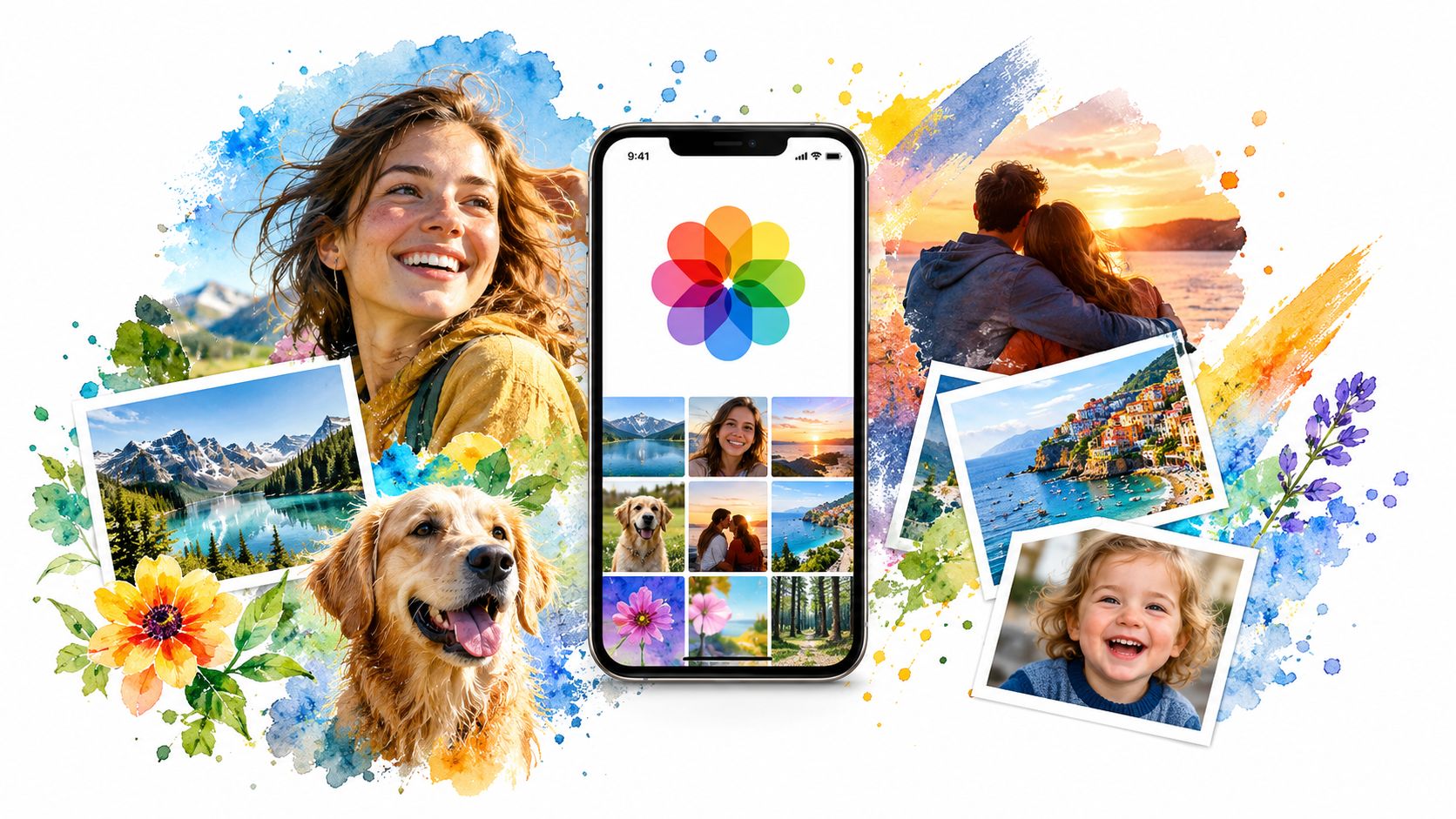
Apple Photos already provides more structure than many users realize. The Library view can be browsed by Years, Months, Days, and All Photos, while Albums and media categories surface formats such as videos, Portrait photos, and Slo-mo clips. Apple also documents search by date, location, caption, and objects, alongside automatic grouping by people, places, events, and media types. (Apple's Photos browsing guide)
Start with broad categories
The Library grid is useful for orientation, not for making every deletion decision. Media Types can isolate videos, screenshots, Live Photos, selfies, and other formats, giving users a manageable queue instead of a mixed stream. Search adds another layer by locating images associated with terms, dates, places, captions, and recognizable objects.
Custom albums work best for durable collections such as family, travel, work, or a specific project. Apple's process is straightforward: open Albums, tap the add button, select New Album, name it, and choose the photos. Folders can then contain multiple albums, while adding a photo to an album doesn't remove it from the main Library. (Apple's album organization steps)
Favorites provide a faster ranking system. Marking a standout photo gives it a clear place for future sharing without forcing the user to create an album for every subject. Hidden and Recently Deleted belong in Utilities, where sensitive items and recently removed items can be managed separately.
Use search as a retrieval tool
Search is particularly valuable when the library has no consistent album structure. A user can look for a place, a person, a date, or an object rather than dragging a finger through years of images. The app's local analysis supports scene and object classification, people and pets identification, photo-quality analysis, and related discovery features. (Apple's Photos privacy documentation)
The built-in system is strong at finding broad groups and resurfacing forgotten material. It isn't designed to rank every near-identical shot, identify the best facial expression in a burst, or explain why one edited copy should remain while another can go. Large videos also require a separate storage decision, because visual organization and file-size review are different jobs.
The video below provides a visual walkthrough of the library interface and its organization controls.
A Confidence-Based Cleanup Workflow for Similar Shots
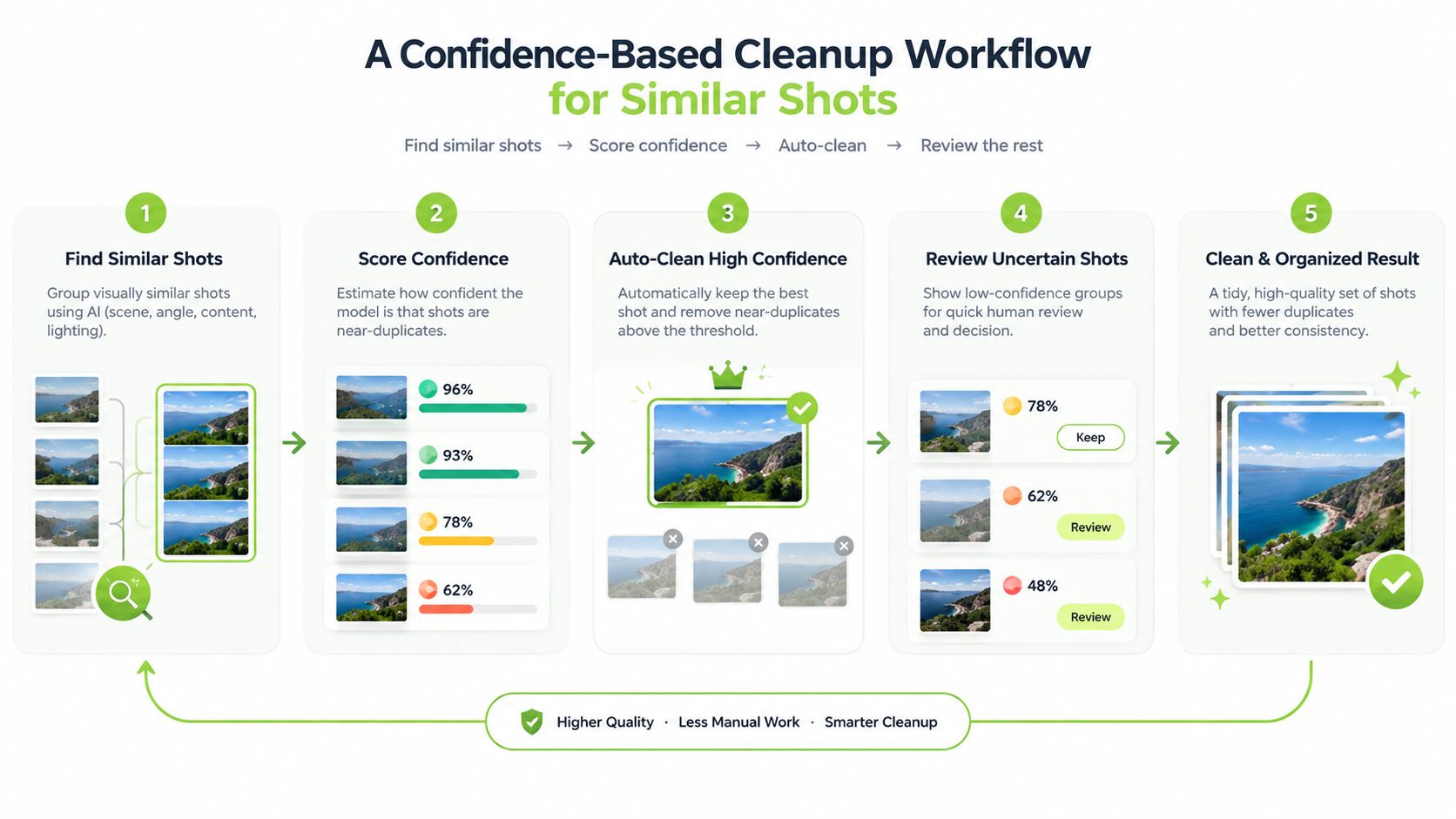
Near-duplicate cleanup works when the process removes obvious mistakes before asking for subtle judgments. A useful session begins with one event, trip, or date range rather than the entire camera roll. Grouping by context reduces the chance of comparing unrelated photos and makes the keeper easier to recognize.
Four confidence levels
The first pass should remove images that are plainly unusable. Closed eyes, accidental floor shots, severe blur, blocked faces, and duplicate screenshots usually require little debate. The next pass keeps plausible candidates, even when they look similar, because the goal is to reduce noise before choosing among good photos.
The third pass compares the remaining shots directly. In Photos, selecting two candidates and using pinch-to-zoom can reveal whether the eyes, text, or important detail is genuinely sharp. A wider composition may be preferable for an outdoor scene, while a tighter frame may work better for a portrait. Similarity alone can't settle that choice.
The final pass checks context and future value. A photo may have a small visual difference that matters later, such as a better expression, a cleaner background, or an original edit that isn't easy to reproduce.
Edited copies need special care
An edited copy can sit beside its original while appearing almost identical in the grid. Cropping, filters, Live Photos, and edits made in apps such as Snapseed or Lightroom Mobile can create a choice that isn't safely resolved by visual similarity. The keeper may be the untouched original, the edited version, or both.
Shared-library content adds another complication. An image received from a family member or surfaced through an iCloud Shared Album can look like an ordinary local photo while following different sharing and deletion behavior. Before deleting, the user should confirm who owns the item and whether the image exists elsewhere.
A practical small-batch limit is 50 images per session. That boundary keeps judgment from degrading into reflexive swiping. A screenshot of an important keeper can also provide a temporary safety reference, but screenshots themselves should be removed later if they no longer serve a purpose.
For a deeper comparison method, the similar-photo workflow can help users think in grouped candidates rather than isolated files. The principle remains the same: a tool may rank possibilities, but the user confirms the decision.
Where Apple's Duplicates Album Stops Short
Apple's Duplicates album provides a useful first filter, especially when your camera roll contains obvious copies. Photos indexes the library while the iPhone is locked and connected to power. Depending on the library and background activity, indexing may finish quickly or take several days. When matching items appear, review each group and tap Merge. Apple keeps the highest-quality version and relevant metadata, then moves the other copies to Recently Deleted. (Apple's duplicate-management instructions)
The gap comes from Apple's definition of a duplicate. The native workflow focuses on duplicate items, not every image that looks similar. A burst sequence with small changes in expression, angle, focus, or framing can remain untouched. An edited file saved as a new item may also differ enough from its original to avoid the Duplicates album.
| Scenario | Apple Duplicates album | Dedicated on-device cleaner |
|---|---|---|
| Exact duplicate photos | Groups them for review and Merge | Groups them for review |
| Similar burst shots | Usually leaves the decision to the user | Can surface visually similar candidates for comparison |
| Blurry images | Doesn't provide a dedicated duplicate workflow | Can identify blurry photos for review |
| Screenshots | Available through Photos categories | Can isolate screenshots as a cleanup queue |
| Large videos | Doesn't rank them as a cleanup category | Can surface large videos, with free video compression |
| Privacy model | Uses Apple's local Photos analysis features | Scans on the iPhone without cloud processing or an account |
LuminaClean, available through the iPhone App Store listing, adds a separate review layer. It scans on the iPhone for exact duplicates, visually similar photos, blurry photos, screenshots, and large videos. Photos stay on the iPhone, and deletion requires a swipe or confirmation. Deleted items go to iOS Recently Deleted, where Apple retains them for 30 days before permanent deletion. (Apple's duplicate-photo guidance)
Use the native album when exact copies are the main problem and the library is manageable. Choose a broader cleanup when repeated takes, low-quality shots, screenshots, or large videos make up most of the clutter. The duplicate-photo cleanup guide covers that workflow in detail. The right habit is confidence-based: let Apple handle clear matches, then review uncertain candidates before removing anything.
Keeping It Tidy with Smart Categories and Flashbacks
A clean camera roll becomes cluttered again when maintenance depends on motivation. Smart categories and search work better as recurring triage queues than as permanent filing systems. The user doesn't need to classify every image. The user needs a quick way to revisit the types of clutter that accumulate fastest.
People and Pets can help locate family members and animals. Places can gather images around a location, while Days and broader curated views reduce the visual noise of a long chronological stream. Screenshots, receipts, documents, and handwritten notes are useful queues when the goal is to identify temporary reference material before it loses value.
Turn search into a short queue
Search should combine context with media type whenever possible. A query such as a beach location plus a year can narrow a travel set, while a search for screenshots can isolate confirmation codes, receipts, or old instructions. Searching for a person also creates a focused review set without requiring an album for every family member.
The key distinction is between finding and filing. A search result can answer “where is that photo?” without adding another permanent album. Albums should hold material worth revisiting, such as a trip, family event, work project, or personal favorites.
Use flashbacks as checkpoints
Flashbacks and On This Day prompts create natural review moments. A resurfaced group can be handled with three quick decisions: delete items that no longer matter, mark the strongest memories as Favorites, and move meaningful sets into an album when future retrieval matters.
A monthly routine can stay deliberately small:
- Review one Flashback: Remove obvious clutter while the context is fresh.
- Run one search-driven prune: Choose screenshots, videos, receipts, or a place and review only that queue.
- Audit one album: Remove items that don't belong and add standout photos that do.
- Check storage pressure: Review large videos before an urgent recording opportunity forces rushed decisions.
The blurry-photo cleanup guide fits naturally into this routine because blurry images are easier to judge as a focused category than as isolated surprises in the Library. The same logic applies to screenshots and repeated takes. Small queues protect attention better than occasional attempts to reorganize the entire archive.
Your Sustainable iPhone Photo Habit
Photo organization works when three concerns stay connected: privacy, storage, and repeatability. Local analysis keeps sensitive images on the device, while category-based review makes it easier to remove clutter without handing a complete library to a remote service. A short recurring session then prevents the next storage emergency.
iCloud Photos can help when the goal is access across Apple devices, but storage settings should be understood before they are enabled. Users who need more room on the iPhone should turn on Optimize iPhone Storage alongside iCloud Photos. Syncing also means that deletions and edits can propagate across connected devices, so important originals should have a separate export or backup before a major cleanup.
A same-day setup
The first session doesn't need to become a weekend project. A sensible order is:
- Check iCloud settings: Enable iCloud Photos only when the storage and syncing behavior fit the user's needs, then enable Optimize iPhone Storage if local space is the concern.
- Review Utilities: Check Duplicates, Recently Deleted, Hidden, and other available queues before creating new albums.
- Create a small album structure: Use durable categories such as Family, Travel, Work, or Favorites instead of making an album for every subject.
- Choose one recurring checkpoint: Tie a monthly review to the first Sunday Flashback notification or another reliable calendar cue.
- Keep deletion reversible: Review candidates, confirm deliberately, and remember that Recently Deleted has a finite recovery window.
Privacy check: on-device photo analysis can support search, people and pets grouping, scene classification, and duplicate review without sending the image library to a server.
The best maintenance habit is one that still happens during a busy month. A focused review of screenshots, similar photos, or large videos is easier to repeat than a promise to “organize everything” later. The library stays useful when the user keeps the decision workload small.
After several months, a tidy library doesn't feel empty. It feels searchable, familiar, and calm, with the important photos close at hand instead of buried under decisions that were postponed.
Open Photos today, review one focused category, and create a single recurring checkpoint for the next month. Start with obvious clutter, preserve uncertain keepers, and use the iPhone photo cleaner only when grouped comparison is more useful than another session of scrolling.
Clean up your camera roll in minutes.
LuminaClean scans on-device, groups duplicates, similar shots, screenshots and blurry photos, and deletes only what you confirm. Free to start, no account.