October 31, 2026
iPhone Photo Organizer App: Features That Matter
A storage warning can appear just as you're about to record a birthday or download a boarding pass. Before deleting anything, choose one manageable group, such as screenshots or exact duplicates, and review what the app finds.
Organization and duplicate merging solve different problems. Duplicate detection finds exact copies; smart categories sort photos by subjects such as Pets, Food, Travel, Family, Nature, and Architecture. Categories make it easier to find a kind of photo, but you still decide which images to keep.
LuminaClean gives new users 65 free deletions to start, so a small cleanup can come before any subscription decision.
Table of Contents
- What an iPhone Photo Organizer Does Beyond Duplicates
- Privacy Checks Before You Grant Photo Access
- Delete Safely with iCloud and Shared Libraries
- Smart Categories for a Messy Camera Roll
- A Cleanup Workflow You Can Finish
- Pick an App and Start with a Small Cleanup
What an iPhone Photo Organizer Does Beyond Duplicates
A useful organizer turns a sprawling library into manageable review groups and shows estimated storage savings before confirmation. Its value isn't just finding repeated files. It helps distinguish an unnecessary copy from a different photograph that happens to look almost identical.
Apple Photos already provides substantial organization. Its browsing options include years, months, and days, alongside views for screenshots and the complete collection, as described in the overview of Apple Photos). Someone who mainly needs to find vacation pictures by date may not need another app.
Apple Photos versus a dedicated iPhone photo organizer
The practical comparison is about cleanup jobs, not which app has the longest feature list.
| Cleanup job | Apple Photos | What to expect from an organizer |
|---|---|---|
| Exact duplicate copies | Duplicates album on iOS 16 or later; merging keeps the higher-quality item and moves the rest to Recently Deleted | Groups exact copies for review instead of auto-deleting |
| Near-identical shots | Repeated takes aren't handled as a general similarity-review pile; bursts remain separate sequences | Groups similar photos so the owner can keep the preferred frames |
| Blurry or out-of-focus shots | No dedicated blur-review pile | Surfaces likely blurry shots for a keep-or-delete pass |
| Screenshots and receipts | Screenshots view exists; receipts can remain mixed into the library | Isolates screenshots; receipt grouping should be checked separately |
| Large videos | iPhone Storage helps review storage-heavy content; iMovie offers lower-resolution export | Finds space-heavy videos and may offer compression without a separate editor |
| Where analysis runs | Face, scene, and object detection run on the device | Should clearly explain on-iPhone scanning, account requirements, and uploads |
| Who confirms deletion | The user confirms merges and deletes | Nothing is removed until a swipe or confirmation |
According to Apple's duplicate-merging guide, the Duplicates album is available in iOS 16 and later, and merging keeps the highest-quality image while moving the other items to Recently Deleted. That's useful for exact copies, but it doesn't settle which expression deserves to survive from repeated attempts at a family photograph.
The distinction matters even when images appear interchangeable at thumbnail size. A child may have open eyes in one frame and a more natural smile in another. A cropped edit may suit a message, while the original matters for a future print.
Practical rule: Software can identify resemblance. Only the owner can decide whether that resemblance makes a photo unnecessary.
Different piles need different decisions
Exact duplicates are usually the least subjective group. Once the owner confirms that the files represent the same picture, merging or removing extras becomes straightforward. Similar photographs require a slower comparison because composition, expression, and sentimental value can differ.
Blurry photographs need their own review. A missed-focus picture of a shopping shelf may be disposable, while a soft photograph of a grandparent may be irreplaceable. Blur is a reason to inspect, not an instruction to delete.
Screenshots pose another question: does the information still matter? An expired delivery confirmation has a different purpose from a screenshot documenting a payment dispute. Receipts should be reviewed for their contents, not discarded just because they resemble other temporary images.
Large videos deserve a separate decision about storage and quality. A complete school performance might be worth preserving elsewhere, while an accidental recording can be removed without comparing facial expressions or image sharpness.
Scale makes chronological browsing harder
Rise Above Research's worldwide image-capture forecast estimated approximately 1.8 trillion photographs worldwide in 2023, following roughly 1.6 trillion in 2022. Those are global capture estimates, not a measurement of any particular iPhone library, but they illustrate how routine high-volume photography has become.
For an individual owner, the difficulty is more concrete. Repeated takes from a playground visit can sit beside receipts, work references, and a saved recipe. Date order locates the afternoon, but it doesn't explain which files remain useful.
An organizer should reduce that sorting burden without pretending every category has the same certainty. Exact-copy detection can support confident recommendations. Similarity and blur detection should produce review candidates rather than final verdicts.
Storage savings need actual file sizes
Photo count isn't storage size. Removing a pile of still images may recover less space than removing a long recording, so an organizer should calculate savings from the files themselves rather than apply a generic estimate to every photo.
Apple's guide to HEIF and HEVC media explains that these formats use storage more efficiently than JPEG and H.264 while maintaining comparable visual quality. Converting efficient originals into older formats before compression can therefore undermine the intended savings.
A useful storage estimate should account for the actual resources associated with an item, including originals and edited versions. For compressed videos, the owner should also inspect the result for readable detail, smooth movement, and acceptable color.
The strongest organizer doesn't promise that a scan can finish the entire job. It explains why files were grouped, makes comparison convenient, and leaves the irreversible decision with the owner.
Privacy Checks Before You Grant Photo Access
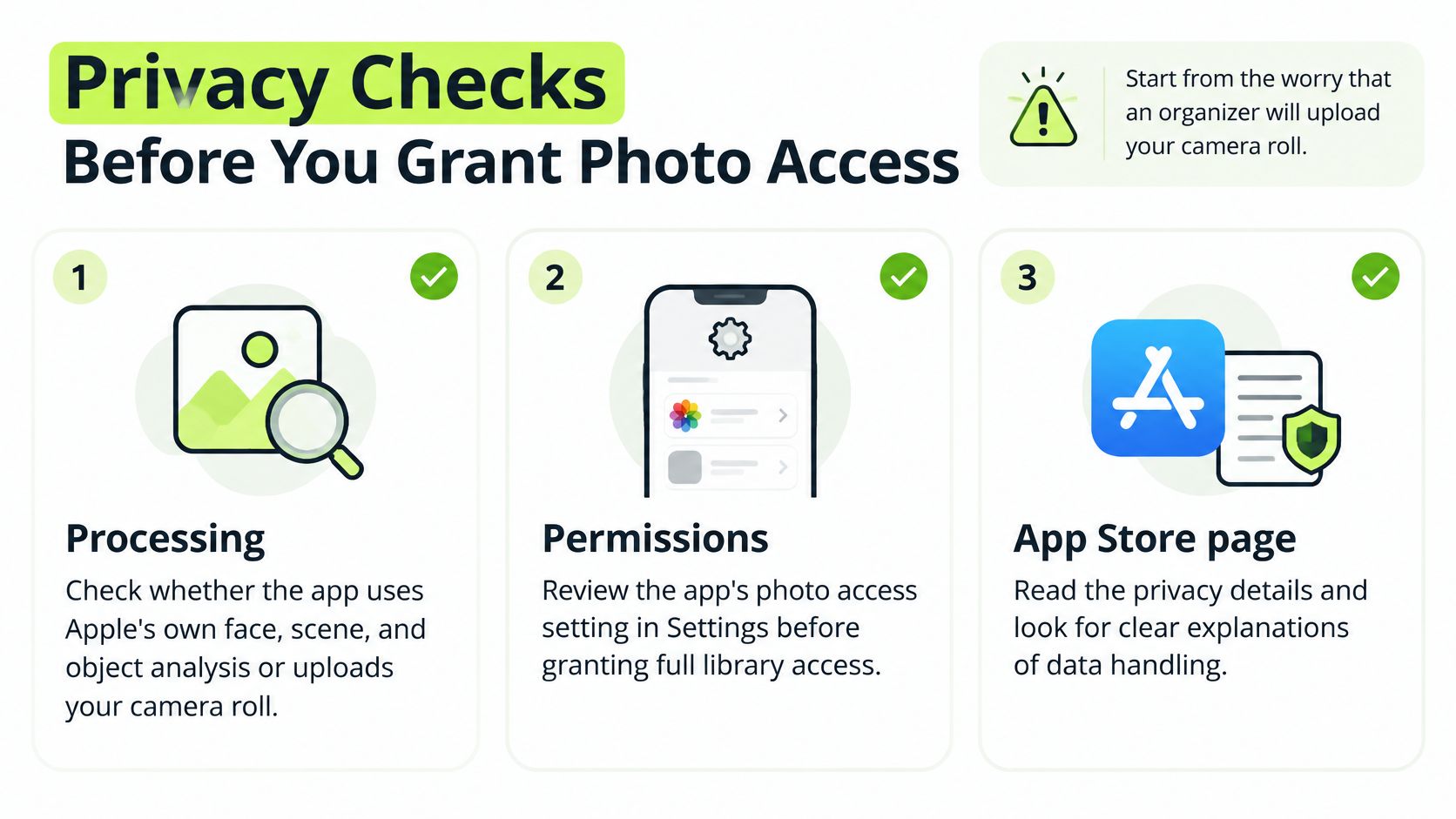
A photo organizer may encounter family pictures, medical screenshots, documents, and location clues. Before granting access, check where the app processes photos and what control you have over deletion.
Check processing and permissions
- Processing location: Look for a clear explanation of whether photos are analyzed on your iPhone or sent to servers. Apple's privacy features documentation says Photos performs face, scene, and object detection on-device. That local analysis is separate from whether iCloud Photos is enabled.
- Photo access: Check an app's authorization under Settings > Privacy & Security > Photos. Access to selected photos is different from access to the full library.
- Deletion control: A scan should present items for review before deletion. You should be able to inspect what the app found and confirm what to remove.
Apple's PhotoKit privacy documentation explains that limited photo-library access has been available since iOS 14. With limited access, an app can analyze only the selected photos, so it may miss duplicates or large videos elsewhere in the library.
Limited permission can be useful when evaluating an app that supports it. Keep in mind that a report based on selected photos does not describe the entire library.
Read the explanation before expanding access
An app should explain why it needs broader permission and what that access enables. A permission request alone does not show where processing happens, and on-device processing does not replace the need to review deletion controls.
LuminaClean processes photos entirely on the iPhone using on-device machine learning, and does not upload them to the cloud. To scan the library, it requires Full Access under Settings > Privacy & Security > Photos.
For more guidance on evaluating photo access, see this iPhone photo privacy and safety guide. Look for a clear explanation of data handling, permissions, and how you review items before deleting them.
Delete Safely with iCloud and Shared Libraries
Recently Deleted isn't a guaranteed safety net. Apple's photo-deletion support guide says deleted items are normally recoverable for 30 days, but when iCloud storage is over its limit, items may be removed immediately and unavailable in Recently Deleted.
The same guide explains that deleting with iCloud Photos enabled removes the item from every device using the same Apple Account, while Shared Photo Library deletions can affect other participants. Deleting clutter from an iPhone therefore isn't necessarily a this-phone-only action.
What happens when you delete a photo
| Situation | Where the photo goes | Recovery caution |
|---|---|---|
| iCloud Photos off, personal library | Removed from the active library on this iPhone and placed in Recently Deleted | Normally recoverable during the standard recovery window |
| iCloud Photos on | Removed from every device using the same Apple Account | Not a this-phone-only delete |
| Shared Photo Library item | Can be removed for other participants | Check with anyone sharing that library first |
| iCloud storage over its limit | May be removed immediately | May not appear in Recently Deleted at all |
| After Recently Deleted, Delete All | Permanently removed from Photos; space is reclaimed | No remaining recovery in Photos |
Device storage, iCloud storage, and backup copies are different things. Device storage is space on the phone. iCloud Photos synchronizes a library, so its cloud copy shouldn't be treated as an independent spare that survives a synchronized deletion.
A separately preserved original serves a different purpose. For example, an exported folder on a computer can provide protection only if it contains the important originals and won't be overwritten by the cleanup.
A storage emergency is a reason to slow down at confirmation, not a reason to assume recovery will work.
Run a pre-deletion safety check
- Check iCloud Photos. Open Settings, select the Apple Account, then inspect iCloud and Photos settings.
- Identify shared content. Confirm whether the selected photographs belong to a personal library or a Shared Photo Library.
- Verify important originals. Open the separate copies rather than assuming an earlier transfer succeeded.
- Read the removal summary. Confirm that the intended items, not an entire event or shared collection, are selected.
- Delay permanent removal. Empty Recently Deleted only after the owner is confident that no selected item is needed.
The guide to shared albums and iCloud storage can help clarify sharing terminology before a family cleanup. For iCloud-backed libraries, keeping the iPhone connected to Wi-Fi also allows full-resolution originals to download for scanning.
Smart Categories for a Messy Camera Roll
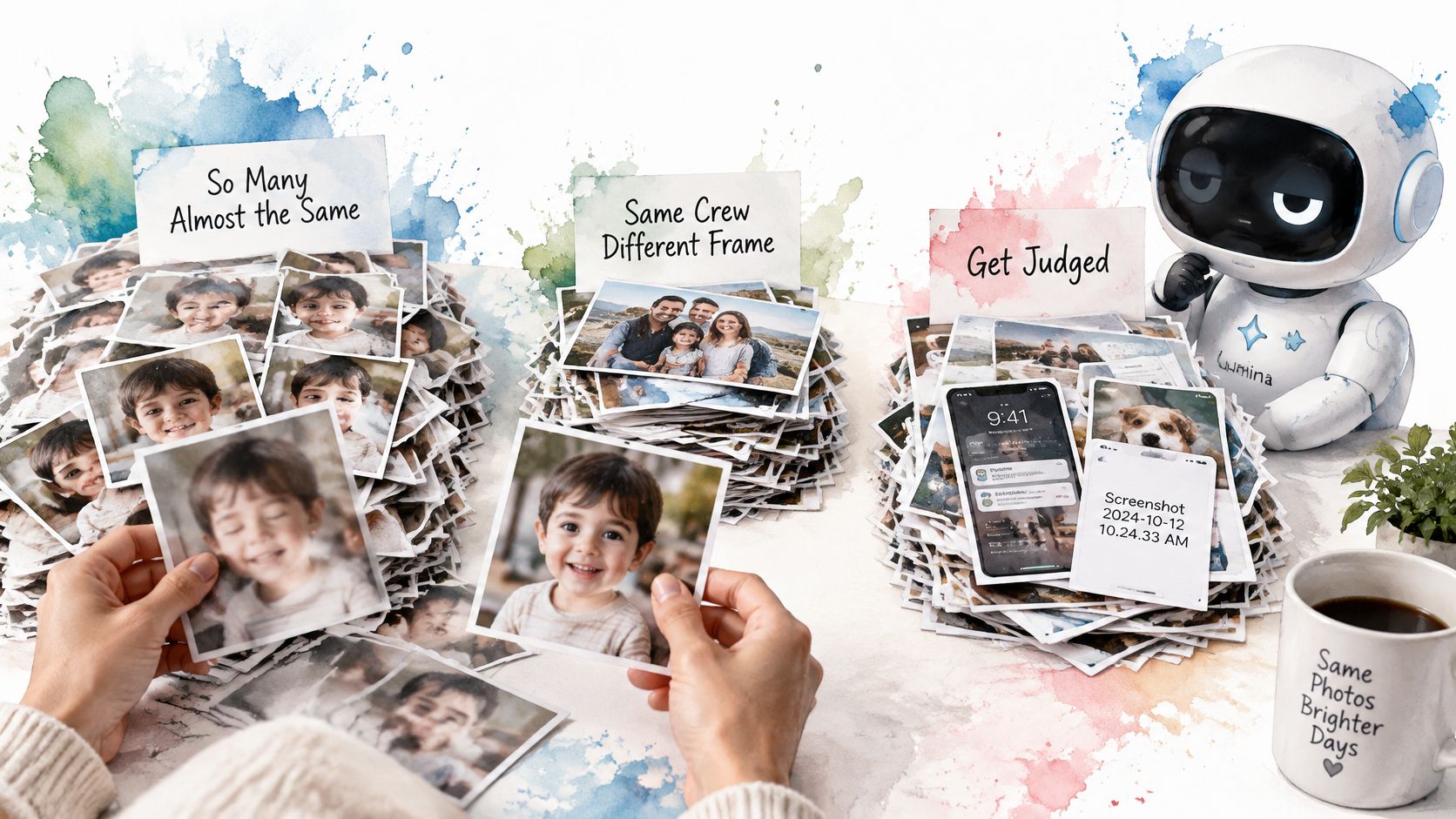
A parent's library might contain repeated playground photographs, several missed-focus attempts, and a favorite expression hidden among nearly matching thumbnails. A useful similarity group brings those alternatives together, but the parent still chooses the photograph that captures the moment.
Grouping makes more sense when the review resembles sorting a small pile rather than searching an entire archive.
Different libraries need different starting points
A traveler returns with restaurant pictures, building details, scenery, and repeated photographs from the same viewpoint. Subject groups such as Travel, Food, Nature, and Architecture offer useful entry points, but each group still needs comparison within the trip.
An everyday phone develops a less sentimental pile: screenshots of opening hours, transit information, return labels, and receipts. The right question isn't which image is prettiest. It's whether the information remains necessary, readable, and available somewhere dependable.
A receipt photograph may be essential even when it's crooked and poorly lit. A beautiful travel picture may be unnecessary if the owner prefers another frame. Category and quality aren't the same as importance.
Keep subject groups separate from cleanup groups
Subject labels answer what a picture contains. Cleanup labels answer why it might deserve attention. A family photograph can belong to a Family group and also appear among similar shots without becoming a safe deletion candidate.
LuminaClean uses Smart Photo Organization for albums such as Pets, Food, Travel, Family, Nature, and Architecture. Its cleanup categories separately organize exact duplicates, similar photographs, blurry or out-of-focus images, and screenshots.
- Exact duplicates: Check that an extra copy serves no separate purpose.
- Similar photos: Compare expressions, framing, and meaningful differences.
- Blurry images: Preserve irreplaceable moments even when technical quality is poor.
- Screenshots: Read the information before deciding that it has expired.
Machine-learning labels can be wrong. A restaurant facade might fit both Architecture and Travel, while a document might not land in the expected category at all.
A demonstration can make grouped review easier to understand.
For owners who enjoy a playful prompt, the companion Lumina offers Get Judged, judging a clutter pile after the app scans on the iPhone. The humor targets camera-roll habits, not the people pictured, and it doesn't replace the owner's keep-or-delete decision.
A Cleanup Workflow You Can Finish
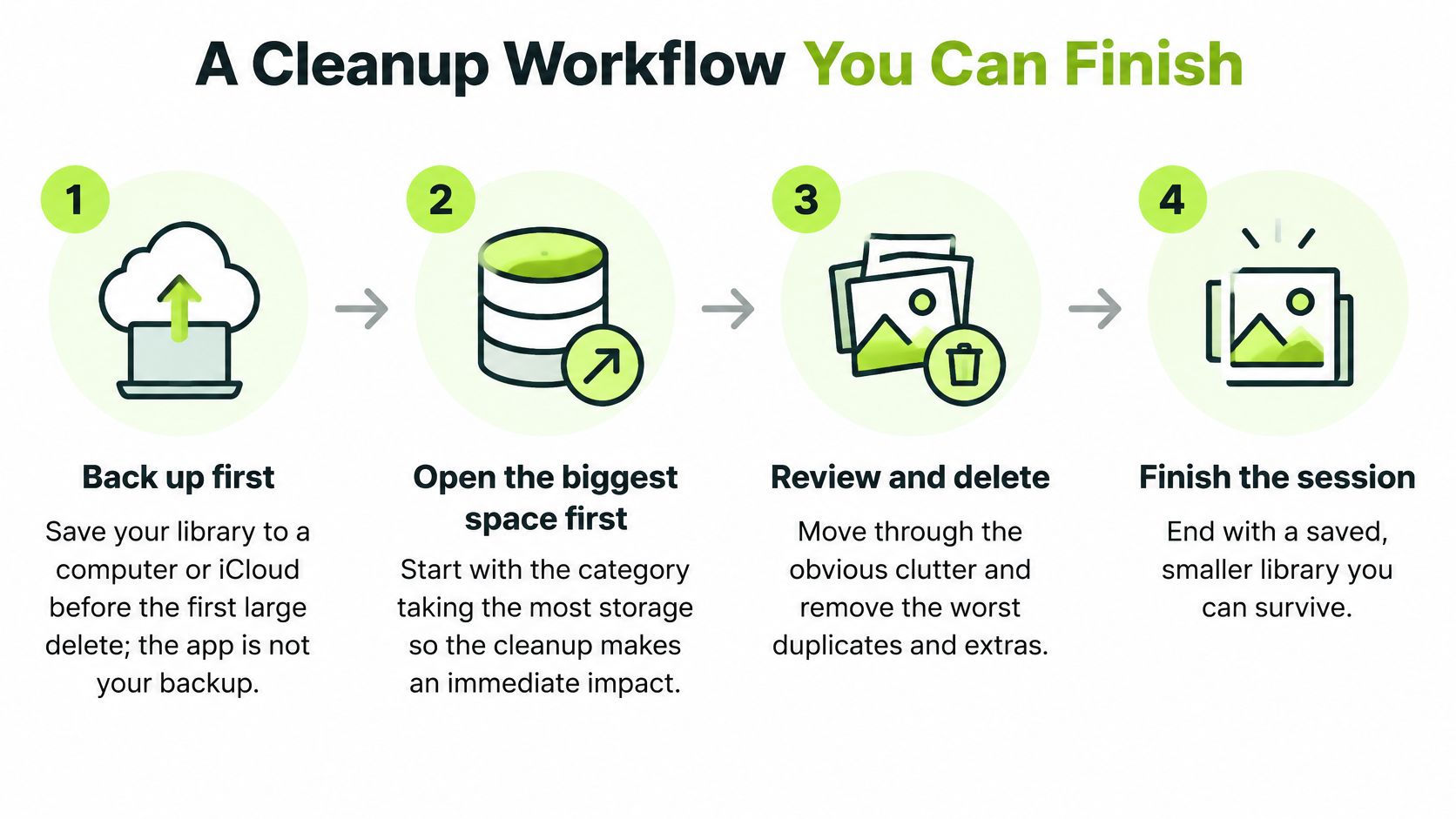
A manageable cleanup starts with a defined task, not a promise to finish the entire camera roll. The owner might target storage-heavy recordings or remove obsolete screenshots, then stop with the remaining photographs untouched.
This workflow prioritizes consequential decisions before repetitive ones.
Prepare before reviewing
- Preserve important originals. Before a large deletion, create and verify a separate backup or export on a computer or another suitable destination. A cleaner isn't a backup service, and a synchronized library alone shouldn't be mistaken for an independent copy.
- Open Settings > General > iPhone Storage. Note whether Photos accounts for substantial storage before spending the session on low-impact clutter.
- Start with large videos. Review recordings worth keeping, deleting, or compressing. Apple's iPhone video-size instructions describe adding a video to an iMovie project and exporting it at a lower resolution to reduce file size.
Free video compression offers another route without requiring a separate editor. Before removing an original, the owner should play the compressed result and inspect details that matter, such as a performer's face or text on a presentation slide.
Review, confirm, then decide about permanent removal
- Review exact duplicates, then similar photographs. Straightforward copies can come first; repeated takes need attention to expression, sharpness, and context.
- Keep screenshots and blurry photographs in separate passes. Mixing temporary information with family memories makes consistent decisions harder.
- Use deliberate swipe review. In Swipe to Clean, a left swipe marks deletion and a right swipe keeps the photograph. An uncertain item is better kept for another session.
- Read Review & Delete before confirming. It shows photographs kept, photographs deleted, and estimated space saved; the selected items should match the owner's intention.
- Check synchronization and sharing before a large batch. Confirm the relevant library settings, verify preserved originals, and approve only the intended removal.
- Open Photos > Recently Deleted only when permanent removal is appropriate. Delete All permanently removes the contents and frees the held storage immediately, so it shouldn't be treated as a routine finishing tap.
Stopping point: A completed review doesn't require emptying Recently Deleted. Keeping a recovery opportunity can matter more than reclaiming every available byte immediately.
For a larger archive, the guide to cleaning up thousands of iPhone photos provides a way to divide the work. A repeatable, limited session is easier to evaluate than a hurried deletion across unrelated categories.
Pick an App and Start with a Small Cleanup
A useful photo organizer should make it easy to review suggestions before anything is deleted. With LuminaClean, the free download includes 65 free photo deletions, enough to try a small cleanup and see whether the app's groups and review screens suit your needs.
LuminaClean free start and Premium
| Option | Price | Best for |
|---|---|---|
| Free start | Free, with 65 free photo deletions | Trying the cleanup and review process |
| Video compression | Free, no Premium needed | Reducing storage used by large videos |
| Premium subscription | Check the App Store for current terms | People considering more cleanup |
Start with a familiar, easy-to-check group, such as old screenshots. Review the proposed changes before confirming. If a suggested group is unclear, pause and keep the photos until you can decide.
The app is free to download from the App Store. Download LuminaClean or visit the LuminaClean website for product details. It is an iPhone app. Before using its cleanup features, back up your photo library and confirm that the selections match what you intend to delete.
Clean up your camera roll in minutes.
LuminaClean scans on-device, groups duplicates, similar shots, screenshots and blurry photos, and deletes only what you confirm. Free to start, no account.