October 6, 2026
Find Duplicate Photos: A Practical iPhone Guide for 2026
The built-in Duplicates album catches exact copies, not every similar shot, and a 2019 analysis found that 16% of stored photos were duplicates. Finding duplicate photos that include repeated or near-identical shots requires a second tool running on the iPhone.
The storage warning usually appears at the worst moment, often when someone is trying to record a child's performance, download a map, or install an important update. The camera roll may look like a collection of memories, but it can also contain repeated captures, blurry frames, screenshots, and several exports of the same image.
Table of Contents
- Why Finding Duplicate Photos Actually Matters
- How to Find Duplicate Photos Using Built-in iPhone Tools
- Exact Duplicates Versus Similar Photos on iPhone
- How LuminaClean Scans for Duplicate Photos on iPhone
- Safe Cleanup Workflow for iPhone Photo Libraries
- Common Mistakes That Turn Cleanup into Data Loss
Why Finding Duplicate Photos Actually Matters
Duplicate photos aren't just an organizational nuisance. They occupy real device storage, and the problem grows steadily because every new trip, event, burst sequence, and shared image can add another version to the library.
A 2019 analysis of Android photo libraries found that 16% of stored photos were duplicates, while another 6% were poor-quality, blurry, or completely dark. Together, those categories represented 22% of saved photos. The average library in that analysis contained 952 photos, including approximately 154 duplicates and 58 low-quality images. Assuming an average file size of 3 MB, those unwanted files represented about 636 MB of potentially wasted storage per user. The original analysis explains the methodology and limitations.
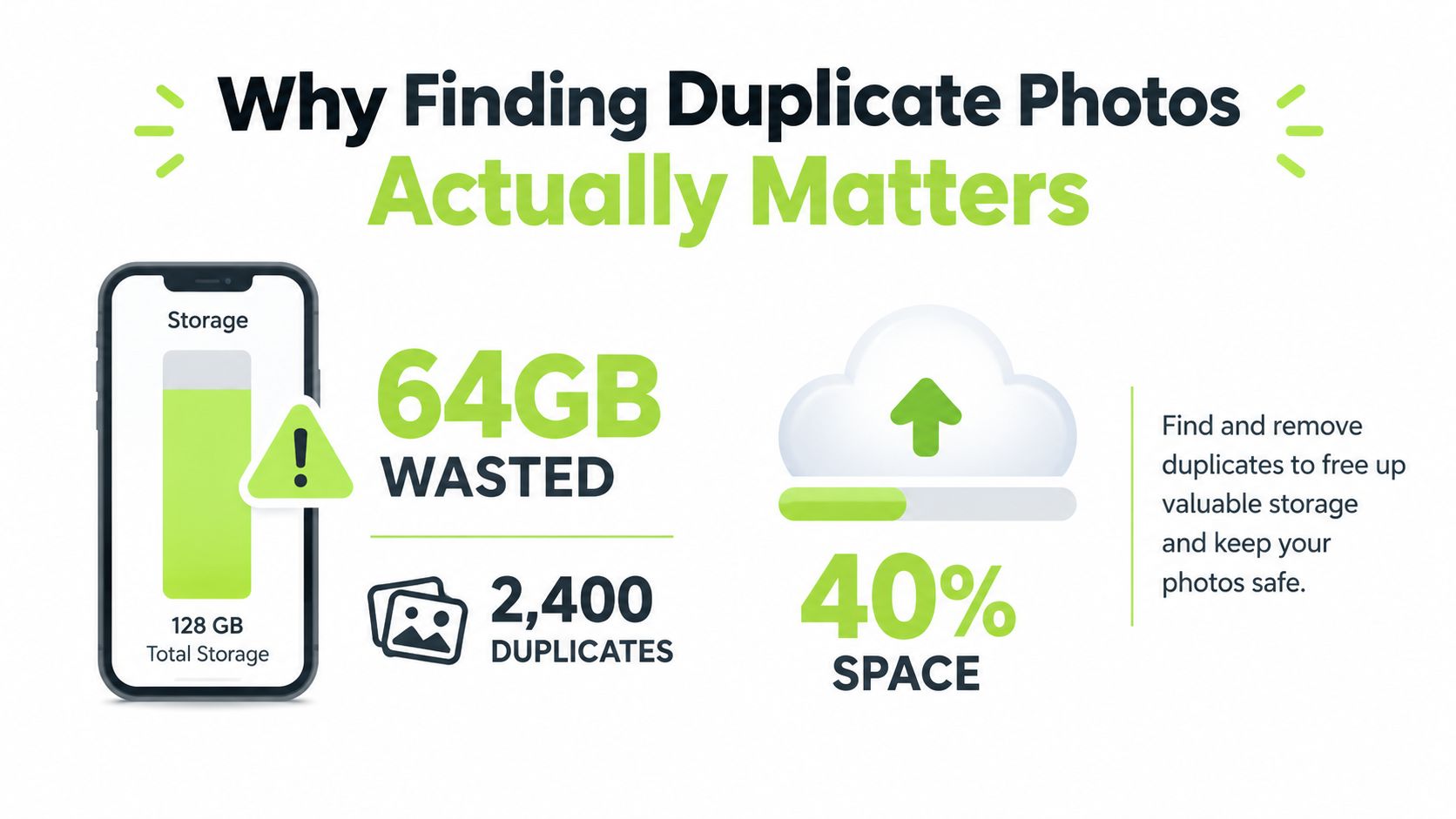
The Android findings aren't an exact measurement of every iPhone library, but they provide a useful baseline. A library with several thousand images can hold hundreds of megabytes of repeated or unusable files, especially when the owner saves edited versions, screenshots, and multiple takes from the same moment.
The hidden cost of “almost the same”
Exact duplicates are easy to understand. Two files may contain the same image, even if their filenames differ. Near-duplicates are harder because both images can be worth keeping, or one can be clearly better.
A burst sequence might include several frames with the same people but different expressions. One image may have sharper focus, while another captures the better moment. Deleting by appearance alone can remove the version that matters most.
Practical rule: Storage recovery matters, but preserving the memory matters more. Review similar shots as choices, not as automatic deletion targets.
The right cleanup process separates exact copies from visually similar photos. That distinction prevents a storage tool from treating every repeated composition as disposable.
How to Find Duplicate Photos Using Built-in iPhone Tools
Apple's native workflow should be the first stop because it requires no additional app. The Photos app can automatically identify duplicate photos and videos and place them in a dedicated Duplicates album under Utilities, a capability Apple introduced with iOS 16 in September 2022. Apple's support guide describes the Duplicates album and merge process.
Follow the native review path
- Open Photos on the iPhone.
- Tap Collections.
- Scroll to Utilities.
- Open Duplicates.
- Review each group.
- Tap Merge beside a group when the copies are genuinely interchangeable.
- Confirm the action.
Apple's merge process keeps the highest-quality version and combines relevant data. The remaining copies move to Recently Deleted, rather than disappearing immediately, which gives the owner a recovery path if the wrong item gets removed.
Detection may not happen the moment the Photos app opens. Apple says the iPhone may need to be locked and connected to power while it analyzes the library, and duplicate groups can appear gradually as analysis continues. A large or recently transferred library may therefore require patience before the album becomes useful.
The native album is valuable, but it answers a narrow question: which items appear to be matching copies? Readers who want more detail about the analysis delay can follow this guide to how long an iPhone takes to find duplicates.
The limitation is important. Apple's Duplicates album doesn't solve the harder decision involving two photos that look alike but aren't exact matches. Burst frames, slightly different crops, edited originals, and screenshots with annotations still need human judgment or a tool designed to surface those relationships.
Exact Duplicates Versus Similar Photos on iPhone
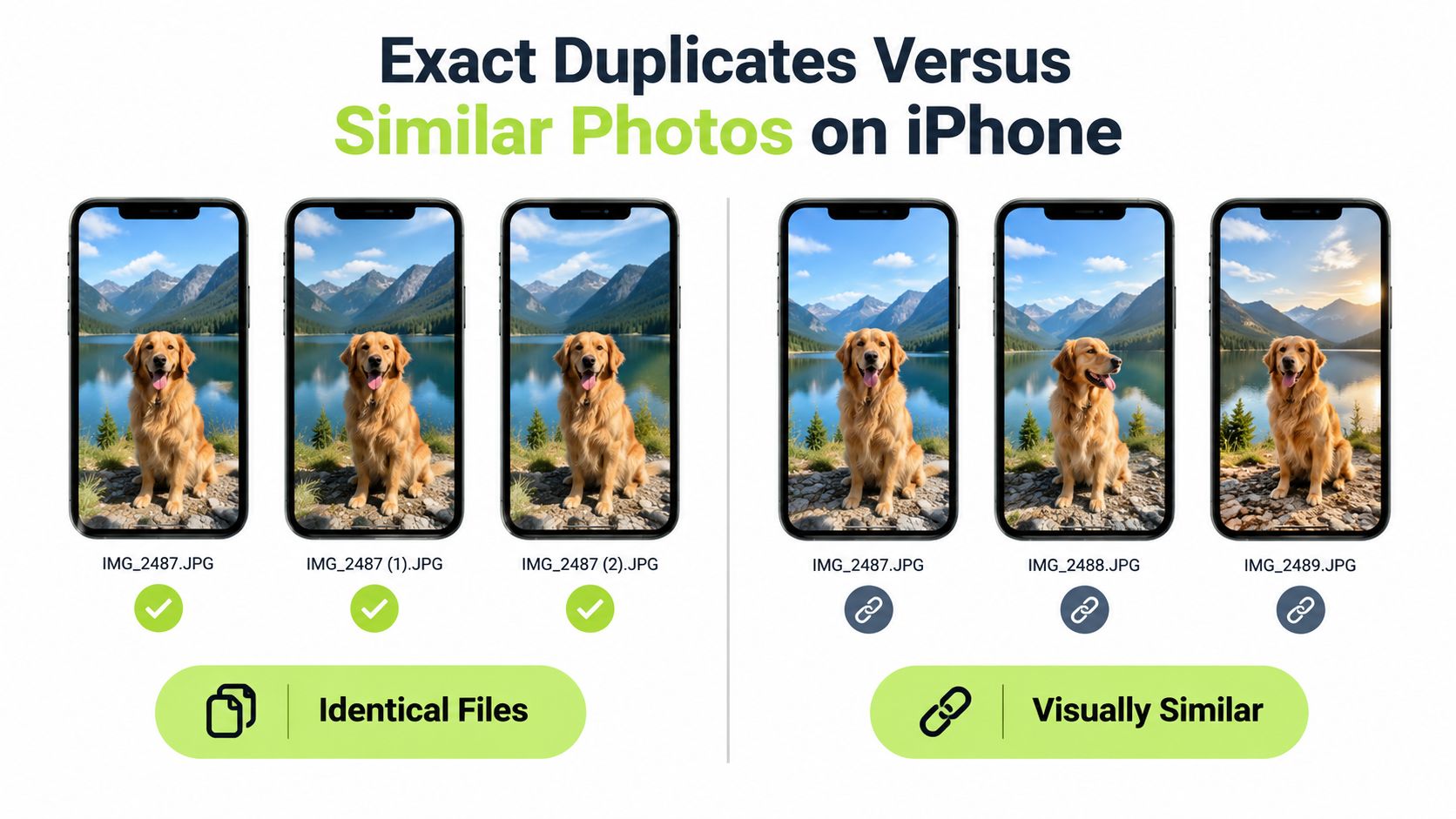
The difference between an exact duplicate and a similar photo comes down to the file and the image, not just what a person sees on screen.
An exact duplicate may be byte-for-byte identical, even when it has a different filename or sits in another album. A near-duplicate can have a different file hash because it was resized, recompressed, cropped, filtered, or edited. To a person, the images may look interchangeable. To a basic exact-match system, they are different files.
Why similar doesn't mean disposable
Consider a family photo taken five times in quick succession. The background stays the same, but one frame has open eyes, another has better focus, and a third includes everyone in the group. A similarity tool should gather those images for comparison, not decide on its own that only the largest file deserves to survive.
“Highest quality” is useful for exact copies, but it isn't always the same as best memory. A smaller image may show the preferred expression, a complete group, or the only frame without motion blur. That's why a safe interface needs grouped previews, full-screen comparison, and a clear reason for each recommendation.
Apple's native tool and a dedicated cleaner can therefore complement each other:
| Need | Suitable approach |
|---|---|
| Matching copies of the same photo or video | Apple's Duplicates album |
| Burst sequences and repeated compositions | Similar-photo grouping with manual review |
| Blurry frames | Blurry-photo discovery followed by confirmation |
| Screenshots and temporary captures | Category-based review |
| Large videos | Size-based review and optional compression |
The technical challenge is avoiding false matches. A solid image pipeline can begin with exact cryptographic hashes, then use perceptual hashes to generate candidates, and finally verify those candidates with stronger visual checks. Perceptual hashes tolerate small changes, but threshold choices affect false positives and false negatives. A deduplication benchmark documents threshold guidance and warns against relying on perceptual matches alone.
A system should also measure precision and recall separately. A Stanford study showed that increasing recall can reduce precision, which creates more incorrect suggestions for a person to review. The Stanford paper illustrates this precision and recall trade-off.
The practical choice
For exact copies, Apple's Merge action is straightforward. For similar photos, the right tool presents a shortlist and leaves the final decision with the owner. This guide to comparing similar photos follows that decision-making angle rather than treating every visual match as a duplicate.
How LuminaClean Scans for Duplicate Photos on iPhone
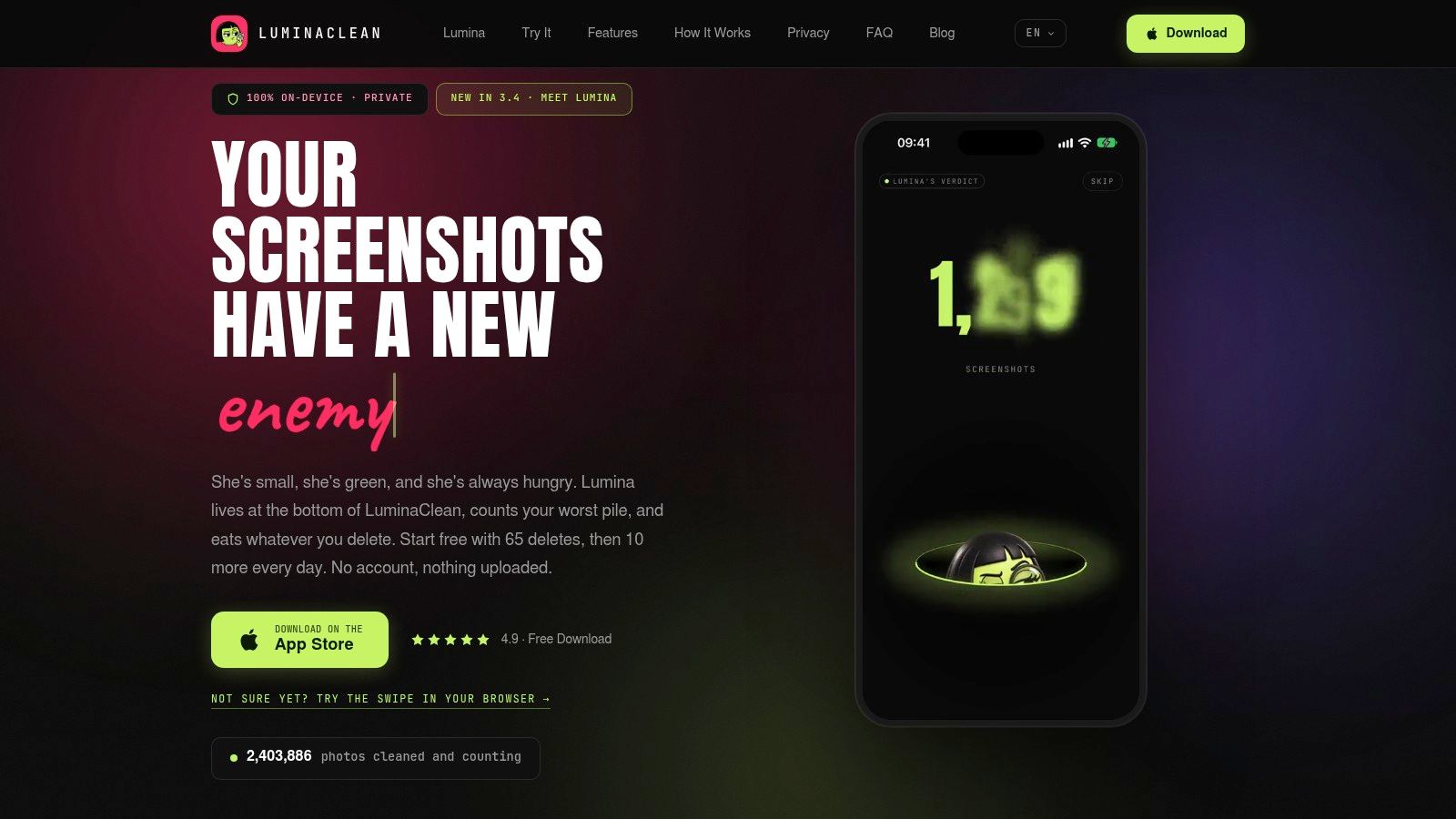
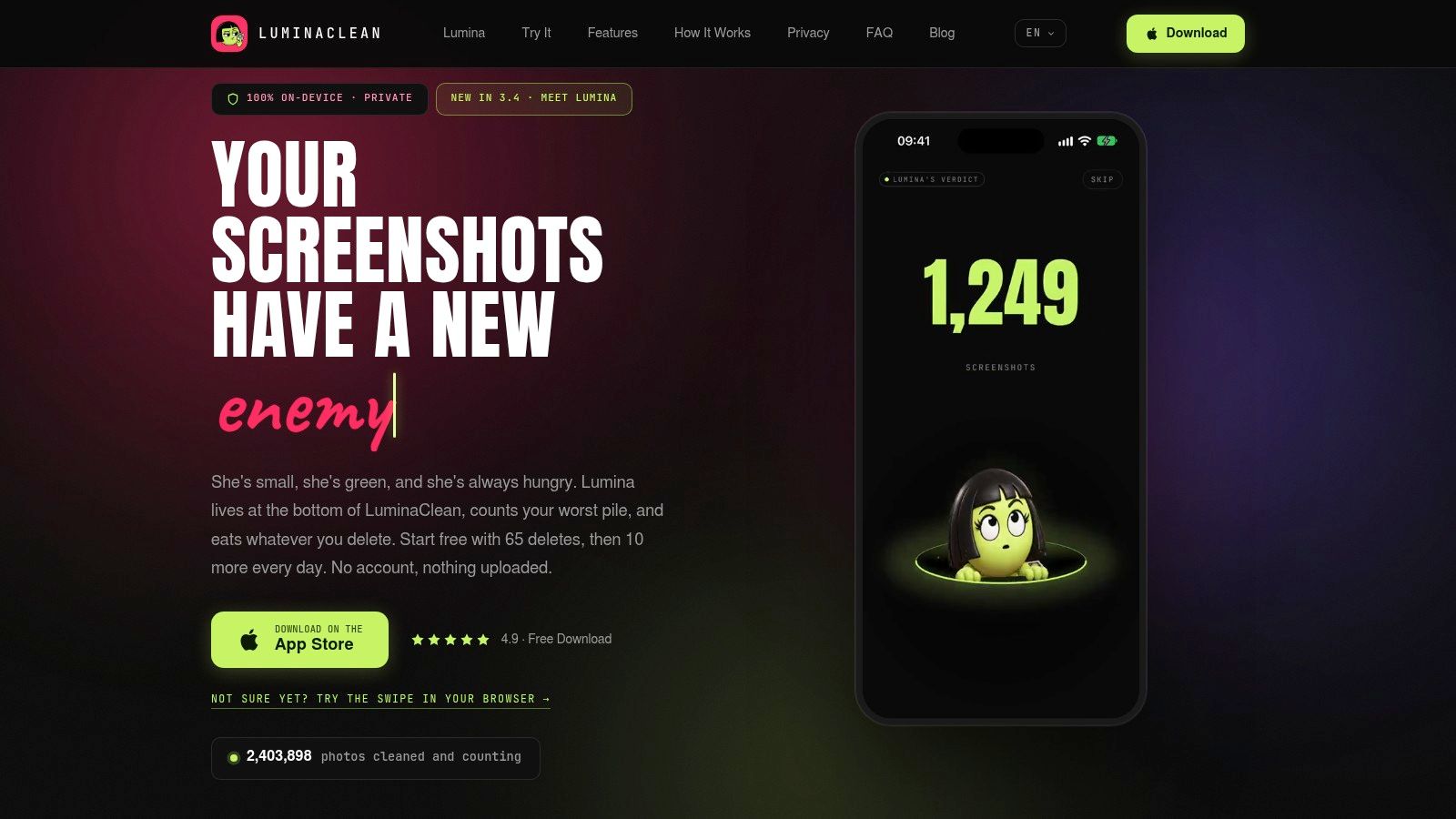
LuminaClean is an iOS-only option that scans on the iPhone for exact duplicates and visually similar photos, then also surfaces blurry photos, screenshots, and large videos. It doesn't require an account, and photos never leave the iPhone because the analysis uses no cloud processing. Apple's privacy documentation provides context for on-device Photos analysis.
A sensible order inside the app
The most efficient sequence starts with low-risk candidates:
- Exact duplicates: Confirm matching copies first, since these are usually the least difficult decisions.
- Visually similar photos: Compare grouped takes and keep the frame with the preferred expression, composition, focus, or moment.
- Blurry photos: Check whether the image is unusable before removing it.
- Screenshots: Separate temporary references from screenshots that still contain useful information.
- Large videos: Review storage-heavy clips, then consider the app's free video compression when deletion isn't appropriate.
The grouped review interface and swipe-to-clean controls reduce the need to open every image from the main library. Storage estimates appear before confirmation, so a user can see the possible recovery without committing to deletion.
Nothing is deleted without a swipe or confirmation. Deleted photos go to iOS Recently Deleted for 30 days, which keeps the native recovery route available. The app offers 65 free deletes to start, followed by 10 more every day, with an optional Premium subscription for clearing a larger backlog at once. Pricing is available as weekly or yearly Premium access, and free video compression doesn't require that subscription.
Lumina, the app's mascot, can also judge the worst photo pile through Get Judged. That feature adds a playful verdict to a routine cleanup, but the useful part of the workflow remains the grouped review and the owner's final decision.
A short visual walkthrough can help users understand the review flow before starting:
Safe Cleanup Workflow for iPhone Photo Libraries
A reliable cleanup session should reduce risk before it reduces storage. The order matters because exact copies require less interpretation than burst photos, screenshots, or videos with personal value.
Start with the least ambiguous items
- Review exact duplicates first. Use Apple's Duplicates album or a grouped scan, then confirm that the retained copy has the expected quality and metadata.
- Compare similar shots manually. Choose the image with the best expression, focus, composition, and complete group, not automatically the largest file.
- Separate temporary images. Screenshots, receipts, and reference images may look disposable but can still contain information someone needs later.
- Handle large videos last. Compression can be preferable to deletion when a clip matters but consumes substantial space.
Before deleting from a synced library, check that Photos has finished syncing. iCloud Photos deletion propagates across the iPhone, iCloud, and other devices associated with the same Apple Account. Apple explains the relationship between deletion, iCloud Photos, and Recently Deleted.
Before confirming: Check the thumbnail, capture date, edit status, and the device or library where the original is stored.
Keep recovery available
Deleted items remain in Recently Deleted for 30 days. That window is useful for correcting a mistaken choice, but it isn't a substitute for a backup. After a cleanup, the owner should open Recently Deleted, verify that no important image was swept into it, and only permanently remove items once the result is clear.
Local analysis and iCloud synchronization are separate issues. An app can scan on the iPhone without uploading the library, while Photos can still synchronize deletions across connected devices. Privacy-conscious users should treat those as two different checks, not as one promise.
A short recurring review is easier than another emergency cleanup. New screenshots and repeated event photos can be handled while their context is still obvious, instead of being judged months later among thousands of unrelated images.
Common Mistakes That Turn Cleanup into Data Loss
The most dangerous assumption is that every duplicate is safe to delete. Exact copies are usually straightforward, but near-identical images can contain different expressions, edits, crops, or moments that matter more than resolution.
Mistakes worth avoiding
- Trusting a similarity score blindly: A visually similar result is a review candidate, not proof that two photos are interchangeable.
- Treating local scanning as cloud independence: On-device analysis can keep images away from an external processing server, but deleting from an iCloud-synced library can still affect other connected devices.
- Skipping Recently Deleted: The recovery folder is the practical safety net after a mistake. It should be checked before permanent removal.
- Deleting before verifying backups: A second device or backup should be understood and current before an irreversible cleanup.
- Removing every burst frame: The technically sharpest photo may not contain the best expression or complete moment.
Apple's merge workflow already reflects a safer model. It retains a selected version, moves other copies to Recently Deleted, and gives the owner an opportunity to review the result rather than making deletion instantly irreversible. That principle should guide third-party tools too.
More guidance on keeping photo cleanup private and controlled is available in this iPhone photo privacy and safety guide.
The practical standard is simple: automate discovery, not judgment. Exact copies can move quickly through review, while similar photos deserve a full-screen comparison and a deliberate keep decision.
Start with Apple's Duplicates album, then use an on-device cleaner when the actual problem is repeated shots, blurry images, screenshots, or large videos. Download the iPhone photo cleaner from the App Store, review every suggested group, and keep Recently Deleted available until the library is confirmed safe.
Clean up your camera roll in minutes.
LuminaClean scans on-device, groups duplicates, similar shots, screenshots and blurry photos, and deletes only what you confirm. Free to start, no account.