November 1, 2026
Why Do My Videos Have No Sound on iPhone
A silent video on iPhone usually falls into one of three buckets: the file has no audio track, the player started muted, or sound is playing through AirPods, a car, or AirPlay instead of the iPhone speaker. The Ring/Silent switch doesn't mute video playback, so flipping it won't bring a clip's sound back.
That distinction matters at the exact moment you hit the problem. A birthday clip gets passed around the table, someone presses play, faces move and candles flicker, and nobody hears the singing. The instinct is to tap volume, flip switches, and restart things at random. A calmer order works better. Match the silence to one bucket first, run one check that proves it, then change only the setting tied to that result.
Table of Contents
- Why a Playing Video Can Be Silent
- Match Each Silence to One Check
- Rule Out Speaker Hardware
- When the Video File Has No Soundtrack
- Recording Settings That Drop the Audio
- Silent Clips That Are Behaving Normally
- Choose the Fix That Matches Your Case
Why a Playing Video Can Be Silent
Say a parent opens a school concert clip in Photos, presses play, and watches the choir sing in complete silence. The picture is sharp and the progress bar moves normally. Nothing looks broken, which is why the missing sound feels so confusing.
That one symptom hides three different causes. Mixing them up is what turns a two minute check into a wasted afternoon.
Three Buckets, One Symptom
- No soundtrack in the file: The recording or export never saved audio, so there's nothing for any volume button to raise.
- Soundtrack present but muted: The audio exists, yet the app, website player, or in player speaker icon started with sound off.
- Soundtrack playing elsewhere: Audio is leaving through AirPods in a pocket, a car stereo, or an AirPlay speaker in another room.
A simple picture helps. Think of the video file as a box holding two separate items. One is the film reel that carries the picture. The other is a tape that carries the sound. The player can run the film while the tape is missing, paused, or plugged into a different speaker.
The picture playing normally proves only that the picture works. It says nothing about where the sound went.
The Ring/Silent switch is the most common wrong turn. That switch, or Silent mode on newer models, quiets rings and alerts. It doesn't turn off video or music playback, so toggling it can't restore a silent clip and shouldn't be the first move.
Readers skimming for why do my videos have no sound usually need that bucket sorted before anything else. The next part provides a chart matched to visible symptoms, followed by a short isolation sequence. Anyone who already deleted a clip while testing should know it sits in Recently Deleted for a limited window, and getting it back returns the same file. Recovery never adds sound that wasn't recorded.
Match Each Silence to One Check
Start with the chart before touching settings. Read down the left column until one row matches what's happening, including whether songs and other videos still play. The middle column names where the sound likely went. The right column is only a first check, not a full repair.
| What you notice | Where the sound is | First check |
|---|---|---|
| Every video and song is silent | Phone volume, blocked speaker, or wrong output | Press Volume Up during playback and clear the speaker grille |
| Only this one clip is silent | Audio never saved or the track is damaged | Play a different video in Photos |
| Silent in one app, fine in Photos | That app or player is muted | Unmute inside the app, then replay |
| Sound returns when Bluetooth is off | AirPods, a car, or another Bluetooth device | Set Control Center audio output to iPhone |
| Web or social clip stays silent until a tap | Intentional mute or autoplay rule | Tap the in-player speaker icon |
| Screen recording has picture and no voices | Mic was off while capturing | Re-record with the Control Center mic enabled |
| File from a computer plays picture only | Video-only export or unsupported audio | Ask for MP4 with H.264 video and AAC audio |
Run the Seven Step Isolation Sequence
- Raise media volume in Photos: Open the clip, start playback, and press Volume Up several times. Media volume is separate from ringer volume, and Apple's iPhone playback guidance confirms volume is adjusted from the device while audio is playing.
- Play a known good file: Try a song or an older video that's always had sound. If it plays clearly, the speaker works and the problem sits with the first file or app.
- Check the output destination: Open Control Center and look at the audio output. If it names AirPods, a car, a TV, or an AirPlay target, tap iPhone instead.
- Toggle Bluetooth off and on: Turn Bluetooth off, replay the clip, then turn it back on. Sound appearing only with Bluetooth off was routed away, not deleted.
- Clear the speaker path: Remove a thick case, check the bottom speaker grille for lint or a blocked edge, and replay.
- Try a second app: Open the same clip outside the app where it failed. Silence in one app only points to that app's mute control or in app volume.
- Stop at a file only result: If one recording stays silent everywhere while everything else plays, raising volume further won't help. That pattern belongs to the recording and file checks.
Step 3 deserves emphasis because it gets skipped most often. A FixerHow guide to iPhone video sound makes the point that checking the current output destination is more diagnostic than repeatedly increasing volume when audio may be going to AirPods or a car system.
Practical rule: Change one thing, replay the same ten seconds, and note which step changed the result. That note decides every later fix.
Families and travelers hit the routing case constantly. The phone moves between a car in the morning, earbuds on a train, and a speaker at home, and it remembers the last destination. The clip isn't damaged. It's audible somewhere else.
Write down the step that changed things, even on a sticky note. A result like "fine in Photos, silent in the social app" is a complete diagnosis. So is "silent everywhere, other videos fine." Each one points to a different fix, and guessing past that point only resets settings that were never wrong.
Rule Out Speaker Hardware
Hardware checks belong last, not first. They only make sense after the isolation sequence shows that every app and every output is silent or distorted. If one song plays clearly at normal volume, the speaker has already passed its test and there's no reason to keep digging here.
Order of Checks Before Booking Service
- Restart and retest: Restart the iPhone, then play a song in Music. Temporary audio faults often clear on a restart, and a clean song playback settles the question quickly.
- Install pending updates: Open Settings, General, Software Update and install anything waiting. Audio bugs do get fixed in iOS updates, so an old version is worth ruling out.
- Listen for physical signs: Crackle, muffled output from every source, or silence that started right after a drop or water exposure points away from settings and toward the speaker itself.
- Compare speaker and earpiece: Record a short Voice Memo, play it back on speaker, then compare with earpiece sound during a phone call. That comparison shows which output path has failed.
The grille check matters more than people expect. A case lip, a screen protector edge, or compacted pocket lint over the bottom speaker grille can muffle output enough to sound like nothing at low volume. A soft, dry brush clears debris safely. Sharp tools and liquids don't belong near the openings.
If both the speaker and earpiece stay dead after a restart and update, stop troubleshooting settings. That pattern isn't a muted file.
At that point the next step is Apple Support, an Apple Store, or an authorized service provider. A dead speaker has one fix, and it's a hardware repair. Nobody should open the iPhone to attempt it, since a sealed phone doesn't offer a safe home repair path for speaker components.
When the Video File Has No Soundtrack
The diagram below shows the basic structure behind this case, with picture and sound carried as separate streams inside one file.
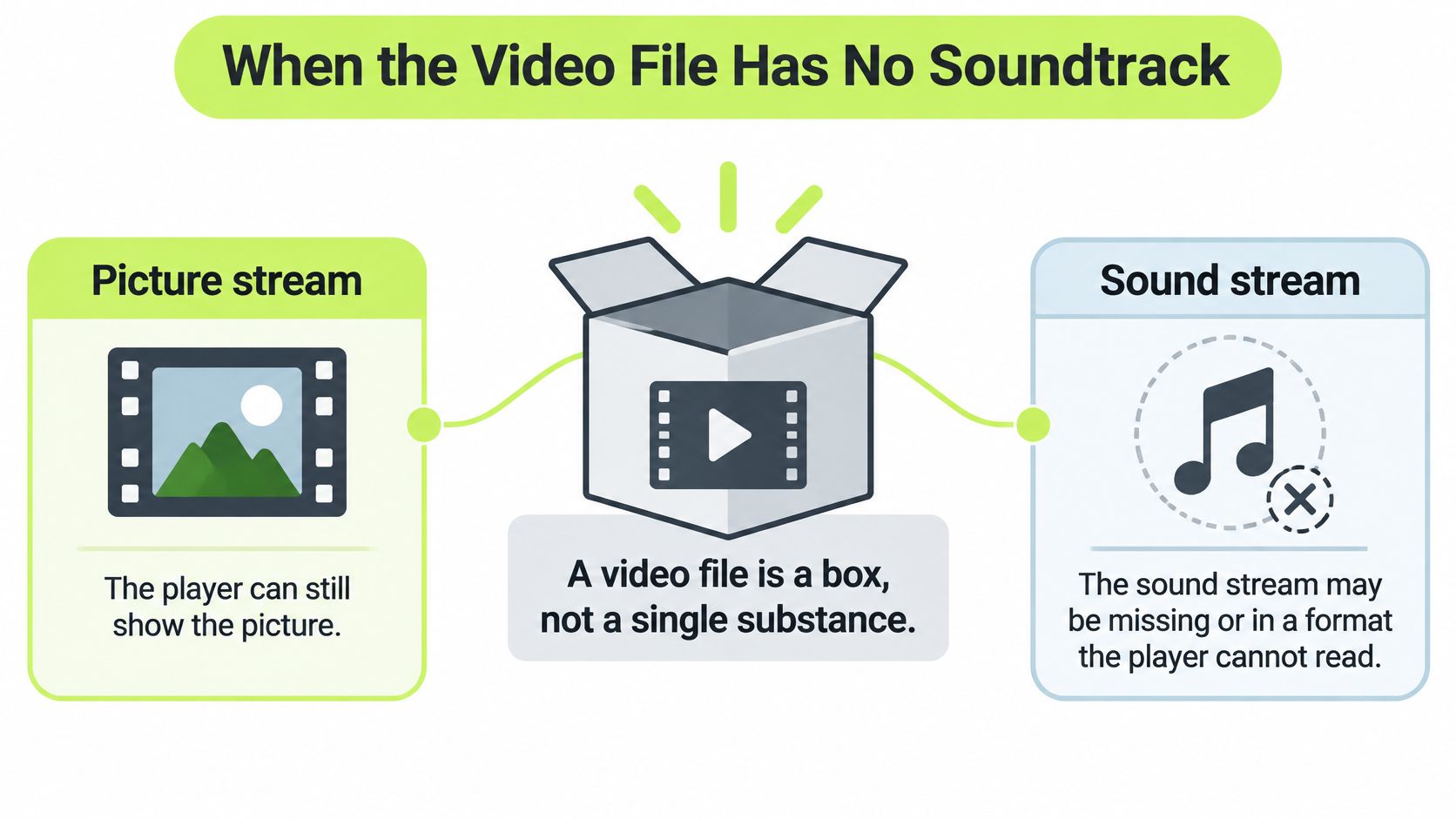
A video file is a container, closer to a folder than to a single substance. The picture stream and the sound stream sit side by side inside it. A player reads them separately, which is why it can show a perfectly smooth picture while producing no sound at all.
How the Tape Goes Missing
This case shows up after a screen capture made with the microphone off, an editing timeline left muted during export, or a preset labeled video only. In each case the export finished successfully. It wrote the picture stream and left the sound stream out, so maximum volume changes nothing because there's no tape in the box.
Compatibility adds a second wrinkle even when a sound stream exists. The Meta AV1 white paper notes that the H.264 video standard was first published in 2003 and is now supported by nearly 100% of smartphones. Picture support is nearly universal. Audio support isn't, because the same MP4 container can hold different audio formats and each app decides which ones it'll decode.
That gap explains a familiar pattern with files from a computer. The clip opens, the picture plays, and the sound never arrives because the audio inside is written in a format the current app ignores. AAC is the safe pairing for iPhone playback, which is why a fresh export as MP4 with H.264 video and AAC audio fixes so many of these files.
The short video below walks through the same playback checks visually for readers who prefer to follow along on screen.
The Two App Test
Play the file in Photos first, then in one other app. Silence in both places means the file itself is the problem, so the answer is a re-export in the compatible format above or a new recording with the mic on. Sound in Photos but silence elsewhere means the file is fine and the second app is at fault.
Readers dealing with oversized corrected files afterward can review what video compression does to a file before re-exporting anything large. One caution closes this case. Recovering a deleted version of the clip can't add missing audio. It returns the same silent file that went into the trash.
Recording Settings That Drop the Audio
Some clips aren't broken at all. They're accurate recordings of silence, made that way by a setting at capture time. No playback trick repairs them, but each one is easy to prevent on the next take.
Screen Recording and the Microphone Toggle
Screen Recording is the clearest case. In Control Center, the record button captures the screen whether or not the microphone is enabled. With the mic off, the finished file holds the picture and none of the narration the person spoke over it. Anyone who has recorded a careful tutorial and played back dead air has met this setting.
The fix is a new recording. Long press the record button, switch the microphone on, and record again. The old file stays silent forever because the voice was never written into it.
Camera Takes and Blocked Inputs
The Camera app behaves differently. A normal video uses the iPhone microphone automatically, so a silent Camera take usually means something interfered at the moment of recording. Common culprits include:
- A finger over the mic grille: Easy to do when holding the phone low with both hands.
- A Bluetooth headset as input: The phone may listen to earbuds sitting in another room instead of its own mics.
- An external mic unplugged mid setup: The take starts with an input that isn't connected anymore.
A ten second test clip, played back immediately, catches all three before an unrepeatable moment gets recorded the same way.
Balance Settings That Fake a Dead Speaker
Accessibility controls can imitate silence after a perfectly good recording. Under Settings, Accessibility, Audio and Visual, the Balance slider sends sound toward the left or right side. Dragged fully to one side, it sends everything to one channel. With one earbud out or one side covered by a hand, that sounds exactly like no audio.
Center the Balance slider and replay the clip before judging any recording. One sided audio is a playback setting, not a damaged file.
Turning Mono Audio on works as a quick test because it sends the same sound to both sides. Anyone who turns it on only for testing should switch it back afterward. Headphone safety limits can lower loud audio during headphone use, though they rarely make a clip totally silent.
Two false leads round out this group. A Live Photo holds a short burst of motion, not a normal video soundtrack, and a still photo has no dialogue to recover. Readers cleaning up test takes and retakes afterward may find ways to reduce video file size on iPhone useful once the good version exists.
None of these settings repair a file exported without an audio stream. They explain the next recording, which is where the fix is found.
Silent Clips That Are Behaving Normally
Three everyday scenes cover most of this category. A shop landing page loads and a product rotates in the hero area without sound. A social feed starts a preview with a small speaker icon in the corner. A news site plays a muted clip beside the article text. In each scene the video hasn't failed. The site chose silence.
The pattern is widespread by design. In the MarkStudios homepage video study of 182 major website homepages, 107 videos, or 59%, were already playing before the visitor clicked anything, and every one was muted. The same study found 86 videos, or 47% of all observed homepage videos, used autoplay without player controls, typically as background loops or short product demonstrations.
Browsers drive that behavior. Muted video is generally allowed to start on its own, while video with sound usually waits for a tap or click first. Sites that want motion on load therefore start muted, and some keep the clip on a loop with no visible controls at all.
The tiles below separate that designed silence from an actual fault.
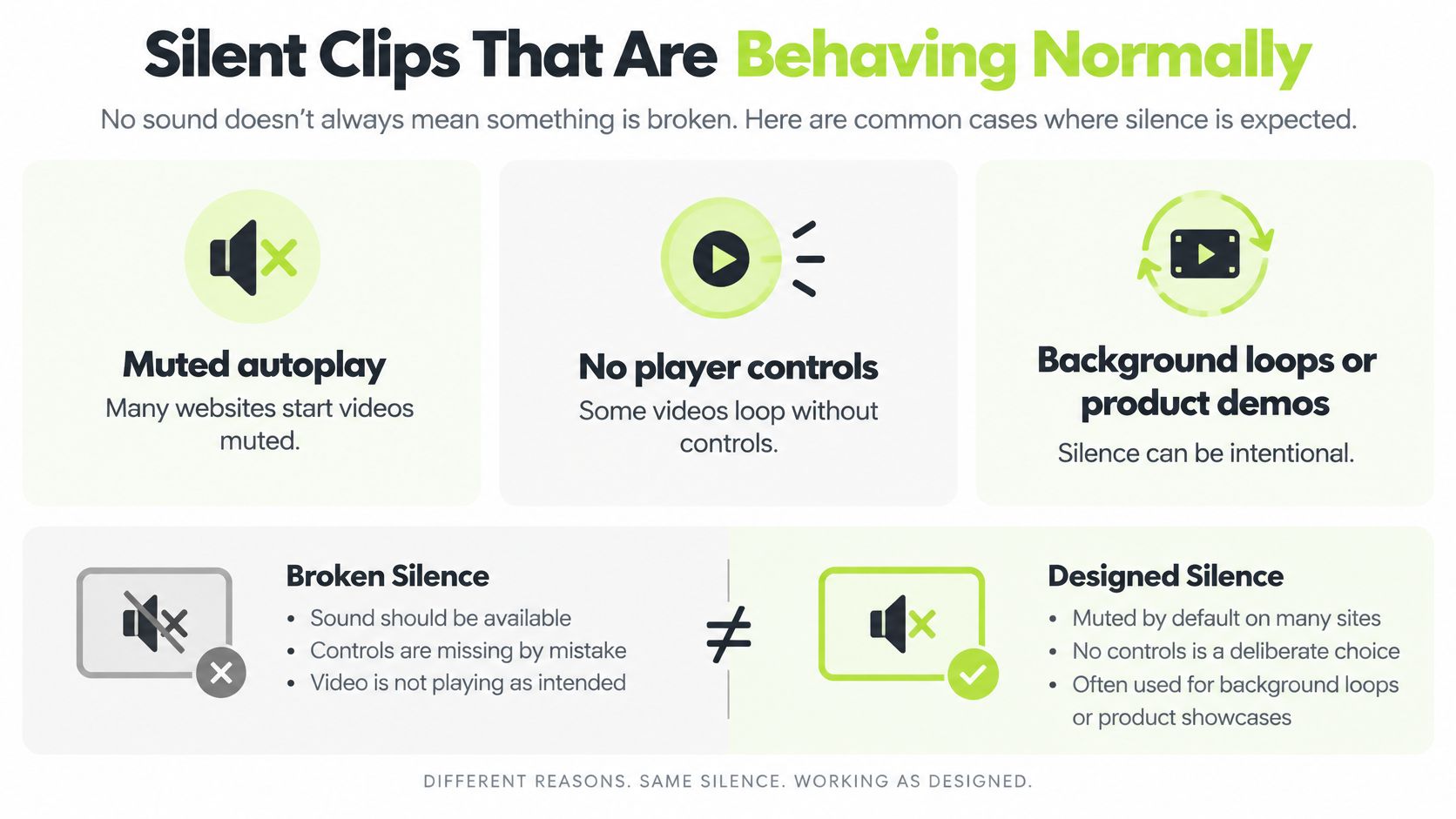
Per site permissions add one twist. A browser can remember that one domain was muted and keep it quiet on later visits, even after another site plays with sound. That makes a single website look broken while every other tab behaves.
The home version of this scene is output routing. A birthday video plays through the car speakers on Saturday, and on Sunday the iPhone still hands audio to that car or to AirPods in a coat pocket. Photos looks broken until Control Center shows the audio destination. Readers reviewing a camera roll full of such clips can check how to find large videos on iPhone once playback makes sense again.
The test for this whole category stays simple. Tap the video or its speaker icon, then try a second site or app. If tapping brings sound, the recording is fine. Stop diagnosing the microphone.
Choose the Fix That Matches Your Case
Every check so far ends in a proved bucket, and each bucket has exactly one sensible response. Acting on the proved cause keeps good settings and good files untouched.
Match the Action to the Result
- Bluetooth or AirPlay was the destination: Leave output set to iPhone for speaker playback, and glance at Control Center after using cars, earbuds, or a TV.
- One app was muted: Unmute inside that app and leave the file alone. Re-exporting a healthy clip fixes nothing.
- A website started silent and a tap worked: That's site policy, not a failed recording. There's nothing to repair.
- The file failed in Photos and elsewhere: Re-record with the mic on, or ask for a fresh MP4 with H.264 video and AAC audio.
Deletion during testing has its own path. According to Apple's iPhone guide on deleting photos and videos, deleted photos and videos remain in the Recently Deleted album for 30 days before permanent deletion. Open Photos, go to Recently Deleted, open the collection, select the video, and tap Recover. The same silent file comes back, since recovery can't add sound that was never recorded.
Only storage deserves a separate mention. When silent test takes, failed exports, and duplicate attempts pile up, LuminaClean is an iPhone only photo cleaner that scans on the iPhone for duplicates and large videos, nothing is deleted without a swipe or confirmation, and video compression is free for everyone without requiring Pro. It's available on the LuminaClean App Store page for readers whose real problem turned out to be clutter.
The habit worth keeping is the order. Match the symptom, run one proving check, then change one thing. That sequence turns a silent play button from a guessing game into a two minute answer.
Grab the silent clip causing trouble today, run the seven step sequence in order, and write down the first step that changes anything. That single result names the fix, whether it's an output tap in Control Center, an unmute inside one app, or a fresh recording with the microphone switched on.
Clean up your camera roll in minutes.
LuminaClean scans on-device, groups duplicates, similar shots, screenshots and blurry photos, and deletes only what you confirm. Free to start, no account.