October 17, 2026
How to Reduce Video File Size on iPhone: Practical Guide
The storage alert usually shows up at the worst moment, right when an iPhone is recording something worth keeping. One more clip, and the camera either stutters, refuses to save, or throws up the dreaded storage full warning. The fix is rarely one magical setting, because video size on iPhone comes from a few different decisions made at different times.
The cleanest way to think about how to reduce video file size on iPhone is in layers. First, make future recordings smaller. Then shrink the clips already on the phone. After that, clear out the leftover files that still count against storage.
Table of Contents
- Why iPhone Videos Take Over Your Storage
- Settings That Shrink Future Recordings
- Shrinking Videos Already on Your iPhone
- Where Free iOS Compression Apps Fit In
- Reclaiming Storage the Right Way
- Choosing the Right Method for Each Type of Clip
- A Quick Maintenance Routine That Sticks
Why iPhone Videos Take Over Your Storage
The first time an iPhone runs out of room, it usually happens during something ordinary, not a big production shoot. A school play starts, a toddler does something funny, or a family trip turns into a stack of clips that all seem harmless until the phone starts complaining. Video fills storage fast because it captures a lot of detail every second.
Apple is direct about the two biggest size drivers, resolution and frame rate. Higher resolution means more pixels per frame and faster frame rates mean more frames every second, so the phone writes more data with each second of recording. Apple also notes that iPhones record at 30 frames per second by default, while supported models can offer HD or 4K and frame rates such as 24, 25, 30, or 60 fps. A 4K60 clip punishes storage quickly. Apple's recording settings guide
For a practical sense of scale, Apple's own estimates show that 1080p at 30 fps is about 130 MB per minute in H.264 or 60 MB in HEVC, while 4K at 30 fps is about 350 MB per minute in H.264 or 170 MB in HEVC. The same minute can feel manageable in one setting and heavy in another. The codec matters, but capture settings matter just as much. Apple's video-size estimates
Practical rule: treat video size as a choice between detail, smooth motion, and storage. You usually get two of the three, not all three at once.
That's why a layered fix works better than reaching for a compressor first. Set future recordings up the right way, trim existing clips on the phone, then clear the leftovers that still occupy space. After that, check the biggest offenders with this guide to finding large videos on iPhone, since storage recovery gets easier once the worst files are visible.
Settings That Shrink Future Recordings
Switch to High Efficiency first
Start with Settings > Camera > Formats > High Efficiency. Apple says this records in HEVC, also called H.265, instead of H.264, and that HEVC compresses video more efficiently while keeping similar visual quality and using less device and iCloud storage. If you want smaller files before they ever hit your camera roll, this is the first toggle to change. Apple's HEVC guidance
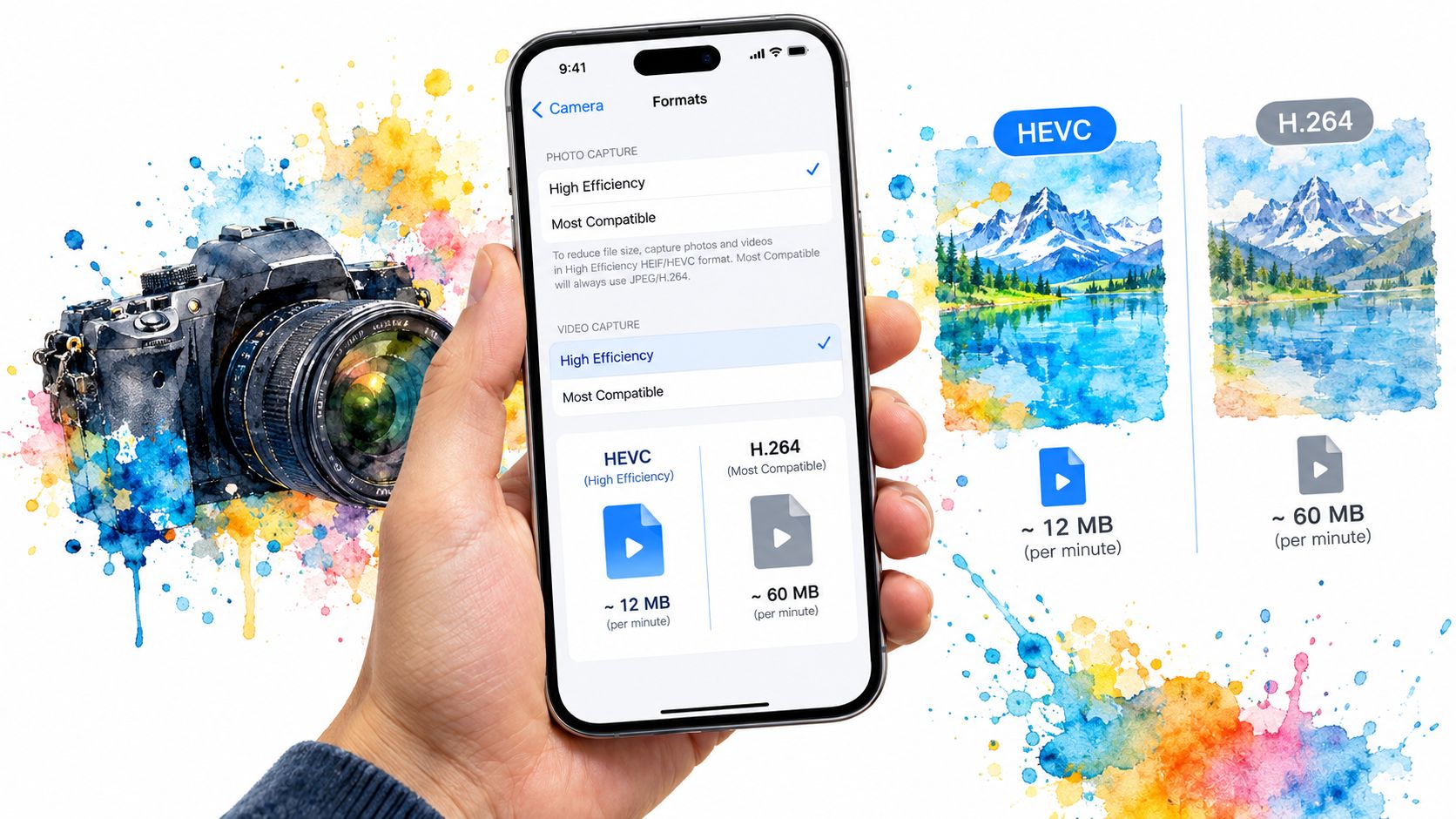
Most Compatible switches new recordings to H.264. That format plays more broadly, but it usually produces larger files. Use it only when you know the file has to work with older software or a system that struggles with HEVC. Apple added HEVC capture support with iOS 11, so for modern iPhones, High Efficiency is the practical default for smaller recordings.
HEVC is the better default when the recording stays in Apple's world, or when the file needs to remain small on the phone and in iCloud.
Use lower capture settings when the footage doesn't need 4K
Open Settings > Camera > Record Video and check the default capture setting. Higher resolutions and faster frame rates create bigger files, so the cleanest savings usually come from recording less data in the first place. For everyday clips, 1080p at 30 fps is the sensible middle ground.
The size difference is easy to see. Apple's estimates put a minute of 4K/30 at about 350 MB in H.264 or 170 MB in HEVC. The same minute at 1080p/30 drops to about 130 MB or 60 MB. That gap adds up fast if you shoot family events, travel clips, or casual day-to-day footage.
Slow motion needs its own restraint
Slow-motion clips deserve separate attention because they use very high frame rates. Apple says supported iPhone models can record slow motion at 1080p HD and either 120 or 240 fps, and the default rear-camera setting can be 1080p at 240 fps. Lowering that setting is the straightforward storage win, because fewer frames per second means less data written for every second of video. Apple's slow-motion settings
Keep the rule simple. Use 1080p/30 for routine clips, move to 4K only when you need the extra detail or expect to crop later, and leave slow motion on a lower setting unless the shot needs the higher frame rate. If the clip is only meant for sharing, the highest setting often gives you a bigger file without much practical benefit.
Shrinking Videos Already on Your iPhone
An existing clip is easiest to shrink with iMovie. Open the video in iMovie, tap Share, choose Save or Share Video, tap Options, and pick a lower resolution such as 720p, 540p, or 360p. Apple's own examples make the trade-off clear. A 1080p export usually lands around 70 to 105 MB per minute, while equivalent exports are about 19 to 27 MB at 720p, 12 to 16 MB at 540p, and 6 to 9 MB at 360p. Apple's iMovie export examples
| Export Resolution | Approx. Size per Minute | Best Use |
|---|---|---|
| 1080p | 70 to 105 MB | Keep detail when the original matters |
| 720p | 19 to 27 MB | General messaging and social sharing |
| 540p | 12 to 16 MB | Preview copies or lightweight archives |
| 360p | 6 to 9 MB | Maximum compression when quality matters least |
Use the resolution that matches the job. 720p is usually fine for group chats and casual sharing, 540p works for previews or reference copies, and 360p is for clips that only need a very small file. Trim dead air before exporting if the video runs longer than it should. Size grows with duration at a fixed codec and bitrate, so cutting unused seconds often saves more than people expect.
Downscaling has a real cost. Text, faces, and fine textures look worse as resolution drops, and Apple notes that lower-resolution exports may not preserve the same HDR look or editing flexibility. That matters most with keepsake footage, where a clip that seems fine in Messages can feel flat later. Keep the original until the exported copy has been checked in Photos, then delete the larger version only after you are sure the smaller one holds up.
A compressed copy should be a deliberate downgrade. The original deserves to stay put until the smaller version has been verified.
A simple review workflow helps here. Open the clip, trim the waste, export at the lowest acceptable resolution, check the result, then decide whether the original still earns a place on the phone.
Where Free iOS Compression Apps Fit In
Built-in tools handle a lot, but they get tedious when the phone is full of long travel clips, school performances, or slow-motion footage that needs more than one export. That's where a free iOS compression app starts to make sense. It doesn't replace iMovie, it fills the gap between one-off manual exports and bulk cleanup.
LuminaClean is one option in that space. It scans on your iPhone, keeps photos on-device, uses no cloud processing, requires no account, and offers free video compression alongside duplicate, similar, blurry, screenshots, and large-video cleanup. It's free to start with 65 free deletes, then 10 more every day, and it offers an optional Premium subscription. LuminaClean on the App Store
The trade-off is simple. iMovie gives exact control over the export path, but it asks for manual work on each clip. A free compression app is more useful when there's a backlog and the goal is a faster, good-enough result for sharing or storage recovery. That is the point where convenience matters more than perfection.

A privacy-conscious workflow still matters here. On-device processing keeps sensitive clips from leaving the phone, which is a real advantage for people who don't want a camera roll uploaded just to save space. The important caution is the same one that applies to any compressor, preserve the original until the smaller file has been checked, because a reduced-size copy is only useful if it still plays well and keeps the content you wanted.
A good rule of thumb is this, use iMovie for a single clip that needs a specific export choice, and use a free app when the phone is packed with many oversized videos that need a fast pass. That keeps compression from turning into an all-day chore.
Reclaiming Storage the Right Way
Deleting a video on iPhone doesn't instantly free the space. Apple moves deleted photos and videos into Recently Deleted, where they stay for 30 days before being removed permanently. That delay is helpful when a finger slips, but it also means a storage emergency won't disappear unless Recently Deleted is emptied too. Apple's Recently Deleted guidance
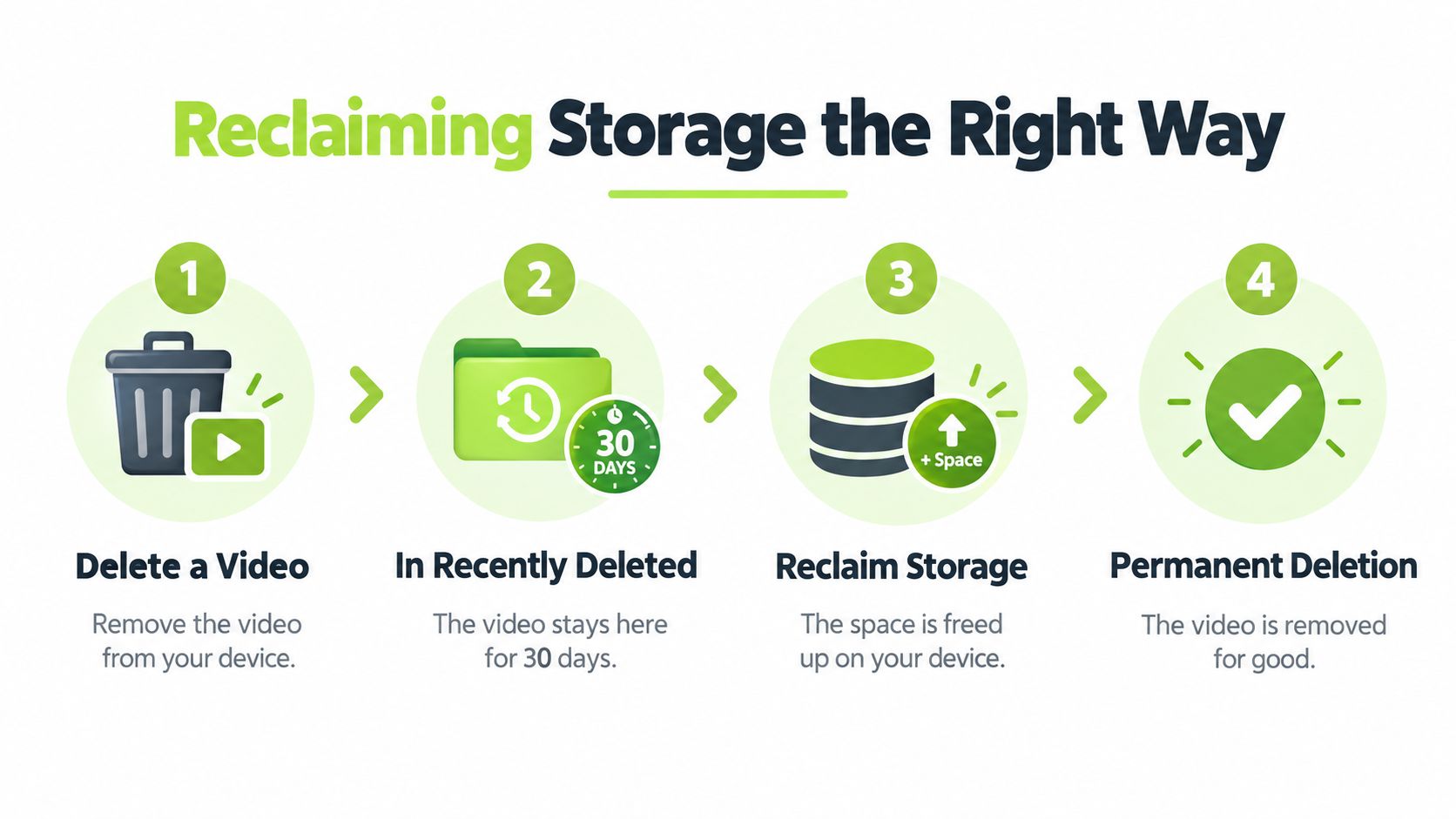
The rule is clean. If today's storage alert is the problem, clear the item from Recently Deleted right away. If the delete was accidental or uncertain, leave it alone and let the 30-day recovery window do its job. That balance keeps the phone from being both full and risky at the same time.
For broader cleanup, a dedicated pass over large videos, duplicates, and near-identical shots usually saves more space than compression alone. A family album often has several near-identical takes of the same moment, and only one of them needs to survive. On-device scanning is the key privacy advantage here, because the library doesn't have to be uploaded just to find the clutter. How to free up iPhone storage
The fastest recovery comes from two moves together, compress what should stay, then delete what no longer earns its place.
The safest cleanup flow is also the least dramatic. Compress the clip first if it still matters, verify the smaller version in Photos, then delete the original and empty Recently Deleted when the storage space has to come back immediately. That's how a temporary fix turns into real recovery.
Choosing the Right Method for Each Type of Clip
Some clips deserve to stay untouched. Others should be compressed without hesitation. The right move depends on how the video will be used later, so decide that before you open export settings or start deleting originals.
Keep the original for footage that still matters
Family keepsakes, weddings, and clips you may edit later usually deserve the full source file. 4K makes sense when you might crop, reframe, or revisit the clip with more flexibility later. The same is true for footage where HDR look or fine detail matters. The file is larger, but the quality trade-off is easier to justify when the clip has lasting value.
Compress harder for throwaway clips
Daily clips do not need the same treatment. A school play that only needs to be shared can live comfortably at 1080p/30 HEVC, while a group-chat clip is usually fine as a 720p export. A video that exists only for a quick look can go lower still.
Use the setting that matches the job
- Travel and scenery: Keep 4K only if you expect to edit or crop later. Otherwise, 1080p/30 HEVC is the more practical default.
- Kids and pets: Use 1080p/30 for speed and storage control, since those clips pile up fast.
- Slow-motion clips: Lower the frame rate when the phone allows it, because this mode fills storage quickly.
- Social-only shares: Export to 720p when the audience is a messaging app or social feed, not a long-term archive.
The useful shortcut is permanence. Clips that matter later should stay higher quality. Clips that only need to be seen once can be smaller without much regret. That rule keeps you from overthinking every recording and helps stop the camera roll from turning into a storage problem.
For a clearer look at how file size changes, what video compression actually changes breaks down the trade-offs in plain terms.
A Quick Maintenance Routine That Sticks
Record smarter. Leave High Efficiency on, drop to 1080p/30 for everyday video, and use 4K only when the extra detail will matter later. Slow motion should stay on the lower available frame rate unless the shot really needs the higher one.
Shrink what you keep. Use iMovie for specific clips that need a smaller export, and pick 720p, 540p, or 360p based on how the file will be used. Check the result in Photos before deleting the original.
Delete the rest. Clear unwanted clips from Recently Deleted when storage is urgent, and keep the 30-day recovery window only when there's real doubt. Review duplicate takes and large videos on-device so the worst clutter doesn't survive by accident.
Keep compression and cleanup on-device whenever possible. That way the phone gets lighter without turning a private camera roll into an upload project.
If the phone is already shouting about storage, start with the settings that affect new clips, then export the oversized ones you want to keep, and finish by emptying the videos that no longer earn space. A few minutes of cleanup today can keep the next recording from failing at the worst possible moment.
Clean up your camera roll in minutes.
LuminaClean scans on-device, groups duplicates, similar shots, screenshots and blurry photos, and deletes only what you confirm. Free to start, no account.