October 5, 2026
How to Free Up Phone Storage on Your iPhone (2026 Guide)
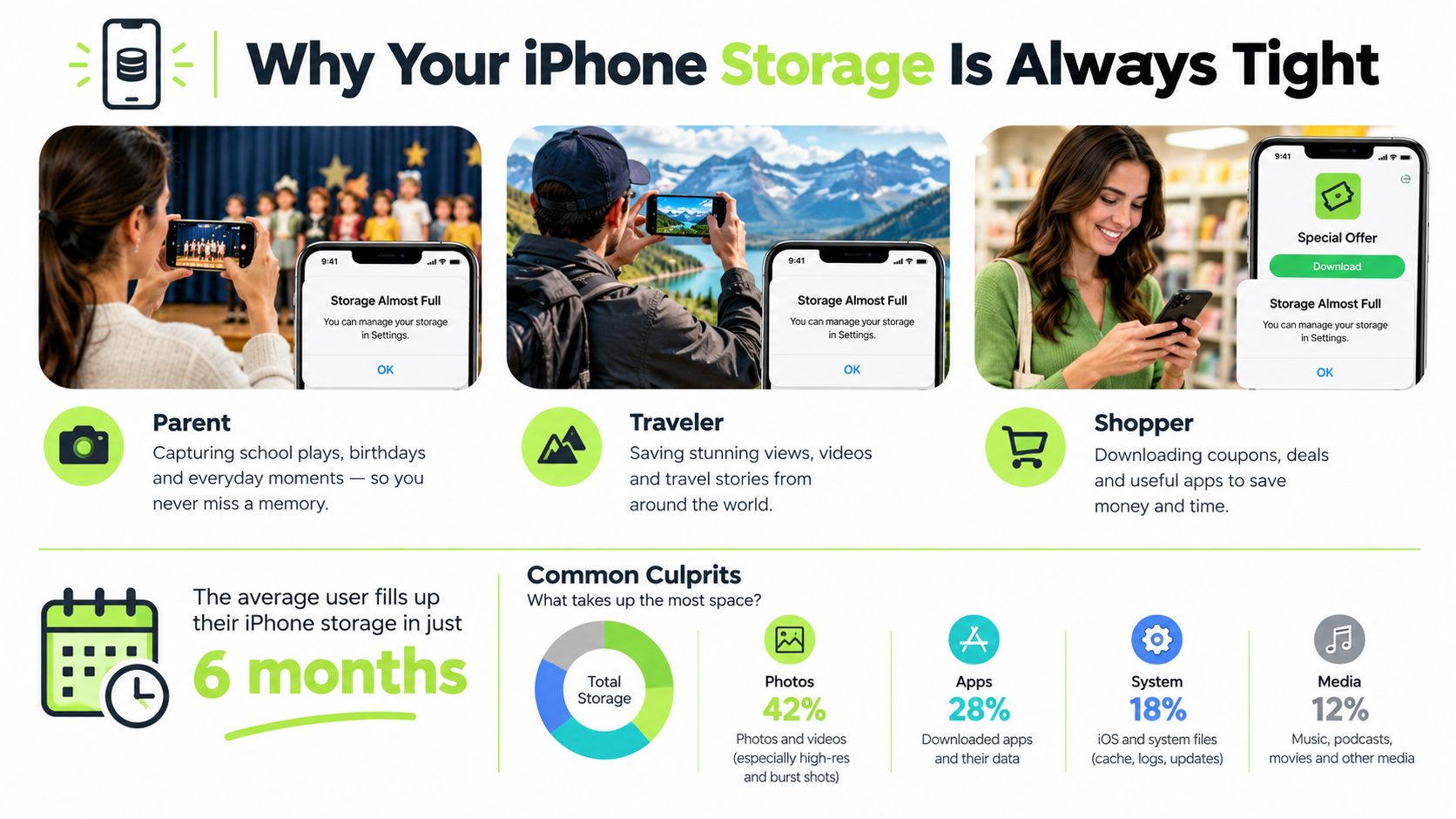
“Storage Almost Full” always appears at the worst possible moment. A parent is filming a school play, a traveler is standing at a scenic viewpoint, or a shopper is trying to download a coupon app, and the iPhone suddenly refuses to cooperate.
The practical answer is simple: photos and videos are usually the first place to look, especially Live Photos, burst sequences, 4K clips, screenshots, and repeated shots. Apps, downloaded media, messages, and stored files come next. The fastest way to free up phone storage is to start with the largest category, then work down to smaller cleanups instead of spending an afternoon chasing tiny caches.
Table of Contents
- Why Your iPhone Storage Is Always Tight
- See Exactly Where Your Storage Goes
- Cleaning Up Duplicate and Similar Photos
- Compressing Videos and Clearing Large Files
- Offloading Apps and Clearing Hidden Caches
- Using iCloud and Keeping Photos Private
- A Simple Maintenance Plan That Sticks
Why Your iPhone Storage Is Always Tight
Your iPhone can run out of room during an ordinary week of photos, screenshots, Live Photos, pocket shots, and short clips. A 2026 iPhone storage study reported a median library of 2,547 photos and 127 videos. Those photos and videos used 47.3 GB, or about 38% of storage on an average 256 GB iPhone. Users added about 47 photos per month, while a typical device had only 1.8 GB of free space remaining (2026 iPhone photo habits study).
That pattern explains why a phone with plenty of capacity can feel cramped later. Photos build gradually, while high-resolution video can consume space in a single recording session. Photos and videos commonly consume 40% to 60% of total iPhone storage. An average HEIC photo uses about 3 MB, a Live Photo about 6 MB, 4K video at 30 frames per second around 170 MB per minute, and 4K video at 60 frames per second around 400 MB per minute (iPhone storage management guide).
Start with the biggest files
Use this order:
- Photos and videos, including duplicates, similar shots, blurry frames, screenshots, and large recordings. Apple's Duplicates album helps, but it will not catch every near-identical or unusable image. A similar-photo finder or on-device app such as LuminaClean can surface additional candidates without sending the library away from the phone.
- Downloaded media, including offline shows, music, podcasts, and files.
- Messages attachments, especially videos and animated images.
- Unused apps and app data.
- Browser and temporary data, which may help but rarely produces a major recovery.
A focused media cleanup can recover hundreds of megabytes or several gigabytes, while clearing one small cache may barely move the storage bar. Start with the largest files, then use Apple's Duplicates album and similar-photo detection to remove clutter its built-in scanner misses.
Apple's free iCloud allowance can feel restrictive as a camera roll grows. Camera settings that preserve high-quality HDR or ProRes video also make large files easier to create. Those settings suit demanding footage, but they are a poor fit for an iPhone already close to full. Clean up media before spending time on minor system data.
See Exactly Where Your Storage Goes
Your iPhone may warn that storage is nearly full while the actual problem sits inside one app or category. Check the storage breakdown first. Deleting random apps or clearing a small cache can waste time and recover almost nothing.
Open Settings, tap General, then select iPhone Storage. iOS shows a color-coded bar and ranks categories such as Photos, Apps, Messages, Media, Mail, and System Data. Labels and recommendations can vary, but the largest section tells you where to start.
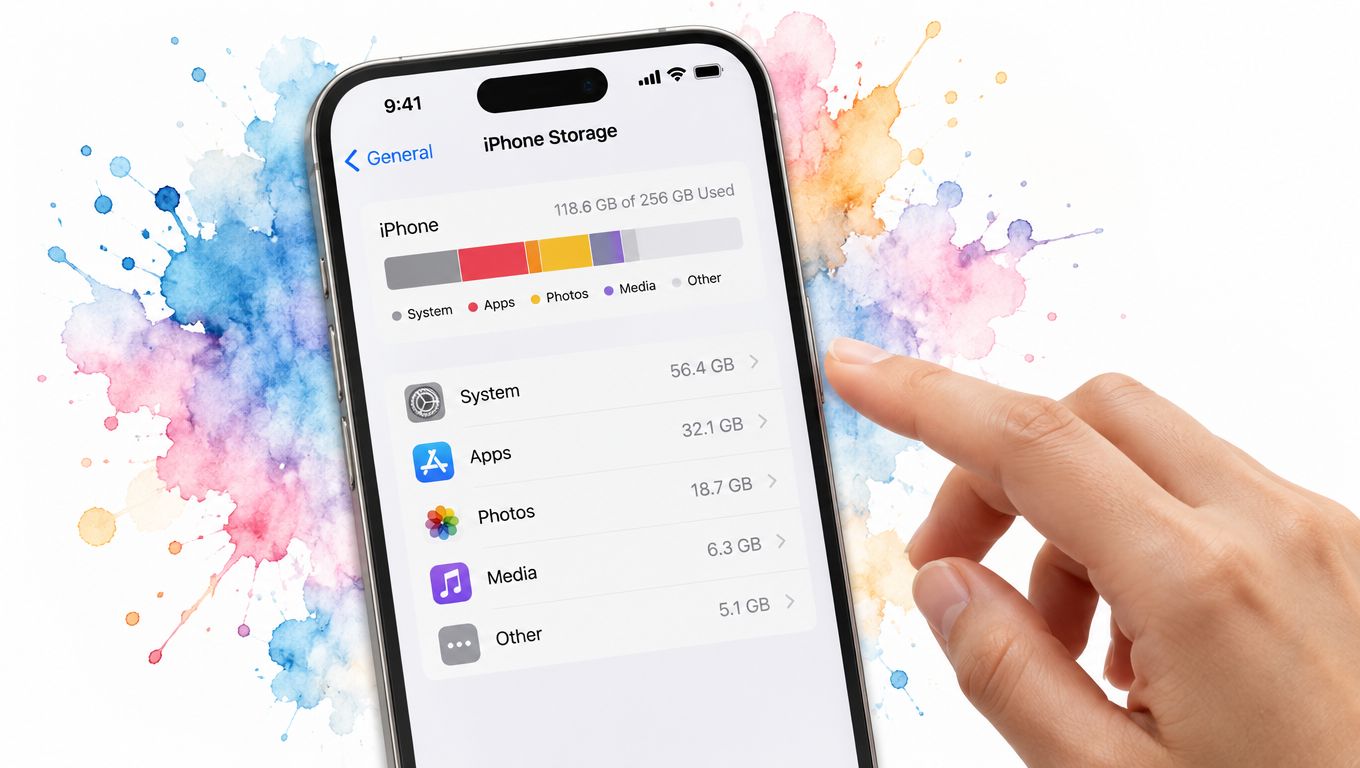
Select an app to separate the app itself from Documents & Data. That second figure may include downloaded shows, saved media, work files, projects, and cached content. A large app is not automatically the best deletion target. A smaller app with a bloated data store may free more space.
Use the recommendations as shortcuts, not instructions you must follow. Offload Unused Apps removes the app binary while keeping its documents and data, as explained in Apple's iPhone storage guidance. Review Large Attachments points to oversized items in Messages, while Review Downloaded Videos surfaces offline video that may no longer matter.
The largest category should determine your next move. If Photos leads, work through duplicate, similar, blurry, and unwanted images rather than removing several small apps. Apple's Duplicates album helps with exact repeats, but similar-photo detection and an on-device app such as LuminaClean can reveal clutter that the built-in scan misses. If a video app has accumulated substantial data, remove its offline downloads before touching Safari.
Storage totals may take time to update after a major cleanup. Recently Deleted items and system indexing can delay the result, so check the bar again after each meaningful pass. Measure first, target the biggest category, then confirm the space you recovered.
Cleaning Up Duplicate and Similar Photos
Five nearly identical photos can consume more space than you expect, especially when burst shots, Live Photos, and screenshots pile up. Apple's built-in Duplicates album is a useful first pass, but it is not a complete photo cleanup system. In Photos, find it under Utilities on devices running iOS 16 or later. Apple says the device identifies and collects duplicate photos and videos there (Apple's Duplicates album guide).
Use that album to remove genuine repeats. Then keep going. It will not catch every photo from the same pose, a burst with one sharp frame and several soft ones, a Live Photo paired with a still image, or screenshots that no longer serve a purpose. Minor edits and visually similar images can remain scattered through the library after the Duplicates album is empty.
LuminaClean adds the review Apple's scanner misses. Its on-device scan groups exact duplicates and visually similar photos, then surfaces blurry photos, screenshots, and large videos. It also offers free video compression and processes photos without cloud processing or an account. Deletions require a swipe or confirmation, so you can inspect the selection before anything disappears. Get Judged lets its Lumina mascot assess the worst photo pile, adding a lighter touch to a tedious cleanup. Check the iPhone App Store listing for LuminaClean for current access and feature details.
Start with Scan, wait for the analysis to finish on the iPhone, then review the Duplicates, Similar, Blurry, and Screenshots groups. For each similar set, keep the sharpest and most useful frame. Delete blurry rejects in batches only after checking that they do not capture an important memory. Keep screenshots that still act as references, and remove expired confirmations, listings, directions, and conversations. Review the proposed selection before confirming deletion.
For a manual process, use this guide to deleting duplicate photos on iPhone. The right rule is simple: keep the best frame and remove accidental repetition, rather than deleting every image that looks alike.
Deleted photos and videos stay in Recently Deleted for 30 days, where they can be recovered or permanently removed (Apple's Recently Deleted instructions). Check that album carefully, then empty it to return the storage space.
Compressing Videos and Clearing Large Files
Large videos are usually the quickest storage win. One long recording can take more space than dozens of ordinary photos, especially when it was captured at high resolution or frame rate. Deleting one unwanted 10-minute 4K clip can free roughly 4 GB, so start with video before spending time on minor cleanup.
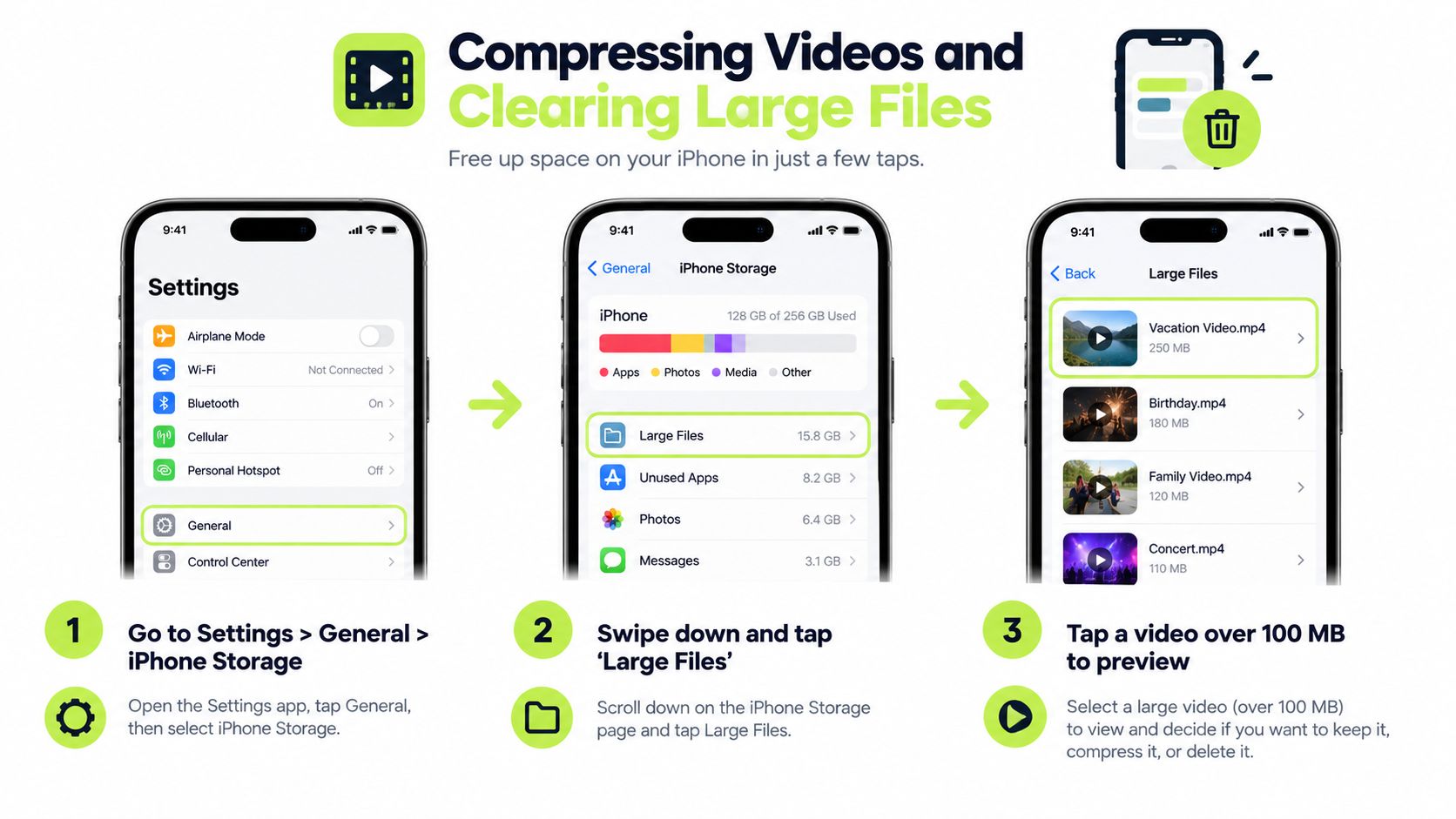
Open Settings, tap General, then choose iPhone Storage. Review the recommendations and scan the largest apps and media categories. Look for camera recordings, downloaded videos, and editing apps that keep exported files locally. iOS may offer review tools for large items, but the exact options vary by version, so this screen is the dependable place to begin.
Delete, archive, or compress
Delete recordings you no longer need. For anything worth keeping, transfer the original to a computer or cloud drive before removing its iPhone copy. Saving it to Files and moving it elsewhere preserves the original, while compressing creates a smaller version for easier local storage.
Compression suits videos that matter but do not need their full original size. LuminaClean includes a Video Compress pass that reduces large videos while keeping a usable copy on the iPhone. For an iPhone-focused walkthrough, use this guide to reducing video file size on iPhone. For codec, resolution, and export details, read this reduce video file size guide.
Use a simple rule for each file:
- Delete forgotten screen recordings.
- Archive or compress family memories instead of removing them impulsively.
- Trim a long clip if only a short moment matters, then save the edited version elsewhere.
- Manage downloaded videos inside the app that stored them, where its download controls are available.
A video is not fully gone while it remains in Recently Deleted. Review that album after deleting, then remove the files permanently when you are certain they are no longer needed.
Offloading Apps and Clearing Hidden Caches
Apps deserve attention after your photo and video library is under control. Open Settings > General > iPhone Storage, then review the list from largest to smallest. This screen shows which apps and their stored data are using the most capacity, so it is more reliable than judging an app by how often you open it.
Start with Offload Unused Apps when you may need an app again. As covered in the storage-screen walkthrough above, offloading removes the app itself while keeping its documents and data. You can download the app again later without setting it up like a completely new installation. Use offloading when the stored data matters and deleting the app would create unnecessary work.
Apps you use regularly need a closer check. Some include controls for clearing downloads or cached files. Others require deletion and reinstallation before their accumulated local data disappears. Before deleting one, confirm that important drafts, offline files, account details, and other local content are synced or backed up. Reinstalling is effective, but it should be your last resort for an app that stores information only on the phone.
Clean the quiet storage hogs
Safari data is easy to review through Settings > Safari > Clear History and Website Data. Clear it after larger storage problems are handled. Browser data rarely frees as much space as a large media library or a cache-heavy app.
Messages needs a more deliberate review. In Settings > General > iPhone Storage, open the Messages entry and inspect large attachments and old conversations. Videos, GIFs, and repeated images usually deserve attention before the text itself.
Check the Files app as well. Review Downloads, old PDFs, ZIP archives, exported videos, and duplicate documents. Remove offline music, podcasts, maps, and streaming downloads inside the apps that stored them. Those apps can distinguish downloaded copies from content that remains available in your account.
Small settings files are rarely worth chasing. Follow the storage screen, starting with large app data, then message attachments, offline downloads, and browser data. This order puts your time into changes that can make a visible difference.
Using iCloud and Keeping Photos Private
iCloud Photos and Optimize iPhone Storage solve a different problem from duplicate cleanup. iCloud keeps original photos and videos available in the cloud while the iPhone stores smaller, device-friendly versions. Use this when you need more local space without removing photos from your library.
The usual path is Settings > Photos, then enable iCloud Photos and choose Optimize iPhone Storage. Confirm that the library has finished syncing before relying on the setting. Optimization reduces pressure on the iPhone, but it does not decide which blurry images, screenshots, or repeated shots should stay.
Cloud storage and local cleanup have separate jobs. A cloud photo service requires trust in remote storage, account security, and the provider's handling of personal images. An on-device photo cleaner uses a different approach. It analyzes the library locally, so originals do not need to leave the iPhone while it reviews duplicate, similar-photo, blurry-image, or screenshot groups. That makes tools such as LuminaClean useful alongside Apple's built-in Duplicates album, not as a replacement for iCloud.
Cloud optimization saves local space. Local cleanup reduces the library itself. Use either option, or both, without confusing what each one changes.
Use this privacy checklist:
- Enable iCloud Photos if cloud access and device optimization suit your household.
- Turn on Optimize iPhone Storage after confirming that the iCloud library is available.
- Check the iCloud plan if the photo library is larger than the included allowance.
- Run a local-only photo scan before giving any third-party service permission to upload originals.
- Review deletion groups manually, especially family photos, documents, and travel records.
Before deleting anything, check whether another device or family member still needs the image. Deleting a synced photo can remove it from the iCloud library and connected devices, so keep important originals backed up separately if they must remain available.
Readers managing shared libraries can also consult this guide to shared albums and iCloud storage on iOS. Shared access does not remove local clutter, and optimization does not make unwanted screenshots useful.
A Simple Maintenance Plan That Sticks
A full storage warning feels harder when every category needs attention at once. Start with the biggest returns, then keep a short monthly routine so the next alert does not become an emergency.
The right-now sweep
Work through the first cleanup in this order:
- Open Settings > General > iPhone Storage and find the largest category.
- Check Apple's Duplicates album under Photos > Utilities.
- Run an on-device scan for similar photos, blurry images, screenshots, and large videos. LuminaClean can help identify groups Apple's Duplicates tool does not catch.
- Delete clear rejects, keeping the sharpest image from each repeated group.
- Review large videos. Archive, compress, trim, or delete them based on whether you still need the original.
- Empty Recently Deleted only after checking its contents.
- Recheck the storage bar and confirm that the cleanup created usable space.
Apple's recommendation banner is a useful starting point, not a complete photo review. Its Duplicates album handles exact or recognized repeats, while a broader local scan can find near-identical shots, blurry frames, and screenshots that continue filling the camera roll.
Keep this judgment call: Check the storage bar once a month. If one app has not been opened recently and takes more space than you want to spare, offload it while keeping its documents and data available.
The monthly habit
Once a month, review the largest new videos, remove downloaded shows or music you have already used, and inspect Files for forgotten exports. Offload apps you have not opened recently when their documents need to remain on the iPhone. Use this iPhone storage management guide for a broader review of the storage settings.
Review message attachments on the same schedule. Old videos, GIFs, and forwarded images can remain in conversations long after they stop being useful. Remove the attachment instead of deleting an entire conversation that still contains important context.
Finish with a privacy check. A local-only scan keeps photo analysis on the iPhone, and you should review every deletion yourself. That is a sensible default for family photos, travel records, documents, and any camera roll you do not want uploaded for image matching.
A storage alert calls for a media review, not panic. Similar photos, blurry shots, screenshots, large videos, and downloaded files usually deserve attention before small cache entries.
The next time “Storage Almost Full” appears, open iPhone Storage first, start with the largest category, and confirm the result after clearing Recently Deleted. Repeat the routine before a trip, school play, or important download.
Clean up your camera roll in minutes.
LuminaClean scans on-device, groups duplicates, similar shots, screenshots and blurry photos, and deletes only what you confirm. Free to start, no account.