October 28, 2026
Best Way to Save Pics from iPhone Without Losing Quality

The best way to save iPhone pictures is to use iCloud Photos with Optimize iPhone Storage for everyday access, plus a separate export to a Mac, PC, or external drive for a copy you control. Keep that independent copy verified before deleting anything, because photos in Recently Deleted stay recoverable for 30 days, not forever.
Could a photo be “saved” and still be at risk? Yes. The distinction between syncing, exporting, and backing up is the key to choosing a method that fits the goal without accidentally removing the only copy.
Table of Contents
- Short Answer for Each Saving Goal
- Syncing, Exporting and Backing Up Are Different Jobs
- How the Main Methods Compare on Storage, Privacy and Copies
- Clean Up Duplicates Before You Save Keepers
- How to Export Originals From iPhone to a Mac or PC
- Formats, Compatibility and Recovery Limits
- Confirm Two Copies Before You Delete Anything
Short Answer for Each Saving Goal
Apple supports both iCloud synchronization and cable-based transfers, so a practical default is layered storage: iCloud for easy access and a periodic computer or drive export for independent protection. With iCloud Photos, edits, additions, and deletions sync across signed-in devices. A separate local export gives the library another place to live, which matters if the phone is lost, damaged, or replaced. Apple's iPhone transfer guide documents both ways to access and move photos.
| Goal | Best method | Why it fits |
|---|---|---|
| Free up iPhone space and keep everything | iCloud Photos with Optimize iPhone Storage | Full-resolution originals stay in iCloud |
| Keep a copy you control | Wired export to Mac or PC | Independent copy with no third-party upload |
| Move a few photos to someone nearby | AirDrop | Fast transfer, no cloud, works between Apple devices |
| Protect against losing or replacing the phone | iCloud Photos plus one local copy | Two separate places hold the library |
| Share on websites or with older software | Most Compatible export | JPEG or H.264 files open in more places |
Choose the row that matches the immediate goal. For example, someone whose iPhone is nearly full but who wants to keep the entire library should start with Optimize iPhone Storage, not bulk deletion. Someone who wants an offline archive should start with a computer or drive export.
AirDrop is handy for a few pictures sent to a nearby Apple device. It isn't designed to replace an organized library export, and sending thousands of items that way can become slow and tedious. For broad protection, combine convenient access with a verified copy outside the synced library.
Syncing, Exporting and Backing Up Are Different Jobs
The word “save” can refer to three different actions. Syncing keeps a library aligned across devices. Exporting copies files to another destination. Backing up means maintaining a separate copy that can be used if the main library is lost or changed.
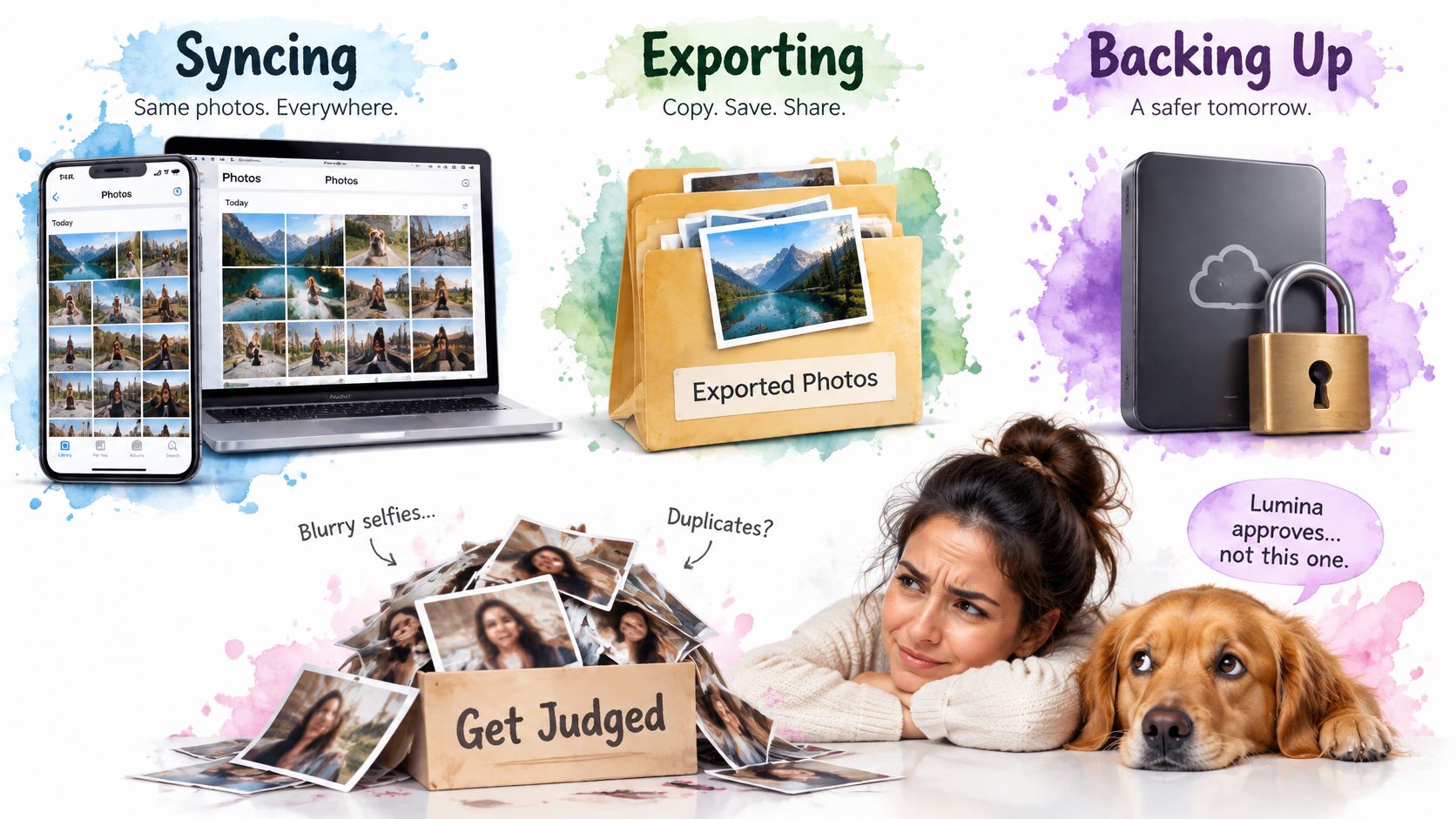
That distinction changes what happens when someone deletes a picture. If iCloud Photos is syncing the library and a photo is deleted on the iPhone, that deletion can also appear on other devices using the same Apple Account. Apple says iCloud Photos items aren't duplicated in iCloud Backup and recommends keeping separate copies of the library. Apple's explanation of iCloud Photos and backups makes the central risk clear: synchronization by itself isn't an independent safety copy.
A photo saved to iCloud isn't necessarily protected against an accidental deletion.
To free phone space without removing photos from the synced library, turn on Optimize iPhone Storage. The phone keeps smaller, space-saving versions when needed, while full-resolution originals remain in iCloud. That saves local space, but it doesn't make a second copy.
For an offline archive or a computer migration, export the originals first. Before removing anything from Photos, open several exported files, check dates and Live Photo components, and compare the number of items copied with the intended selection. Someone focused only on sharing a few pictures can AirDrop them, then check that they arrived on the receiving device. A guide to deleting photos from an iPhone while keeping them in iCloud can help clarify the separate steps, but deletion still requires care.
For a visual walkthrough of the distinction, use this video after considering the goal and destination:
How the Main Methods Compare on Storage, Privacy and Copies
Compare each method by asking five questions: Are the full-resolution originals kept? Is there an independent copy? Does the method free iPhone space? Where do the files live? How much setup does it take?
| Method | Full-resolution originals | Independent copy | Frees iPhone space | Where files live | Effort |
|---|---|---|---|---|---|
| iCloud Photos with Optimize iPhone Storage | Yes, in iCloud | No, deletions sync everywhere | Yes | Apple iCloud | Low |
| iCloud Photos with Download and Keep Originals | Yes, on iPhone and iCloud | No | No, uses more storage | Apple iCloud and iPhone | Low |
| Export to Mac or PC through Photos | Yes, with Unmodified Originals | Yes | Yes, after verified copy | Your computer | Medium |
| Wired USB transfer to Mac or PC | Yes | Yes | Yes, after verified copy | Your computer | Medium |
| AirDrop to another Apple device | Yes | Only on receiving device | Only if you delete after verifying | Nearby Apple devices | Low for a few photos |
| External drive over USB-C | Yes | Yes | Yes, after verified copy | Offline drive you own | Medium to high |
For automatic access and reduced phone storage, Optimize iPhone Storage is a strong default. iCloud holds the full-resolution library, while the iPhone can keep smaller versions when space is needed. Open Settings > [your name] > iCloud > Photos and select the storage optimization option. Apple describes this setup and its alternative, Download and Keep Originals, in its iCloud Photos instructions for iPhone.
Keeping originals on the phone is useful when full-resolution files need to stay available locally, but it uses more iPhone storage. An export to a computer or a wired USB transfer creates a separate destination. For privacy-conscious users, a cable transfer can move photos to a computer without uploading the library to a third-party service. AirDrop works well for a handful of photos, but the receiving device becomes the only separate copy unless the files are copied elsewhere.
Only a copy exported to a separate destination is independent of changes to the synced library.
An external drive offers an offline archive that the owner controls, but it takes more setup, and the destination needs enough free space. Optimize Storage alone isn't an archive. The right choice depends on whether the priority is phone space, privacy, quick access, or recovery; a guide to iPhone photo privacy and safety offers more context for weighing those concerns.
Clean Up Duplicates Before You Save Keepers
A cleaner library is easier to review before you export it. Start by protecting the photos you want to keep, then remove clutter in small, deliberate steps.
Check Settings > General > iPhone Storage to see how much space apps and other content use. The screen may also suggest ways to free space, such as reviewing large videos. Apple explains these checks in its iPhone storage guidance.
For exact duplicates, open Photos, tap Collections, swipe up, then choose Duplicates under Utilities. Apple's tool can merge duplicate sets while keeping the version with the highest image quality and relevant data. It does not group every kind of clutter, including similar-looking shots, blurry photos, screenshots, or large videos.
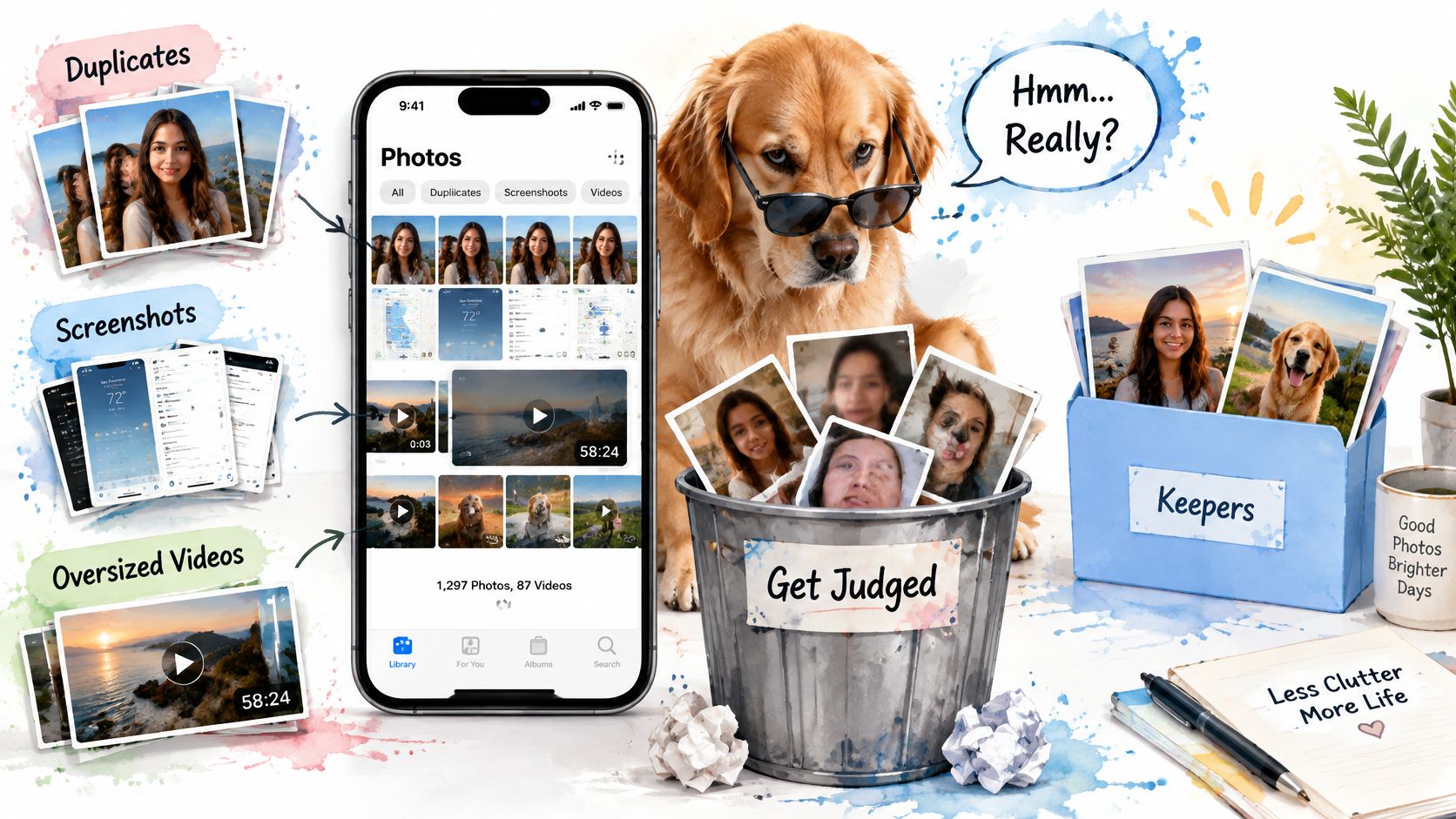
For those other cleanup jobs, LuminaClean processes photos on the iPhone with on-device machine learning. Photos are never uploaded to the cloud. Duplicate Detection finds exact and near-identical copies, while Similar Photo Finder groups similar shots so you can keep your favorite and delete the rest. Blurry & Screenshots helps identify blurry pictures and accumulated screenshots for review. Swipe to Clean lets you swipe left to delete or right to keep. Before deletion, Review & Delete shows photos kept, photos marked for deletion, and estimated space saved. You must review and confirm selections before they are deleted. New users get 65 free photo deletions to start.
Back up your library before using cleanup tools. If iCloud Photos is enabled, deleting through LuminaClean also deletes those photos from iCloud and other synced devices. Deleted items go to Recently Deleted, where they can be recovered within 30 days. They are not permanently removed until you delete them from that album. Only remove items you are sure you no longer need.
How to Export Originals From iPhone to a Mac or PC
A wired export is a straightforward way to put files under the owner's control. For an archive, export Unmodified Originals where available, verify the result, and keep the originals before making converted versions for sharing.
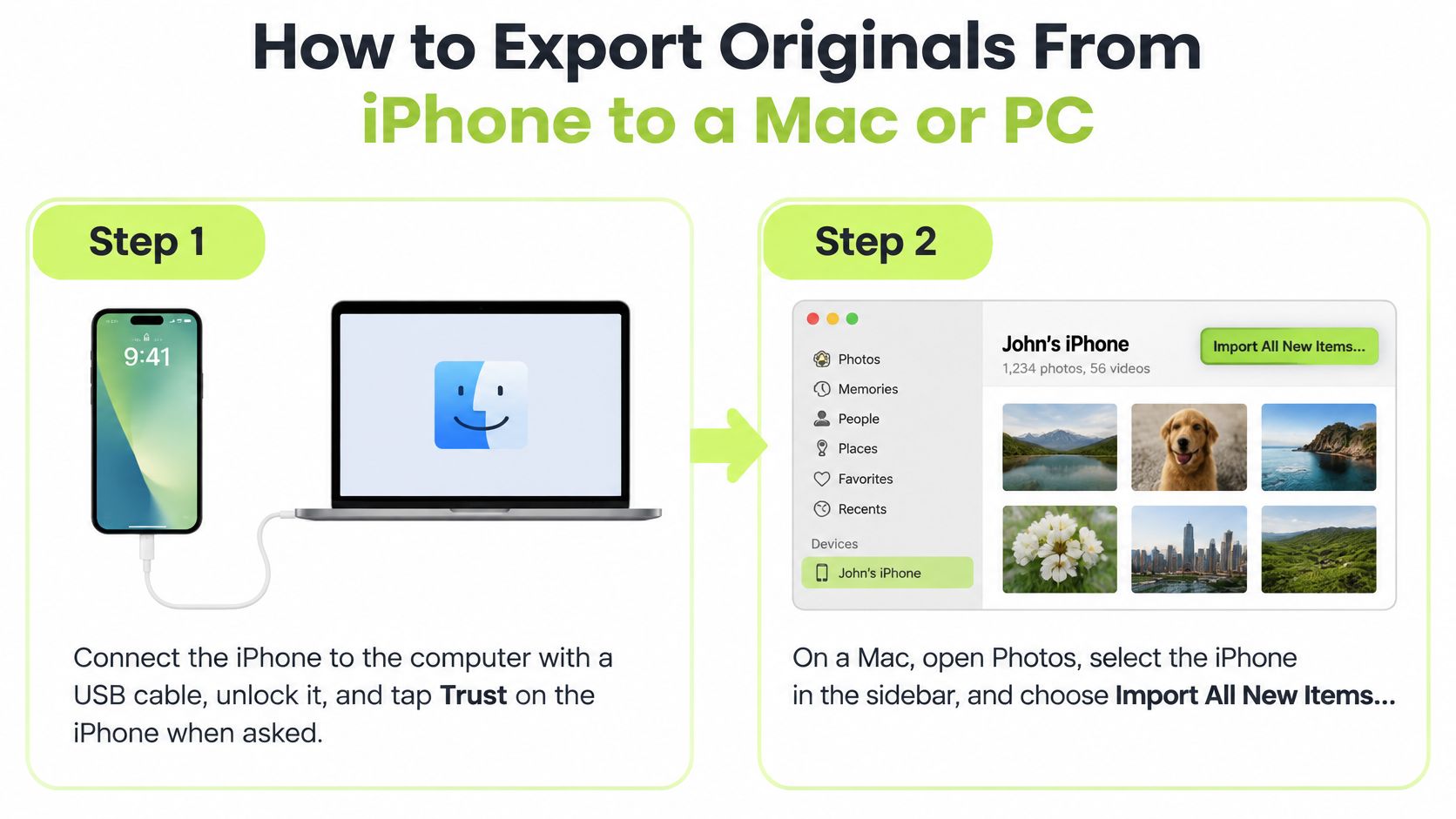
Connect and approve. Connect the iPhone to the computer with a USB cable and enter the device passcode. If the iPhone asks whether to trust the computer, tap Trust so the computer can access the device.
Import on the computer. On a Mac, open Photos, select the iPhone in the sidebar, then choose Import All New Items or select individual photos. On Windows, use the Apple Devices app or Photos to import. Apple documents the wired transfer workflow in its iPhone file-transfer guide.
Choose the destination. If the export is meant to be an archive, save it to a folder on an external drive rather than keeping it only in a working library. Check that the destination has room before starting, and don't disconnect the phone while the transfer is still underway.
Preserve the originals. For a controlled export in Photos on iPhone, select the items, tap Share, then choose Export Unmodified Originals. Apple distinguishes unmodified originals from Highest Resolution and Most Compatible; Most Compatible may convert files to JPEG or MP4/H.264. Apple explains those options in its photo and video export instructions.
Verify before deleting. Open several exported files and check their dates. Confirm that Live Photo components are present, and compare the number of items in the destination with the selection that was meant to be copied.
A skipped Trust prompt can prevent the import from starting. An almost-full destination drive can interrupt the archive, and deleting from the phone before checking the exported files risks losing the only usable copy. Once the transfer has passed the checks, create compatible JPEG or H.264 versions only if a website, older app, or recipient needs them. Keep those versions alongside the originals.
Set a recurring reminder for a monthly export or after a major trip, family event, or device upgrade. A routine makes it easier to add new pictures without treating every transfer as a one-time emergency.
Formats, Compatibility and Recovery Limits
Keep the original as the master. iPhone libraries can contain HEIC photos and HEVC videos, along with RAW files and Live Photos. Original formats preserve the capture files and give editing workflows more flexibility. Some older devices, software, and websites may not fully view, edit, or duplicate HEIC or HEVC, so a compatible copy can be useful when a destination needs one. Apple's HEIF and HEVC compatibility guidance explains why destination compatibility matters.
| Destination | Keep as master | Add if needed | Watch for |
|---|---|---|---|
| Mac with Photos archive | HEIC and HEVC originals | Nothing | Keep Live Photo components together |
| Older Windows software | HEIC and HEVC originals | JPEG or H.264 copy | Conversion may change file size and motion behavior |
| Websites and messaging apps | HEIC originals | JPEG copy | Metadata may change in the converted file |
| Shared family device | HEIC and HEVC originals | Compatible copy only if needed | Older devices may not view HEIC or HEVC |
| External drive archive | Unmodified originals | Nothing | Check free space before starting the export |
Conversion should follow a need, not replace the archive. Make an original export first, then create JPEG or H.264 derivatives for a particular app or recipient. Keeping both versions avoids a destructive conversion that may change file size, motion-photo behavior, or metadata handling.
Recovery has a separate limit. When a photo or video is deleted, it moves to Recently Deleted and remains there for 30 days before permanent deletion from devices using the library. After that period, or after manual permanent deletion, Apple's normal Photos recovery process can't restore it. Emptying Recently Deleted can free space, but it also removes that temporary recovery option. A guide to recovering recently deleted iPhone photos can help explain the recovery steps.
Recently Deleted isn't an archive, and a cleanup app can't guarantee recovery. Treat it as a short-term safety net while verifying exports, not as the only place a keeper lives.
Confirm Two Copies Before You Delete Anything
Before removing photos, make sure a separate copy exists and that you can open it. iCloud Photos syncs your library across Apple devices, but syncing is not the same as keeping an independent backup. LuminaClean strongly recommends backing up your photo library before using its cleanup features.
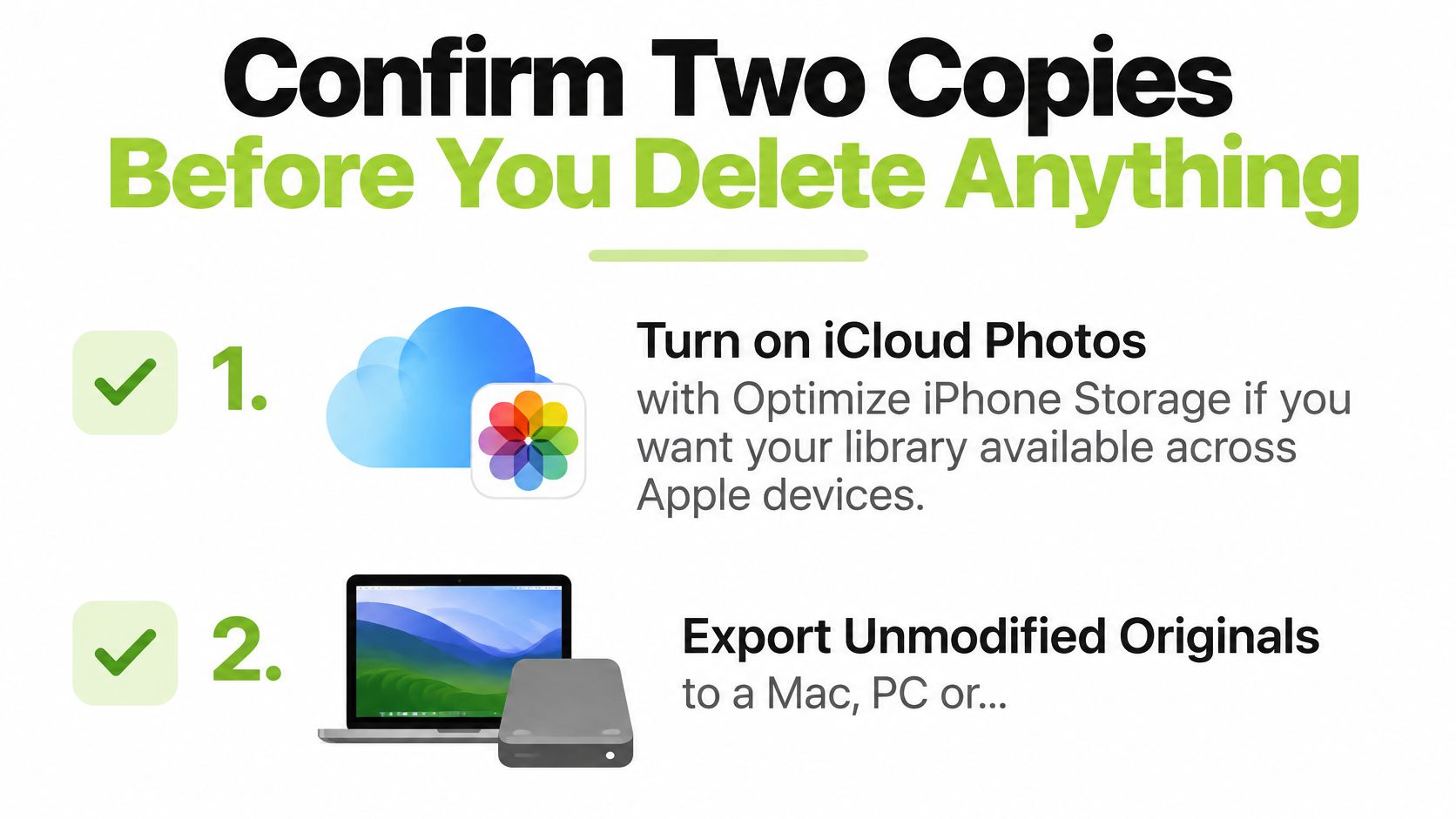
Set up everyday access. Turn on iCloud Photos with Optimize iPhone Storage if you want the library available across Apple devices. This is syncing, not an independent copy.
Make an independent copy. Export Unmodified Originals to a Mac, PC, or external drive regularly, especially after trips, family events, or phone upgrades.
Check the export. Open several files, check their dates and Live Photo components, and compare the item count with what you meant to export. A copy you have not checked may be incomplete.
Clean up cautiously. Review duplicates, similar photos, screenshots, blurry shots, and large videos with a tool that asks you to confirm deletions. LuminaClean is free to download and use from the App Store, and new users get 65 free photo deletions to start.
Empty Recently Deleted last. Deleted photos go there first, where they can be recovered within 30 days. Permanently deleting them frees space immediately, but removes that recovery option. For steps and limits, see this guide to recovering recently deleted iPhone photos.
Today, export a month of originals and open several files to confirm the copy. Only then consider cleanup, and keep your verified copy of anything you want to preserve. You can download LuminaClean from the App Store if you want help reviewing clutter.
Clean up your camera roll in minutes.
LuminaClean scans on-device, groups duplicates, similar shots, screenshots and blurry photos, and deletes only what you confirm. Free to start, no account.