October 15, 2026
Recently Deleted Photos Recovery iPhone: A 2026 Walkthrough
Deleted photos stay in iPhone Recently Deleted for 30 days, then Apple says they're permanently removed and can't be recovered through that album. If the photo matters, the clock starts at deletion, not when the app finally gets around to reminding you.
That's why the first move after a cleanup mistake is simple: check Photos → Utilities → Recently Deleted right away, before trying a backup restore or deleting anything else. The rest of this guide is about choosing the right recovery path for the actual situation on the phone, not just hoping the item is still sitting somewhere safe.
Table of Contents
- How the Recently Deleted Album Works on iPhone
- Restoring Photos From Recently Deleted Step by Step
- Three Questions That Decide Whether Recovery Will Work
- Using iCloud Backup or a Computer Backup as a Last Resort
- Why Recently Deleted Is Not a Universal Safety Net
- Preventing Recovery Nightmares Before the Next Cleanup
- Your Recovery Checklist and What to Do Next
How the Recently Deleted Album Works on iPhone
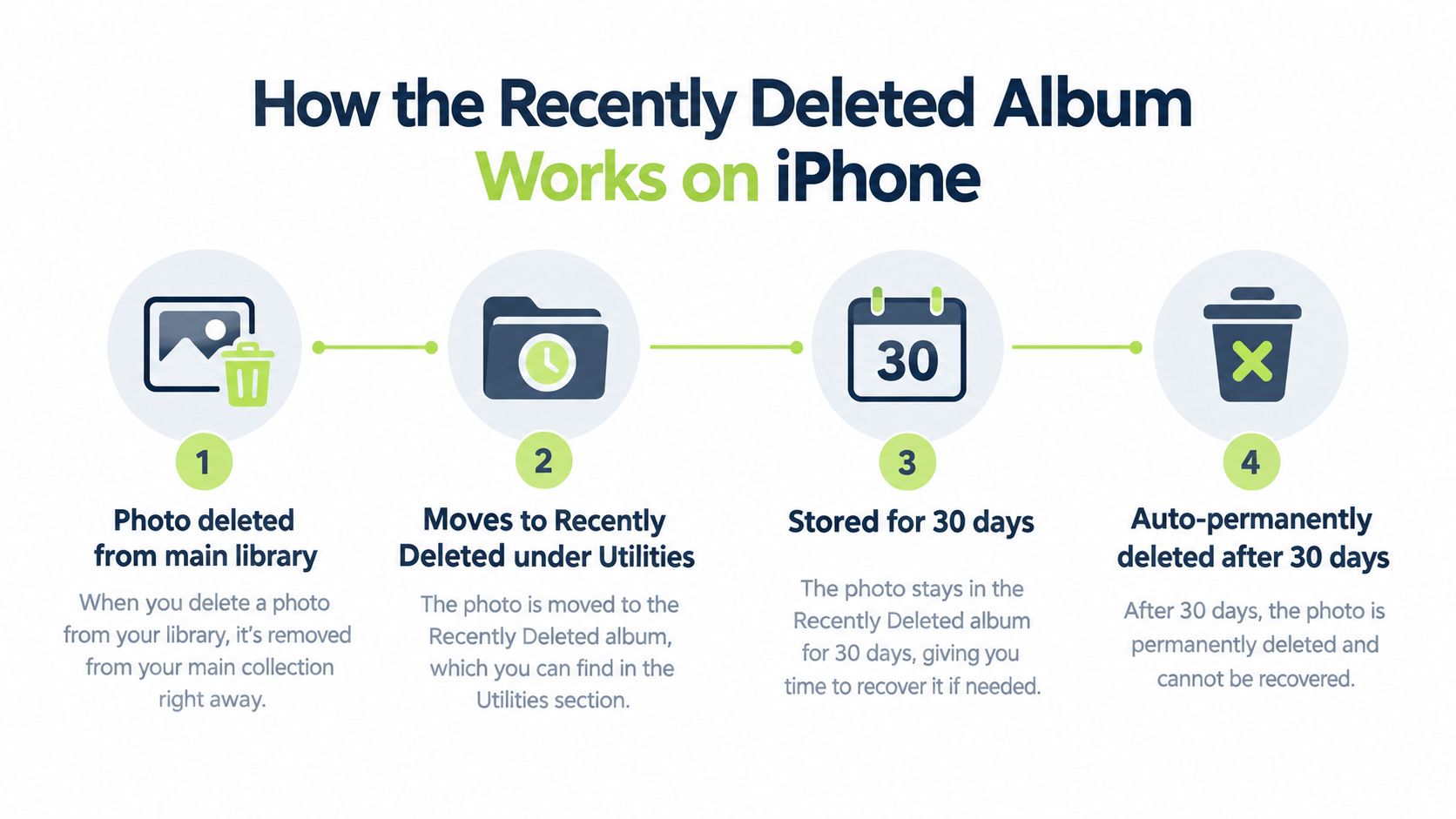
The Recently Deleted album is a temporary holding area inside Photos, not a backup. Apple keeps deleted photos and videos there for 30 days, then removes them permanently, so the key question is whether the item is still inside that window. If you delete a file and then keep cleaning, the deadline does not wait for you. Apple's Photos deletion guidance shows that this album lives under Utilities, which means recovery happens inside the native library, not through a separate restore tool. Apple's Photos deletion guidance
What the album does during the 30-day window
A deleted photo does not disappear from the Photos app right away. It moves into Recently Deleted, stays recoverable during the retention period, and then Apple removes it permanently through the normal Photos workflow. Apple's recovery steps say you can restore items that are still in that album, which is the point where the native recovery path still works. Apple's recovery steps
Practical rule: if the photo is still in Recently Deleted, recovery is usually straightforward. If the album is empty or the deadline has passed, you need a different recovery path.
Many users treat “deleted” and “gone forever” as the same thing on iPhone. They are not, at least during the retention window. The native album is the first place to check, because that is where Photos expects you to recover removed items.
If iCloud Photos is turned on, deletion also follows the synced library. Removing a photo on one device affects the connected library, so the useful recovery window still depends on the 30-day period before permanent removal, not on a separate safe copy stored on each device. Apple's iCloud Photos deletion and recovery page
Recently Deleted storage details matter here too, because cleanup often starts with freeing space and later turns into a recovery problem. The better habit is to treat deletion as temporary until the album proves otherwise.
Restoring Photos From Recently Deleted Step by Step
The cleanest recovery path is the native one. Open Photos, go to Collections or Albums, scroll to Utilities, then open Recently Deleted and tap View Album. Apple protects that album with Face ID, Touch ID, or the device passcode, so anyone holding the iPhone still has to authenticate before seeing deleted media. Apple's recovery workflow

Single item recovery
Tap the photo or video you want back, then tap Recover. If the item is still inside the retention window, Apple's current guidance says it returns to the main library. That is the quickest fix after an accidental cleanup.
Confirm the restore instead of assuming the tap worked. Search the Photos library for the file, check the date, review where it landed in the library, and make sure any edits came back the way you expected. If you restored an older edited version, or the item appears in a different context than you had in mind, the library view will show it.
Bulk recovery
For several items, tap Select, choose the photos or videos you want, tap the More button, then tap Recover. Use this path when a batch of screenshots, vacation photos, or a full cleanup pass went wrong, because it avoids repeating the same restore one by one. Apple also includes a permanent-delete option inside the album for items you want gone before the retention period ends. Apple's current iPhone recovery steps
The common mistake is rushing after cleanup and assuming every tap landed. If the album was nearly full, or the item does not show up where you expected, check the library again before making another change. That pause can keep a recoverable mistake from turning into a harder backup restore.
Three Questions That Decide Whether Recovery Will Work
A deleted photo is still recoverable only if the route matches the loss. Start with Recently Deleted, then check iCloud Photos sync status, then ask whether a backup or export existed before the file vanished. That order saves time and avoids wiping the phone for no reason.
| Situation | First action | Fallback |
|---|---|---|
| Photo is still in Recently Deleted | Open Photos, authenticate, and tap Recover | Verify it returned to the main library |
| iCloud Photos is enabled and storage was over the limit | Check whether the item was removed early | Look for a qualifying backup or export |
| Photo is gone from Recently Deleted | Check whether a backup predates deletion | Restore from backup only if the photo existed there |
Is the item still in Recently Deleted
If the item is still there, recover it now and confirm that it returns to the library. Apple says items in Recently Deleted are permanently deleted after the 30-day window, so once that window closes, the native restore path is gone. Apple's deletion and restore workflow
Was iCloud Photos active, and was storage over the limit
This branch catches a lot of cleanup surprises. Apple notes that when iCloud storage is over its limit, deleted photos and videos may be removed immediately and may never appear in Recently Deleted. In that case, the usual grace period may not apply, even if the deletion looked normal on the phone. Apple iCloud Photos storage support
Does a backup or export predate deletion
A backup helps only if it was made before the photo disappeared and included the file. If the backup came later, it already reflects the loss. A separate export can save you here, but only if it exists and was copied out before cleanup.
A backup only helps when it still contains the file you lost. A later backup that already reflects the deletion will not bring the photo back.
If the item is not in Recently Deleted, check whether a backup route is realistic before you erase or reset anything on the iPhone. Doing that in the wrong order can turn a photo problem into a full device rollback you did not need.
Using iCloud Backup or a Computer Backup as a Last Resort
Backup recovery is a different task from pulling one photo back from Recently Deleted. If iCloud Photos was on, the photo library is usually synced, not stored as a separate pile inside iCloud Backup. That means the first thing to check is whether a backup or export from before the deletion exists, not whether one might. Apple's backup restore guide
What to verify before restoring
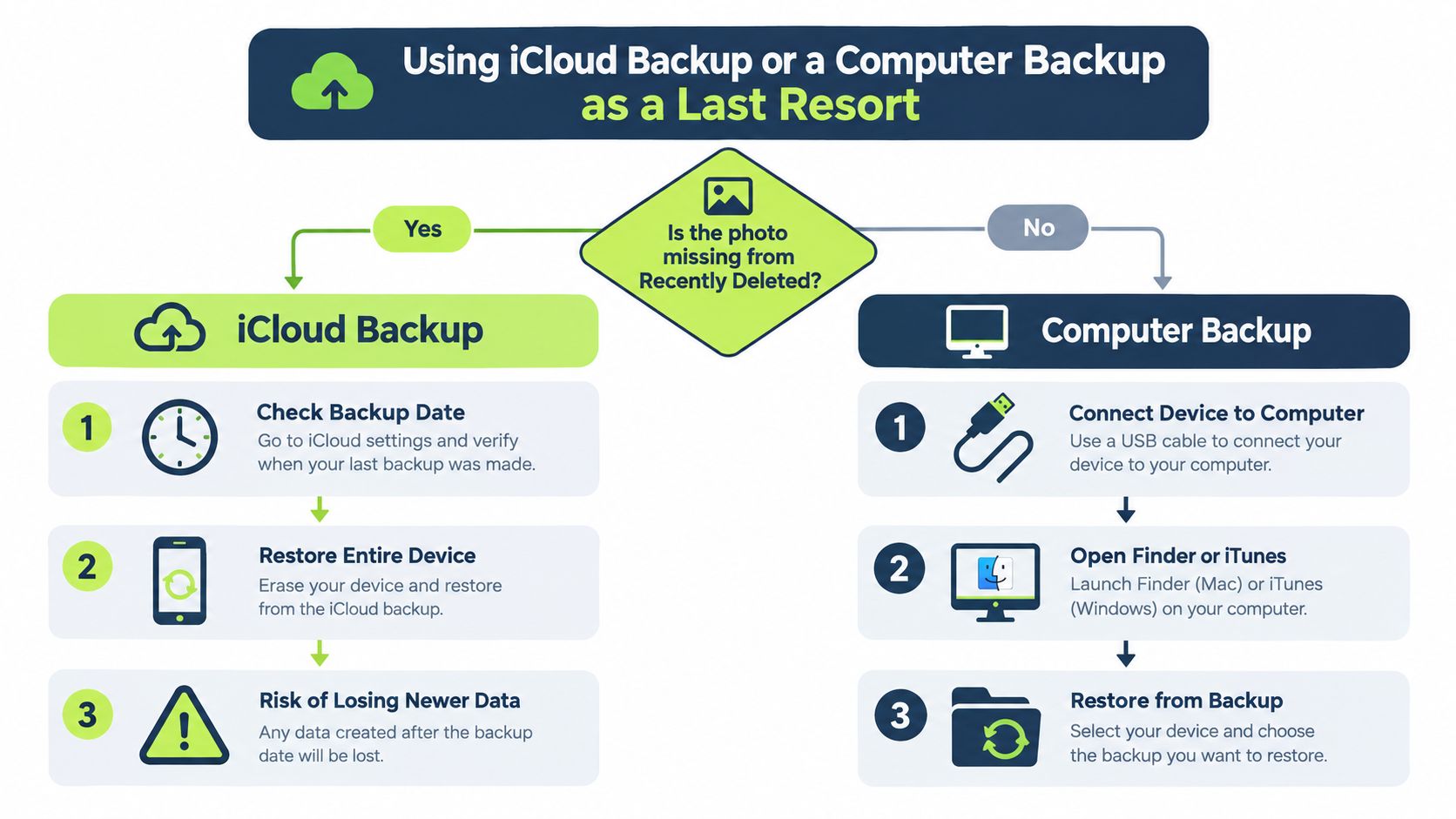
Start with the backup date. If it was made after the cleanup, it already includes the loss and will not bring the photo back. For encrypted computer backups, the backup password is required before the restore can proceed, so a missing password stops the recovery even when the backup file is present. Apple's backup security guidance
The device-state risk
A restore can replace the iPhone's current state with the older snapshot. Newer texts, app data, and local changes can be lost in the process. If anything on the phone matters more than the deleted photo, save or export it first. A backup restore is a full rollback, not a photo-only fix. Apple's restore from backup documentation
Which restore path matches the backup type
For an iCloud Backup, Apple uses an erase-and-setup flow on the iPhone, then restores the backup during setup. For a computer backup, the restore runs through Finder on macOS Catalina or later, or Apple Devices on Windows. Those steps matter because the restore method determines both the effort involved and how much current data gets replaced.
If the newest backup already reflects the deletion, the backup route is dead ends. For a closer look at cases where the photo is already gone for good, see recovering permanently deleted photos.
Why Recently Deleted Is Not a Universal Safety Net
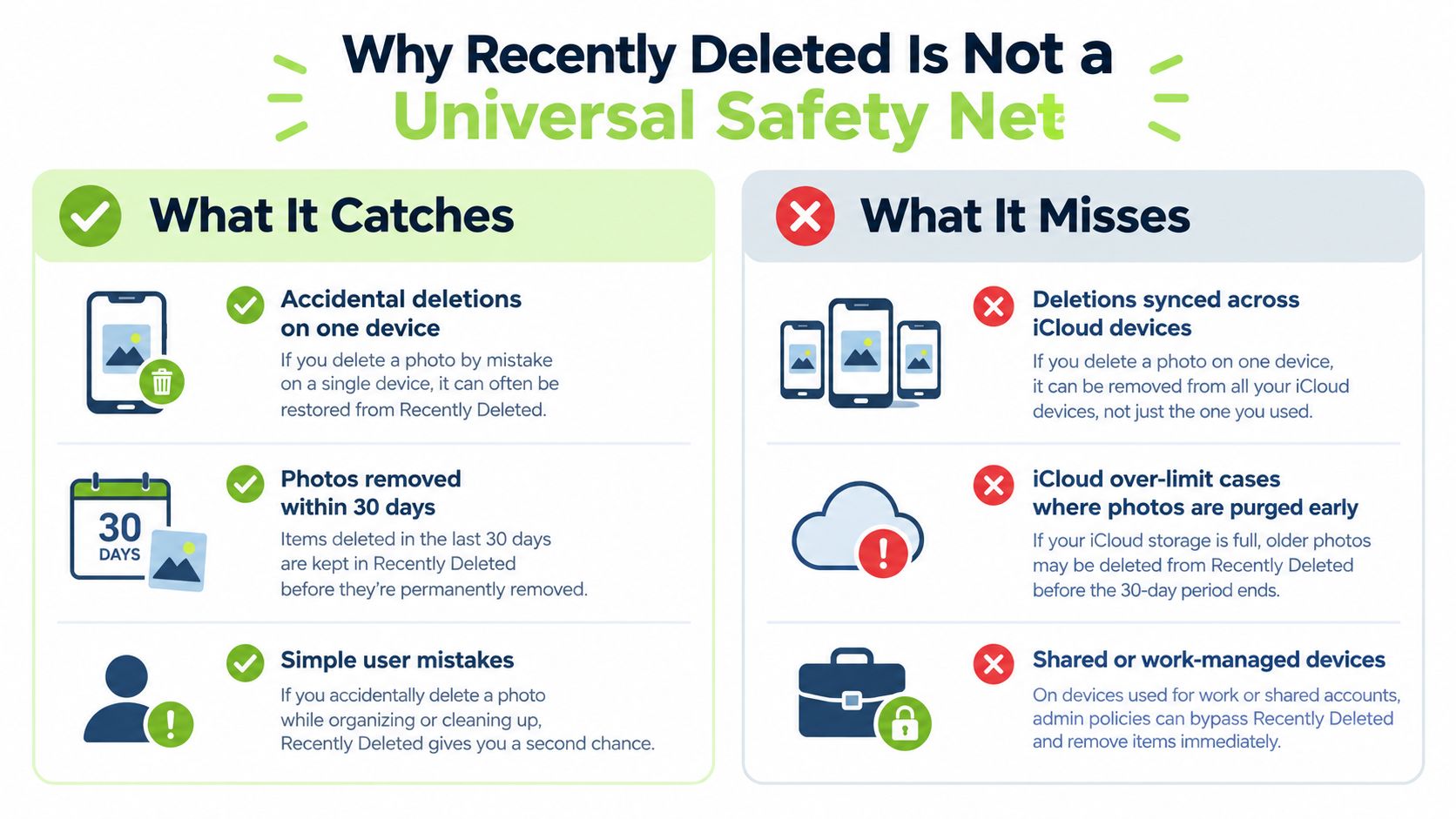
Recently Deleted catches a lot of mistakes, but it only works inside Apple's photo workflow. If a photo is deleted through iCloud Photos, the deletion syncs across every device on that Apple Account, so one phone, iPad, or computer may not hold a separate copy at all.
What it catches
The album handles the common cases well, like an accidental swipe on one iPhone, a cleanup pass that removed the wrong shot, or a photo deleted a few days ago that is still within the retention window. On a shared device, Apple's authentication flow also keeps casual access out of the album, so someone holding the phone cannot usually pull photos back without the passcode, Face ID, or Touch ID.
What it misses
It misses photos that were already removed from the synced library, items deleted through a permanent-delete action inside the album, and cases where iCloud storage or account state changed the outcome before the user checked recovery. It also misses account-access problems on shared, family, or work-managed devices, because the issue may be who is signed in, not whether the album still holds the photo.
Secure recovery matters as much as fast recovery. A browser left signed in on a shared Mac, or the wrong Apple Account open on borrowed hardware, can make the safest fix the one that starts with signing out first.
That is also why recovery after cleaner-app deletion depends on how the app removed the file. If the cleaner sent the item through the native Photos flow, it follows the same Recently Deleted rules and the same 30-day window. If it bypassed Photos, the album cannot help, because the photo never entered that recovery path.
Preventing Recovery Nightmares Before the Next Cleanup
The best recovery story is the one that never needs a restore. A cleaner that forces review before deletion lowers the odds that a photo enters Recently Deleted in the first place, which is a better outcome than relying on a rescue window later. That's where on-device cleanup tools matter, especially for libraries full of duplicates, near-identical shots, blurry frames, screenshots, and large videos.
LuminaClean scans on your iPhone and finds exact duplicates, visually similar photos, blurry photos, screenshots, and large videos, with free video compression built in. It keeps everything 100% on-device, with no cloud processing and no account needed, and it doesn't delete anything without the user's swipe or confirmation, so items still go through iOS Recently Deleted for the normal 30 days. The app is free to start with 65 free deletes, then 10 more every day, with an optional Premium subscription for clearing a large backlog at once.
A cleaner that makes the user choose every deletion usually creates fewer recovery problems than one that tries to be clever.
Habit change is slower than a single cleanup session. Review similar sets before bulk deletion, pause on anything that looks like a keeper, and use the built-in iPhone album as the final safety net instead of treating cleanup like a one-tap purge. LuminaClean's Get Judged companion can serve as a checkpoint before a large cleanup, because it surfaces a clutter pile for review instead of encouraging blind deletion.
That approach is useful for parents, travelers, and anyone with hundreds of near-duplicate shots from the same day. It's also the right posture for privacy-conscious users who don't want photo analysis uploaded elsewhere, because the review stays on the device and the decision stays with the person holding the phone.
Your Recovery Checklist and What to Do Next
Start with Recently Deleted. If the photo is there, authenticate, recover it, and confirm it returns to the main library before you touch any backup. If it is missing, check whether iCloud Photos was on, then compare the deletion date with your backup date.
Use a simple triage order from there. On the iPhone itself, verify Photos → Utilities → Recently Deleted first. If that folder is empty, decide whether the missing shot can still be restored from iCloud Photos sync history or from a backup made before the deletion.
Before your next cleanup, slow the process down. Review similar photos before deleting, watch your iCloud storage level, and avoid emptying Recently Deleted until the library looks right. Screenshot your backup date and iCloud storage level before a big cleanup, so you can prove what existed if something goes wrong.
If the library keeps filling up again, a cleaner that scans on the iPhone and leaves the final delete choice to the user can reduce accidental cleanup. That keeps the workflow local and makes a repeat recently deleted photos recovery iphone problem less likely.
Clean up your camera roll in minutes.
LuminaClean scans on-device, groups duplicates, similar shots, screenshots and blurry photos, and deletes only what you confirm. Free to start, no account.