October 29, 2026
Remove Shadow from Photo iPhone the Right Way
Most advice for fixing a dark iPhone photo starts in the wrong place. It tells the reader to erase the shadow, even when the dark area isn't an object at all. A face in shade, a dim corner, and a suitcase shadow on a carpet need different edits, and using an eraser on all three creates flat skin, smeared texture, or a person who looks pasted into the scene.
The better starting point is simpler. Most everyday shadows are recoverable exposure, not something to delete. Lift the dark area first, protect the bright area second, and reserve removal tools for the rare case where an unwanted object is the actual problem. That order keeps a photo believable and, in most cases, takes less than a minute in the Photos app.
Table of Contents
- Match the Shadow Before You Edit
- Brighten Shadows in the Photos App
- Fix a Hard Shadow Without a Global Lift
- When the Shadow Still Looks Wrong
- Keep the Light Looking Natural
- Save the Fix and Clear the Extra Takes
Match the Shadow Before You Edit
A window selfie shows the mismatch clearly. The face is dark, the glass behind it is almost white, and no single brightness slider fixes both at once. Raising overall brightness washes out the window, while erasing the dark side of the face removes the shading that gives cheeks and a nose their shape.
That photo is a different job from a suitcase shadow stretched across a hotel carpet. It's also different from a photobomber standing at the edge of the frame. One needs tonal correction, one may need a local repair, and one is an object problem.
The one-line answer: for most everyday shots, raise Shadows before touching Exposure. The next section gives the exact taps. This section is only about choosing the right path first, so the edit doesn't create a new problem.
Three Jobs That Get Called the Same Thing
Apple documents Clean Up primarily as a tool for removing distracting objects, where the user taps, brushes, or circles an item and the system generates replacement pixels, according to Apple's Clean Up guide for iPhone. That description matters. Generating replacement pixels for a trash can is not the same work as brightening a backlit face.
Three cases cover nearly every Remove Shadow From Photo iPhone search:
- Global shadow recovery: The whole scene is dim or one side sits in soft shade, but texture is still visible. A Shadows lift brings that detail forward.
- Local subject brightening: One person or object is dark against a bright background. The subject needs help without pushing the background to white.
- Object removal: Something in the frame shouldn't be there, and its shadow is part of the distraction. Only this case calls for Clean Up or a crop.
Treating case one like case three is the most common mistake. An eraser invents new pixels where perfectly good ones already exist, just darker than they should be.
Which Shadow Fix to Use
| What you see | Best fix | Leave alone |
|---|---|---|
| Soft shade or dim room, texture still visible | Photos Adjust, raise Shadows, small Brilliance | Do not max Exposure |
| Person dark in front of a bright window | Raise Shadows, lower Highlights | Do not erase the person |
| Hard shadow on a plain wall or floor | Local mask, then a modest Shadows lift | Do not brighten the whole frame |
| Unwanted object casting the shadow | Clean Up on a supported iPhone, or crop | Do not delete only the contact shadow if the object stays |
| Area is pure black with no detail | Reshoot with more light, or keep it | Do not crank Shadows until noise takes over |
Read the table by matching the photo in hand to one row, not by trying every fix in order. A backlit portrait follows row two from start to finish. A plain wall follows row three and skips the global steps that would flatten everything else.
The Floating Problem
Erasing a natural ground shadow makes a person or bag look like it's floating, which reads as fake faster than a slightly dark photo does.
Contact shadows do real work in a picture. The soft darkness under shoes, a chair, or a coffee mug tells the eye that the object rests on a surface. Remove it and the object hovers, even if the replacement pixels match the floor perfectly.
Family, travel, and documentary photos suffer most from overcorrection. A birthday photo with even, shadowless light looks staged in a way the moment wasn't. Believable beats perfectly even for shots that are meant to record what happened.
Before choosing, it also helps to know which shot in a set is worth editing at all. The guide on which similar photo to keep on iPhone covers that pick-first step for bursts of near-identical frames. Editing the best exposed take saves more time than rescuing the worst one.
Pick one row from the table and follow only that path. Mixing paths, lifting globally and then erasing locally and then lifting again, is how a fixable photo turns gray and noisy.
Brighten Shadows in the Photos App
A kid standing in a bright doorway makes a good worked example. The doorway and the yard beyond it are already bright, but the child's eyes are lost in shade. The photo doesn't need to get brighter overall. It needs the dark part lifted while the bright part stays put.
The edit is non-destructive, which means Photos keeps the original capture underneath every change. Nothing in these steps overwrites the starting photo, and every slider move can be undone later.
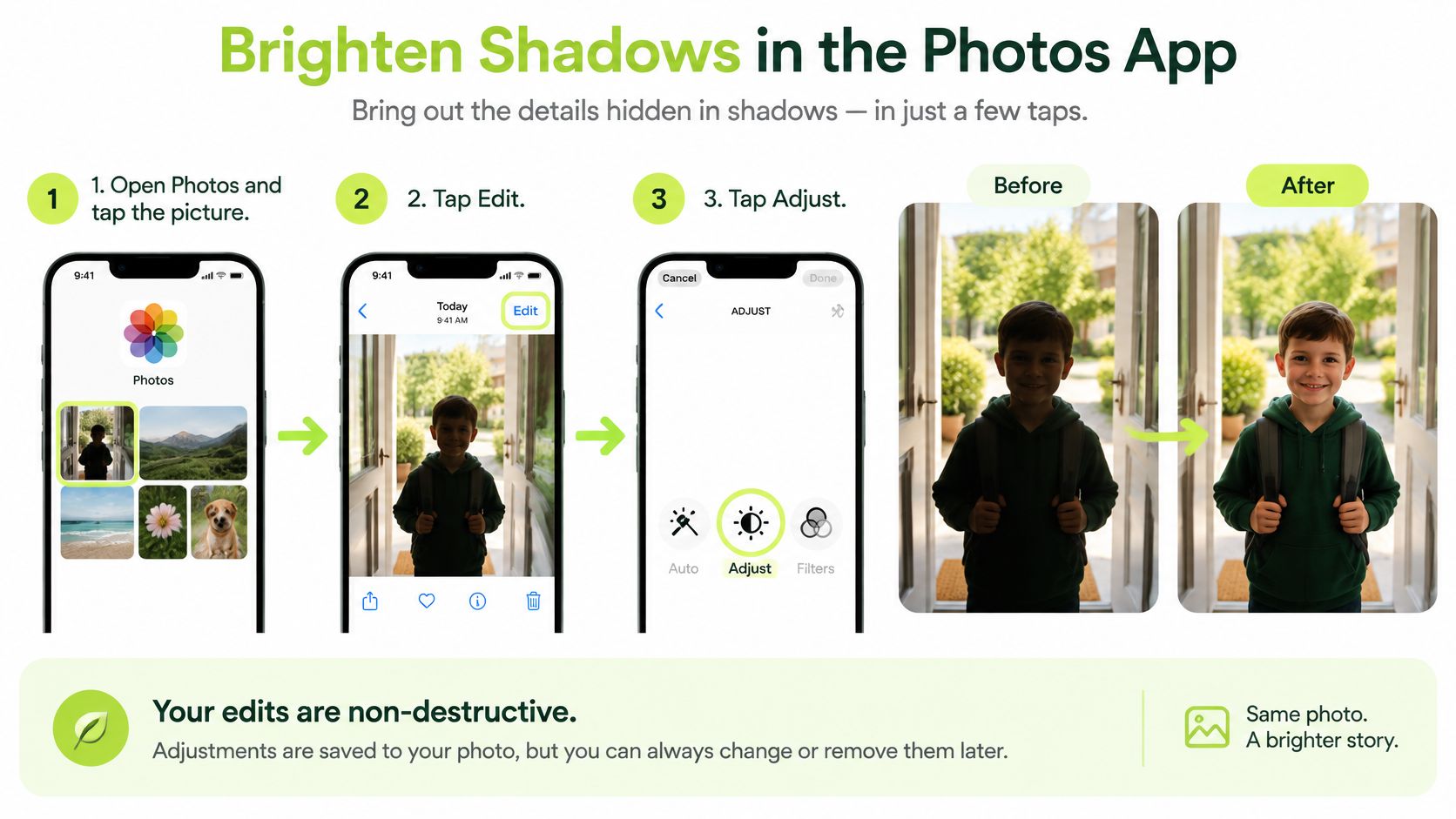
The Steps in Order
Apple's built-in editor includes a dedicated Shadows control alongside separate Exposure, Brilliance, and Highlights adjustments, as shown in Apple's guide to editing photos on iPhone. Because those controls are separate, the dark areas can move without dragging the whole image with them.
- Open Photos and tap the picture to open it full screen.
- Tap Edit to enter the editor.
- Tap Adjust to reach the lighting controls.
- Swipe the lighting tools until Shadows is selected.
- Drag Shadows up slowly until texture returns in the dark area. Stop well before the end of the slider if skin starts to look gray.
- Lower Highlights if the doorway, sky, or window turns white during the lift.
- Add a small Brilliance change, then a tiny Exposure nudge, only if the whole frame still looks dull.
- Tap the lighting control to compare the edited version with the original.
- Tap Done to keep the change, or Cancel and Discard Changes if it looks worse.
What Each Move Does in the Doorway Shot
Step five does most of the work. As Shadows rises, the child's eyes, hair, and shirt folds come back because those pixels held detail all along. The doorway barely changes, since it was never in the shadow range the slider targets.
Step six protects the trade. Highlights pulls the brightest areas back down, so the yard outside keeps some color instead of clipping to flat white. The pairing of Shadows up, Highlights down is the core move for almost every backlit photo.
Brilliance and Exposure come last and stay small for a reason:
- Brilliance first: It brightens darker tones with less risk of washing out the bright background.
- Exposure last: It moves everything at once, so a tiny nudge is enough once the targeted work is done.
- Neither at maximum: Pushing either slider to the end undoes the balance the first two moves created.
Checking the Result Before Saving
The control's button outline shows how much adjustment has been applied, which gives a quick read on whether a slider moved a little or a lot. Tapping the lighting control flips between the edited image and the original, and that comparison is where overcorrection shows up.
Practical rule: If the edited version looks better in the dark area but worse everywhere else, the Shadows move is fine and the Exposure move is the problem. Reset Exposure before touching Shadows again.
Skin is the most honest test area. If a face turns chalky or gray during the comparison, the lift went too far, even if the eyes are now visible. Pull Shadows back until skin looks like skin again, then stop.
After tapping Done, the original remains recoverable through Revert inside Photos, so a change of mind days later costs nothing. When iCloud Photos is on, the edit syncs to other devices signed into the same account, and the reverted version syncs too. That safety net is a strong reason to try the built-in editor before reaching for anything else.
This workflow handles soft shade, dim rooms, and backlit subjects. It doesn't handle a hard-edged shadow shape sitting on a wall, because a global slider can't lift one shape without lifting every dark tone near it.
Fix a Hard Shadow Without a Global Lift
A dark patch is often recoverable exposure, not an object to erase. Lift the shadow where it falls, and keep the contact shadow beneath a person or object. Removing that grounding edge can make the subject look as if it is floating.
A hard shadow has a clear boundary, such as a window-frame shape across a wall. The Photos app's global Shadows control brightens dark areas across the whole image, so it can't isolate that patch. For more precise control, use a local mask in Lightroom Mobile.
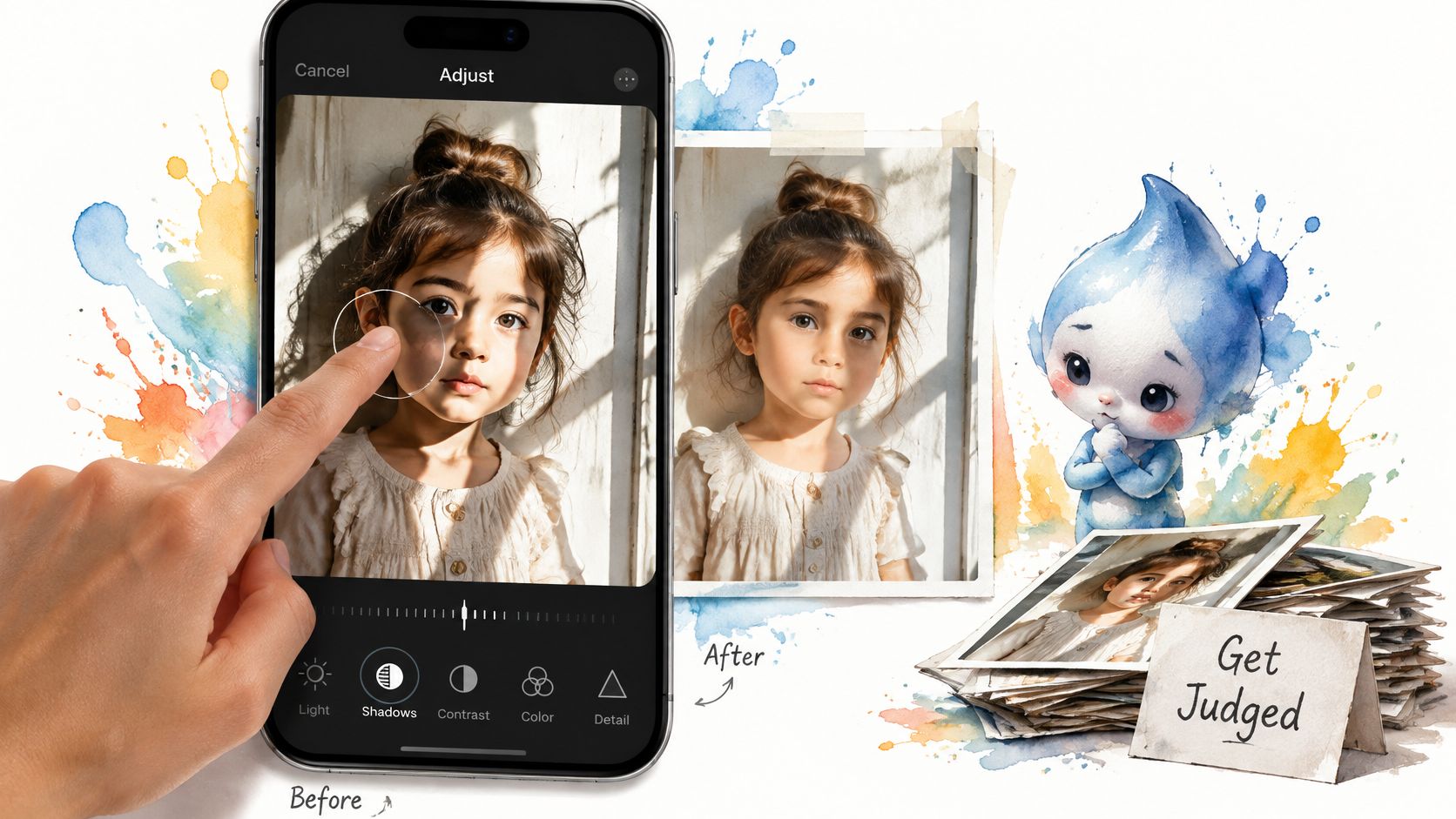
Mask First, Then Lift Inside the Mask
In Lightroom Mobile, open the masking tools and choose the brush. Paint over the shadow, adjusting brush size, feather, and flow as needed. If the brush spills onto the subject, subtract that area from the mask. Then raise Shadows or Exposure within the mask, not across the entire photo.
- Use a soft edge: A wider feather blends the brightened area into the wall instead of outlining it.
- Build the change gradually: Moderate flow lets you add the lift in passes, reducing the chance of making the shadow gray.
Zoom in to inspect the mask edge. If the wall, paper, or skin starts to look gray or noisy, ease back the lift. Compare the edit with the original, paying attention to neutral surfaces and skin tones.
Where a Heal Pass Helps and Where It Smears
On a plain wall or smooth concrete, a small clone or heal pass may soften an outline that remains after the tonal lift. Nearby texture can blend in naturally on a simple surface.
Hair, text, foliage, and patterns are harder to repair. A brush can smear detail or create repeated texture. In those areas, a softened shadow or a tighter crop may look more natural than removing the shadow entirely.
If a hard shadow won't disappear cleanly, reduce its contrast instead. A faint shadow looks more believable than a repair that smears the surface.
Clean Up Is the Object-Only Exception
Clean Up in Photos is for removing an object that should no longer appear in the frame. It does not brighten a face or selectively lift a shadow. Its availability depends on the iPhone model and iOS version.
Clean Up device eligibility
| iPhone model | Clean Up in Photos | Minimum iOS |
|---|---|---|
| iPhone 16 models | Supported | iOS 18.1 or later |
| iPhone 15 Pro or iPhone 15 Pro Max | Supported | iOS 18.1 or later |
| Other iPhone models | Not supported | No supported version |
If the object remains, keep the shadow where it touches the surface, though you can soften it. A lamp without a shadow beneath its base can look like it is floating.
When the Shadow Still Looks Wrong
The most common failure is a photo that looks flat and milky after editing. The dark area improved, but the whole frame lost its contrast, and colors that were rich before now look washed. That result has a specific cause and a one-slider fix, like most of the failures below.
Shadow Edits That Went Wrong
| What you see | Why | Fix |
|---|---|---|
| Whole photo looks flat | Exposure raised with Shadows | Reset Exposure, keep a smaller Shadows lift |
| Window or sky is pure white | Highlights clipped | Lower Highlights first |
| Gray outline around the subject | Mask too tight or lift spilled | Widen feather and reduce the local lift |
| Speckles and odd color in the dark area | Pixels were near black | Pull Shadows back; detail is gone |
| Clean Up is not in the editor | Not an iPhone 15 Pro or iPhone 16 on iOS 18.1 or later | Use Adjust instead |
| Person or object seems to float | Contact shadow was erased | Restore that shadow and brighten only the subject |
Read the table by symptom, then make the single change in the third column before judging again. Changing three sliders at once hides which one caused the problem.
Reading the Symptoms
A gray halo around a person means the mask edge is too hard or the lift spilled outside the shadow onto the background. Widening the feather and backing off the lift fixes most halos without starting over. If the outline survives both changes, the mask itself needs redrawing.
Speckle and odd color in a lifted area tell a harder truth. Those pixels were nearly black at capture, so brightening them amplifies sensor noise and color shifts instead of revealing detail. Editing can't invent texture that was never captured, and pulling the slider back is the only honest fix.
Pinching to 100% zoom before sharing or printing separates real problems from thumbnail illusions. Halos, smears, and noise hide at small sizes and announce themselves on a larger screen or a printed page.
- Flat and milky: Exposure moved with Shadows. Reset it and keep the smaller lift.
- Bright background clipped: Lower Highlights before touching Shadows again, since the bright end needs room first.
- Weak takes mixed in: Some frames in a burst aren't shadow problems at all. The guide on how to find and remove blurry photos on iPhone covers sorting those out so editing time goes to frames worth keeping.
When Clean Up Simply Isn't There
A missing Clean Up button usually isn't a bug. Apple states that Clean Up requires iPhone 16 models or iPhone 15 Pro or Pro Max with iOS 18.1 or later, per Apple's Clean Up requirements page. On any other model, hunting through menus won't surface a hidden button, and the Adjust controls are the fallback path.
That hardware gate also shapes the privacy choice. Native Adjust edits stay on the device, while a third-party editor may upload images for processing. Checking permissions before opening an external editor tells the reader which path a photo will take.
One more stall has nothing to do with sliders. If iCloud Photos is still downloading the full image, editing waits on a placeholder. Connecting to Wi-Fi and letting the download finish means the edit applies to the original photo.
There's no success percentage for automatic shadow removal worth trusting. Results depend on how dark the area was, how hard its edge is, and how much detail the capture retained, so any tool promising near-perfect removal on every photo is overselling.
Keep the Light Looking Natural
The best shadow fix often happens before the shutter. A few habits around shooting and editing preserve detail that no slider can recover later, and they keep corrected photos looking like the scene looked.
Before the Shot
Tapping the face on screen sets exposure for the subject instead of the bright background behind it. That single tap prevents most backlit-face problems, because the camera stops metering for the window. Turning the person so the sun isn't straight behind them does the same job when the setting allows it.
A lamp switched on in a dim room works as weak fill. It won't match daylight, but it lifts the shadow side enough that the captured pixels hold real detail. Detail captured at the scene always edits more cleanly than detail guessed at afterward.
Distance helps with wall shadows too. Moving a person a few steps away from a wall lets a flash or lamp shadow fall out of the frame or soften into the background. The shadow doesn't disappear, but it stops competing with the subject.
While Editing
Leave some shade in place. Cheeks, doorways, and folded clothes keep their shape because one side is darker than the other, and flattening that difference makes a photo look airless. The goal is readable detail in the dark areas, not identical brightness everywhere.
Stop the lift when the shadow stops hiding the subject. Anything past that point trades natural shape for evenness nobody asked for.
Skin and white paper serve as built-in reference points during any edit. Compare them against the original after each slider move. If skin looks chalky or paper looks gray-blue, undo the last move rather than compensating with another slider.
For a trip or a school event, believable beats perfectly even. A slightly moody restaurant photo with real shadows tells the truth about the evening. The same photo lifted to uniform brightness looks like it was taken under office lighting.
Keeping Private Photos Private
Where an edit happens matters as much as how it looks. Photos Adjust runs on the device, so a shadow fix on a private picture never leaves the iPhone. A random website eraser works the opposite way, since the picture uploads to a server before any editing begins.
- Check Photos permission first: Any third-party editor should explain why it needs library access before that access is granted.
- Match the tool to the photo: A quick tonal lift rarely justifies uploading a sensitive image when the built-in editor does the same job locally.
- Duplicate before destructive work: Edits inside Photos can be reverted, but a retouch saved from another app may replace the file. A duplicate preserves the darker original for later.
These habits don't add steps to the edit itself. They change what arrives at the edit, a better exposed capture, a clear stopping point, and a photo that stayed on the device the whole time.
Save the Fix and Clear the Extra Takes
Once the shadow looks right, choose the best frame and clear the near-duplicates around it. Five shots of the same doorway can look nearly alike in the camera roll, but only one may have the expression, focus, or light you want to keep.
Sorting the Leftovers
LuminaClean is an iPhone app that uses on-device machine learning to find exact duplicates, similar photos, blurry shots, and screenshots. Similar Photo Finder groups near-identical takes so you can keep the best one and delete the rest. The app can also find large videos, and its video-compression tool can reduce their storage use. See this guide to organizing photos on iPhone for more ways to sort a crowded library.
Your photos are processed entirely on your iPhone and are never uploaded to the cloud. Before deleting anything, review the selected photos and confirm the deletion. If iCloud Photos is enabled, deleting a photo through LuminaClean also removes it from iCloud.
Back up your photo library before using cleanup tools. Deleted items first go to Recently Deleted, where they can be recovered within 30 days. Storage space is not fully reclaimed until you permanently delete them there. New users get 65 free photo deletions to start.
Recovering a Deleted Original
If you delete the shadowed original by mistake, open Photos and go to Utilities > Recently Deleted. Tap View Album, verify with Face ID or Touch ID, select the photo, then tap Recover. Apple's Recently Deleted support page explains the recovery window.
After 30 days, the photo is permanently deleted. A backup gives you another way to protect photos before cleanup. When reviewing a batch, check each selected image before confirming, especially if similar frames differ in focus or expression. You can download LuminaClean from the App Store and start with 65 free photo deletions.
Clean up your camera roll in minutes.
LuminaClean scans on-device, groups duplicates, similar shots, screenshots and blurry photos, and deletes only what you confirm. Free to start, no account.