October 25, 2026
7 Photo Storage App iPhone Picks: Local vs Cloud
The iPhone Storage Almost Full alert usually arrives at the worst moment. A video will not record, an app will not update, or Photos warns that there is no room left. The usual advice is simple: move everything to the cloud. That advice skips the key question behind any photo storage app iPhone choice.
One user needs photos backed up somewhere safe. Another needs photos cleaned up so the phone works again today. Those are different jobs, and the wrong tool can make both harder. A sync service copies clutter to every device, while a cleaner does not create a second copy at all.
The seven options below are grouped by where photos really live and what happens when something gets deleted. The list starts with an on-device cleaner, moves through cloud backup and sync services, and ends with a cross-device organizer. That order helps a reader match the tool to the core problem, a storage-full phone or a library meant for browsing across devices.
Table of Contents
- 1. LuminaClean
- 2. Apple iCloud Photos
- 3. Google Photos
- 4. Amazon Photos
- 5. Microsoft OneDrive
- 6. Flickr
- 7. Mylio Photos
- How the seven options compare on where photos live, free starting limits, and best use
- Match the App to the Problem You Actually Have
1. LuminaClean
LuminaClean handles the cleanup side of the problem. It adds no cloud library and moves nothing off the phone. It scans the library on the iPhone, groups likely clutter, and leaves every delete decision to the person holding the phone. No account is required to start.

How it compares with Apple's own tools
Apple Photos does more sorting than many users realize. The Duplicates album detects duplicate photos and videos, and Apple explains that merging keeps the highest-quality version of the set. Screenshots get their own album under Media Types, and the Utilities collection surfaces items like blurry shots. What Apple does not offer is a cleanup workflow: no swipe review, no grouping of similar takes from the same scene, and no compression for oversized videos.
LuminaClean fills that gap rather than replacing the library. Its developer describes a scan covering exact duplicates and visually similar photos, plus blurred shots, screenshots, and large videos, with video compression included for footage worth keeping at a smaller size. The similar-photo detection is the part worth testing on a personal library, since accuracy on near-identical takes is what separates a useful grouping from noise.
Grouped review matters at typical library scale. Estimates commonly place the average iPhone library around 2,400 photos per device, counting screenshots, saved images, and repeated takes. Swipe-based keep-or-delete sessions turn that pile into manageable batches. A side-by-side look at how LuminaClean compares with Cleaner AI covers the grouped approach in more depth.
Privacy, control, and the free allowance
The developer states that scanning runs on-device, with no account needed and core cleanup working offline. Nothing deletes without a swipe or confirmation, and removed items land in the iOS Recently Deleted folder, where Apple keeps deleted photos recoverable for 30 days before permanent removal. Smart Categories, year-based Flashbacks, On This Day resurfacing, and the mascot-led Get Judged feature add browsing tools beyond deletion.
- Free to start: The app's App Store listing describes 65 free deletions up front, then 10 more per day, which suits steady maintenance. Terms can shift, so check the listing for current limits.
- Big backlog option: An optional Premium subscription targets users clearing thousands of items in one sitting.
- Main limit: The daily free cap slows a full-library purge, and deletions still sync when iCloud Photos is on, so selections deserve a careful review.
2. Apple iCloud Photos
Apple iCloud Photos is the default sync option, and sync is the key word. Photos and videos upload to iCloud and appear across a user's Apple devices and the web. With Optimize iPhone Storage turned on, full-resolution originals live in iCloud while smaller versions stay on the phone, which reduces local space without deleting anything.
The free tier runs out fast. Apple provides only 5 GB of free iCloud storage per Apple Account, and that space is shared with device backups and other iCloud data. Most users with a real photo library end up paying for iCloud+, which also enables Family Sharing of the storage plan. Setup is minimal because everything lives inside Settings and the Photos app.
The trade-off is deletion behavior. Because the library syncs, deleting a photo on an iPhone removes it from the synced library on other devices too. That surprises people who expect iCloud to act like a separate backup vault. The guide on how deleting from an iPhone interacts with keeping photos in iCloud walks through that distinction before a cleanup session starts.
Practical rule: Sync protects access, not mistakes. A deletion made in a synced library travels everywhere the library travels.
- Best fit: Apple-only households that want one library on every device with almost no setup.
- Watch out for: Paid storage becomes likely, and optimized versions on the phone aren't the same as full-resolution originals stored locally.
3. Google Photos
Google Photos suits people whose devices don't all come from Apple. Backup can run automatically from an iPhone, and the same library opens on Android phones, tablets, and desktop browsers. Search and discovery sit at the center of the experience, and built-in editing tools handle quick fixes without a separate app, though some editing features stay limited to mobile.
Storage accounting needs attention. A Google Account's free allowance is shared across Google Photos, Gmail, and Google Drive, so a crowded inbox eats into photo room. Once that shared pool fills, extra space requires a Google One plan. Households already paying for Google One may find that reasonable. Households that aren't should compare the combined cost against iCloud+ rather than looking at the free tier alone.
Where Google Photos fits and where it doesn't
The service works well as a cross-platform library and a searchable archive. It is less suited to users who want photo analysis kept entirely on the device, since backup and organization happen in Google's cloud by design. It also doesn't solve a full iPhone by itself. Photos still need review before local copies come off the phone, and deleting carelessly inside a backed-up library can remove the cloud copy a user meant to keep.
- Strength: One library that follows the user across iPhone, Android, and the web.
- Strength: Search does heavy lifting in large, poorly organized collections.
- Limit: The shared storage pool fills from three directions at once, and a cloud-first design won't match every privacy preference.
4. Amazon Photos
Amazon Photos makes the most sense inside an Amazon household. Auto-Save backs up the camera roll automatically, photos are stored at full resolution, and search by date and location covers basic finding tasks. Albums can be shared, memories resurface old shots, and photos display on compatible Echo Show and Fire TV devices, which turns a backup into a living room slideshow.
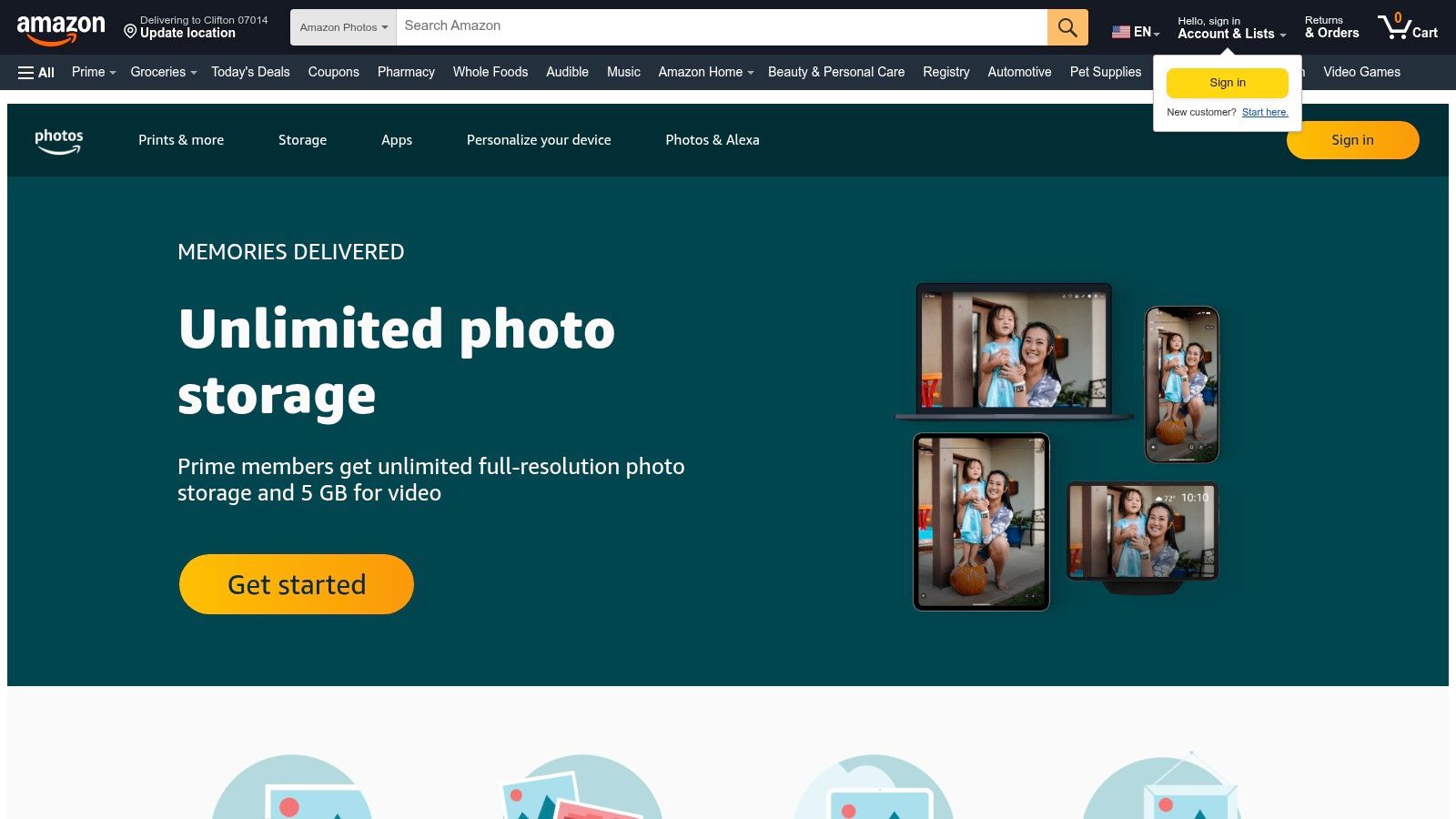
For US Amazon Prime members, unlimited full-resolution photo storage comes bundled with membership, which is strong value for people already paying for Prime. The catch sits with video. Prime's unlimited allowance applies to photos, while video storage carries a separate, much smaller allowance, so a camera roll heavy with birthday clips and travel footage can hit a wall that still photos never touch. Non-Prime users get a small combined allowance for photos and videos before payment kicks in.
Amazon Photos is a backup and viewing service, not a cleanup tool. It preserves everything, including the blurry shots and near-identical takes, and it won't rank what's worth removing from the phone. Users whose storage pressure comes from clutter still need a review step somewhere else.
- Best fit: Prime members who shoot mostly stills and want full-resolution backup plus TV display.
- Limit: Video-heavy libraries outgrow the separate video allowance quickly.
- Limit: Nothing in the service helps decide which photos should leave the iPhone.
5. Microsoft OneDrive
Microsoft OneDrive treats photos as files among files. Camera backup on iOS uploads a copy of the camera roll into the same account that holds documents, spreadsheets, and shared folders. For someone already paying for Microsoft 365, that consolidation is the appeal. Those plans include large storage allowances, and photos become reachable from mobile, desktop, and web alongside everything else.
Backup copy, not library sync
The behavior differs from iCloud Photos in a useful way. Camera backup uploads a copy rather than mirroring the Apple Photos library, so the OneDrive folder behaves more like an archive than a synced album. Sharing and file management tools reflect that file-first design. Folders, permissions, and document workflows get more attention than memories or photo-specific browsing.
Two friction points show up in practice. iOS background behavior can slow or pause uploads, so a first backup of a large camera roll may need the app open and the phone plugged in rather than finishing without fuss overnight. Storage is also shared with every other file in the account, which means work documents and photos compete for the same pool.
A general-purpose drive stores photos safely. It just won't browse, group, or clean them like a photo app will.
- Best fit: Microsoft 365 subscribers who want one storage bill for files and photos.
- Limit: Photo organization feels secondary, and large initial uploads need supervision on iOS.
6. Flickr
Flickr comes from photography culture rather than phone utilities. Photos live in albums built for hosting and sharing, privacy controls decide who sees what, and a long-running photography community surrounds the whole service. For hobbyists who shoot with a camera as well as an iPhone, that audience and presentation layer still has real appeal.
The paid tier changes the math. Flickr Pro includes unlimited full-resolution photo backup, the AutoUploadr tool for automatic uploading, an ad-free experience, and photo statistics. Free accounts are capped at a set number of photo and video uploads, and videos face upload limits even beyond that, so serious use points toward Pro fairly quickly. Pro pricing should be weighed against how much of the sharing and community side a user wants.
Integration is the compromise. Flickr doesn't tie into the native iPhone Photos library the way iCloud does, so it works as a destination for chosen work rather than a mirror of the camera roll. That separation can be a feature. Curated albums stay clean because the everyday clutter of screenshots and receipts never arrives.
- Strength: Photography-first presentation, albums, and sharing controls.
- Strength: Pro removes photo upload ceilings at full resolution.
- Limit: The free tier suits sampling, not a full camera-roll archive, and iPhone integration stays loose.
7. Mylio Photos
Mylio Photos takes a different route from every cloud service above. Instead of moving a library into one company's vault, it organizes photos across phones, computers, and drives into a single browsable library. Mylio states that originals can remain on their existing device by default, and browsing and search work offline. Discovery runs through faces, locations, calendar views, and albums.

The paid Photos+ plan adds syncing and backup through connected devices and vaults, meaning a user's own hardware does the work a cloud data center usually does. That design appeals to people with libraries scattered across an old laptop, an external drive, and a current phone. A deeper look at offline-first photo organization on iPhone explains why that local model matters for privacy-conscious users.
The costs are money and effort. Photos+ personal plans run higher than basic cloud storage, and multi-device setup takes more thought than flipping on iCloud Photos. Mylio also isn't a quick cleanup utility. It organizes and connects a library rather than hunting duplicates and screenshots to free space this afternoon.
- Best fit: Large collections spread across several devices and drives, organized without a conventional cloud vault.
- Limit: Higher plan cost and a setup process that rewards patience, not urgency.
How the seven options compare on where photos live, free starting limits, and best use
| Item | Where Photos Live | Free Starting Limit | Best For |
|---|---|---|---|
| LuminaClean | On your iPhone; analysis stays on-device | 65 free deletions, plus 10 daily | Private, offline photo cleanup |
| Apple iCloud Photos | iCloud and synced Apple devices; smaller versions can stay on iPhone | 5 GB shared with other iCloud data | Seamless photo syncing across Apple devices |
| Google Photos | Google cloud, accessible across devices | 15 GB shared with Gmail and Google Drive | Cross-platform backup, search, and discovery |
| Amazon Photos | Amazon cloud; compatible Echo Show and Fire TV devices | 5 GB for non-Prime users; unlimited photo storage for US Prime members | Full-resolution photo backup for Prime members |
| Microsoft OneDrive | Microsoft cloud, alongside files and documents | Free storage limit not specified | Photo backup alongside Microsoft files |
| Flickr | Flickr hosting and albums | 1,000 photo and video uploads | Photography-focused hosting and sharing |
| Mylio Photos | Across devices and storage locations; originals can stay on existing devices | Free starting limit not specified | Organizing and browsing photo libraries across devices and drives |
Match the App to the Problem You Actually Have
A storage-full alert and an unbacked-up library look similar on the surface, but they call for different tools. Two questions separate the options: where do the photos live, and what happens when something gets deleted. A cleaner frees space on the device itself. A sync service keeps a copy elsewhere, and deleting in a synced library removes the photo everywhere at once.
A short decision guide
Your phone is full right now. Start with an on-device cleaner. LuminaClean groups duplicates, similar shots, blurry photos, screenshots, and large videos for review, and nothing is deleted without a swipe or confirmation. The library stays on the iPhone; only the clutter leaves.
Photos exist on one device only. Fix that before anything else. iCloud Photos fits Apple-only setups, Google Photos covers households mixing iPhone and Android, Amazon Photos rewards Prime members, OneDrive suits Microsoft 365 subscribers, and Flickr Pro serves photographers who share their work. One caution applies to all of them: a deletion syncs too, so the photo disappears from every device and the cloud copy at the same time.
Your library lives everywhere. Mylio Photos pulls collections split across computers, phones, and drives into one organized view without forcing uploads to a single cloud.
Combining tools is normal. Many users keep a sync service running for safety and run a cleaner periodically so the backed-up library holds photos worth keeping. The order matters, since every service above will happily preserve clutter at full price. Grouped review beats endless scrolling when the library is already large.
Before any big cleanup: Check the iCloud Photos setting, confirm whether Optimize iPhone Storage is on, and review the Recently Deleted folder afterward so freed space actually returns.
Start small either way. One short session against screenshots, or a single batch of similar shots, shows how a tool behaves without risking a full-library mistake. Aggressive deletion is not always the right first move. Exporting originals, compressing a few large videos, or changing a storage setting sometimes clears the alert with nothing lost.
To see what is filling the phone, run a first on-device scan in LuminaClean and spend the free deletions on screenshots and similar shots.
Clean up your camera roll in minutes.
LuminaClean scans on-device, groups duplicates, similar shots, screenshots and blurry photos, and deletes only what you confirm. Free to start, no account.