October 19, 2026
How to Organize Photos on iPhone the Smart Way
You're trying to show someone one good photo from a trip. Instead you're scrolling past screenshots, parking locations, blurry duplicates, and twelve nearly identical sunsets while the moment dies. Storage warnings don't make it better. They just add guilt.
That pile isn't a discipline problem. It's a system problem. Learning how to organize photos on iPhone the smart way doesn't start with building dozens of albums. It starts with deleting what shouldn't be filed at all, using the views Apple already built, and adding only a few albums that earn their keep.
Table of Contents
- Why Most iPhone Photo Organization Advice Fails
- Using Apple's Built-In Views to Find Any Photo Fast
- Building Albums and Folders That Actually Make Sense
- Dealing With Duplicates and Similar Shots
- Smart Categories Tags and a Recurring Cleanup Habit
- Storage Settings That Support Your Organization
- Your Monthly iPhone Photo Organization Routine
Why Most iPhone Photo Organization Advice Fails
Most advice tells you to create more albums. That's the wrong first move. Albums don't move photos out of the main library, and they don't meaningfully reduce storage. A photo added to five albums is still one photo taking up the same space in the same library, just with five labels pointing at it.
Filing clutter doesn't remove clutter. If a library is full of screenshots, exact duplicates, similar burst-like shots, and long forgotten videos, an elaborate folder tree only hides the mess behind tidier menus. The heavy stuff keeps syncing to iCloud, keeps eating space, and keeps slowing every search.
Three goals that shouldn't be confused
Separate the jobs before touching anything:
- Finding photos fast: That's a job for Search, dates, places, people, and Apple's automatic media types, not manual filing.
- Reducing clutter: That's a job for review passes over screenshots, blurry shots, and repeated takes.
- Recovering storage: That's a job for deletions and storage settings, because albums free nothing.
More albums often mean more maintenance. A small structure you'll actually keep up beats a clever hierarchy that collapses after one vacation.
There's another trap. One-time purges relapse. A library cleaned once a year starts filling again the next morning, because the camera, messaging apps, and screenshots never paused. Without a short recurring routine, any system falls apart.
Every iCloud account starts with 5 GB of free storage, and that allowance has to cover iCloud Photos plus other synced data, according to Apple's guidance on iCloud storage and photo management. That constraint is exactly why organization can't be cosmetic. It has to reduce what's stored, not just rearrange how it looks.
Start with the right order. Audit first, clean second, file last. That's the core of How to Organize Photos on iPhone without wasting hours sorting photos that should have been deleted instead.
Using Apple's Built-In Views to Find Any Photo Fast
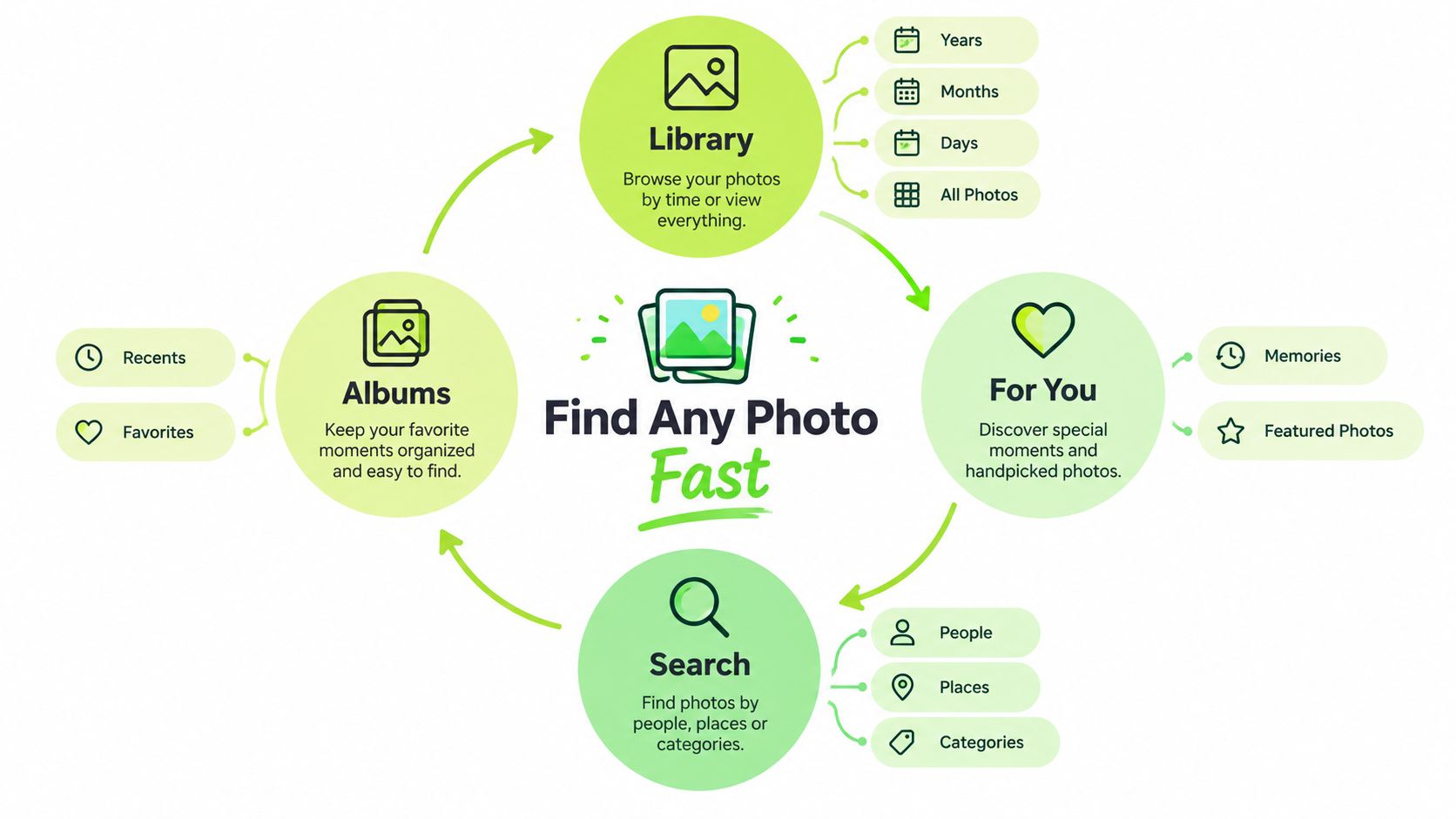
Don't create a single custom album until the built-in views are doing their job. Apple already gives you several ways into the same library. Apple's guidance describes four primary areas, Library, For You, Albums, and Search, and the Library itself can be browsed by years, months, days, or all photos, as explained in Apple's overview of the Photos app layout.
Match each view to one job
Library is for time travel. Use Years and Months to jump roughly, Days to land on an event, and All Photos only when you want the raw stream. All Photos includes screenshots and duplicates in the order they were taken, so it's honest but noisy.
For You is for rediscovery, not filing. Memories and Featured Photos surface material you'd forgotten, which is useful when deciding what deserves a favorite tap or a place in a keeper album. Treat it as a prompt, not a storage area.
Albums includes automatic groups you didn't build. Apple generates collections such as Selfies, Portrait, and Slo-mo, plus media types. Check these before creating anything. Half the albums people build by hand already exist.
Search is the strongest tool for large libraries. Narrow by dates, people, places, and visual subjects instead of scrolling. Need the receipt photo from a hotel last spring? Search the place or month. Need every dog photo? Search the subject. Filing every image manually can't compete with that.
Practical rule: If Search can find it reliably, don't build an album for it. Save albums for collections you want to browse or share as a set.
Use the views in layers. Search to narrow, Days view to get context around an event, automatic albums to isolate a capture type, and For You to resurface forgotten keepers. That layering is what makes a big library feel small, and it costs no extra storage architecture at all.
Building Albums and Folders That Actually Make Sense
Custom albums still matter, but only for intentional collections. A trip you want to show people. A house project. Kids' school years. Work references you open weekly. If you'll never open the album as a set, don't build it.
The exact tap path
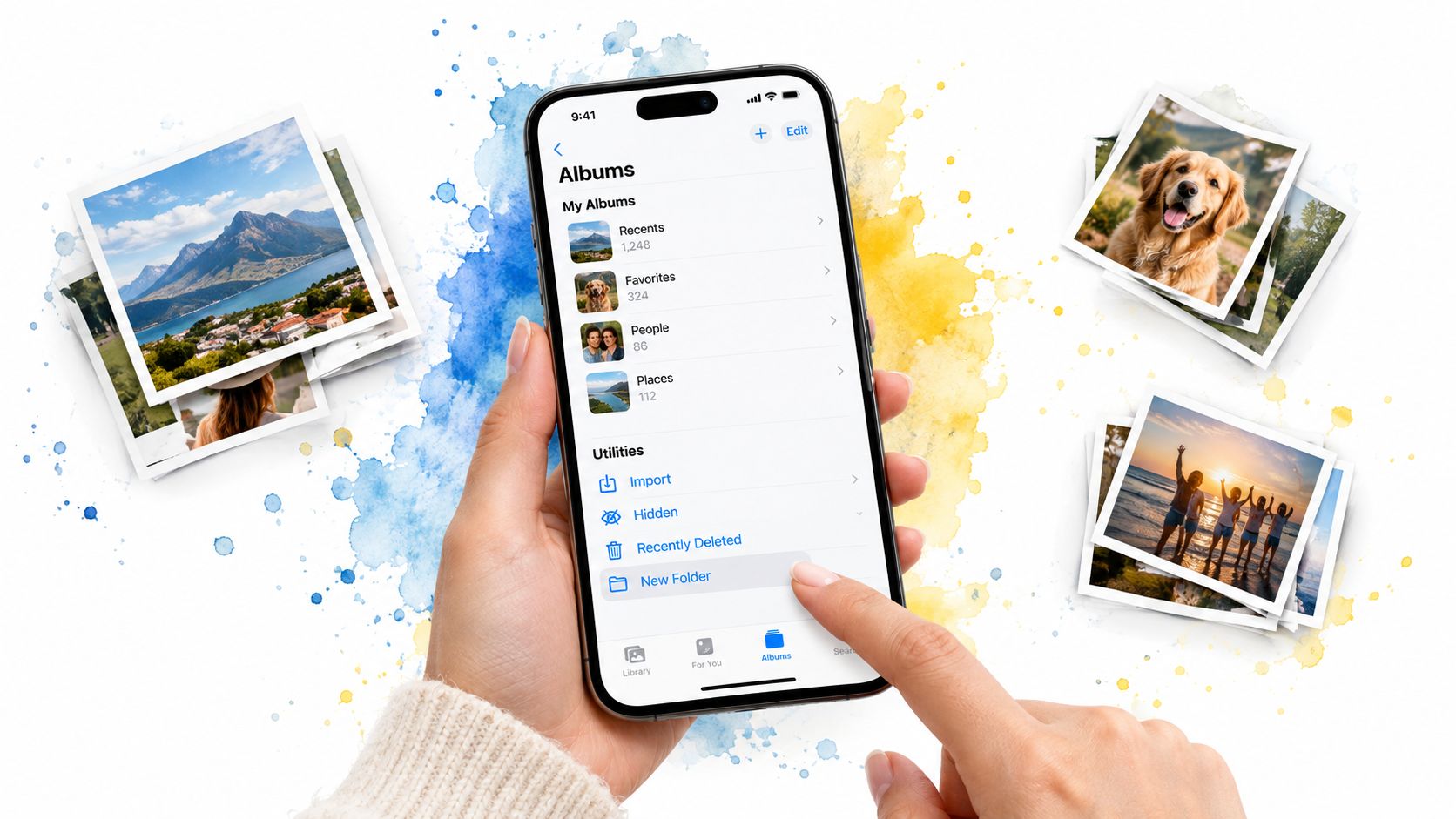
Apple's workflow is simple. Open Photos, go to Albums, tap the create control, choose New Album, name it, select photos, and tap Done, following Apple's steps for organizing photos in albums. Albums can be sorted newest to oldest or oldest to newest. Folders can hold albums and other folders, which suits trips, people, events, or years.
Keep the structure shallow:
- One Travel folder, one album per trip: Name albums with year first, such as 2025 Italy, so sorting stays sane.
- One Family folder, few albums: Group by year or by child, not by every birthday and weekend.
- One Work album if needed: Keep reference shots separate from personal memories.
- Favorites for highlights: Tap the heart on standout shots instead of duplicating effort in a "best of" album.
The mistake that causes accidental panic
Removing a photo from an album doesn't delete it from the library. That's the most common beginner confusion, and Apple's guide to editing and organizing albums covers album management without turning it into file deletion. Deleting an album doesn't necessarily delete its contents either. Choosing Delete from Library is the action that removes the photo everywhere and sends it to Recently Deleted.
Don't mix those up. If the goal is freeing space, album cleanup alone won't do it. If the goal is safety, removing from an album is reassuringly non-destructive.
Resist granularity. You don't need albums for food, sunsets, coffee, and dogs. Search handles subjects. You need albums for stories and sets you'll reopen. Five to ten well-chosen albums, nested inside a couple of folders at most, stays maintainable. Fifty albums becomes a second messy library on top of the first one, and that's the opposite of learning How to Organize Photos on iPhone well.
Dealing With Duplicates and Similar Shots
Duplicates are where storage comes back. Start with Apple's built-in tool, because it's free, native, and safe when used properly. Since iOS 16, Photos has included automatic duplicate detection and a dedicated Duplicates album, as noted in Apple's description of its Photos organization features.
Opening Apple's instructions for merging duplicate photos and videos shows the flow clearly. Open Photos, go to Collections, swipe up, choose Duplicates under Utilities, and tap Merge. You can merge one set, select multiple sets, or choose Select All.
Merge isn't blind deletion. Apple keeps the highest-quality version and relevant metadata, and the extra copies move to Recently Deleted. That's a recovery stage, not an instant purge, which is exactly how cleanup should work.

What Apple catches and what it misses
Here's the limitation. Apple's album catches exact copies. It doesn't solve five tries at the same sunset, a burst of a toddler who won't sit still, or edited versions that look almost identical. Those near-duplicates are usually the bigger pile.
Review near-duplicates by hand with clear criteria. Keep the sharpest frame, the best expression, the cleanest composition, and the version with the edit or metadata you want. Visual similarity doesn't mean interchangeability, and details on deleting duplicate photos on iPhone safely reinforce why grouped review comes before bulk action.
| Detection Type | Apple Duplicates Album | LuminaClean |
|---|---|---|
| Exact duplicates | Yes, with Merge | Yes |
| Visually similar shots | No | Yes |
| Blurry photos | No | Yes |
| Screenshots | Separate media type album | Grouped for review |
| Large videos | No focused view | Yes, plus free video compression |
| Deletion control | Merge after selection | Nothing deleted without swipe or confirmation |
This short video shows the review-first approach in action before anything gets removed.
LuminaClean fills the similar-shot gap. It finds exact duplicates and visually similar photos, plus blurry photos, screenshots, and large videos. It's 100% on-device, so it scans on your iPhone, photos never leave the device, there's no cloud processing, and no account is needed. Deleted items go to iOS Recently Deleted for 30 days, and nothing is deleted without your swipe or confirmation.
Use both layers in order. Merge exact duplicates in Apple Photos first for easy wins. Then run a similar-photo scan for everything Apple misses, review each group, keep the winner, and delete conservatively. Aggressive cleanup without review is how the best copy gets lost. Slow down on burst sequences, Live Photos, and edited versions. Those deserve eyes, not automation.
Smart Categories Tags and a Recurring Cleanup Habit
Albums are static. Categories and search keep working even when you stop filing. That's why they're better suited to a library that grows every day.
Apple already isolates key media types. Screenshots, for example, live in a dedicated album under Media Types, and Apple's guide to finding screenshots in Photos gives the tap path through Albums. Reviewing one category at a time is far easier than scrolling the full library and judging everything in mixed order.
Review by subject not by scroll
LuminaClean adds Smart Categories such as Pets, Travel, Family, Food, Nature, Architecture, Receipts, and Transit. That supports a practical pattern. Review receipts after a trip, screenshots at month end, and pet bursts when storage tightens. Guidance on cleaning up iPhone screenshots in focused batches fits the same logic, because temporary images expire fast and shouldn't sit mixed with memories.
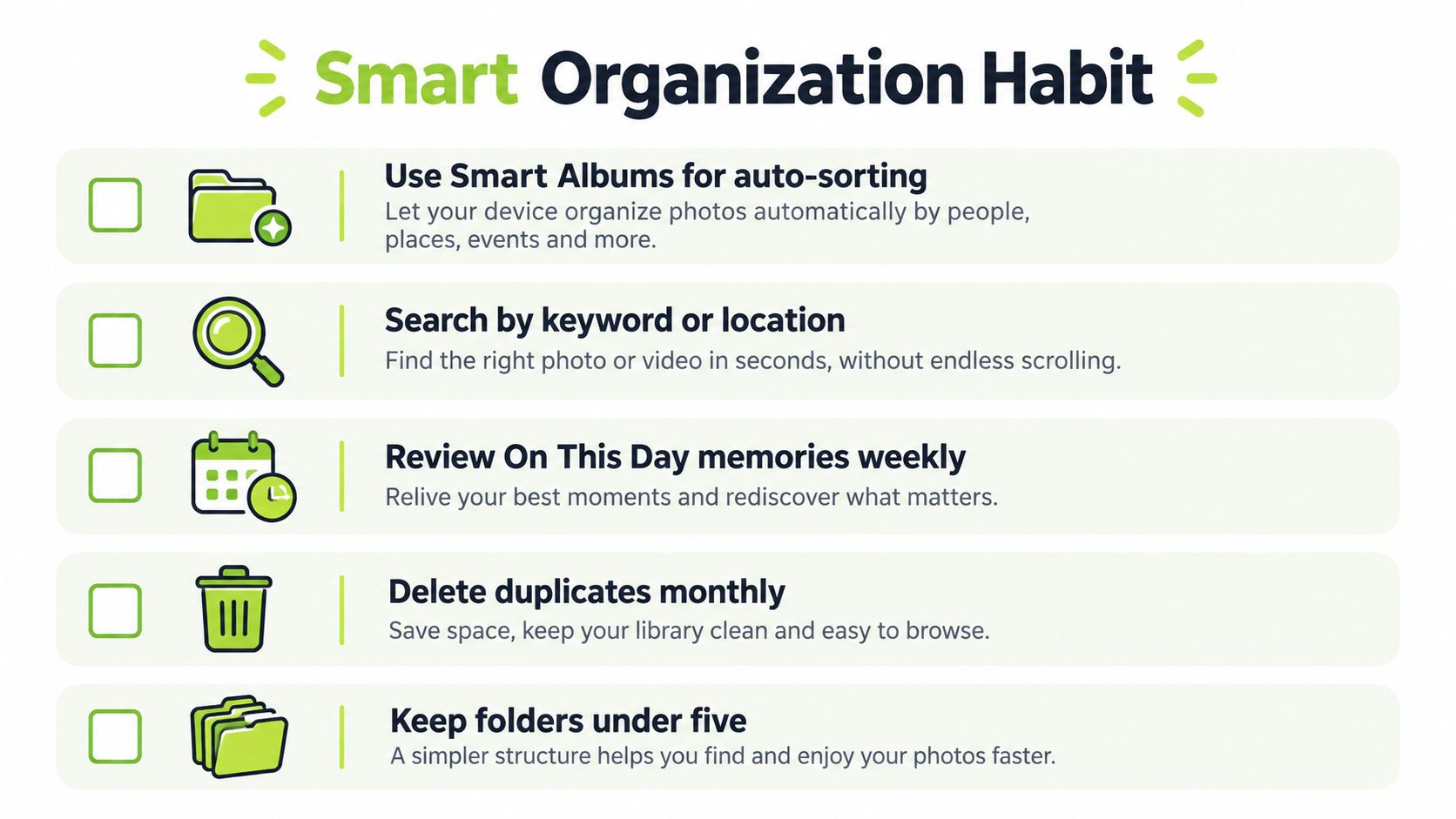
Use On This Day style resurfacing too. Old photos returning in small doses are easier to judge than a full archive opened at once. Favorite the keepers, delete the accidental extras, and move on. Discovery becomes maintenance.
Don't organize harder. Review smaller, more often.
Make the habit stupidly small
A few minutes regularly beats a yearly marathon. LuminaClean is built for that pattern. It's free to start with 65 free deletes, then 10 more every day, which suits daily micro-sessions without paying. Streak tracking supports consistency, and the Get Judged feature lets mascot Lumina judge your worst photo pile, which turns an annoying chore into something you'll open.
An optional Premium subscription exists for clearing a big backlog at once, but the free daily allowance is the point for habit building. Small sessions prevent decision fatigue, keep context fresh, and stop screenshots piling up for years.
Tag your behavior, not every photo. Favorite true keepers immediately. Delete obvious junk while you still remember why you captured it. Review one smart category weekly. That's how How to Organize Photos on iPhone becomes a routine instead of a rescue mission.
Storage Settings That Support Your Organization
Organization fails if storage settings fight it. Decide whether the problem is device space, iCloud space, or both before changing anything. Those are different constraints with different fixes.
Check Settings, then General, then iPhone Storage for the local picture. Then check Settings, then your name, then iCloud for cloud capacity. Only then choose a Photos setting, following Apple's guidance on iCloud Photos storage options.
Optimize iPhone Storage versus Download and Keep Originals
With iCloud Photos enabled, Optimize iPhone Storage keeps full-resolution originals in iCloud and space-saving versions on the iPhone. iOS prioritizes optimizing photos and videos accessed least when local space is needed. Choose this if device storage is the bottleneck and you mostly view photos casually.
Download and Keep Originals is the opposite tradeoff. It keeps full originals on the device, which suits offline editing, archival export, and people who don't want to wait for downloads. It also costs serious local space. Pick it deliberately, not by default.
- Choose Optimize for most users: It reduces local footprint while keeping the synced library intact.
- Choose Originals for editors and archivists: Accept the storage cost because local access matters more.
- Read the fine print either way: Advice about freeing space when iPhone storage is full only helps if the right storage tier is being fixed.
Sync is not backup. Deleting a photo on one device deletes it everywhere iCloud Photos is used.
That warning matters before any big cleanup. Confirm sync has completed, verify an independent backup for irreplaceable material, and don't empty Recently Deleted in a rush. Deleted items stay recoverable there for 30 days, after which Apple says they're permanently unavailable through that recovery mechanism. Album work is reversible and low risk. Library deletion with sync enabled is efficient, powerful, and unforgiving once the recovery window closes.
Your Monthly iPhone Photo Organization Routine
Run this routine monthly and the library stays managed. Skip it for a year and you're back to scrolling through chaos. The whole pass should feel boring. Boring means it's working.
The monthly checklist
- Audit storage first: Open iPhone Storage and iCloud settings so you know which limit matters before deleting anything.
- Merge exact duplicates: Open the Duplicates album, review sets, and merge only groups you're sure about.
- Scan for similar and blurry shots: Review grouped near-duplicates, keep the sharpest and best expression, and delete the rest conservatively.
- Clear screenshots and large videos: Check the Screenshots media type, remove expired captures, and compress or delete oversized recordings you won't rewatch.
- Favorite and file the keepers: Heart standout shots, add true sets to the few albums you maintain, and ignore everything Search already finds.
- Verify before the final purge: Check Recently Deleted, confirm sync finished, and make sure important material exists in an independent backup.
Questions that cause the most mistakes
Does deleting from an album delete the photo? No. Removing from an album leaves the library copy intact. Delete from Library is the destructive action, and even then the item sits in Recently Deleted during the recovery window.
What if iCloud is still syncing? Stop. Don't run a large cleanup mid-sync, because deletions propagate across synced devices and confusion multiplies fast. Wait for sync to finish, then clean once, cleanly.
How do important memories stay safe during aggressive cleanup? Use staged review. Identify candidates, compare versions, delete conservatively, verify Recently Deleted, and confirm backups before emptying anything. How to Organize Photos on iPhone safely means respecting that similar doesn't mean identical, especially for family photos, edited versions, and shots where one facial expression matters more than technical sharpness.
Start today with the smallest possible win. Open Photos, merge a few exact duplicates, clear ten screenshots, and favorite the photos you'd actually show someone. Then download LuminaClean from the App Store, let it scan on your iPhone for similar shots, blurry photos, and large videos, and use your free daily deletes to keep the pile from coming back.
Clean up your camera roll in minutes.
LuminaClean scans on-device, groups duplicates, similar shots, screenshots and blurry photos, and deletes only what you confirm. Free to start, no account.