October 24, 2026
How to Delete Other Storage Mac Safely in 2026
The most popular advice for clearing Mac storage starts in the wrong place: open a Library folder and delete its contents. That treats Other storage as a pile of disposable files. It isn't. A safer approach separates files the owner can remove from storage macOS manages, then checks whether the cleanup produced a lasting increase in usable space.
For people looking for how to delete Other storage on Mac, the useful answer isn't a hidden folder or a universal cleaner button. It's a measured cleanup of identifiable files, with a separate check for Time Machine snapshots.
Table of Contents
- What Other Storage Really Means on Mac
- Measure Your Baseline Before You Delete Anything
- Clear Reclaimable Files Without Touching System Folders
- Handling Time Machine Snapshots Safely
- Comparing Cleanup Tools and Where LuminaClean Fits
- Avoiding Risky Deletions and Your Next Step
What Other Storage Really Means on Mac
Other isn't a single folder that can be emptied. Apple describes the category, called System Data on newer macOS versions, as a catch-all for Apple and third-party files that don't fit categories such as Applications, Documents, Photos, or Mail. Apple also says its size varies with the Mac's current state and its contents can't be managed directly through the Storage pane, as explained in its Mac storage guidance.
That definition changes the cleanup decision. A file doesn't become unnecessary just because macOS places it under an unclear label. Some files support applications currently in use; others are temporary material that macOS can manage itself.
What belongs in the category
The category can include system and application caches, logs, virtual-memory files, temporary files, fonts, application-support files, plug-ins, and other runtime resources. Those aren't interchangeable items. An application-support folder deserves a different decision from an obsolete installer sitting in Downloads.
The classification is easier to understand as connected groups rather than a single container.
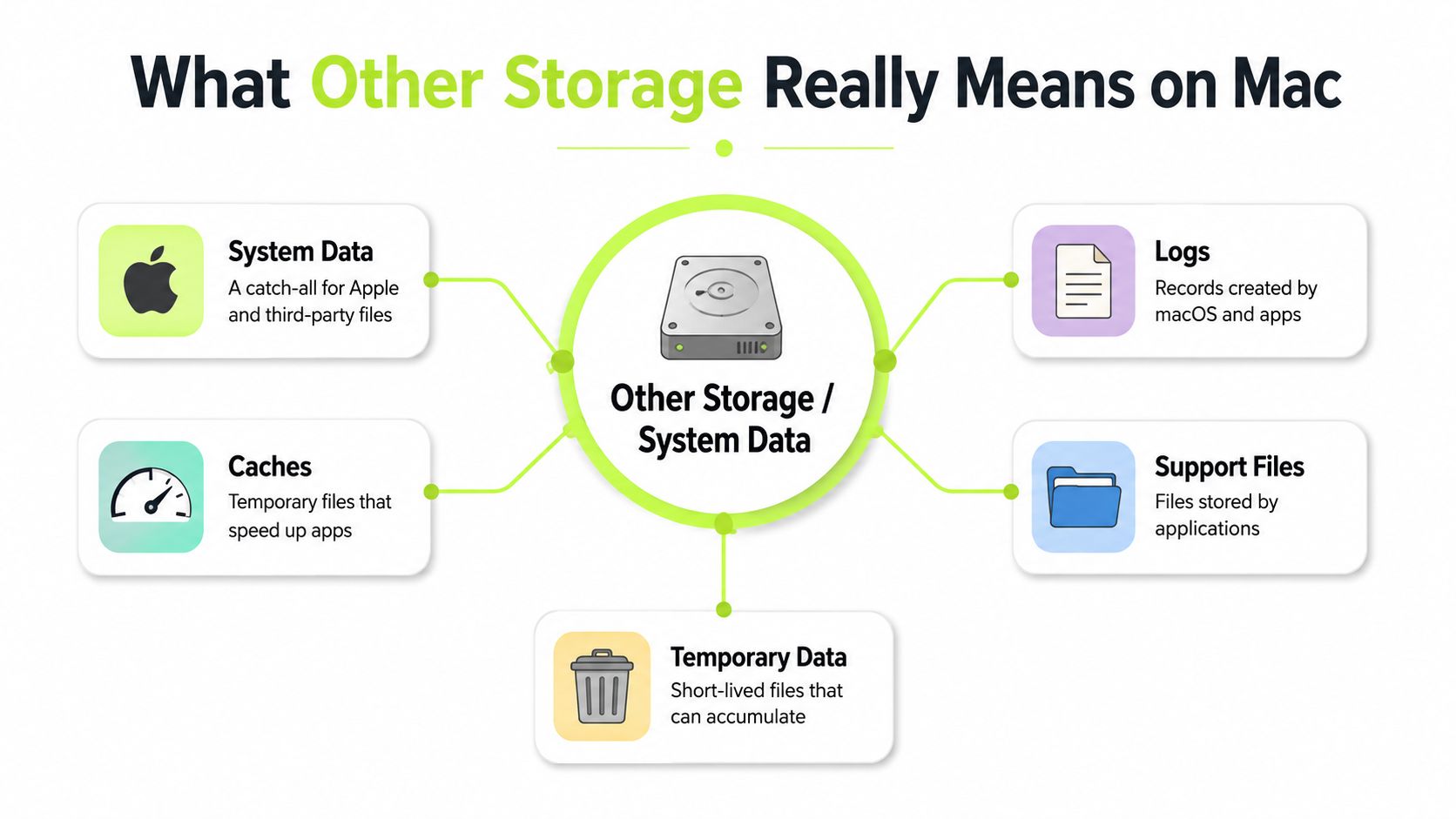
Older cleanup guides often use the name Other throughout their instructions. A Mac displaying System Data isn't necessarily showing a different problem. The terminology has changed, so matching an old screenshot isn't a useful test of whether the instructions apply.
Practical rule: A storage category describes files. It doesn't grant permission to delete them.
Why the number keeps changing
Applications create support data, temporary files, and logs during normal use. macOS also manages resources according to the computer's current needs. That makes System Data a moving classification, not a fixed amount of waste awaiting removal.
A rising figure therefore calls for investigation, not an immediate purge. The useful questions concern ownership and purpose: which application created the files, whether they're still needed, and whether that application provides a supported way to remove them.
A sensible classification during review is:
- Known personal files: Downloads, media, and archives whose purpose the owner recognizes.
- Application-owned data: Material best reviewed through the application that created it.
- System-managed resources: Files that shouldn't be removed merely because their names are unfamiliar.
The intended outcome is more usable disk capacity without breaking an application or sacrificing needed data. Making the System Data segment disappear isn't a sensible finish line.
Measure Your Baseline Before You Delete Anything
A cleanup without a baseline leaves too much room for guesswork. The Mac owner needs a record of the starting position before changing files, backup settings, or storage recommendations.
On macOS Ventura 13 and later, storage usage is available at Apple menu > System Settings > General > Storage, according to Apple's instructions for freeing Mac storage. Record the visible category sizes and the storage figures shown, keeping the labels attached to each measurement.
Keep free and available storage separate
Apple distinguishes free storage, physically open disk space, from available storage, which can also include purgeable caches. Its guide to finding and deleting Mac files explains why macOS can reclaim some capacity without requiring a manual cache purge.
That distinction matters when comparing readings. A free-space figure and an available-space figure aren't equivalent measurements. Comparing one before cleanup with the other afterward can make a routine storage change look like a dramatic recovery.
A simple written record prevents that mistake:
| Baseline item | What to record |
|---|---|
| Startup disk | The disk being checked |
| Free storage | The value and its exact label |
| Available storage | The value, if displayed separately |
| Visible categories | System Data and the largest other categories |
| Backup status | Whether Time Machine is active and a backup is current |
| Recent activity | Any large download, update, or application task still running |
Disk Utility can provide another check of the disk's storage reporting. The important discipline is consistency: compare the same disk and the same kind of reading throughout the cleanup.
Inspect large files without deleting them yet
Finder's file-size view is useful for reviewing familiar locations such as Downloads and Documents. Sort recognizable personal files by size, then inspect their names and purpose. A large file is a candidate for review, not automatic removal.
Keep a short candidate list. An obsolete installer, an archive already stored elsewhere, and a video no longer needed are clearer decisions than an unfamiliar directory inside Library.
- Record the location: Keep enough detail to find the candidate again.
- Check its purpose: Confirm whether it belongs to a current project or application.
- Choose an action: Mark it for deletion, external storage, or further investigation.
Apple's guidance also supports moving files to external storage or compressing infrequently used files when deletion isn't appropriate. Those options belong in the decision before anything reaches Trash.
Storage category calculations can lag behind changes. The post-cleanup comparison should therefore use the recorded free-space measurement after a restart and recalculation, rather than an immediate glance at the colored chart.
Clear Reclaimable Files Without Touching System Folders
The safest cleanup starts with recognizable files the Mac owner no longer needs. Apple identifies downloads, unused applications, old device backups, large media, and Mail junk or deleted items as practical targets in its storage-management recommendations.
Work through candidates in descending size order rather than chasing every small file. The strongest decisions are easy to explain: an installer is obsolete, a backup belongs to a retired device, or a media file has a verified copy elsewhere.
Review recognizable files first
Downloads and leftover installers are a practical starting point. Review downloaded archives, installation files, and disk images individually. Unneeded .dmg files belong in this review, but an unfamiliar extension alone isn't enough reason to delete a file.
Old iPhone and iPad backups deserve a separate decision. Remove only backups that are obsolete, preferably through the relevant storage or device-management controls rather than by deleting unfamiliar folders. A backup shouldn't be treated as junk while it remains the intended recovery copy.
Unused applications can follow. Check whether the application still holds data that needs to be exported or retained before removing it. Application removal and personal-data removal are separate decisions.
The following checklist keeps the review focused on identifiable files.
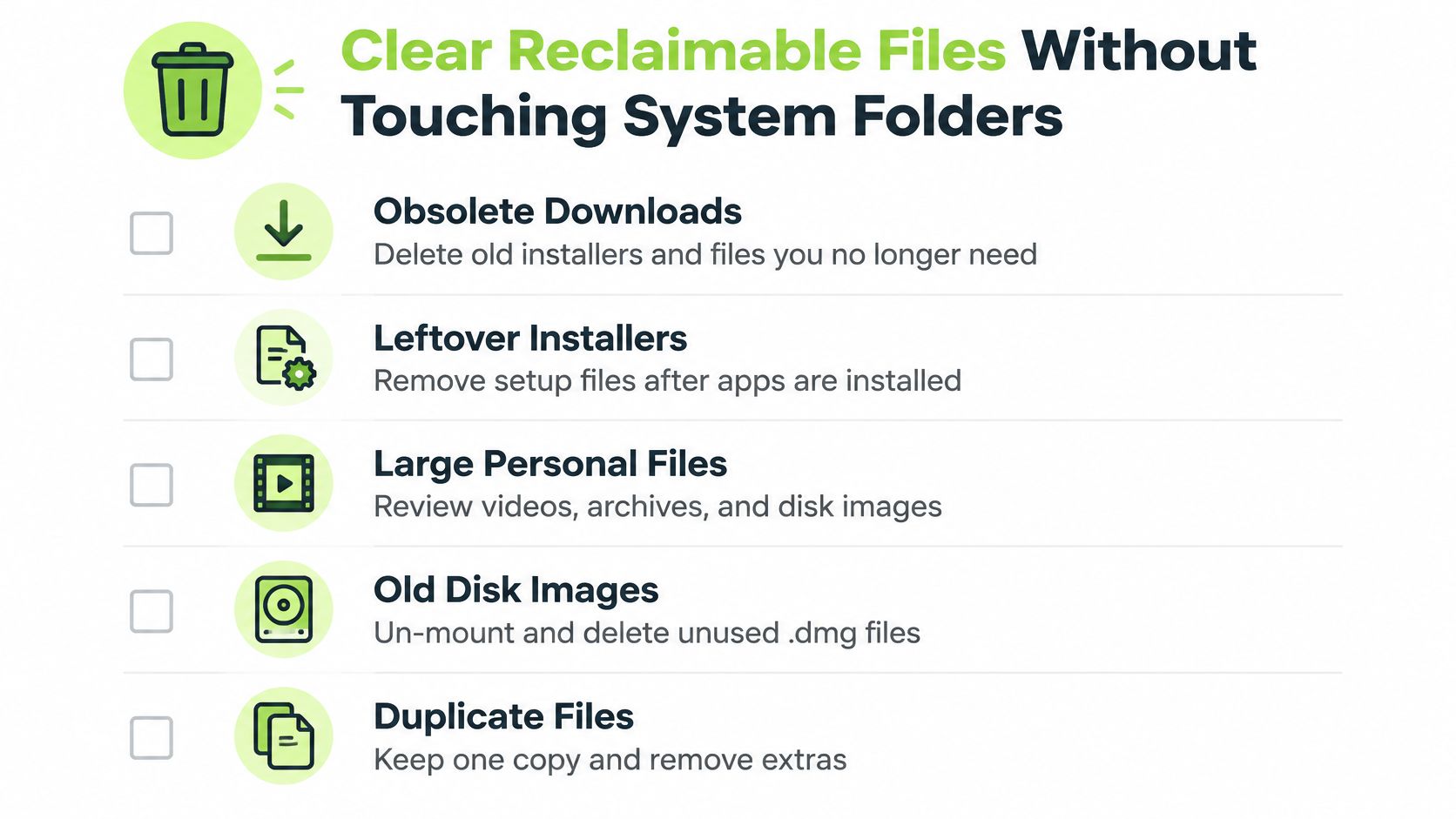
For Mail junk and deleted messages, use Mail's own controls. For large personal media, decide whether deletion is appropriate or whether external storage is the better fit. A file that's still valuable doesn't need to stay on the startup disk to remain useful.
Finish the cleanup before measuring it
Moving a file to Trash is an intermediate step, not the finish line. Space isn't released until Trash is emptied, as Apple's storage instructions explain. Review the contents before that final action, especially when several unrelated folders were cleaned during the same session.
A smaller collection of known, unnecessary files is a better cleanup target than a large collection of unidentified system files.
After emptying Trash, restart the Mac and allow Storage to recalculate. Compare the new free-space reading with the baseline. The amount recovered matters more than which category becomes smaller.
The reusable finish checklist is deliberately short:
- Confirm ownership: Every removed item had a recognizable purpose and a clear reason for removal.
- Preserve needed data: Retained files have a suitable location outside the cleanup queue.
- Review Trash: Nothing important remains among the pending deletions.
- Complete the measurement: Trash is emptied, the Mac is restarted, and the same storage figure is checked again.
System folders and APFS container contents don't belong in this routine. Neither do unidentified application-support directories. If the recognizable files don't explain the shortage, further diagnosis is safer than expanding the deletion list blindly.
Handling Time Machine Snapshots Safely
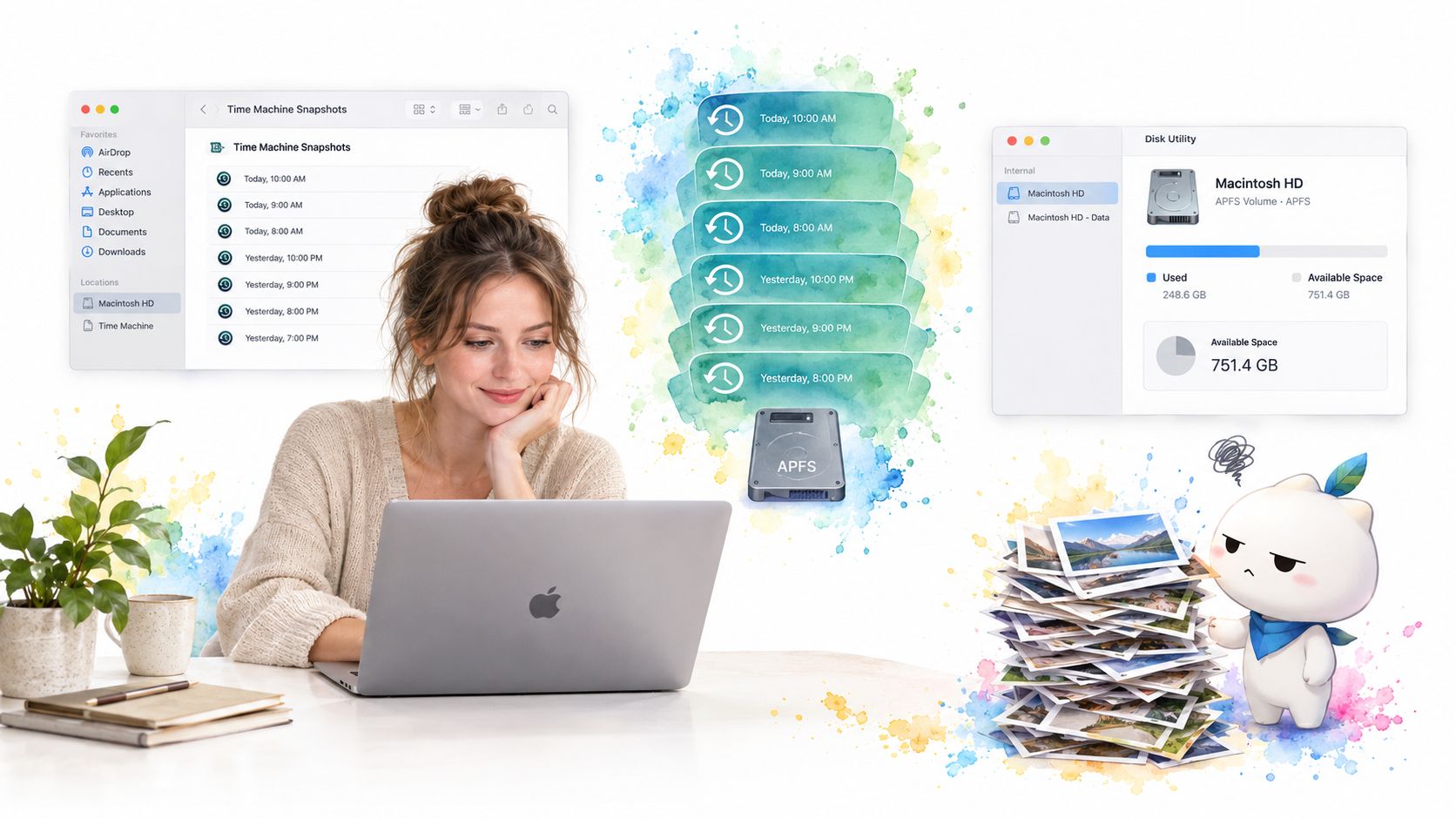
A large local snapshot footprint isn't automatically a storage emergency. Apple says Time Machine snapshots count as available storage and are removed automatically as they age or when macOS needs capacity, in its explanation of local Time Machine snapshots.
Snapshots need a different decision from ordinary downloads. They provide recovery history, so deleting them solely to improve a storage chart can be a poor trade.
The snapshot check belongs alongside ordinary disk review, not inside a mass-deletion routine.
Understand the recovery trade-off
Time Machine creates approximately one local snapshot per hour, retains snapshots for up to 24 hours, and keeps an additional snapshot of the latest successful backup until space is needed; Apple also notes that a pre-update snapshot may be created on macOS High Sierra 10.13 or later, in the same local-snapshot documentation.
Those snapshots aren't ordinary duplicate files awaiting deletion. Their presence needs to be interpreted alongside available capacity and backup status.
A disconnected backup disk doesn't necessarily mean local snapshots are absent. Apple's Time Machine guidance explains that local snapshots can remain available independently of the backup disk.
That distinction helps explain why an apparently large System Data reading may not match an urgent lack of usable space. The owner should first confirm whether an actual storage task is blocked, rather than assuming the chart alone proves a fault.
Run a temporary, reversible test
Before changing backup settings, confirm that the backup disk is available and the backup is current. Then record the free-space reading used in the baseline.
- Pause automatic backups: Open Time Machine settings and set Backup Frequency to Manually on Ventura or later.
- Allow time for the change: Wait several minutes, then check whether the storage reading changes.
- Restore protection: Re-enable automatic backups and record another reading.
This is a diagnostic test, not a recommendation to leave backups disabled. If the apparent gain disappears after backups resume, snapshots may have been recreated. That result doesn't justify repeating the purge indefinitely.
A visual walkthrough can supplement the settings check.
Avoid undocumented commands or direct deletion of APFS snapshot data. Removing recovery history to chase an unstable category figure introduces risk without establishing a durable storage benefit.
Comparing Cleanup Tools and Where LuminaClean Fits
The right tool depends on the question. Storage settings help identify broad categories and recommendations. Finder helps inspect recognizable files. Time Machine settings help test whether backup-related accounting explains the reading.
A disk analyzer serves a different purpose: locating large directories. Its map can guide an investigation, but a large rectangle on a storage map isn't evidence that the contents are safe to erase.
Mac Other Storage Tools at a Glance
| Tool | Best use | Limits |
|---|---|---|
| macOS Storage settings | Reviewing categories, recommendations, and large-file candidates | System Data isn't a directly manageable folder |
| Finder file-size view | Sorting and examining recognizable user files | File size doesn't establish whether a file is disposable |
| Time Machine settings | Checking backup status and testing snapshot-related usage | A temporary reduction may not last after backups resume |
| Third-party disk analyzer | Mapping where disk capacity is used | The owner still needs to identify what each directory contains |
| iPhone photo cleaner | Reviewing a separate phone photo-library problem | It doesn't clean Mac System Data |
Apple's built-in recommendations can include storing files, photos, and messages in iCloud, optimizing local storage, and managing Trash. Apple also offers an option to automatically erase Trash items after 30 days, as described in its storage-saving recommendations.
Those options deserve individual review rather than blanket approval. A recommendation to use cloud storage is a different decision from removing a downloaded installer. The owner should understand where retained files will live and which local copies are still needed.
Choose visibility before deletion
For third-party analyzers, check the current App Store description before installation. Focus on the stated purpose, supported platform, and review controls. Avoid choosing a tool solely because its marketing promises to clear all Other storage.
Useful selection questions include:
- Can the results be inspected? A directory map should support investigation rather than pressure the owner into immediate deletion.
- Does the tool match the device? Mac disk analysis and iPhone photo cleanup are separate jobs.
- Does the proposed action make sense? A named obsolete file is easier to assess than a broad cleanup label.
The publisher's website concerns a separate iPhone-cleanup use case. That distinction matters for readers managing both devices: a crowded camera roll and a crowded Mac startup disk shouldn't be treated as the same storage problem.
No additional utility is necessary when Storage settings and Finder already identify enough removable personal data. A specialized tool becomes useful when it answers a specific unresolved question, not because System Data still occupies part of the chart.
Avoiding Risky Deletions and Your Next Step
The most damaging cleanup mistake is treating uncertainty as permission. An unfamiliar file inside Library isn't automatically a leftover. A large support directory isn't automatically a cache, and a cache isn't automatically worth deleting.
Apple says macOS can automatically remove expendable material when storage is needed, including safe-to-delete caches and logs, temporary databases, interrupted downloads, staged updates, and Safari website data. That makes arbitrary system-folder deletion a poor substitute for understanding what consumes the disk.
Mistakes that turn cleanup into repair work
The safest boundary is simple: no broad deletion of system-managed directories or unidentified application data. When an application's data appears unusually large, the next action should be checking that application's own management options, not removing its entire support folder.
Common mistakes include:
- Deleting by folder name alone: A recognizable application name doesn't prove that everything inside its folder is obsolete.
- Purging caches repeatedly: Recreated files can erase the apparent benefit, while unnecessary deletion can cause application problems.
- Removing recovery data for cosmetic reasons: A more attractive chart isn't sufficient justification for losing useful backup history.
- Changing several things without measuring: Mixed actions make it difficult to tell which change helped.
- Continuing after gains stop: More aggressive deletion isn't a sound response to an unchanged measurement.
The same restraint applies to virtual machines, developer files, and large application-support data. These can be meaningful investigation targets when the owner recognizes them, but they aren't disposable merely because they sit outside a familiar Documents folder.
A useful stopping point: Enough verified capacity for the intended task, with important files and recovery options intact.
Verify that the improvement lasts
A durable result should remain useful after normal work resumes. Compare the post-restart free-space reading with the baseline, then check it again after the applications and backup routine return to ordinary use.
If capacity falls again, investigate the activity associated with the change. A recurring application-generated file needs a different response from an obsolete download. Repeating the same cleanup without identifying that source merely repeats the uncertainty.
There is no universal amount that a successful cleanup must recover. A Mac with little removable personal data may show only a modest change, while a Mac containing obsolete backups or large unwanted media may have clearer opportunities. Neither outcome makes indiscriminate system deletion a better choice.
The immediate next step is concrete: record the Storage baseline, review the largest recognizable files, complete the reclaimable-file checklist, and compare the same measurement after restarting. That produces evidence for the next decision instead of another guess about the chart.
For an iPhone that's also short on space, LuminaClean on the App Store addresses the separate photo-library problem, not Mac storage. The iOS-only app finds exact duplicates, visually similar photos, blurry photos, screenshots, and large videos, with free video compression. It scans 100% on-device, photos never leave the iPhone, there's no cloud processing, and no account is needed. Nothing is deleted without the user's swipe or confirmation, and deleted photos go to iOS Recently Deleted for 30 days. The free start includes 65 deletes, followed by 10 more each day, with an optional Premium subscription for clearing a large backlog at once. Start with a small group of unwanted iPhone photos while keeping the Mac cleanup focused on measured, identifiable files.
Clean up your camera roll in minutes.
LuminaClean scans on-device, groups duplicates, similar shots, screenshots and blurry photos, and deletes only what you confirm. Free to start, no account.