October 26, 2026
How to Get Deleted Pictures Back on iPhone
A deleted photo stays in Recently Deleted for 30 days, reachable through Photos > Collections > Utilities > Recently Deleted; selecting it and tapping Recover puts it back in the library. If it's no longer there, getting it back requires finding a surviving copy elsewhere.
Perhaps a storage cleanup removed a favorite birthday picture, or a batch of similar shots included the one worth keeping. An empty search result can feel alarming, especially when the photo also disappears from an iPad or Mac. The safest response is to pause the cleanup, check Apple's recovery tools, and avoid a device reset while other copies are still being located.
Table of Contents
- Recover From Recently Deleted in Five Steps
- Pick Your Recovery Path by Situation
- Search Older Copies When Photos Are Gone
- Mistakes That Make Recovery Harder
- Set Up Backups Before Your Next Cleanup
Recover From Recently Deleted in Five Steps
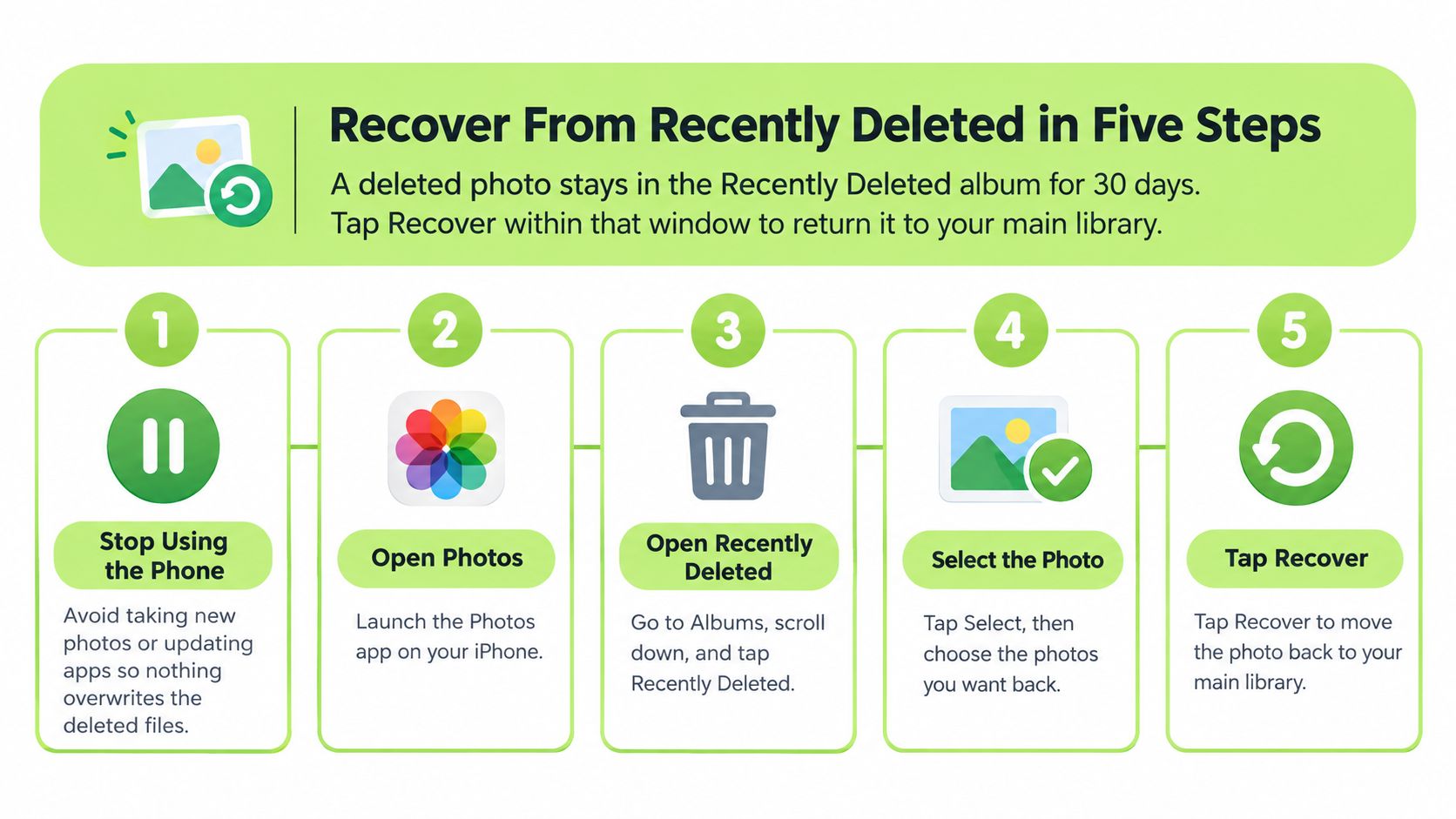
Recently Deleted is the first place to check, not a third-party recovery app. Apple's photo recovery guide confirms that deleted photos and videos remain there for 30 days, and choosing Recover returns them to the photo library.
The important distinction is that these pictures haven't yet been permanently removed. Photos still manages them inside its recovery album, so there's no need to start with software that promises to search the iPhone's underlying storage.
The recovery steps
Pause photo cleanup. The iPhone owner should stop deleting, editing, or emptying anything in Photos until the missing picture is located. This avoids another accidental selection or confirmation while the library is being checked.
Open the recovery album. In Photos, the path is Collections > Utilities > Recently Deleted. Scrolling to Utilities may be necessary. Opening this album matters more than repeatedly searching the main library, where deleted items no longer appear.
Open Recently Deleted. Photos may request Face ID, Touch ID, or the device passcode. That authentication protects the album; a locked screen doesn't mean the pictures are gone.
Select the missing items. After tapping Select, the owner can choose the photo or video that belongs back in the library. For a batch, Select All can help, but reviewing the selection first reduces confusion.
Choose Recover and verify the result. After recovery, the owner should return to the main library and locate the picture. Searching around the date it was taken can be more useful than expecting it beside the newest photos.
The visual guide summarizes the recovery sequence. Menu labels can differ across iOS versions; the Collections route above follows Apple's current instructions.
Recover is different from Delete
Delete is not another way to finish recovery. In Recently Deleted, it permanently removes the selected items instead of returning them to the library. Anyone working quickly through a batch should pause at that final button.
Practical rule: Recovery means choosing Recover, then confirming that the actual picture opens in the main library.
When iCloud Photos is enabled, the same recovery album is available through Photos > Recently Deleted on iCloud.com. That route can help when an iPhone is broken, unavailable, or lost, provided the owner can access the correct Apple Account.
Normal phone use isn't the central issue while a picture remains in this album. The immediate risk is an additional deletion action, especially emptying the album. A picture missing from Recently Deleted requires a different decision: determining whether it was synchronized away, permanently removed, or stored somewhere other than Photos.
Pick Your Recovery Path by Situation
A photo missing from several devices doesn't necessarily mean several independent copies were lost. Those devices may all have been displaying the same synchronized library.
Apple's deletion guidance explains that, with iCloud Photos enabled, deleting a picture on one device deletes it from the other devices using that library. Apple also states that items leave Recently Deleted permanently after 30 days.
Synchronization isn't an independent backup
Consider a parent who deletes a birthday picture on an iPhone, then checks an iPad for another copy. If both devices use iCloud Photos, the iPad may reflect the same deletion. A manually exported picture on an external drive is different because that file isn't part of the synchronized deletion.
The useful distinction is between an item still held for recovery, a deletion that spread through iCloud Photos, and a permanently removed item that might survive elsewhere.
Recovery path by situation
| Situation | Where the photo likely is | Next action |
|---|---|---|
| Deleted within the last 30 days and still listed | Recently Deleted on this iPhone | Recover it in Photos using the recovery steps |
| Gone from this iPhone, iCloud Photos was on | Deletion synced to iCloud and other devices | Check Recently Deleted on iCloud.com, then search for an older copy |
| Removed from Recently Deleted after 30 days, or deleted with Delete | Permanently removed from Apple's Photos recovery system | Search computer backups, iCloud Backup, and other copies; the iPhone's Recently Deleted album can't restore it |
| Photo came from a Messages conversation | Messages Recently Deleted list, or the original conversation | Check Messages first, then attachments saved in email or other apps |
| Photo missing after a device restore or new iPhone setup | An older backup, or a copy that never reached the restored library | Compare backup dates and contents without restoring over the current device |
The table's retention limit follows Apple's guidance linked above. Its backup routes are places to investigate, not promises that a particular backup contains the picture.
For a photo received in Messages, deletion from a conversation and deletion from Photos are separate events. A saved copy may remain in Photos even when the conversation is missing, while an attachment never saved to Photos may require checking the conversation itself.
A cleanup app doesn't create a separate recovery system. The guide to recovering photos deleted by a cleaner app explains that situation without treating the app as a backup.
After permanent removal, the deciding question is whether a surviving copy exists, not how recently the mistake happened.
Search Older Copies When Photos Are Gone
Once Recently Deleted is empty of the wanted picture, the search should move from repeated phone scans to checking possible sources. Apple's iPhone Photos guide provides the deletion controls; beyond those controls, recovery requires a retained copy rather than another attempt at the same album.
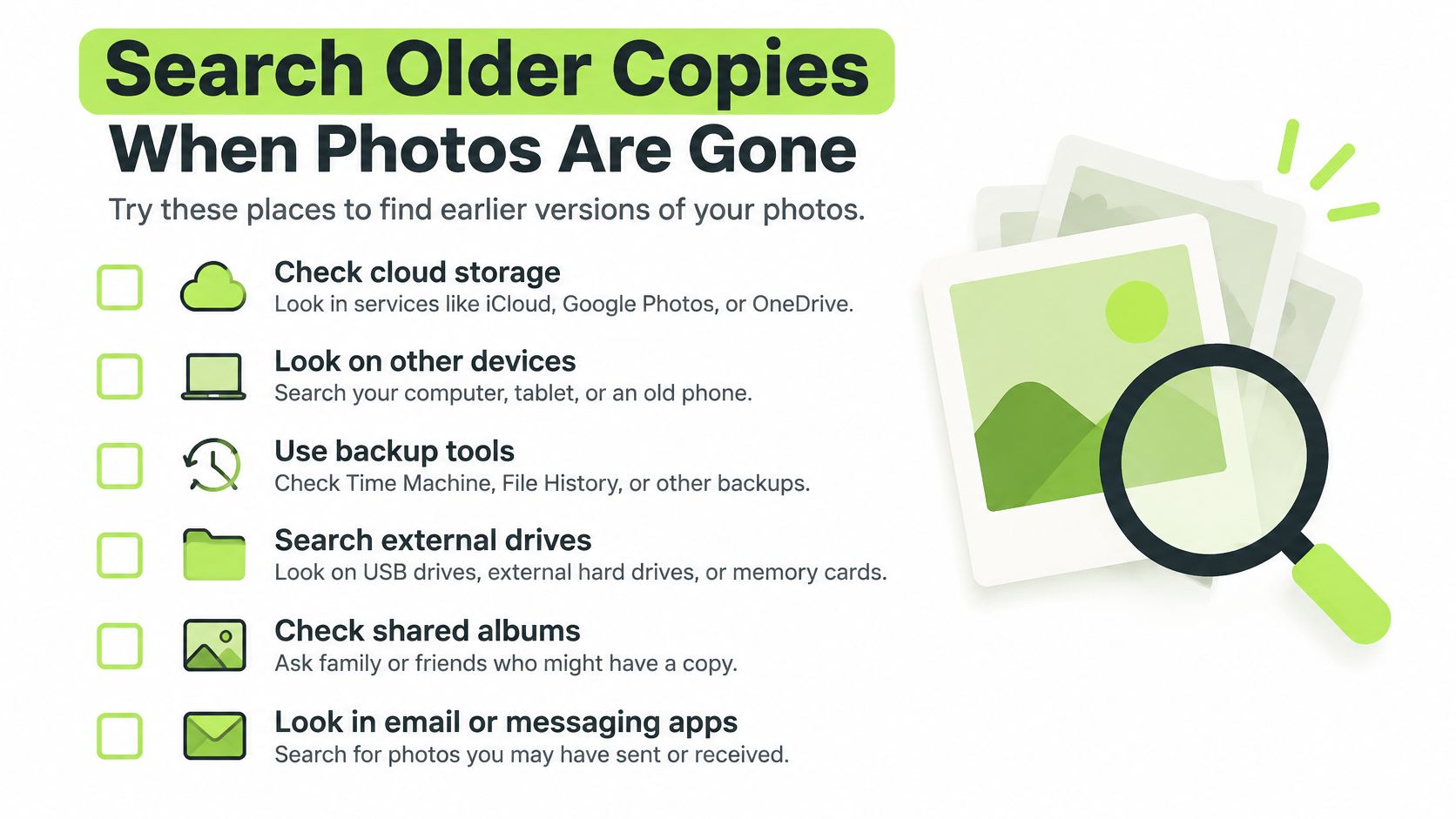
The checklist below organizes the places worth checking before any erase or restore operation.
A source checklist from easiest to hardest
iCloud.com Photos. The owner should sign into the Apple Account used for the missing library and check both the library and Recently Deleted, rather than assuming the current iPhone shows every relevant source.
A Mac or Windows PC. The Photos library, imported pictures, and saved photo folders deserve inspection. A synchronized view alone isn't evidence of a separate preserved original.
Exported folders and drives. Downloads, external drives, and cloud-drive folders may contain pictures saved manually for printing, sharing, or editing.
Messages and email. Sent and received attachments can preserve a useful copy. Searching for the person, event, or approximate date can narrow a long conversation.
Shared albums and family devices. Someone who received the picture may still have it. The recovered file's quality should be checked before it's treated as a replacement for the original.
Backups from before deletion. The owner should record each backup's date and inspect available details without restoring. Where a backup viewer supports content inspection, the search should confirm the actual photo rather than just a promising backup date.
A backup date isn't proof of a photo
An older device backup doesn't automatically contain every picture that once appeared on that device. iCloud Photos and iCloud Backup aren't interchangeable, so the contents matter more than the backup's name.
A full-device restore is a last resort because it replaces current device data and can complicate an already synchronized photo library. Some backup interfaces don't offer a browsable photo list; that limitation shouldn't be answered with an immediate erase.
The accompanying video offers another format for following the recovery process.
A thumbnail proves that a preview exists. It doesn't prove that the full-resolution original is recoverable.
Consumer undelete utilities can't guarantee recovery from the iPhone itself after permanent deletion. A credible result needs an identifiable surviving file in a backup, attachment, exported folder, or other preserved source.
Mistakes That Make Recovery Harder
Erasing or restoring the iPhone too soon can turn a missing-photo problem into a wider data-loss problem. Before either operation, the owner should preserve older backups and, if possible, make a current encrypted computer backup without replacing the only older copy.
The backup should protect current messages, settings, and other device data while the photo search continues. It shouldn't be mistaken for proof that the missing picture has been saved.
This image illustrates the preservation step that belongs before an intrusive restore.

Actions that remove useful options
- Tapping Delete or Delete All. Apple's deletion guide confirms that permanent deletion can happen before the normal 30-day period ends and removes items from the iPhone, iCloud, and associated devices.
- Restoring before checking contents. A backup that predates the mistake may still lack the wanted photo, leaving the owner with disrupted current data and no recovered picture.
- Overwriting the only older backup. Replacing a potentially useful snapshot with the current state can eliminate a separate recovery source.
- Using the wrong Apple Account. An empty cloud library may belong to a different account, not demonstrate that the original library is gone.
- Disabling iCloud Photos without preserving originals. A storage-setting change isn't a substitute for downloading and verifying independent files.
- Continuing a large cleanup. More deletions make it harder to track what disappeared and which copies still need protection.
- Accepting a cached preview as the original. A small image that opens on screen may not contain enough detail for printing or further editing.
Before freeing space: The recovery search should finish before Recently Deleted is emptied.
The explanation of why Recently Deleted photos still take up storage helps separate a storage problem from a recovery decision. Pressure to reclaim space shouldn't determine whether the last recoverable copy gets removed.
A consumer recovery app's claimed success isn't a preservation plan. The owner still needs a verified original or a usable surviving copy.
Set Up Backups Before Your Next Cleanup
A synced library and a backed-up library do different jobs. Synchronization keeps the same photos available on every device signed in to the same Apple Account. Storage optimization shrinks what stays on the iPhone itself. An independent copy is the only one of the three that survives a deletion, because it sits outside the sync relationship entirely.
That distinction matters more than it first appears. When iCloud Photos is on, deleting a photo on the iPhone removes it from iCloud and every synced device at once. No cleaner app changes that behavior, so the independent copy should be in place while the wanted photos are still available, well before any storage emergency.
A practical preservation routine
Enable iCloud Photos when synchronization is wanted. The route is Settings > the owner's name > iCloud > Photos > Sync this iPhone. The library then stays identical across devices, which means deletions sync along with everything else.
Use Optimize iPhone Storage for local space pressure. Apple's storage guide explains that this setting keeps full-resolution photos and videos in iCloud while retaining space-saving versions on the iPhone when needed. It relies on available iCloud storage, and like the rest of the sync system it follows deletions rather than reversing them.
Make regular computer backups. Finder on a Mac or the Apple Devices app on Windows provides the device-backup route. An encrypted backup helps preserve current device data, and important photo originals should also be exported and opened to confirm they survived the transfer.
Keep an independent copy of important albums. An external drive can hold exported originals outside the synchronized library. Opening several saved files and checking that the expected pictures are present tells the owner more than a completed transfer message alone.
Review Recently Deleted weekly. Apple's 30-day window is the last safety net, and a recurring check catches mistakes while recovery is still possible. Permanent removal should be a deliberate decision made after the search for copies is finished.
Deleting locally while expecting iCloud to keep everything is where many failed recoveries begin. The guide to deleting photos from an iPhone while keeping them in iCloud explains the difference between removing library items and reducing their local storage footprint.
Cleanup with review and confirmation
LuminaClean handles the cleaning side of this routine. It is an iPhone app that runs on-device to find exact duplicates, visually similar photos, blurry shots, screenshots, and large videos, and it needs Full Access to the photo library under Settings > Privacy & Security > Photos before it can scan. Every deletion goes through the user first: Swipe to Clean uses a left swipe to delete and a right swipe to keep, Similar Photo Finder groups multiple takes so the best one can be kept, and selected photos always get a final review before removal. Deleted items land in iOS Recently Deleted for 30 days, and recovery after that point has no guarantee. New users start with 65 free deletions and get 10 more for each day they return to the app.
If iCloud Photos is on, deletions made through LuminaClean also remove the photos from iCloud and every synced device, so the independent backup from the steps above should come first.
Small cleanup sessions make careful comparisons easier. A blurry frame may still hold a meaningful expression, and visually similar photos may capture different moments worth keeping.
For a backed-up library ready for review, LuminaClean on the App Store offers a starting point for sorting clutter. The safest order stays the same: preserve important originals, confirm the copies open, then clean in small sessions without rushing to empty Recently Deleted.
Clean up your camera roll in minutes.
LuminaClean scans on-device, groups duplicates, similar shots, screenshots and blurry photos, and deletes only what you confirm. Free to start, no account.