October 16, 2026
Duplicates Contacts Iphone
Your iPhone usually doesn't have a “duplicates” problem so much as an account problem. One person gets split across iCloud, Google, Exchange, or an old import, then the same name starts showing up in Messages, Mail, and the phone screen like it belongs to three different people.
That's why cleaning duplicates contacts iPhone entries feels easy for five minutes and annoying later. Apple can show linked cards as one unified contact, but that's a display layer, not always a real merge. If the source accounts are still syncing, the same clutter can come back.
Table of Contents
- Why the Same Person Shows Up Twice in Your iPhone
- Using Apple's Built-In Duplicates View in Contacts
- Linking Cards Manually When Names Do Not Match
- Stopping Duplicates at the Source with iCloud and Other Accounts
- When to Bring in a Safe Third-Party On-Device Tool
- Troubleshooting When Duplicates Will Not Merge or Keep Coming Back
- A Simple Monthly Routine to Keep Contacts Tidy
Why the Same Person Shows Up Twice in Your iPhone
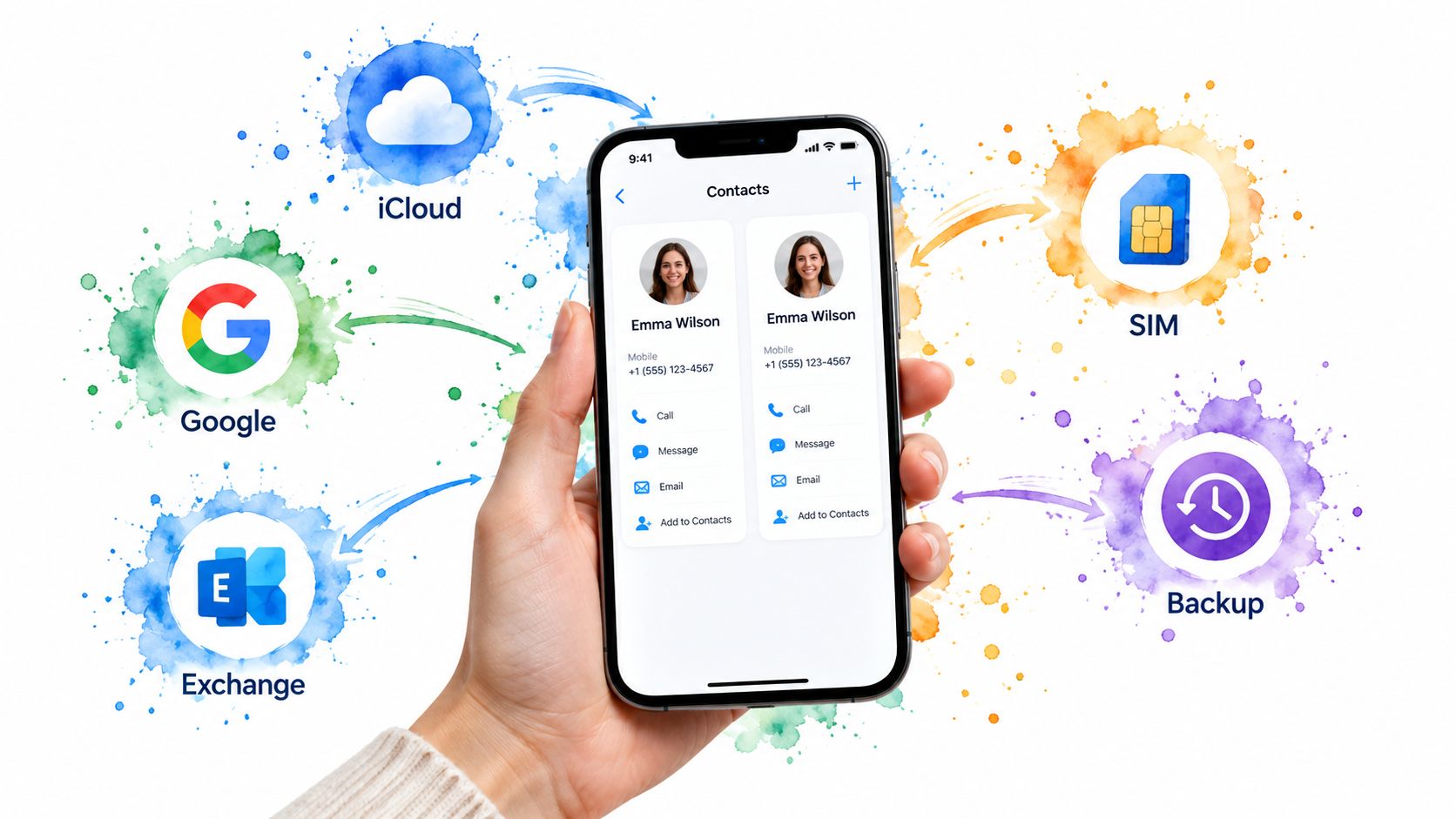
The first clue is usually obvious. A call comes in, and the same person appears once from iCloud, once from Gmail, and once from Exchange, with slightly different details. Messages may open one card, Mail may pull another, and the contact list makes it look as if the phone has lost track of who anyone is.
Where the duplicate cards come from
Apple's Contacts system treats duplicates as a synchronization and account-linking problem. When multiple accounts are active, the same person can live in more than one card, and Apple may show those cards together as one unified entry instead of deleting anything outright. Apple's own guide says contacts from different sources with the same name may be linked and shown as one entry, while unmatched contacts can be linked manually in the iPhone Contacts support guide.
That distinction matters. A tidy screen does not always mean a clean address book. The visible list can look fixed while the original records stay in their source accounts and resurface the next time sync runs.
Practical rule: if the same person keeps reappearing, check the account underneath the card first.
The work has two layers. One layer makes the list readable. The other stops the same data from being recreated when sync runs again.
Using Apple's Built-In Duplicates View in Contacts
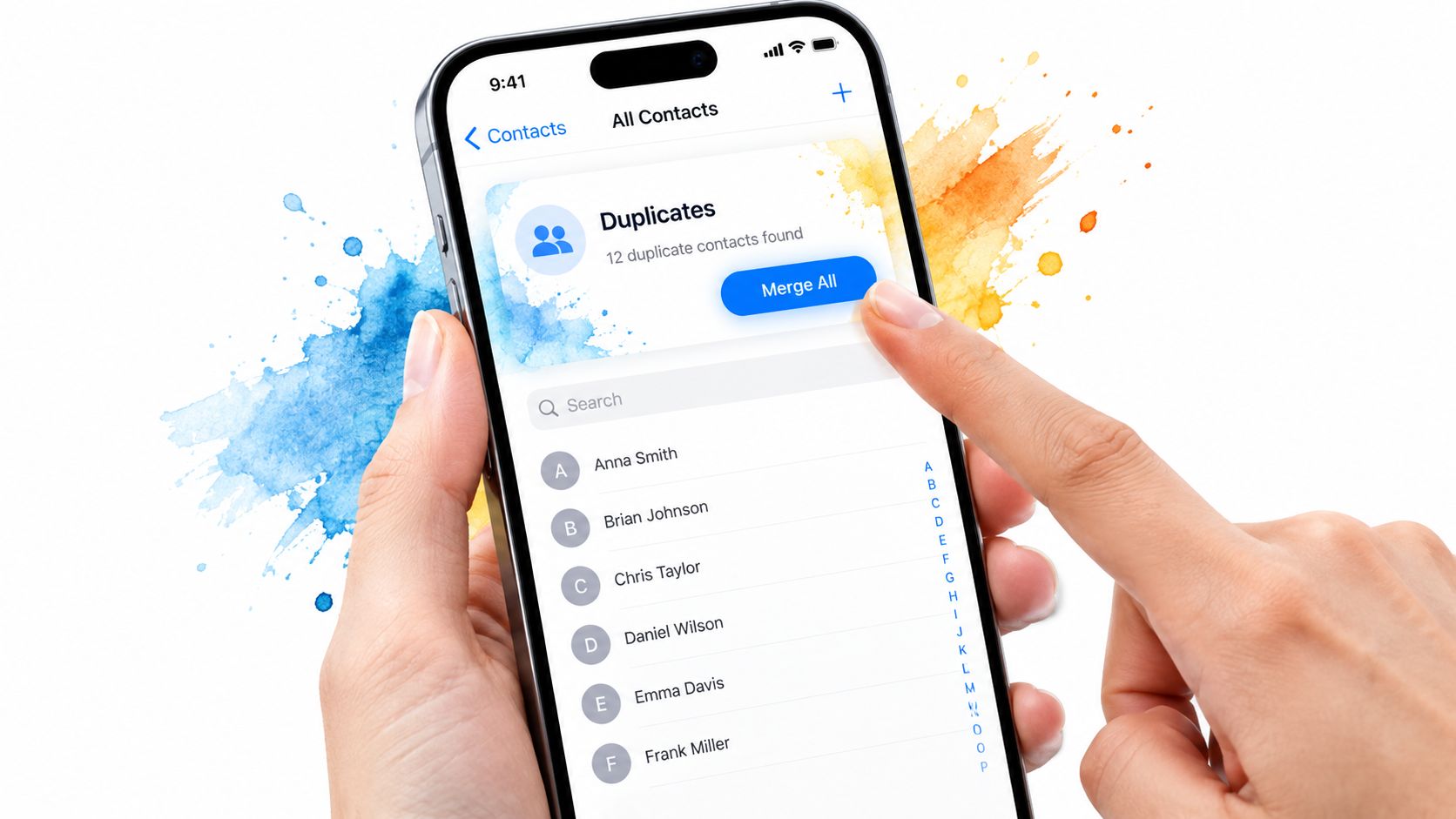
Apple's native workflow is the fastest place to start because it's already on the phone. Open Contacts, go to All Contacts, then look for View Duplicates near the top. From there, inspect the proposed matches one by one or choose Merge All if the suggestions are clearly correct, as shown in Apple's merge or hide duplicate contacts instructions.
What Apple's merge actually does
Apple's merge is conservative. It creates a unified view over linked cards, but the source records don't necessarily disappear from their original accounts. That's why the same person can still exist in iCloud, Google, or Exchange after a clean-up, even though the contact list looks neater.
The safest habit is to check the fields after the merge. Verify the phone number, email address, employer, addresses, notes, and labels before moving on. If the contact exists in one dominant account, the result is usually cleaner. If three accounts are all supplying pieces of the same person, the unified card may still leave you with a messy backend.
For people who prefer a quicker read on how long this usually takes in practice, this short LuminaClean guide on iPhone duplicate detection timing can help set expectations without guessing at the process.
When to use Link Contacts instead
If Apple recognizes the match, Merge or Merge All is enough. If you're sure two cards belong together but Apple hasn't flagged them, open one contact, tap Edit, scroll to Link Contacts, select the related card, and tap Link. That is the manual path for records Apple can see as related but won't auto-group on its own.
Linked cards can make a single entry appear in Phone, Messages, and Mail, but that still isn't the same thing as deleting the originals from the accounts that created them. The workflow is useful, but it doesn't replace account cleanup.
Linking Cards Manually When Names Do Not Match
Automatic matching is picky. Apple's matching logic leans on identical first and last names, so a nickname, transliteration, maiden name, typo, or missing surname can keep two obvious duplicates from ever showing up in the Duplicates view. That's why some address books look “clean” to iPhone and still feel obviously duplicated to the person using them.
The manual path that actually works
Open one of the two cards, tap Edit, then choose Link Contacts. Search for the related card by name, phone, or email, pick the correct match, and confirm the link. Once linked, the unified card should surface the combined details in Phone, Messages, and Mail.
A few habits reduce mistakes:
- Check the strongest identifier first: phone numbers and email addresses usually tell the truth faster than display names.
- Compare field by field: employer, address, notes, and labels can reveal whether the cards are really the same person.
- Link before you tidy formatting: a cleaned phone number or email can help future matching, but the identity check should come first.
If the wrong two cards get linked, open the contact again and unlink them before trying another pair. That correction is faster than letting the wrong merge spread confusion across Mail and Messages.
If a card looks “close enough,” slow down anyway. A bad link is harder to notice later than a duplicate that stays visible.
The most useful mental model is simple. Apple's automatic matching handles neat records. Manual linking handles real-world records, the ones with nicknames, inconsistent formatting, and old account baggage.
Stopping Duplicates at the Source with iCloud and Other Accounts
Cleaning the visible list only lasts if the source accounts stop feeding the same people back into the phone. The usual culprit is having more than one account set to sync Contacts under Settings, especially when iCloud, Google, and Exchange all stay active at the same time. When that happens, the same person can be recreated on the next sync even after a careful merge.
Audit the accounts before you clean again
Start by checking which accounts are syncing Contacts. Keep only the account or accounts that serve a real purpose, and turn Contacts off for any source that's just duplicating the same book somewhere else. Then let the list settle before running Apple's duplicates view again.
A simple order helps:
- Identify the source account for each duplicate card.
- Turn off extra contact syncing for accounts that don't need to publish contacts.
- Wait for the visible list to settle before merging what remains.
- Run the Duplicates view on the cleaner set of records.
That sequence matters because syncing and merging at the same time makes it harder to tell whether a duplicate was fixed or just hidden for the moment.
The nuclear option
For a heavily tangled address book, exporting and rebuilding can make sense, but it's the kind of move that deserves caution. Apple's Contacts app supports export as a vCard, and a full rebuild can be useful when the data is badly fragmented. If the main copy lives in iCloud, overwriting that cloud copy changes the source everyone else pulls from, so this is a last-resort cleanup, not a casual shortcut.
The fix is not “merge harder.” It's choosing a single source of truth whenever possible, then keeping the other accounts from recreating the same entries.
When to Bring in a Safe Third-Party On-Device Tool
Apple's built-in tools are private and free, but they're conservative. They assume every merge should be reviewed by hand, and that's fine until the address book gets large or the naming gets messy. A safe on-device tool follows a different pattern, it scans locally, groups likely matches, and lets the user confirm the cleanup without sending contacts to the cloud.
What to look for before trusting any app
The privacy test is simple. Does the app upload contacts? Does it require an account just to scan? If the answer is yes, that's a different trust decision than an app that processes everything locally and waits for a tap before anything changes.
LuminaClean is one example of that on-device model. It scans on the iPhone, does not require an account, and keeps the user in control of every deletion. It also includes a Merge duplicate contacts feature for people who want a local review flow instead of handing contacts to a server.
Built-in cleanup versus on-device tools
| Factor | Built-in Contacts + iCloud | On-Device Third-Party Tool |
|---|---|---|
| Privacy | Stays inside Apple's contact system | Scans locally on the iPhone |
| Control | Manual review and linking | Grouped candidates with user confirmation |
| Setup | Already installed | Separate app install |
| Matching | Strong on neat, same-name records | Better when the address book is messy |
| Backend impact | Can link cards without fully removing source records | Usually leaves source accounts untouched until the user confirms action |
For users with a single, tidy account, Apple's built-in path is often enough. For a big address book with nicknames, transliterations, and multiple sync sources, a local review tool can save a lot of repetitive tapping. A good starting point is the LuminaClean trial page if a local, confirmation-based workflow feels like the right fit.
Troubleshooting When Duplicates Will Not Merge or Keep Coming Back
When the cleanup stalls, the cause is usually boring, not mysterious. The Duplicates view may not appear because iOS isn't in a state that can compare records properly, or because no matching names were found. If the view is empty, Apple isn't seeing a pair it considers close enough to flag.
Fast fixes for the usual failures
- No Duplicates card appears: Check that the phone is signed into the right accounts and that Contacts syncing has had time to settle.
- The Duplicates view is empty: The names may not match closely enough, so use manual linking instead.
- A merge doesn't seem to stick: A source account may be read-only or still overwriting the unified record.
- The wrong pair got linked: Open the contact, unlink it, then relink the correct card.
- Duplicates keep coming back: Another sync account is still active and recreating the same entries.
The pattern here is clear. A visible fix doesn't help if the account layer is still unchanged. That's why the fastest troubleshooting step is almost always checking where the contact came from, not tapping merge again.
If the phone keeps refusing to cooperate, Apple's support steps are still the right baseline, and LuminaClean's support page is a practical backup if a local cleanup workflow is easier to manage than repeated manual linking.
A Simple Monthly Routine to Keep Contacts Tidy
A monthly pass is usually enough to stop contact clutter from turning into a repair project. Check View Duplicates, scan the syncing accounts, and review any new contacts that came in from imports, work systems, or third-party apps. That small habit catches problems while they're still easy to sort out.
Keep one source in charge
The cleanest address books usually have one dominant contact source and fewer surprises. If a person exists in more than one account, pick the source that should own the record, then keep the others from publishing the same data again. That does more than a one-time merge ever can.
A light monthly routine can look like this:
- Review Duplicates once a month so new mismatches don't pile up.
- Audit syncing accounts after work email changes, phone migrations, or app imports.
- Check recent contacts manually if they came from a system you don't fully trust.
That same habit works well for photo cleanup, too. LuminaClean applies the same on-device, user-confirmed approach to the camera roll by finding exact duplicates, visually similar photos, blurry shots, screenshots, and large videos, while keeping deletions under user control and routing removed items to Recently Deleted for 30 days.
If the phone's contacts and photos both feel cluttered, stop treating cleanup as a rescue mission. Set one calendar reminder, keep the source accounts simple, and give the iPhone a small maintenance pass before the duplicates come back.
If your contacts keep splitting across iCloud, Google, and Exchange, start by fixing the source accounts first, then use Apple's Duplicates view for the cleanup pass. If a local, on-device workflow fits better, try a tool that keeps review in your hands and doesn't upload your data, then spend one monthly checkup keeping the list from drifting again.
Clean up your camera roll in minutes.
LuminaClean scans on-device, groups duplicates, similar shots, screenshots and blurry photos, and deletes only what you confirm. Free to start, no account.